
Native HDR vs RTX HDR: What This Comparison Is About
Native HDR and RTX HDR on OLED gaming monitors are two different ways of rendering high dynamic range graphics, with native HDR relying on each game’s built‑in tone mapping while RTX HDR uses GPU‑side processing to reinterpret HDR or SDR content for richer colors, deeper contrast, and more consistent image quality across titles.
On a modern OLED gaming monitor with HDR10 support, you face a practical choice: trust the developer’s HDR implementation, or let Nvidia’s RTX HDR gaming pipeline handle tone mapping instead. If you prize consistency and vivid HDR image quality above all else, RTX HDR tends to win. If you are chasing maximum frame rate or play the rare game with near‑perfect native HDR, the built‑in mode can still make sense. In short, most OLED owners with a capable GeForce card should start with RTX HDR as their default and fall back to native HDR only when performance or compatibility demands it.
| Spec / Aspect | Native HDR in Games | RTX HDR on Nvidia GPUs |
|---|---|---|
| Where HDR is processed | Inside each game’s own HDR pipeline and tone mapping | In the Nvidia GPU driver using RTX HDR algorithms |
| Game support | Available in almost all modern HDR‑enabled games | Can be enabled for virtually every game, new or old, once Windows HDR is on |
| Image consistency across titles | Varies widely; some games look spectacular, others washed out or flat | Described as consistently richer and more balanced, often matching or beating native HDR |
| Typical look on OLED | Can deliver great results but often risks washed‑out colors or weak contrast in some games | Richer colors, deeper blacks, and more depth that align with OLED expectations |
| Performance impact | Lower overhead; uses game’s own rendering path | Adds a measurable performance hit and can lower FPS compared with native HDR |
| Setup steps | Turn on Windows HDR, then enable HDR in the game’s settings menu | Turn on Windows HDR, then enable RTX HDR under Graphics → Global Settings in the Nvidia app |
| Best for | Players who prioritize FPS or titles with exceptional built‑in HDR | Players who care more about stable, high‑quality HDR image quality than a small FPS drop |
How Native HDR Behaves on OLED Gaming Monitors
Native HDR means each game controls how highlights, shadows, and colors are mapped to your OLED gaming monitor’s HDR10 capabilities. On paper that sounds ideal, but in practice HDR image quality can swing wildly from one title to another. After upgrading to an OLED monitor with native HDR10 support, one reviewer reported that some games “looked incredible, while others appeared washed out, flat, or worse than SDR.” The OLED panel itself was not the problem; HDR‑tuned videos looked excellent, while certain games delivered milky blacks and dull highlights.
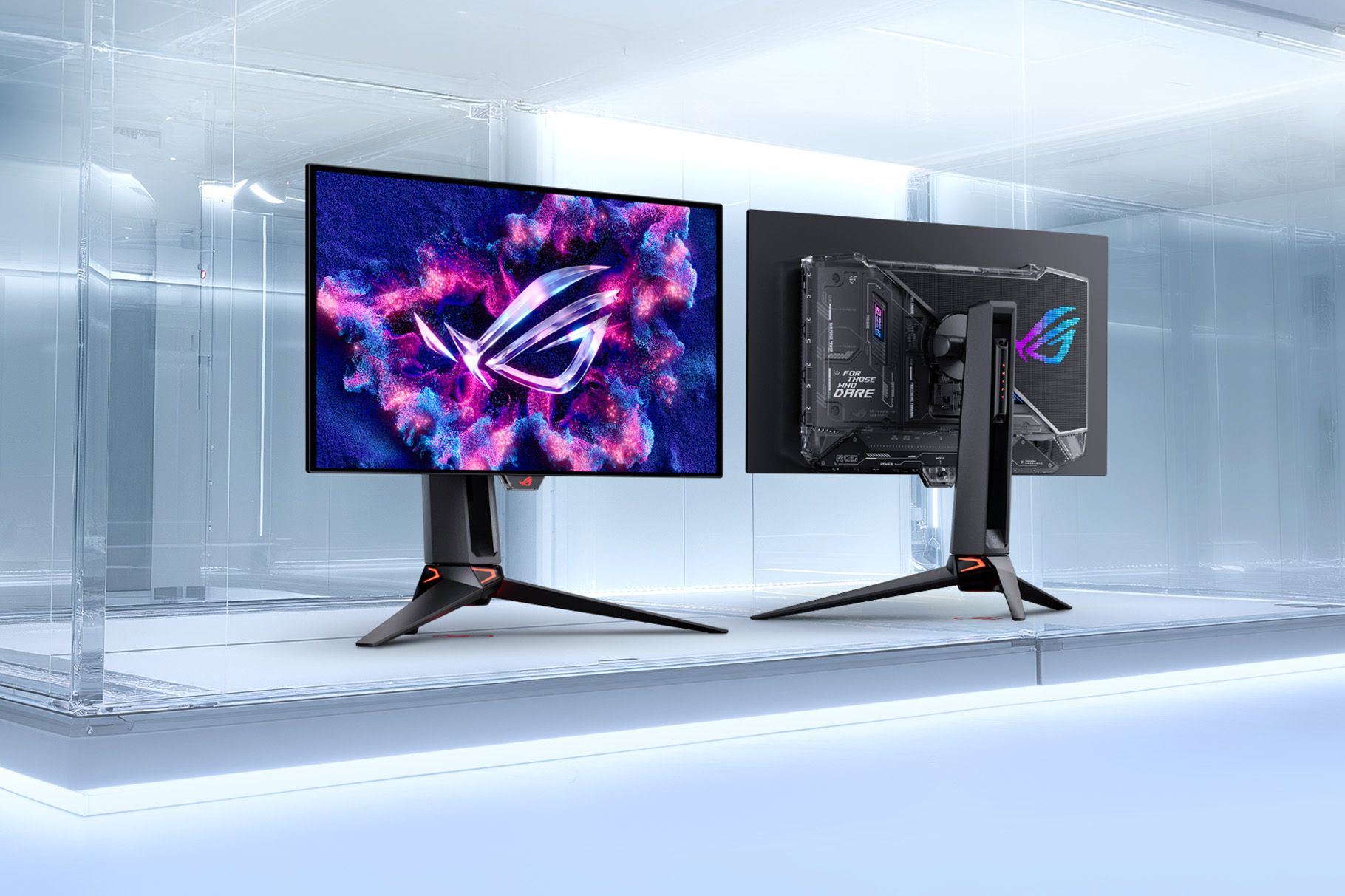
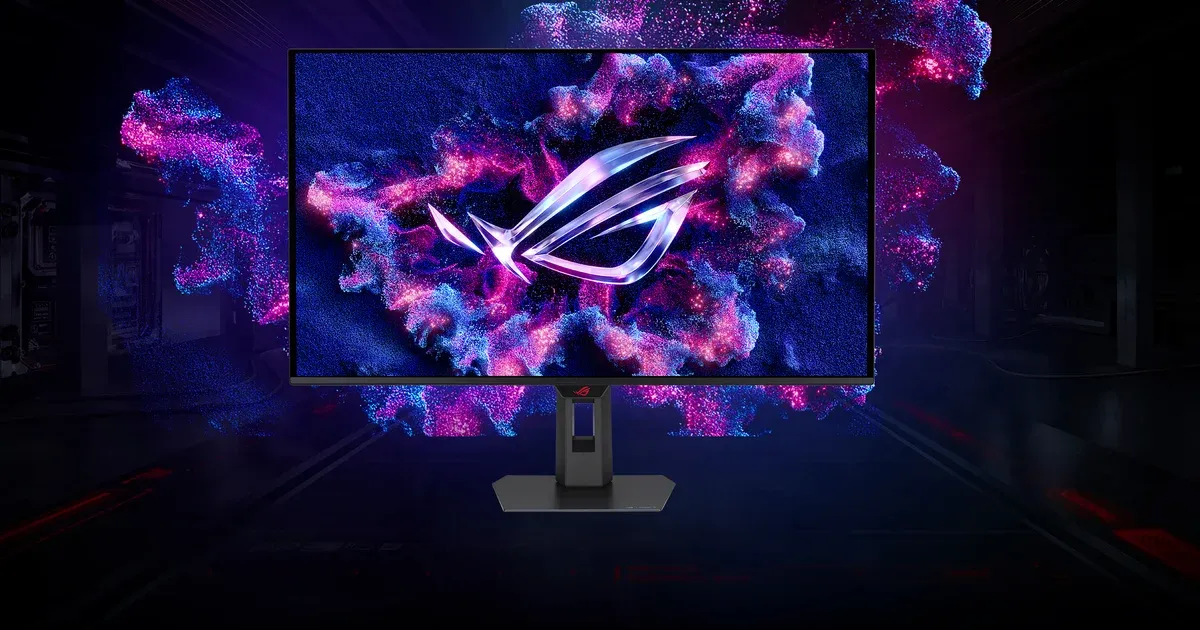
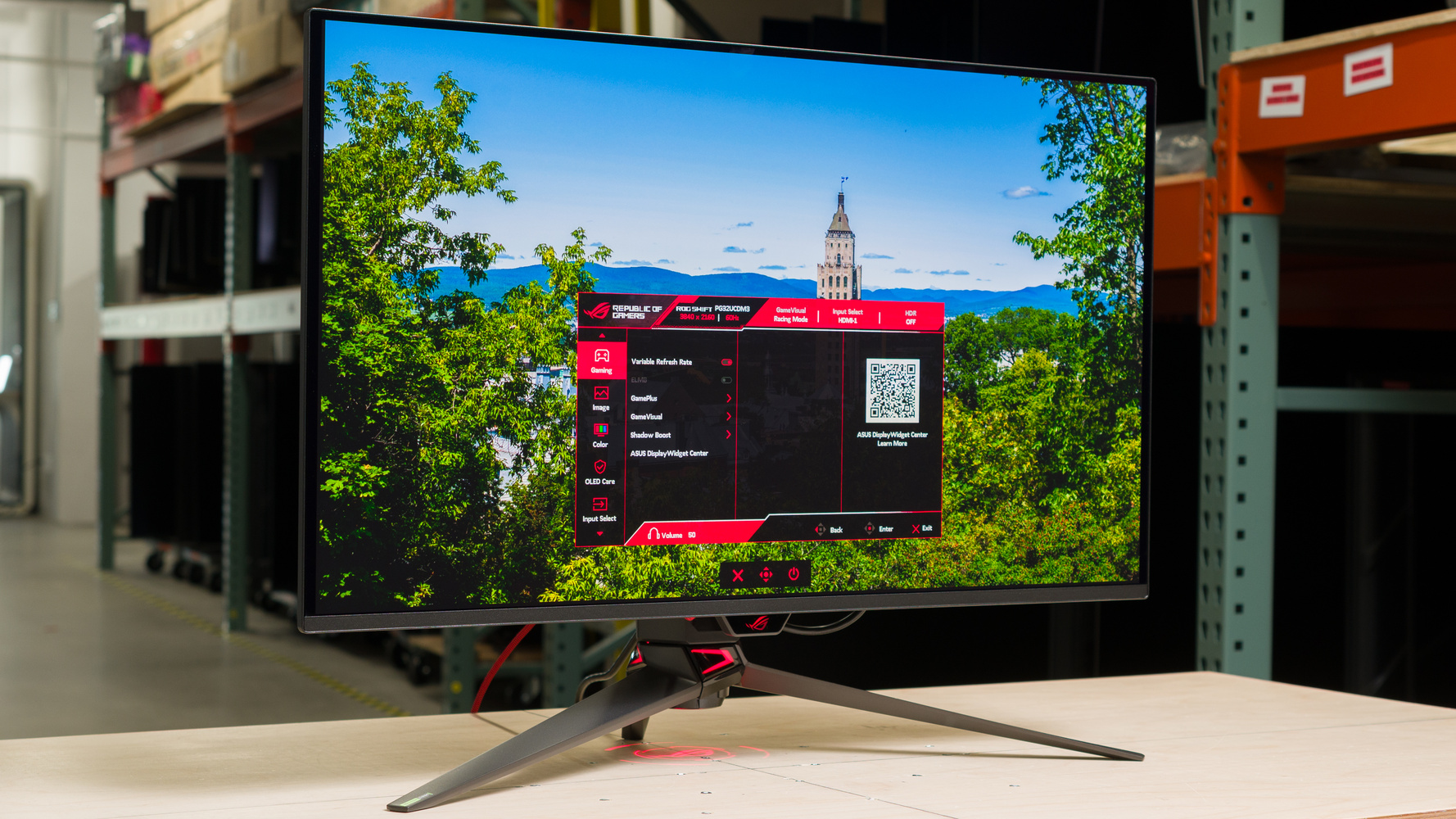
This inconsistency is the main weakness of native HDR comparison on PC. A 27‑inch QD‑OLED gaming display running at 2160×1440 and 240Hz shows how far gaming display technology has come, but it also exposes how uneven game‑by‑game HDR support still is. Some developers ship outstanding HDR, while others miss the mark, leaving players unsure whether washed‑out colors stem from the display, Windows, or the game itself. Native HDR is best when a specific title is known for strong HDR and you want to save every frame of performance.
Why RTX HDR Gaming Often Looks Better on OLED
RTX HDR gaming moves tone mapping and HDR interpretation from each individual game into the Nvidia driver, giving the GPU control over how scenes are converted for your OLED. Once Windows HDR is enabled, you toggle RTX HDR through the Nvidia app under Graphics → Global Settings → RTX HDR. According to the reviewer, enabling RTX HDR “fixed many titles – richer, balanced colors, deeper blacks; I use it for almost every game.”
The appeal is consistency: RTX HDR made both older SDR games and recent HDR blockbusters look closer to what players expect from an OLED display, with more detailed shadows that stay black, brighter yet controlled highlights, and a greater sense of depth without looking too saturated or processed. Time after time, it produced an image that looked richer and more balanced than the game’s own HDR, and across all tested titles, RTX HDR either improved on or matched strong native implementations. The reviewer even said they struggled to find a modern game whose native HDR they preferred over Nvidia’s AI‑powered alternative.
Performance Trade‑offs and Practical Setup Tips
The downside to RTX HDR is performance. Like other GPU features that enhance image quality, it introduces a measurable FPS cost compared with native HDR. In testing with a GeForce RTX 4070 Ti at 1440p, switching from native HDR to RTX HDR in multiple titles consistently reduced frame rate, though games stayed comfortably playable even with ray tracing enabled. That makes RTX HDR an easy trade‑off for many OLED owners: a bit less FPS in exchange for more reliable HDR image quality.
For setup, the sequence matters. First, enable HDR in Windows. Then, decide which HDR rendering method you want per session: either enable a game’s native HDR in its settings, or disable the in‑game HDR and switch on RTX HDR globally in the Nvidia app. Understanding these HDR rendering methods helps gamers optimize both display and GPU settings, instead of blaming their OLED when a title’s HDR looks wrong. Native HDR remains useful for performance‑sensitive competitive play or standout implementations, but RTX HDR is the better default if you value stable HDR image quality above raw speed.
Buy if / Skip if
- Buy the RTX HDR setup if you want richer colors, deeper blacks, and more consistent HDR image quality across almost every game you play.
- Skip the RTX HDR setup if your GPU is already at its limit and any extra performance hit would harm your competitive gameplay.
- Buy the native HDR setup if you mainly play a few games known for strong built‑in HDR and prefer to keep overhead as low as possible.
- Skip the native HDR setup if you are tired of washed‑out or flat HDR in many titles and do not want to tweak per‑game settings constantly.
- Buy the RTX HDR setup if you own an OLED gaming monitor and want a single HDR solution that works well for both modern releases and older SDR games.
- Skip the native HDR setup if you expect every new game to automatically deliver the same OLED “wow” factor without relying on driver‑level help.