
What “pausing Windows updates indefinitely” really means
Pausing Windows updates indefinitely is the practice of using Windows 11’s new calendar-based Windows Update controls to repeatedly delay system updates in 35‑day blocks so your PC does not install new patches until you decide to resume them manually.
If you have ever had a restart prompt pop up in the middle of work, gaming, or a live call, this feature is aimed squarely at you. A major Patch Tuesday update delivered a new Windows Update experience that lets you pause updates for up to 35 days at a time using a calendar tool, and then pause them again when that period ends. Another source explains that the Settings page now includes a button that lets you pause updates for up to 35 days—or indefinitely, as long as you press it again every month. That “indefinitely” comes with a catch: Windows will not remember your preference forever, and if you forget to re‑pause, updates start rolling in again.

How the new Patch Tuesday update changes Windows 11 update control
A recent Patch Tuesday update, also known as KB5101650, delivered a big round of improvements to Windows 11 and pushed them from insider builds to regular machines. One of the headline changes is better Windows 11 update control: you now get a calendar experience in Windows Update settings that allows you to choose an end date for your update pause, up to 35 days ahead. According to one report, “starting with this build you can stop your PC from getting updates for up to 35 days and then re‑pause updates.”
This same update also focuses on making the operating system faster, less annoying, and more stable, and brings a quieter widgets experience that reduces interruptions on the desktop. Another summary notes that this monthly Patch Tuesday update is one of the biggest of the year, bundling new recovery options, accessibility improvements, and tweaks to Windows Update behavior. All of this means that system update management is now more flexible than before, with the pause button becoming a central part of how you decide when updates land on your machine.
Step-by-step: Use the new calendar tool to pause updates indefinitely
The new calendar-based pause is the heart of this feature. The idea is simple: you use Windows 11’s updated Windows Update settings to pause updates for a 35‑day stretch, and when that period ends, you use the same control again. One account explains that the Settings page now has a button that lets you pause updates for up to 35 days—or indefinitely, as long as you manually press it once per month. Another notes that you can stop your PC from getting updates for up to 35 days and then re‑pause updates, with the downside that you have to do this again if you want to extend the pause beyond that window.
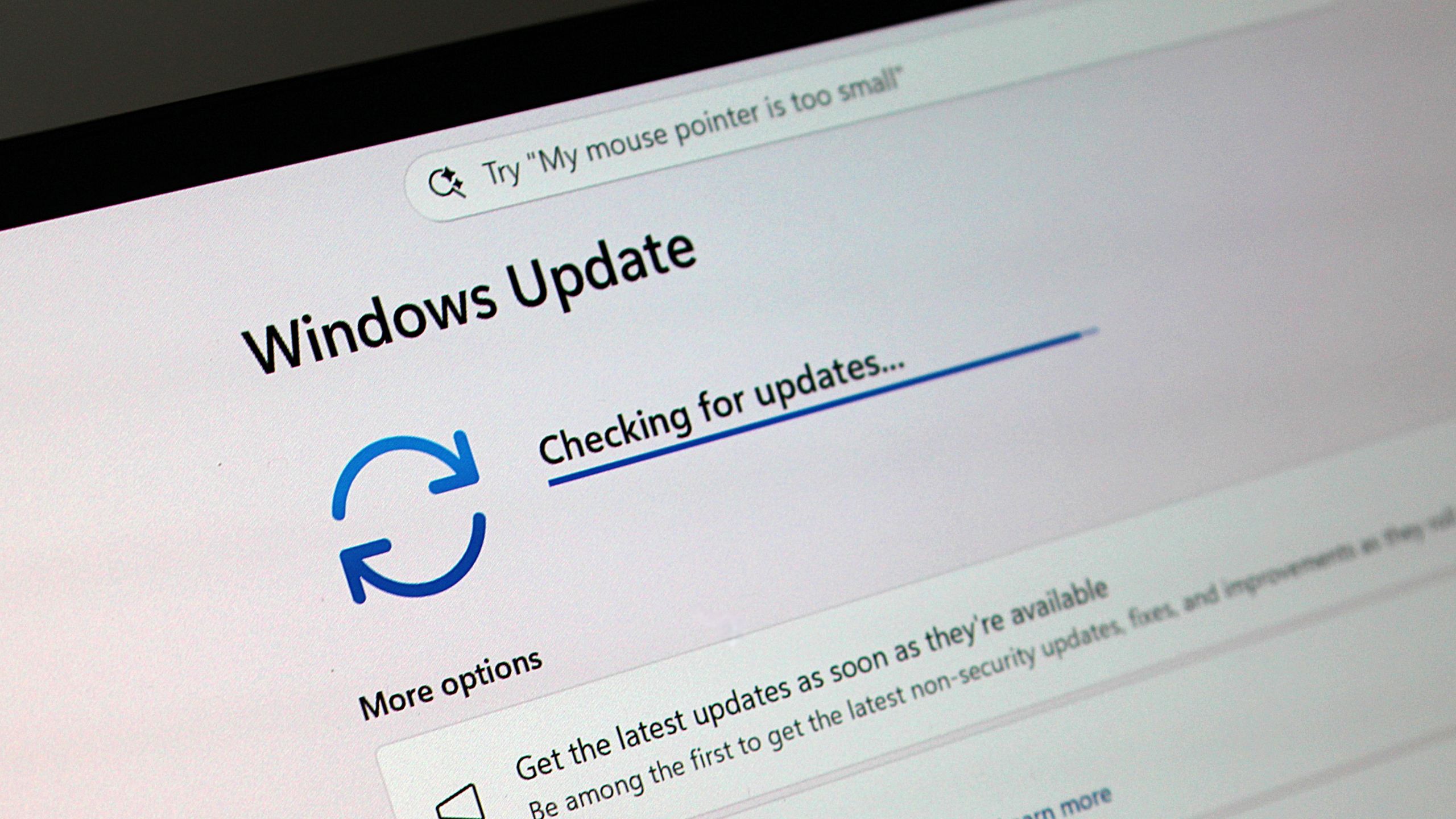
- Open the Windows Update settings page, where the latest Patch Tuesday update has added a new calendar experience for pausing updates.
- Use the calendar tool to choose an end date that pauses updates for up to 35 days into the future, applying a temporary stop to new patches.
- Let the pause period run; when the 35‑day window ends, updates will resume unless you return to this page.
- Revisit the Windows Update settings before or when the pause expires, then select a new end date to re‑pause updates for another 35 days.
- Repeat this cycle each month if you want to maintain an indefinite pause, remembering that the system will not keep blocking updates without your manual input.
The real gotcha is that “indefinite” does not mean set‑and‑forget. One description points out that the downside is needing to manually pause updates again if you want to stop them for more than 35 days. Another states that the pause can last indefinitely only if you press the button once per month. If you miss a cycle, Patch Tuesday updates and other fixes will start installing again, so system update management still depends on your habits rather than a single permanent switch.
The catch: why “indefinite” pauses demand careful system update management
Calling this an “indefinite” pause can be slightly misleading. The mechanism under the hood is still a 35‑day cap on a single pause, which you can extend only by returning to Windows Update and setting a new end date. One source explains that the Settings page button lets you pause updates for up to 35 days or indefinitely, but only as long as you manually press it once per month. Another bluntly states the downside: you must manually pause updates again if you want to stop them beyond 35 days.
This means the feature is best treated as a scheduling tool, not a permanent shield. It is ideal if you want to avoid Patch Tuesday updates landing during a busy stretch of work or when stability matters more than new features. However, one commentator also notes that they do not recommend pausing updates, especially because new tools will uncover even more flaws that need patching going forward. The practical takeaway is that understanding this catch helps you make informed decisions about update management instead of assuming your system is locked down forever.
Finding the balance: when to resume updates and keep your system safe
Even with better Windows 11 update control, pausing updates forever is rarely a good idea. The same Patch Tuesday update that adds the indefinite pause is also described as a huge step in making the operating system faster, less annoying, and more stable, bundling bug fixes and security patches as part of the monthly release. One article notes that Windows Update will automatically install this update on your PC, and that if you do not want Windows Update automatically installing anything else, the patch will let you pause them.
The key is choosing when to resume. You might pause updates around the time of a big deadline, then let the next Patch Tuesday wave roll in once your work is safe. Another writer reports that this update introduces new tools such as point‑in‑time restore for rolling back your PC to a recent working state, alongside the improved calendar experience for pausing updates. At the same time, they mention that they do not recommend pausing updates because more flaws will be found over time, so long stretches without patches can increase risk. The feature is worth using, but keep an eye on security advisories and plan to install updates regularly.