
Start with the Right Laptop, Not the Flashiest Label
A laptop buying guide is a practical checklist that explains what to look for in a laptop, warns you about common laptop buying mistakes, and helps you match budget laptop specs to the way you work so you do not waste money or end up stuck with a machine that feels slow, cramped, or outdated after only a few months. The best starting point for most people is clear: avoid the bargain-bin special and buy the first laptop that clears a sensible spec floor instead of the absolute lowest price. According to one expert guide, “cheap laptops can be useful. Bad cheap laptops are expensive,” because tempting stickers hide weak RAM, slow storage, dim screens, and short support windows that wear you down over time. Aim for at least 16GB of RAM, a solid-state drive, and a screen you can stare at for hours; anything that cuts below this to win a price war will cost you more in frustration and early replacement.

RAM, Storage and Core Specs: Your Non‑Negotiable Floor
The biggest laptop buying mistake is treating RAM and storage as optional extras instead of hard limits on what your machine can do. Memory prices are up, and brands are quietly shipping 8GB of RAM to protect margins, but that spec belongs only on the lightest-use machines: a few browser tabs, basic documents, and a very patient owner. For most people, 16GB is the sane floor that keeps multitasking and modern apps smooth over several years, while heavy creators, coders and AI hobbyists should look at 24GB or 32GB if they want breathing room. Storage is similar: treat a 512GB SSD as the baseline, and check whether it can be replaced rather than assuming an easy upgrade later. Under-USD-1,000 (approx. ₱56,000) laptops can still offer strong processors from Intel, AMD or Apple, but performance only feels balanced when memory and storage keep up with the chip. Before checkout, ask what you will do every week, then answer whether the RAM and SSD capacity match that workload today and three years from now.
Screens, Ports and Battery: Comfort and Hidden Costs
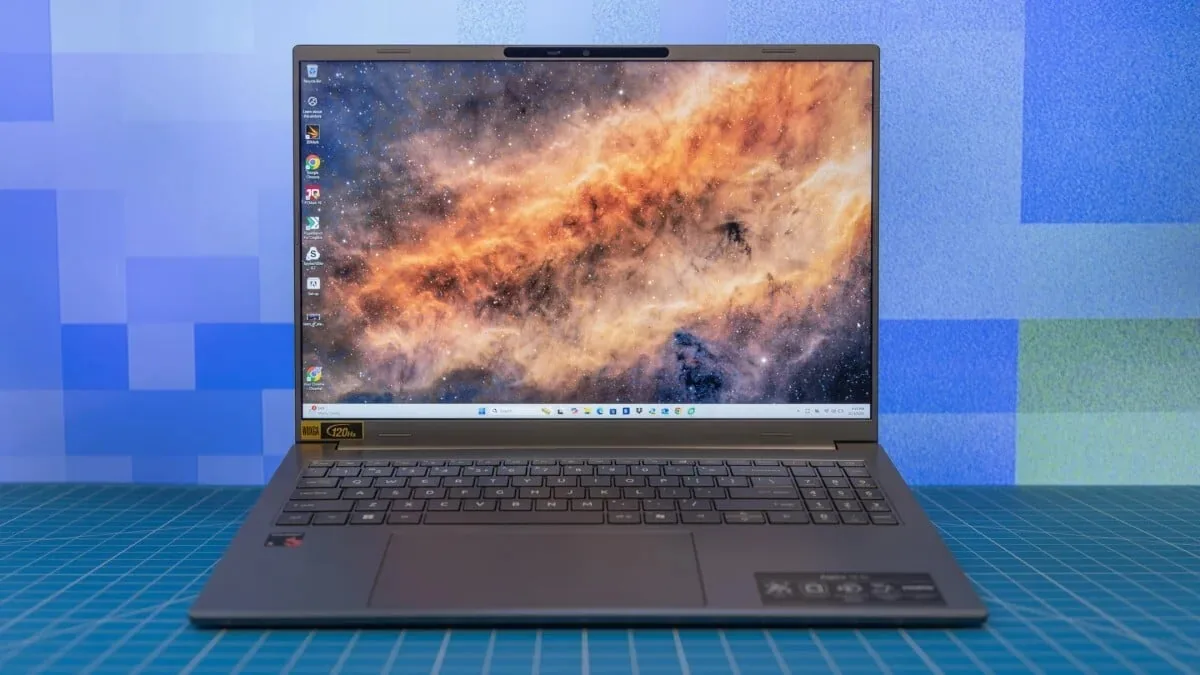
Once the core budget laptop specs are set, the next laptop buying mistakes happen where people underestimate comfort and long-term costs: the screen, ports and battery. The screen is the part you actually use, yet many shoppers ignore it because the CPU sounds exciting. Look for a bright, sharp panel shaped for how you work, since a poor display hurts eye comfort, productivity, and even resale value later. Port selection matters as much as the screen; missing ports turn every desk into dongle math and add ongoing accessory costs you never planned for. Connectivity such as USB-C, USB-A, HDMI and a reliable wireless standard should not be where you compromise. Battery life is another trap: spec sheets describe the easiest possible life, and bold claims of 20 to 30 hours should be treated as ceilings, not promises. Always cross-check independent reviews and buyer comments before believing endurance numbers, especially if you rely on your laptop away from a charger.
Ignore AI Hype, Focus on the Platform You Need
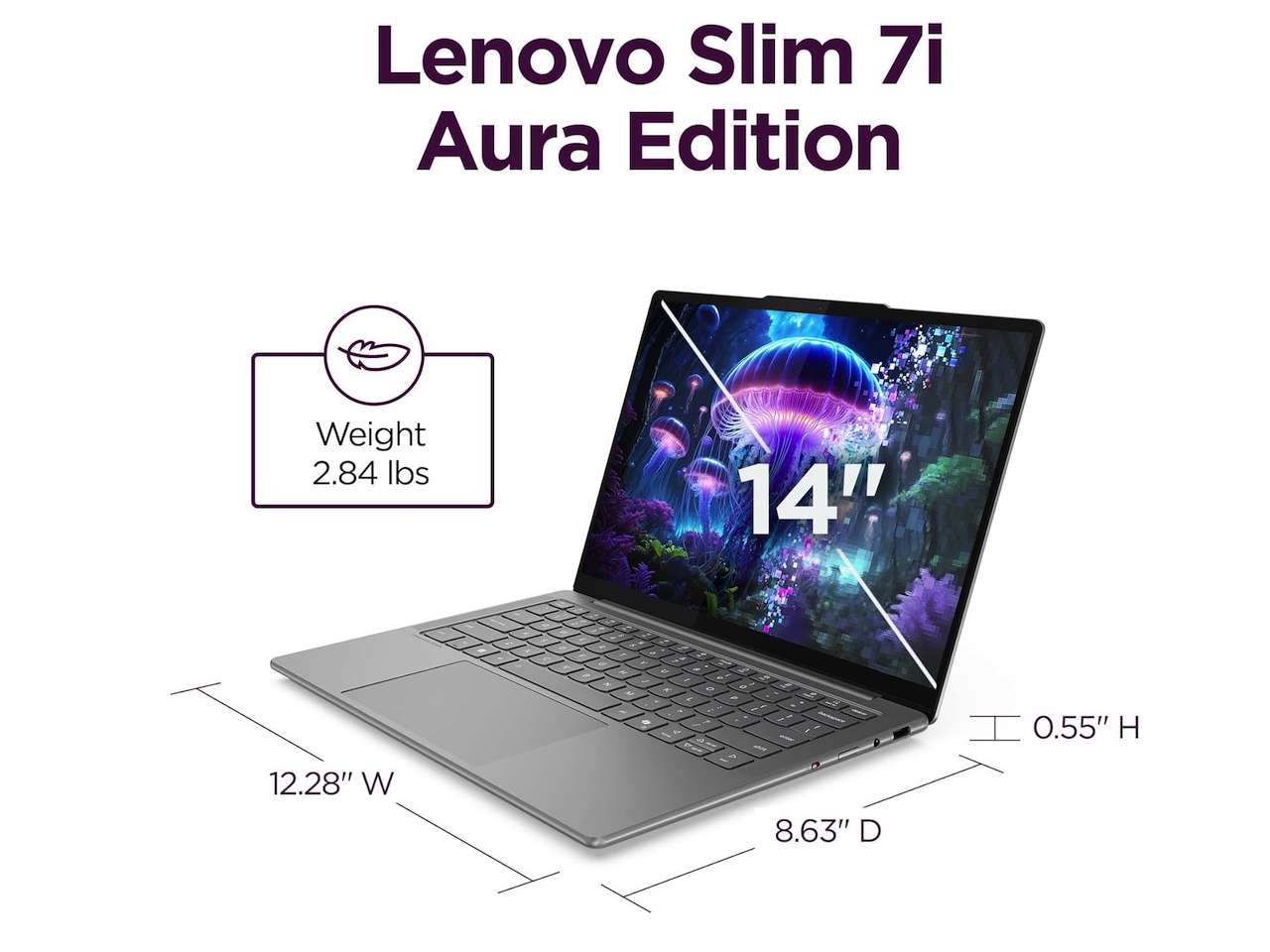
Modern laptop marketing is drenched in AI labels—AI PC, Copilot+ PC, NPU, 50 TOPS, Snapdragon X, Ryzen AI, Core Ultra—but none of these badges can rescue a bad screen, 8GB of soldered RAM or a tiny SSD. For budget buyers, chasing the flashiest AI chip is one of the costliest laptop buying mistakes because it pushes you to buy more machine than you need while skimping on essentials that matter every day. Treat AI marketing as secondary: first decide whether the platform fits your apps, whether you prefer Intel, AMD or Snapdragon, and whether you truly need a dedicated GPU or would only be paying for extra heat and weight. One detailed laptop buying guide even separates NPU AI from GPU AI, noting that Windows AI features and creator workloads depend on different hardware paths. If your typical week is browsing, office work and streaming, an AI-ready sticker adds little value; if you rely on local AI workloads or heavy creative tools, then match those needs to tested platforms instead of slogans.
Seller Traps and the 5-Question Checkout Checklist
The final laptop buying mistakes strike at checkout, when you are tired and tempted to skim the fine print. Do not. Check who sells the laptop, who ships it, whether the box has been opened for RAM or SSD upgrades, and whether the manufacturer warranty still applies. Restocking fees, warranty exclusions, and weak price-matching policies can turn a small misjudgment into an expensive return or a stuck with it outcome. This matters even more for used or refurbished laptops: demand battery health information, the exact model number, photos of the screen powered on, proof of specs, warranty status, and clear return protection; if the seller gets evasive, walk away. Before you commit, run a short laptop buying checklist: what will you do on this laptop every week, is 16GB of RAM enough or should you buy more now, is the SSD at least 512GB and replaceable, is the screen bright and sharp, does the platform fit your apps, and do you truly need a dedicated GPU. Answering those questions fully is the difference between a reliable tool and an overpriced regret.
- Buy the laptop that meets a 16GB RAM and 512GB SSD floor if you want smooth everyday performance and fewer upgrades.
- Skip the laptop that leans on an AI PC or Copilot+ label while shipping 8GB of soldered memory and a cramped SSD.
- Buy the laptop with a bright, sharp screen and the ports you need if you care about comfort, productivity and resale value.
- Skip the laptop with eye-catching battery claims if independent reviews and buyer feedback do not confirm real-world endurance.
- Buy the laptop from a seller with a clear warranty, fair return window and no evasive answers about condition or upgrades.
- Skip the laptop that only looks cheap at checkout if missing specs, ports or protections will make it feel expensive by month six.