
What the New Siri AI Is and Who Should Try It
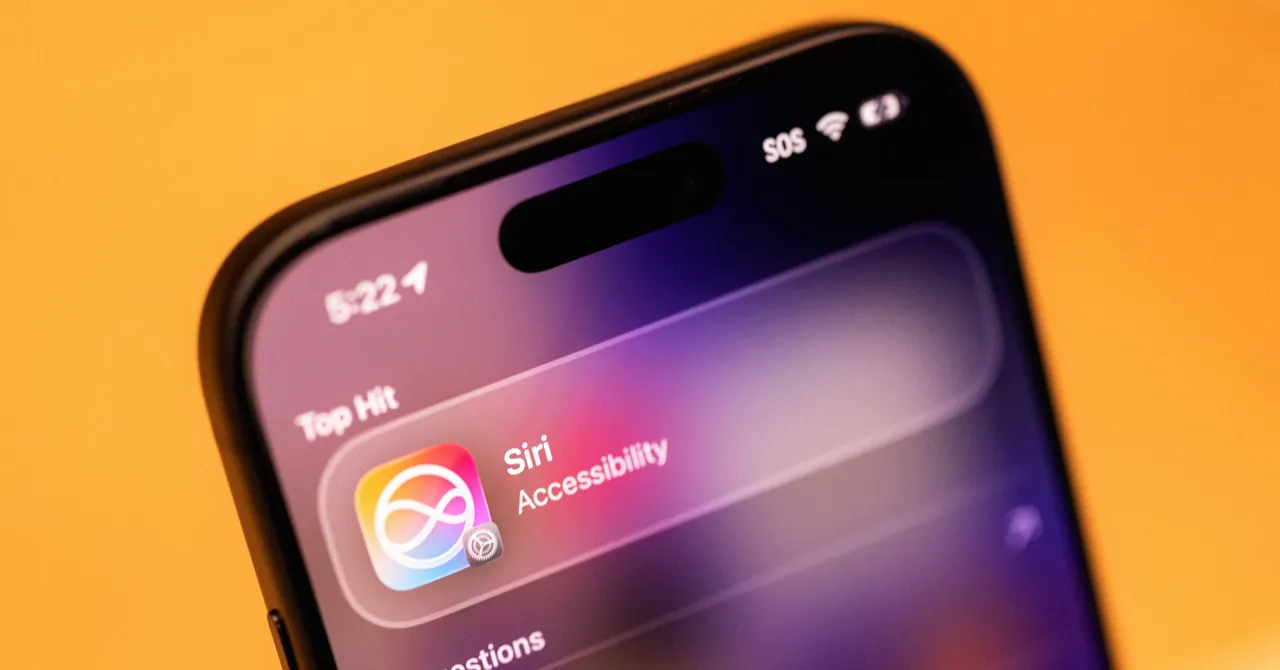
The new Siri AI in the iOS 27 public beta is Apple’s upgraded voice assistant that behaves like a modern AI chatbot, accessing on‑device information such as emails, photos, messages, and what’s on your screen to answer questions and perform tasks across your iPhone. It’s more deeply integrated into the operating system, turning Siri into a central hub for everyday actions instead of a tool you use only for spoken commands. If you enjoy experimenting with new iPhone AI capabilities and can tolerate the occasional bug, this public beta is meant for you. Before you dive in, there are two big caveats. First, Siri AI is only available on the iPhone 15 Pro and newer devices—even if you can install iOS 27, you will not automatically get the new Siri. Second, this is still pre‑release software: Apple uses the public beta so everyday users can try the assistant and help refine it ahead of launch later this fall. If your phone absolutely must behave perfectly, you may want to wait for the stable release.
How to Enable Siri AI and Control What It Learns
Once your compatible iPhone is running the iOS 27 public beta, Siri AI is meant to fade into the background and help with tasks across apps, search, and the camera. It can ground its answers in world knowledge while drawing from data on your device, similar to other modern AI assistants. That’s powerful, but it also means you should know how to control what it can learn from your apps. Think of this step as setting boundaries: you get smarter Siri AI features without feeling like every tap is being watched. Apple’s description explains that allowing Siri to learn from an app lets it make suggestions across apps, such as predicting which tool you need next or surfacing relevant content based on past behavior.
- Open Settings on your iPhone, then scroll down and tap the Siri AI section.
- In Siri AI settings, scroll until you find App Access, then tap it to view the list of apps.
- Choose the specific app whose data you want to control and tap it to open individual options.
- Toggle Learn from this App to the left if you do not want Siri to use interactions with that app to make suggestions across apps.
- Repeat this process for any other apps where you prefer Siri AI not to learn from your activity.
The expected result is that Siri AI will no longer learn from or base cross‑app suggestions on activity in any app where you disable this setting, while still working normally elsewhere. That means you can keep personalized Siri AI features—like smarter search, suggestions, and task automation—without giving it equal access to everything on your phone. This fine‑grained control is the main privacy "gotcha" to handle early, before Siri builds up more context about how you use your device.
Using Siri as a Central Hub: Search, Screen, and Messages
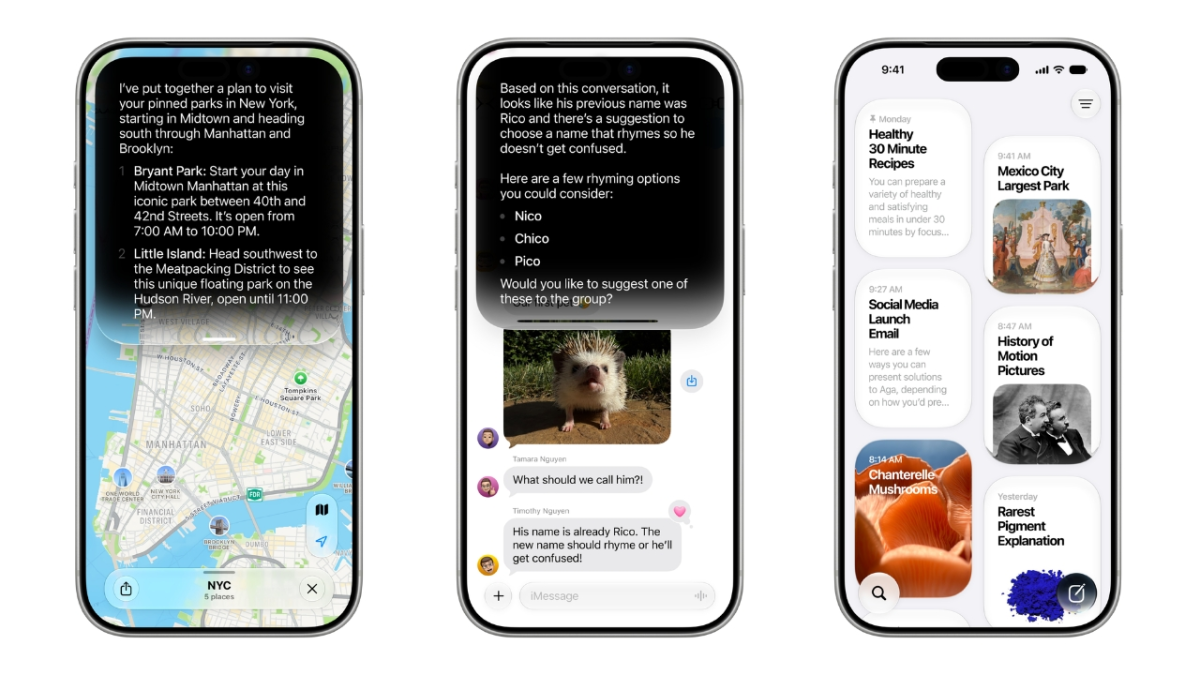
With Siri AI configured, the next step is getting comfortable using it as the front door to your iPhone tasks. The assistant is now woven into the system: you can trigger it with “Hey Siri,” the side button, swiping down from the Dynamic Island, or through the built‑in search tool. This revamped Siri is baked into iPhone search, so swiping down in the middle of the screen shows a Search or Ask bar you can type into or use with the microphone icon. When you submit a query there, Siri often steps in to answer instead of pushing you to the web. Type “What’s a good route for driving to Sacramento?” and Siri pulls up Maps with a suggested route already chosen. If you prefer the traditional search page, you can tap Show Results and treat it like classic web search. Siri’s onscreen awareness is the other big change. In addition to indexing personal context, it can read what’s visible on your display and respond accordingly. During a social feed scroll, you can ask, “Where did she say this?” while a post is visible, and Siri will infer “she” from your screen, confirm the event details, and provide links where you can read more. In early tests, this kind of context meant Siri could handle daily tasks like summarizing group texts or adding a calendar appointment sent via text without you jumping between apps.
Siri in the Camera and ‘Write with Siri’: Everyday AI Use Cases
The new Siri AI is not limited to search and screen awareness; it also shows up wherever you create or view content. In early testing, Siri was able to find specific photos in your library, summarize busy group chats, add appointments from text messages directly to your calendar, and look up nutritional information about what’s in your camera view. This is where Siri starts to feel like a practical assistant rather than a gimmick. Inside the Camera app, you’ll see a dedicated Siri tab alongside the usual photo and video options. Tap the circular button in the middle and Siri analyzes the images, then provides a short paragraph of context. If you swipe down on that paragraph, it expands into a longer answer with source links for deeper reading. The message icon on the left uploads an image to Siri and lets you add a prompt for more details, while the image search icon on the right browses the web for relevant links related to what the camera sees. For writing, “Write with Siri” appears when you draft notes or compose text messages. You tap the Siri button, describe the message you want—for instance, a text about organizing the apartment with more storage bins—and Siri writes a paragraph‑long draft that sounds similar to how you write, loading it into the message box. According to Apple, this turns its aging voice assistant into “a more capable, AI‑powered tool that can access information on a user’s device” and respond as a modern AI chatbot would.
Is the Public Beta Worth It and What Should You Watch For?
With Siri AI spread across search, camera, messaging, and system‑level tasks, it is easy to see it becoming a bigger part of everyday phone use. You can use it to find photos, summarize group texts, manage calendar entries from messages, and answer questions you might otherwise send to a browser. The whole point of early access is to let ordinary users test these Siri AI features and provide feedback before the official release later this fall. You should still expect occasional misfires. In developer builds, Siri sometimes threw error messages or misinterpreted requests—such as searching contacts for “Iran” when asked for the latest news. Overall, those betas have been fairly stable, which makes the iOS 27 public beta easier to recommend this time. If you are comfortable living with a few glitches and your iPhone 15 Pro‑class device meets the hardware requirements, trying the new Siri AI now is worth it for the productivity boost and the chance to shape how Apple’s voice assistant evolves.