
Why Phone Link Android Belongs in Your Daily Workflow
Phone Link is a Windows app that connects your Android phone to your PC so you can see notifications, messages, photos, and files on your desktop and control key phone functions without constantly picking up your handset.
If you live with one eye on your phone and one on your Windows screen, Phone Link is the tool that finally makes that bearable. Microsoft has spent years working on Android Windows integration, steadily bringing phones and PCs closer together so they feel like one combined device instead of two competing screens. That matters if your day is a mix of chat apps, photo sharing, two-factor codes, and work tools. Instead of emailing files to yourself or juggling cables, Phone Link turns your desktop into a hub for your handset content, from recent shots to texts and app alerts.
There is one catch worth knowing up front: each time you start a session, you need your phone in reach to unlock it and approve the connection, a small friction point compared with how natural the tool feels once it is running.
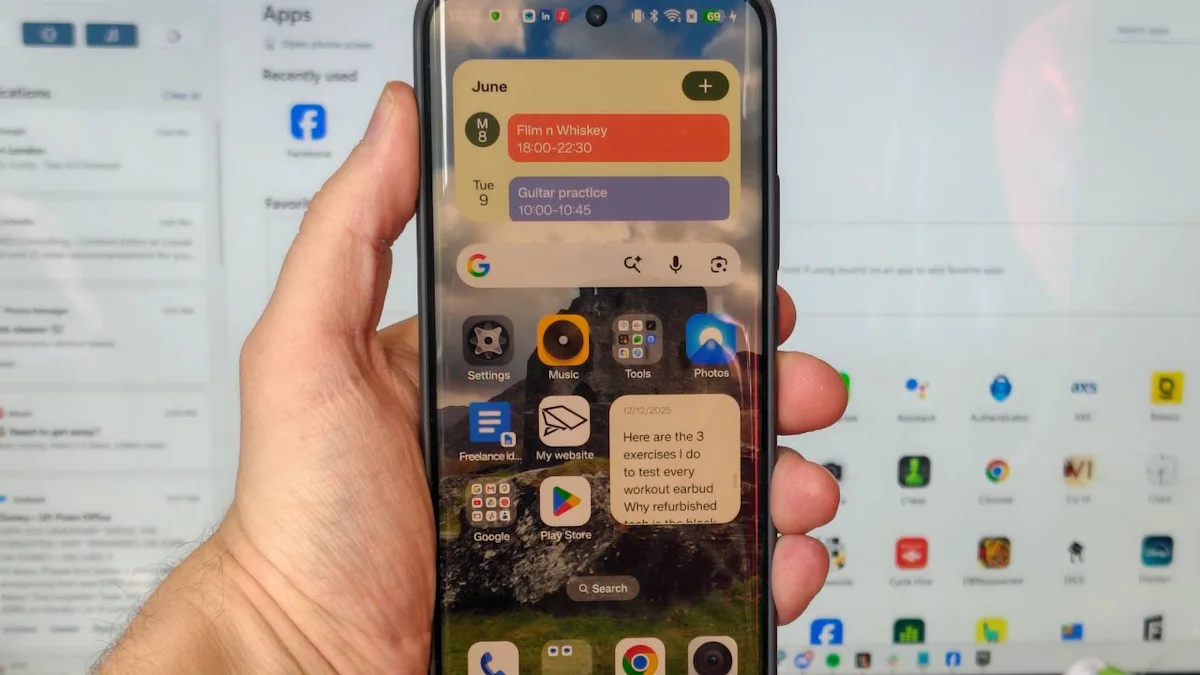
How Phone Link Changes Cross-Device Workflows
The strength of Phone Link is how much Android data it pulls onto your Windows desktop in a calm, organized way. For photos, the Photos tab shows a rolling stream of the latest images from your phone, with options to save them to your PC, open them in an editor, or share them on. Those pictures appear almost immediately after you hit the shutter, as long as your phone and PC share the same Wi‑Fi network, so you can walk from the living room to your desk and find your new shots ready to work on.
Beyond images, Phone Link also exposes your phone’s storage in a Files tab, where the device appears alongside your local and cloud drives, making it part of your normal file system instead of a separate world. Notifications sit in a dedicated list down the side, turning the app into “a veritable hub of information from your handset” that you can park on a second monitor while you work. You can handle calls and texts from the PC too, which is handy if you still rely on SMS or regular voice calls.
This tight cross-device workflow adds up; one user found Phone Link saved hours of email-checking time every day when using it as a bridge to accounts they could not open directly on their PC.
Step-by-Step: Phone Link Tutorial to Set Up and Use
You do not need much to start: an Android phone, a Windows machine with the Phone Link app installed, and both devices on the same Wi‑Fi network. From there, the setup is quick, but a few details matter for a smooth first run.
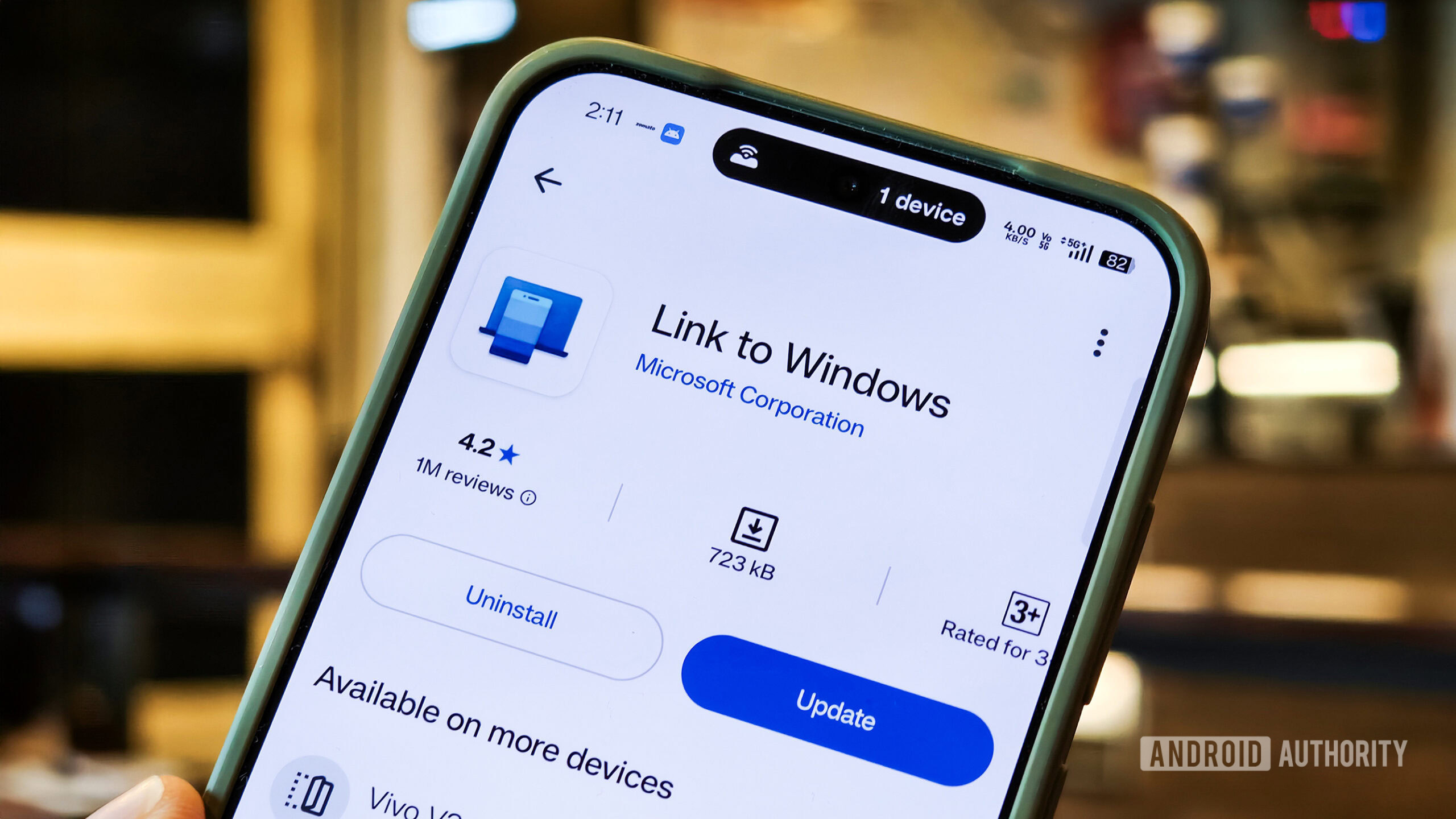
- Install and open Phone Link on your Windows PC, then follow the prompt to begin pairing with an Android phone.
- On your Android phone, install the companion app that connects to Phone Link and sign in with the same account as on your PC.
- Connect both devices to the same Wi‑Fi, then scan the pairing code or follow the on-screen instructions to link phone and PC.
- On your phone, grant permissions for notifications, calls, messages, photos, and files so Phone Link can display and sync your data.
- Back on Windows, open the Photos, Files, Messages, Calls, and Notifications sections to confirm content from your Android now appears on your desktop.
Two common snags: forgetting to connect both devices to the same Wi‑Fi (photos and data will not appear reliably), and expecting Phone Link to work with a locked, unattended phone. You still need to unlock and approve the connection each session before the workflow becomes seamless.
Where Microsoft Is Taking Android–Windows Integration Next
Phone Link is not standing still. Microsoft is exploring deeper Android Windows integration so the experience feels more native to the desktop. One planned upgrade is a dedicated smartphone flyout on the taskbar, showing your phone’s status and quick toggles like do not disturb, vibrate, and find phone, plus the option to drag files directly to a phone icon. That would make moving content feel as natural as sending something to a USB drive.
Clipboard syncing is also set to become more capable. Right now, the link between phone and PC only remembers the last copied item, but Microsoft is working on syncing the entire clipboard history between both devices. For anyone who bounces between chat apps, emails, and documents on two screens, that could cut even more copy‑paste busywork from the day. A dedicated messaging app on Windows is also in development, breaking messages out of the main Phone Link window into their own focused experience.
All of this points in the same direction: turning Phone Link into the backbone of cross-device workflows, so your phone’s content feels like part of Windows instead of a separate island.
Is Phone Link Worth Building Your Hybrid Setup Around?
Once Phone Link Android is dialed in, it stops feeling like an app and starts feeling like the normal way your phone and PC work together. One reviewer described reaching a point where Phone Link had become such a natural part of their cross-device workflow that they forgot it was something they manually installed in the first place. That is the goal: fewer micro-interruptions and faster handoffs between devices when you are juggling hybrid work and personal tasks.
There are trade-offs: you still need your phone nearby to approve each session, and if your Wi‑Fi is shaky, photo and file sync will suffer. But those annoyances are small compared with the time you save not digging for cables, emailing attachments to yourself, or constantly picking up your phone to check notifications. According to one power user, “this is a small price to pay for the transformational effect it’s had on my workflow — and I hope that you, too, consider giving it a try.”
If you already live in front of a Windows screen and rely on Android, Phone Link is no longer optional—it is the glue that keeps your devices working as one.