
What Windows 11 Insider Features Are and Who Should Try Them
Windows 11 Insider features are experimental updates and tools released in preview builds that let everyday users test upcoming changes—like new recovery options, cleaner search, and taskbar customization—months before they arrive in the stable version of Windows 11, giving you an early look at how the system will evolve and a chance to benefit from usability improvements ahead of time.
Think of Insider builds as a public test lab: Microsoft pushes new ideas here first, then decides what graduates into the main release based on feedback. According to Microsoft’s Windows and devices leadership, the current plan is “to raise the bar on Windows 11 quality this year, with a focus on performance, reliability, and well-crafted experiences.” That means these previews are less about flashy novelties and more about fixing long-standing complaints, from rigid taskbars to noisy search. If you’re comfortable with the chance of minor bugs and you have a secondary PC, Insider builds can be a safe way to try the future of Windows ahead of everyone else.
Why Cloud Rebuild is the Quiet Hero of These Updates
Among the latest Windows 11 Insider features, Cloud rebuild stands out as the one you hope you never need—but will be grateful for if your PC misbehaves. It adds a new option to the Windows Recovery Environment (WinRE) that can download Windows 11 installation files and drivers directly from Microsoft’s servers and perform a clean installation without a bootable USB drive, custom recovery image, or access to the desktop. In practice, this means that when your machine stops starting properly, you can rebuild it from the cloud using the “Cloud rebuild” entry under WinRE’s Troubleshoot page, as long as the device is compatible and connected to the internet.
The main caveat: Cloud rebuild wipes the drive as part of its fresh install workflow. So regular backups still matter, and you should treat this as a last-resort recovery path, not a casual tune‑up. On commercial devices joined to Microsoft Entra environments, backup and restore policies are even enabled by default to make bouncing back to a familiar desktop smoother when a device is reset or replaced. The real win here is peace of mind: if your operating system goes sideways, you no longer need another PC and USB stick handy to get back to a working Windows.
- On a working Windows 11 PC, enroll it in the Windows Insider Program and choose the Beta or Experimental channel so you can receive Insider builds.
- After your PC updates, confirm Cloud rebuild is available by booting into the Windows Recovery Environment (typically through advanced startup) and opening the Troubleshoot page.
- In Troubleshoot, look for and select the “Cloud rebuild” option, then verify the listed Windows 11 version, edition, and language match what you want.
- Connect the device to a reliable wired or wireless internet network if it isn’t already, since Cloud rebuild must download installation files and drivers from Microsoft’s servers.
- When you are ready, click Install; Windows will erase the drive and perform a clean OS and driver installation via the cloud, returning the PC to a factory‑fresh state.
Cleaner Windows Search Improvements You’ll Notice Every Day
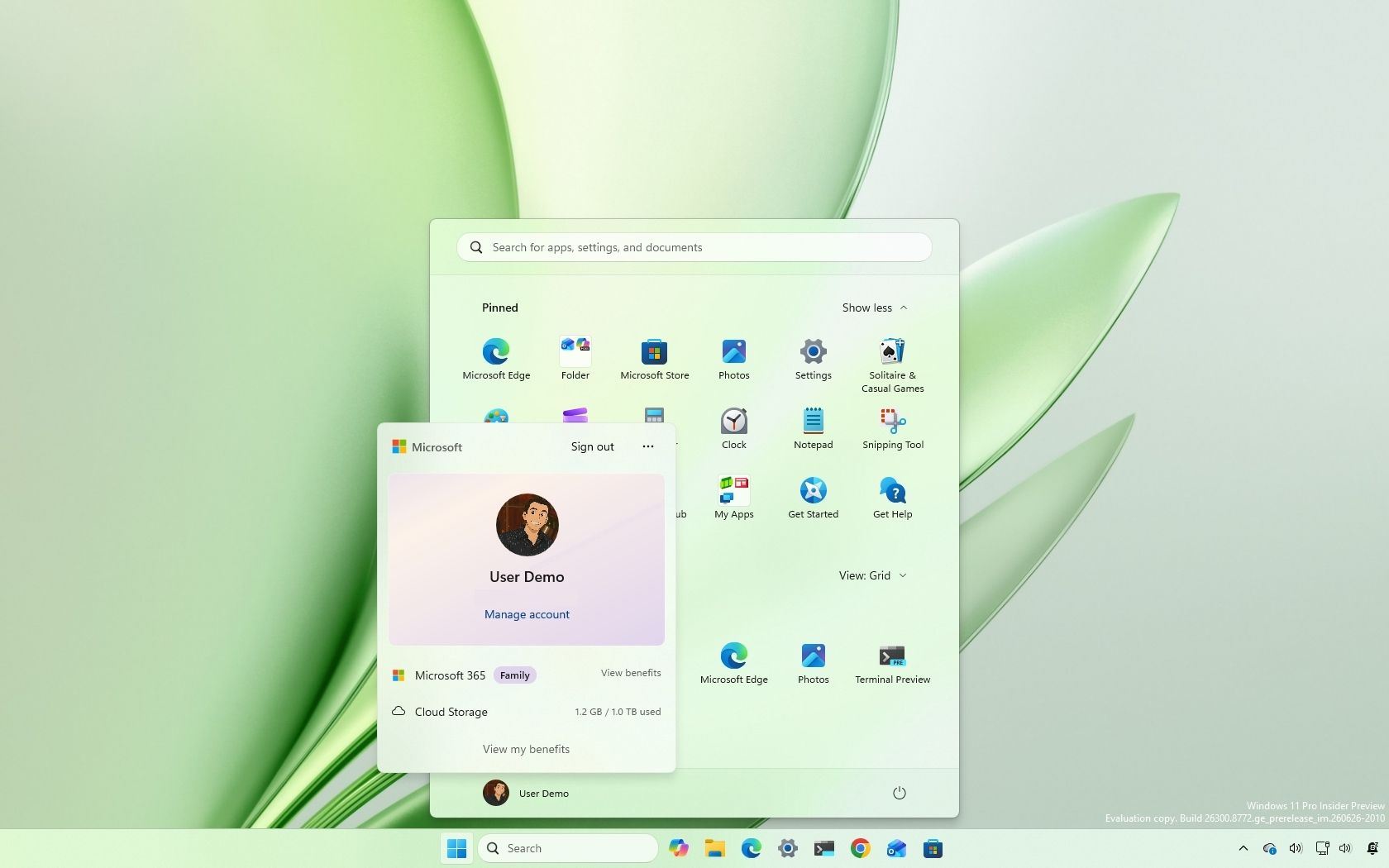
If Cloud rebuild is the emergency parachute, the revamped Windows Search experience is the daily quality‑of‑life upgrade. Insider builds introduce a decluttered search home screen that focuses on what you care about: your recent searches. Trending content, visual clutter, and those annoying ads are removed, which makes the search box feel less like a billboard and more like a quick launcher. When you type into the Start menu, Windows now prioritizes local content—apps, settings, and files—over web and Store results, so the thing on your machine is more likely to appear before something online.
In addition, new controls in Settings make it easier to turn off Bing web results and Microsoft Store suggestions from the Start menu, giving you more say over how noisy or quiet search should be. This focus on local results also tends to feel faster, because the system spends less time blending web content into every query. It’s a small change, but when you hit the Windows key dozens of times a day, a cleaner, ad‑free interface and smarter rankings quickly become one of those improvements you wouldn’t want to give up.
Taskbar Customization: Moving, Shrinking, and Reclaiming Your Workspace
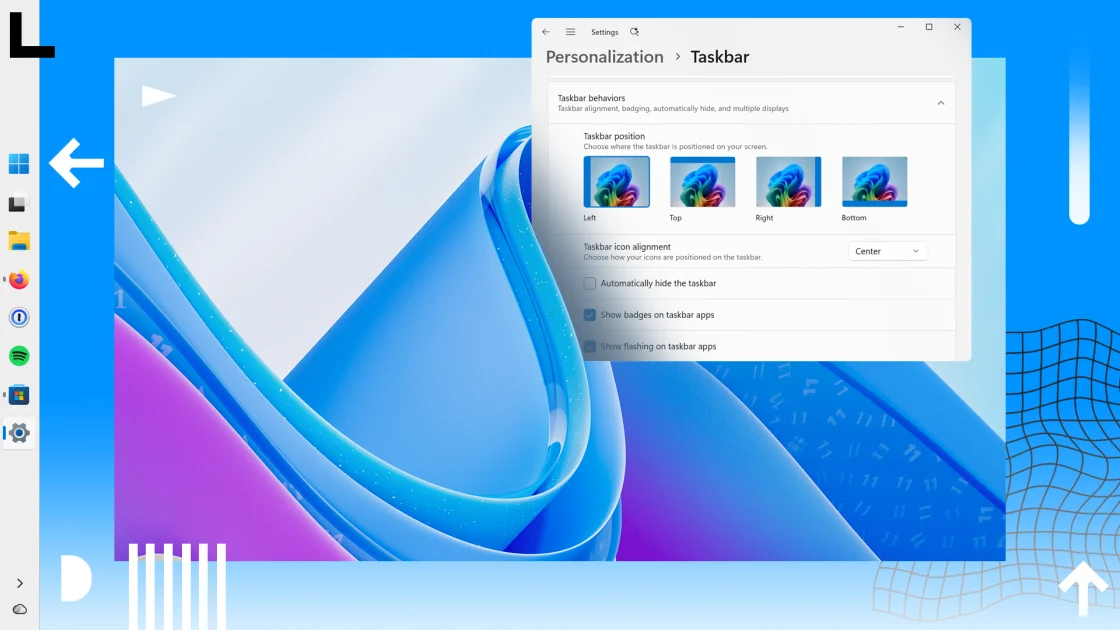
Windows 11’s fixed, chunky taskbar has been a common complaint since launch, and Insider builds finally start to loosen it up. You can now move the taskbar to the top, left, or right edges of the screen instead of being stuck at the bottom, using the Taskbar position setting under Settings > Personalization > Taskbar > Taskbar behaviors. Flyouts, tooltips, and animations follow the new orientation, so the experience still feels coherent. On ultrawide monitors, a vertical taskbar with labels becomes a sidebar‑style launcher that can make better use of horizontal space.
There’s also a new way to reclaim screen real estate: the existing “Show smaller taskbar button” option now shrinks the whole taskbar, not just the icons, when set to Small. This matters if you prefer less UI chrome and more room for actual apps. Together, movable and resizable options give you more direct control over how your workspace is organized, which aligns with Microsoft’s broader push to improve Windows 11’s usability instead of merely adding features. If you’ve missed the flexible taskbar from older Windows versions, these Insider tweaks feel like a step back in the right direction.
Is Joining the Windows Insider Program Worth It Right Now?
Early July’s Insider builds make a strong case that Microsoft is finally addressing long‑running Windows 11 complaints with cumulative improvements: safer recovery through Cloud rebuild, calmer search, and more adaptable taskbars. Opting into Insider builds gives you a chance to try these changes ahead of their expected arrival in a future 26H2 update, and to see how they fit into your daily workflow. The trade‑off is clear, though—preview channels can have bugs, crashes, or features that change or disappear before reaching stable releases, so they’re best suited to secondary machines rather than mission‑critical PCs.
If you’re the friend who gets asked to fix everyone’s computers, or someone who cares about a cleaner Windows experience, joining the program can be worth the mild risk. The key is to treat Insider builds as a test bench: keep backups, watch release notes, and be ready for tweaks between versions. Do that, and you’ll gain earlier access to meaningful improvements while helping nudge Windows 11 toward a more reliable, less frustrating future.