
What Smartphone Macro Photography Gives You (Without Extra Gear)
Macro photography with a smartphone is the practice of using your phone’s built‑in cameras and software to focus at very short distances so you can record crisp close‑up detail capture of tiny subjects like flowers, textures, insects, and everyday objects without needing specialist lenses or external gear. This is worth learning if you enjoy noticing small details and patterns in the world around you but don’t want to buy a dedicated camera system. The main caveat: your phone’s limitations in low light and very small subjects will show quickly, so expectations matter. Modern flagship phones, and even many mid‑range models, include macro photography smartphone features directly in the camera app, often through a mobile macro mode or close‑focusing ultra‑wide lens. Higher‑end phones from leading brands tend to perform better overall, but the quality gap is closing when you shoot in good light. The most important piece in this puzzle isn’t your phone, though—it’s you as the photographer.
Know Your Phone’s Native Macro Tools
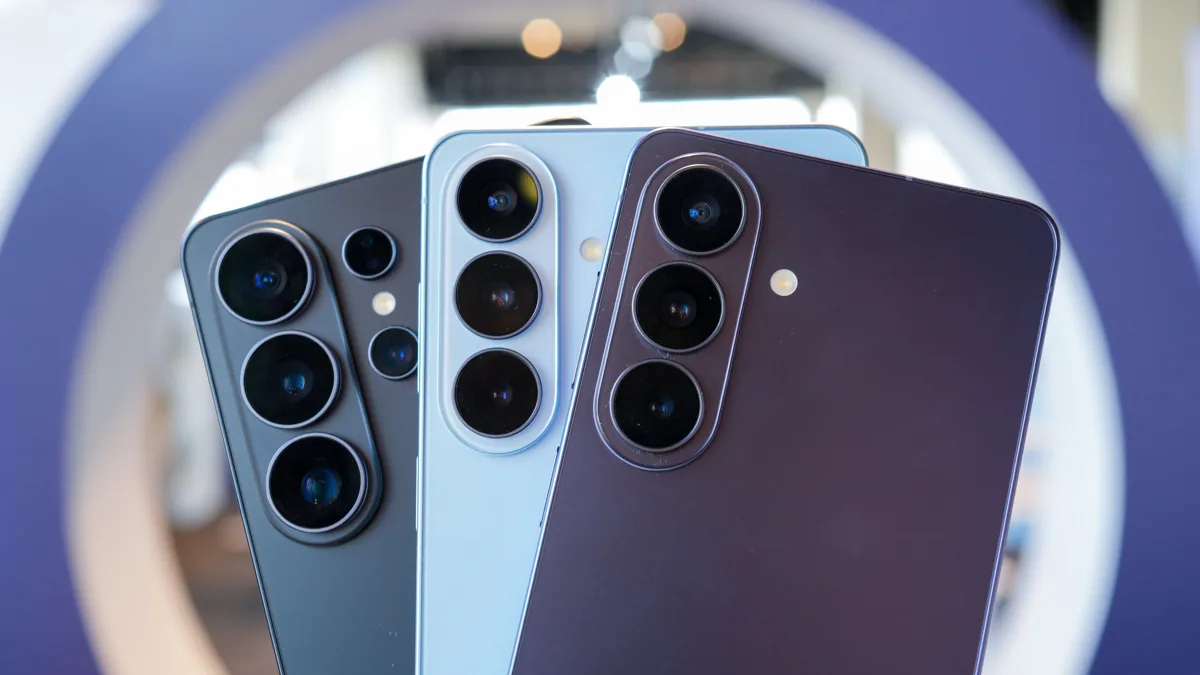
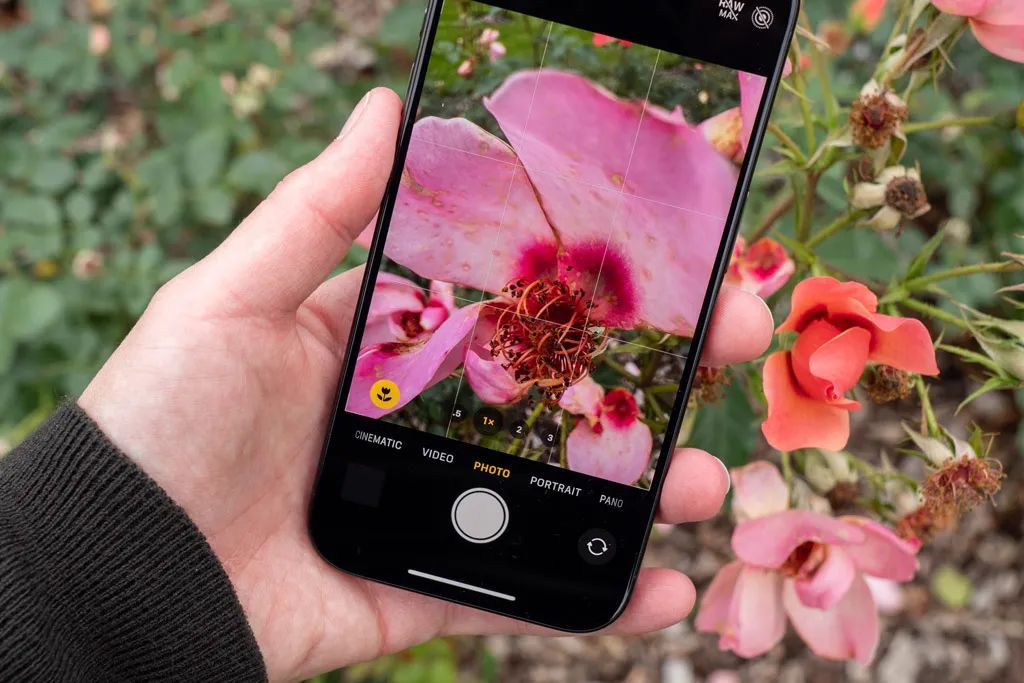
Before you start experimenting, spend a few minutes learning how your specific phone handles macro. Most modern camera phones use the ultra‑wide‑angle camera for macro work and automatically switch to macro mode when they detect you moving in close to a subject. On some models, this can mean being able to focus as close as a couple of centimeters from your subject while the phone crops to a natural‑looking field of view. There are exceptions: a few phones use their telephoto lenses for macro work instead of an ultra‑wide, and others add a dedicated macro camera—though low‑resolution macro cameras around 2 megapixels tend to be poor performers in practice. Flagship phones lead the way here, but recent generations have brought viable macro functionality to mid‑range devices, and older high‑end phones can be smart budget choices if they include native macro support. Whatever you own, learn how to turn macro mode on or off and how close you can focus before you design your shot.
Step‑by‑Step: How to Capture Sharper Close‑Ups
- Find a small subject in good light and clean the phone’s lens so dust doesn’t soften fine details.
- Open your camera app, move in slowly until macro mode or the ultra‑wide close‑focus option activates, or manually select mobile macro mode if available.
- Stabilize the phone with two hands or by bracing it against a table or wall, then tap on the most important detail to set focus.
- Adjust your composition: try angles from the side or slightly above, leave breathing room around the subject, and avoid cluttered backgrounds.
- Take several shots, subtly varying distance and angle, then review and discard soft images so you keep the sharpest close‑up detail capture.
These smartphone macro techniques sound simple, but this is where most people run into the main gotchas. At very close distances, even tiny movements blur the shot; stabilizing the phone and taking multiple frames helps you beat that. Light is equally important because small sensors need plenty of it to deliver crisp detail without motion blur or noise. If your macro mode switches to the ultra‑wide lens and the image quality drops in dim conditions, disable macro focusing and step back slightly to use the main camera instead; you may still get a strong close‑up for larger subjects. For subjects that aren’t extremely small, Portrait mode can mimic shallow depth of field with the main camera, giving you a pleasing macro‑style look while avoiding the weaker lens.
Use Light, Composition, and Editing to Push Quality Further
Once you’re comfortable with the steps, start refining light, composition, and editing. Since sensors that capture more light in less time give you sharper photos, treating light as a core part of macro photography smartphone work matters more than chasing megapixels. Indoors, move near a window or add a small continuous light; outdoors, aim for bright shade or overcast conditions rather than harsh noon sun. Composition is where your personal style shows. Look for strong lines and repeating patterns, keep distracting elements out of frame, and use angles that reveal texture. Then lean on your phone’s post‑processing tools or third‑party apps: many camera phones now include AI‑assisted editing that can refine detail, remove distractions, and improve color after the shot. According to one expert review, recent phones from major brands pair powerful camera hardware with editing tools like object removal and advanced zoom features to help images look their best even when your technique isn’t perfect.
Is Smartphone Macro Worth Investing Time In?
If you enjoy noticing small details, macro photography with your smartphone is absolutely worth the effort. You don’t always need specialist equipment for close‑ups because the best camera phones are now very capable in this area, and built‑in macro functionality has made its way from flagships into mid‑range devices. Skipping to a previous‑generation high‑end phone that supports macro can also be a sensible way to get strong close‑up performance without chasing the latest model. The main thing to watch for is how your phone behaves in low light or when switching between lenses. Some macro modes rely on sensors that output softer images when the light drops, and extremely low‑resolution dedicated macro lenses rarely deliver satisfying results. But if you work with good light, pay attention to focus and composition, and use editing tools to clean up your shots, you can create professional‑looking close‑up detail capture from the camera phone you already own.