
Before You Tweak: What the iOS 27 Public Beta Is Really Like
The iOS 27 public beta is unfinished iPhone software that lets you try new Apple Intelligence and Siri AI features early, but it also brings bugs, performance hiccups, app incompatibilities, and battery drain that everyday users must be ready to troubleshoot on their own.
If you’re the kind of person who installs betas, you probably want new Siri AI tricks and deeper Apple Intelligence integration before everyone else. In return, you sign up for iOS 27 beta problems like random app crashes, glitchy Wi‑Fi, and battery life that feels worse than on the stable release. According to one source, “bugs, performance issues, and app compatibility problems are all part of the experience.”
There are a couple of non‑negotiables before you dive in. You need to enroll in the Apple Beta Software Program with the Apple Account you use on your iPhone, and you should keep 10GB to 15GB of free storage so installs and background tasks don’t choke. Also, always back up on a stable iOS version before installing the beta, so you can restore if things go badly.
Core Troubleshooting: One Sequence to Stabilize a Misbehaving iPhone
Most iOS 27 beta problems fall into a few buckets: crashes, freezes, battery drain, or radios misbehaving. Before you chase more specific battery drain solutions or try to fix app crashes one by one, it helps to run through a single stabilizing routine. Think of this as your “reset the table” move whenever the phone feels off.
- Restart and update: Restart your iPhone, then go to Settings > General > Software Update and install the latest iOS 27 public beta build.
- Update apps and clear space: Open the App Store and update all apps, then make sure you have at least 10GB to 15GB of free storage on your iPhone.
- Wait for indexing: If you’ve just installed or updated the beta, give the phone 24–48 hours to finish indexing files, optimizing Photos, and processing Apple Intelligence tasks.
- Force restart if frozen: If the iPhone freezes, becomes unresponsive, or gets stuck on the Apple logo, quickly press and release Volume Up, quickly press and release Volume Down, then press and hold the Side button until the Apple logo appears.
- Check the result: After reboot, confirm that the phone unlocks normally and basic features like calls, messages, Wi‑Fi, and key apps are working; in many cases, a force restart is enough to restore normal behavior.
This sequence matters because betas are moving targets. Installing the latest build and app updates pulls in crash fixes, while giving the phone up to 48 hours lets background indexing settle so performance and battery look more normal. The force restart step is your safety net—if the phone ever appears “bricked,” this procedure often brings it back without a full restore.
Battery Drain and App Crashes: Targeted Fixes That Usually Work
Early iOS betas are famous battery hogs, and iOS 27 is no exception. After a big update, the system is busy re‑indexing Spotlight, analyzing your Photos library, syncing iCloud data, and running Apple Intelligence features in the background. That extra CPU work explains why your phone warms up and the battery slides faster, especially over the first couple of days.
After those 24–48 hours, if battery drain still feels off, open Settings > Battery and see which apps are burning the most power. Update anything with pending App Store updates, lower screen brightness, and use Low Power Mode when you need to stretch the day. If one app is way out of line, uninstall and reinstall it; that often helps until the developer ships proper iOS 27 support. This is the heart of most battery drain solutions: eliminate misbehaving apps, then keep an eye on brightness and heavy workloads like gaming or long video recording while charging.
For crashes, especially with banking, messaging, or work apps, the playbook is simple but effective. Update the app, force close it, and reopen it. If it still crashes, restart your iPhone, and if that fails, delete and reinstall the app. If only one app is affected, the issue is likely that app’s compatibility with the beta rather than iOS itself, so you may need to wait for the developer. That’s the reality of trying to fix app crashes on pre‑release software.
Wi‑Fi Glitches and Siri AI Bugs: Keeping Connections and Voice Control Stable
Networking and voice features are deeply tied into iOS, so when the beta wobbles, you feel it as Wi‑Fi drops, Bluetooth pairing issues, or Siri acting confused. Some users report Wi‑Fi disconnects, AirDrop failures, and wireless CarPlay problems after updating to the iOS 27 public beta. Fortunately, the same few network tools solve a lot of this.
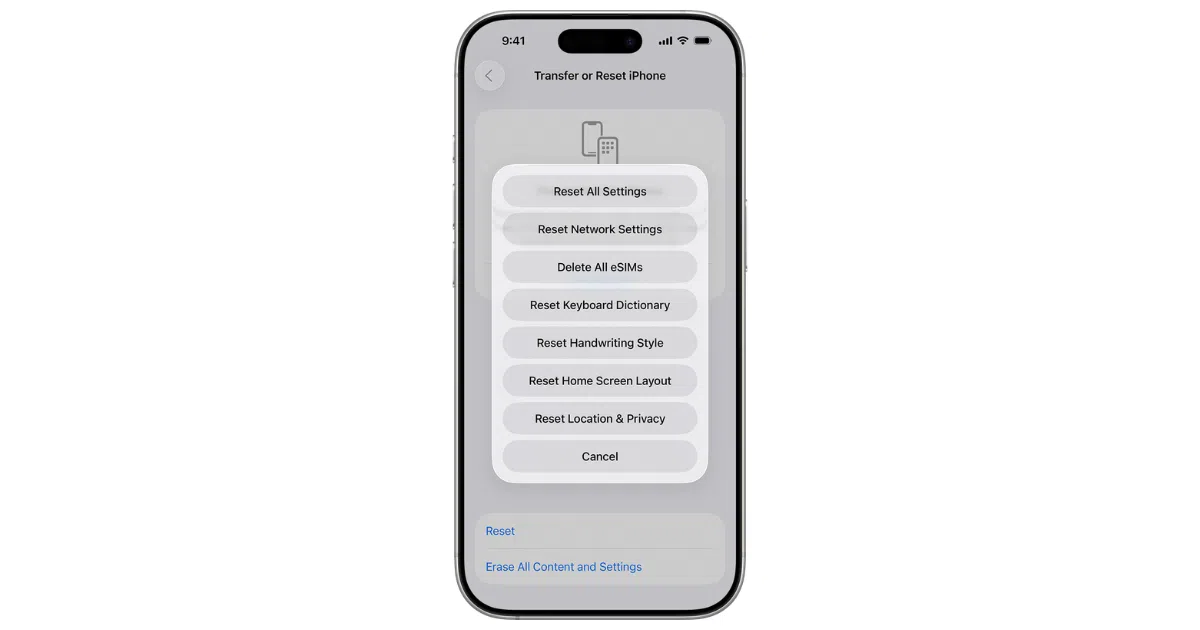
Start with Airplane Mode on your iPhone for about 30 seconds, then turn it off, and restart both the phone and the accessory or router. Forget the Wi‑Fi network or Bluetooth device, then reconnect from scratch. If problems continue, go to Settings > General > Transfer or Reset iPhone > Reset and tap Reset Network Settings, then enter your passcode. This wipes saved Wi‑Fi passwords, VPN details, and Bluetooth pairings, so you’ll need to sign back into networks afterward, but it often clears stubborn beta connectivity bugs.
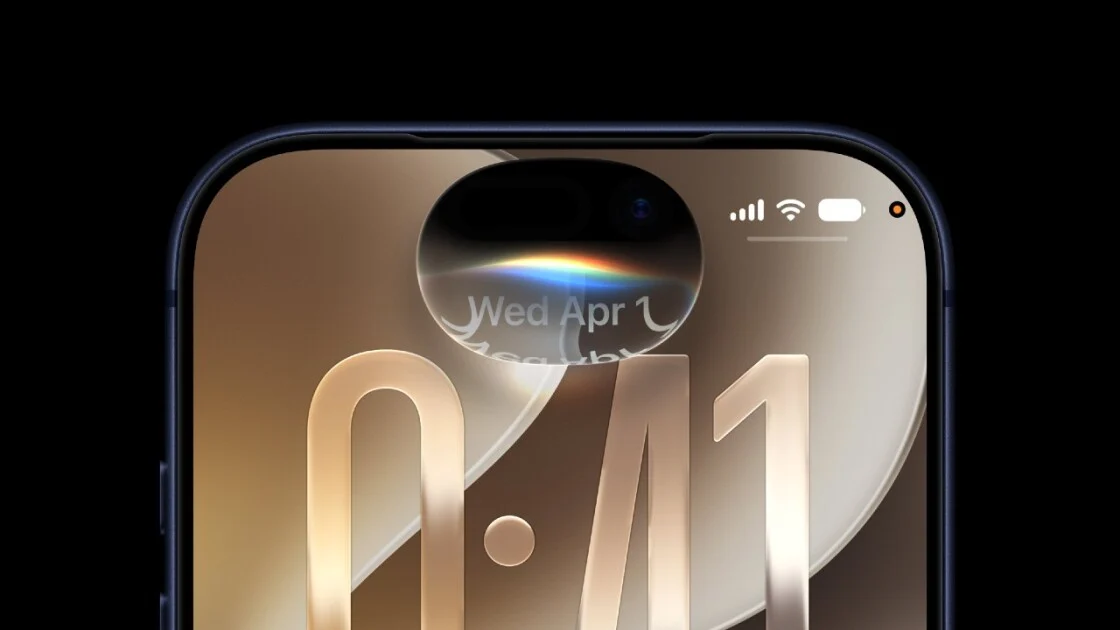
On the Siri side, the iOS 27 public beta includes an AI‑powered Siri, now integrated across the phone and accessible via a dedicated app and the Dynamic Island. That deep integration means Siri AI can misbehave while the beta is still in flux. If Siri stops responding or feels unreliable, open Settings > Apple Intelligence & Siri, turn Siri off, restart your iPhone, then turn Siri back on. Also check that you have a working Wi‑Fi or cellular connection, because many Siri AI requests still rely on the internet.
When to Downgrade and Whether the Beta Is Worth the Hassle
The main payoff for dealing with iOS 27 beta problems is early access: you can try the revamped Siri AI, Write with Siri, Wallet’s new Insights, and updated RCS chat behavior before the stable release. For many enthusiasts, experimenting with these features on day one makes the occasional crash or hiccup feel like a fair trade.
Still, there is a line where this stops being fun. If your iPhone crashes multiple times a day, battery life stays poor after several days, or essential work and banking apps fail even after following this beta troubleshooting guide, it might be time to step back. You can downgrade to the latest stable iOS by restoring your iPhone with a Mac or Windows PC. Before you do, make sure you have a compatible backup from a stable iOS version; otherwise, you may have to set the phone up as new after restoring.
The takeaway: install the iOS 27 public beta only on a device you can live with being imperfect, always keep backups from the stable channel, and treat the force restart, network reset, and app update steps as your standard toolkit. Handle it that way and the beta is less a headache and more an interesting testbed for Apple’s next wave of features.