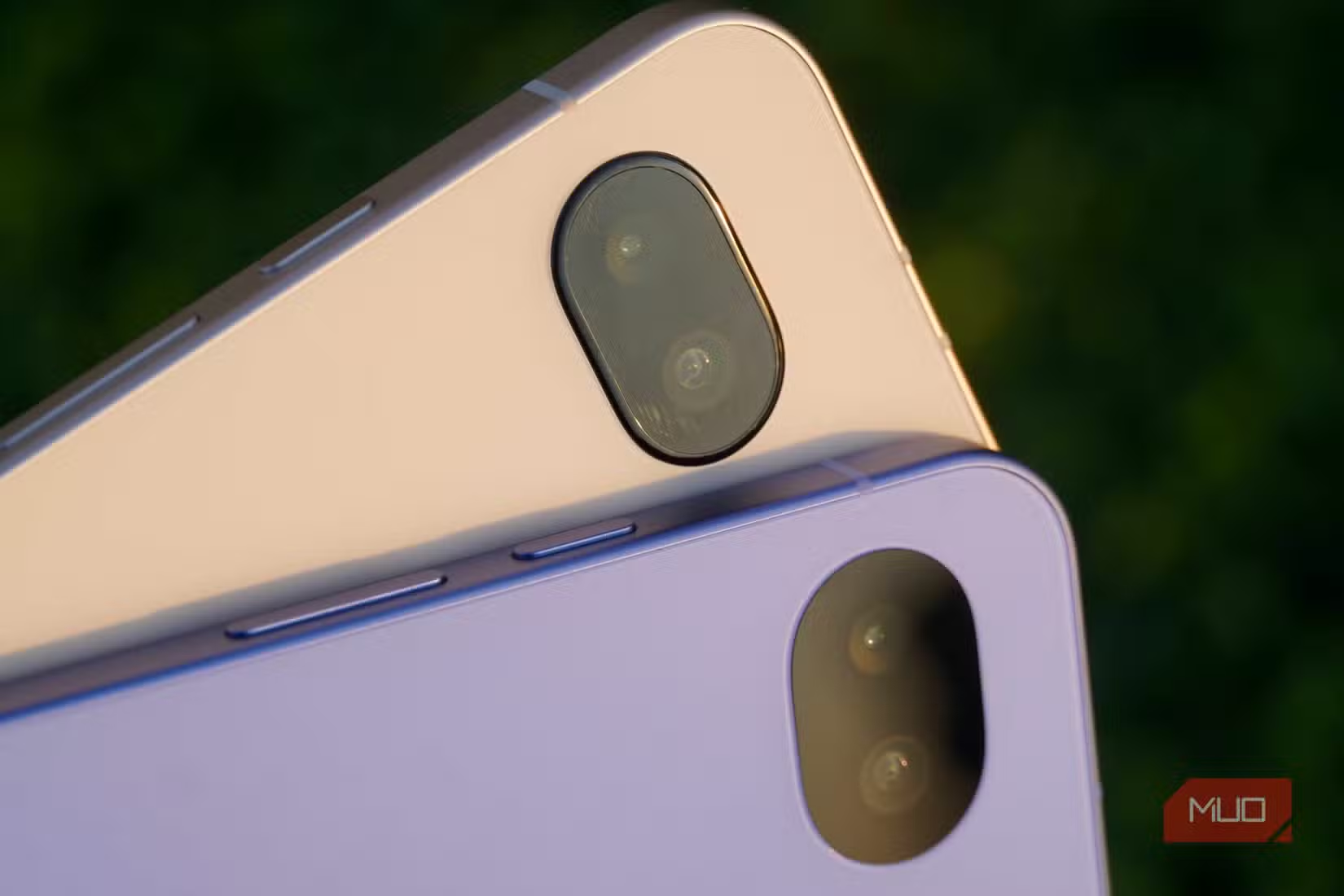

Pixel AI Camera Features Are About Editing Less, Not Shooting More
Pixel AI camera features are intelligent tools inside the Pixel Camera app that use on‑device models and computational photography to stabilize performance, capture balanced exposure and color, and enhance detail so everyday photos look finished straight out of the phone instead of needing heavy edits later. The point isn’t to drown you in modes; it’s to make the phone feel like a dependable camera that quietly does the technical work in the background. When that happens, your editing workflow changes. You stop thinking in terms of “fix it later” and start shooting with confidence that the file you get is already close to final. In my experience, the biggest time savings don’t come from flashy new tricks, but from four specific AI‑driven capabilities that keep the camera stable, expose scenes sensibly, and add detail that you would otherwise chase in an editing app.

1. Reliability Fixes: The Invisible AI Upgrade That Saves You From Re‑Shoots
The most underrated “feature” is that the camera now stays out of your way. Recent updates tackled two long‑standing pain points: random camera crashes and freezes when switching zoom levels during video recording. On warm days or during long shooting sessions, older Pixels could heat up enough that the camera app shut down right as you were about to catch an important moment. If you record video near heat sources, the app could also freeze mid‑zoom and force you to stop and start over. For everyday photographers, those failures translate into lost shots and extra editing to salvage whatever you did manage to capture. With the fixes in place, you can trust the camera to keep running, which means your workflow shifts from “shoot backup clips, fix in post” to “shoot once, edit lightly.”
To see the benefit, stress‑test your camera before you rely on it: take photos in warm conditions, switch zoom levels during video, and observe how it behaves over a typical day. That small preparation is the concrete action that pays off. If your Pixel holds steady when hot or zooming, you can safely plan simpler shoots with fewer redundant takes. If you still experience instability, you know to keep critical sessions short and avoid mounting the phone directly above intense heat, such as a stove where rising steam and temperature used to trigger freezes. In short, a reliable camera dramatically reduces the number of repair jobs in your editor; stability is an editing feature, even if it doesn’t show up as a button.
2. Computational Photography: Getting Finished‑Looking Photos On Capture
Where Pixel earns its reputation is in how its computational photography engine treats everyday scenes. The native Pixel Camera app is designed to deliver detailed, natural‑looking photos and videos with minimal effort, combining AI‑powered features like Night Sight, Super Res Zoom, and Camera Coach with advanced controls for enthusiasts. Instead of pushing over‑saturated colors or harsh sharpening, it aims for a balanced, realistic look. According to Pixel Camera documentation, the goal is that “photos and videos look detailed and natural with minimal effort” from the user. In practical terms, that means exposure, white balance, and contrast are handled on the fly. You spend less time correcting blown highlights or muddy shadows and more time picking the best frame.
The impact on editing is direct: after the latest camera update on a Pixel 10a, that extra editing step has almost disappeared, and most photos are satisfying straight out of the camera. When the photo already looks good at capture, you can skip many common tweaks—tone curves, saturation boosts, and contrast corrections. This is where an everyday shooter gains real efficiency compared with phones that treat the file as a rough draft. Pixel’s AI decides most of the technical parameters up front, so you can move from “heavy mobile photo editing” to light curation and occasional stylistic edits instead of repair work. The best way to use it is simple: trust auto modes first, and only drop into manual controls when a scene is clearly outside the norm.
3. Pro Res Zoom: AI Detail That Replaces Crop‑And‑Enhance
Pro Res Zoom is the most overtly “AI” of Pixel’s camera features, and it directly replaces a fiddly editing task. On the Pixel 10 series, the Tensor G5 runs a diffusion model on‑device that tries to create detail that was never there. After you take a photo and zoom to the maximum 100x, the phone uses AI to generate new image data and save a compelling zoomed‑in version alongside the original. It starts with genuine optical zoom—up to 5x—then hands off to digital zoom augmented by this model. Instead of cropping into a blurry shot and trying to sharpen or denoise in an app, you get a clean, purpose‑built close‑up as part of the capture process. For signs, architecture, and high‑contrast scenes in good light, the results can be striking.
The concrete action here is to treat Pro Res Zoom as your “telephoto editor.” When you need distant detail—text on a billboard, a building detail, or a boat on a lake—zoom in while shooting and let the phone stack rapid bursts to maximize image data. To improve the output, use a tripod or at least a steady hand, because the feature relies on combining multiple frames. Where it shines, you can skip later cropping and enhancement entirely. Where it falls short—low‑contrast scenes, poor light, or unpredictable subjects—assume you’ll still need some cleanup. In terms of efficiency, Pro Res Zoom ranks high: it converts a multi‑step editing workflow into a single in‑camera decision, provided you stay within its sweet spot of bright, stable scenes.
4. Camera‑Led Workflows vs. Novelty AI: What Truly Saves Time
Pixels are packed with AI, but not all of it helps your photo workflow. On the Pixel 10 Pro, many AI extras turned out to be novelties that were used once and forgotten, while a smaller set of features changed daily habits and saved real time. Beyond camera tricks like Pro Res Zoom, tools such as Recorder, Pixel Screenshots, and Live Caption became everyday utilities, but they mainly help with content consumption and organization rather than image editing. For photographers, the measurable editing efficiency gains come from the trio we’ve already discussed: reliability fixes that prevent re‑shoots, computational photography that makes photos look finished without manual adjustment, and zoom AI that produces usable close‑ups without crop‑and‑fix work.
If you want your Pixel’s AI to cut editing time instead of adding complexity, prioritize features that change what your files look like when they hit the gallery. Before heading out, test the camera under heat and zoom stress so you know how stable it is. Shoot most scenes in auto to take advantage of the natural rendering the Pixel Camera is tuned for. When distance is involved, use Pro Res Zoom in appropriate lighting and with a steady setup. Features that do not touch capture quality might still be useful, but they won’t reduce your editing workload in the same concrete way. The conclusion is blunt: the Pixel’s most effective AI is the kind you barely notice, because it moves the hard work from your editing app to the instant you press the shutter.