
What the iOS 27 Public Beta Gets You (And What It Breaks)
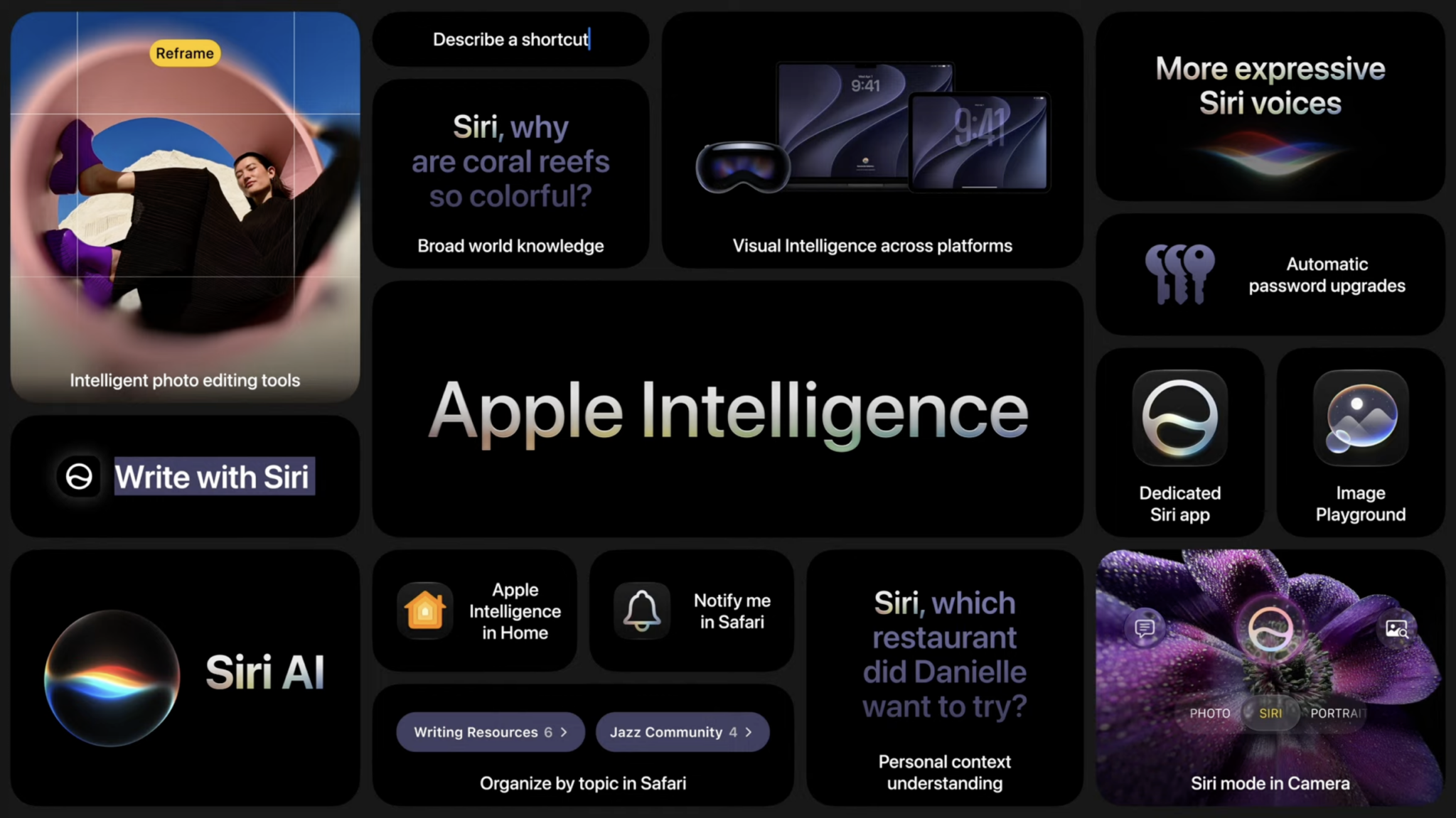
The iOS 27 public beta problems many users see include faster battery drain, app crashes, and spotty Wi‑Fi or Bluetooth, all caused by unfinished features and background tasks that push your iPhone harder than a typical stable release. If you install the public beta, you get early access to Siri AI and Apple Intelligence features, faster AirDrop transfers, and app improvements, but you also accept that bugs and performance issues are part of the deal. Apple recommends using a secondary device if you rely on your iPhone for work, because the beta is still pre‑release software and occasional glitches are expected. These troubleshooting tips apply to all supported iPhones, including iPhone 11 through iPhone 17 and recent SE models.
Before you fix anything, check the real prerequisites: you need to be enrolled in the Apple Beta Program with the Apple ID you use on your iPhone, and your phone should have at least 10GB to 15GB of free storage so updates and Apple Intelligence assets can install correctly. Expect your iPhone to feel hot and lose battery faster during the first 24–48 hours after updating while it indexes photos, files, and iCloud data; that spike is normal, and many problems fade once those background jobs finish.
One Ordered Game Plan: From Basic Checks to Deep Fixes
Think of this as the playbook you’d follow if we were sitting together at a table with your phone in hand. We’ll move from simple, reversible steps to more involved ones, without touching a full reinstall. The idea is to fix battery drain, app crashes, and connectivity glitches while keeping your place in the iOS 27 public beta.
- Enroll and update: Visit the Apple Beta Program website, sign up or sign in with the Apple ID you use on your iPhone, accept the terms, and enroll your account. On your iPhone, open Settings > General > Software Update > Beta Updates, select iOS 27 Public Beta, then return to Software Update and tap Update Now when it appears. Make sure you have 10GB–15GB free beforehand.
- Let indexing finish: After installing, give your phone 24–48 hours for Spotlight, Photos, iCloud sync, and Apple Intelligence processing to finish. Avoid judging battery life or performance during this window.
- Do a clean restart: Restart your iPhone to clear temporary glitches. For supported iPhones, quickly press and release Volume Up, then Volume Down, then press and hold the Side button until the Apple logo appears.
- Update your apps: Open the App Store and update all apps, since many developers release compatibility updates after new beta releases. This alone can fix a surprising number of iOS 27 app crashes.
- Check battery hogs: Go to Settings > Battery and see which apps use the most power. Reduce screen brightness or enable Auto-Brightness, turn on Low Power Mode when needed, and avoid heavy gaming or long video recording while charging. If one app is wildly higher than the rest, reinstall it.
- Stabilize crashing apps: If an app keeps crashing, first update it, then force close and reopen it, then restart your iPhone. If it still misbehaves, delete and reinstall it; at that point, you may have to wait for the developer to add full iOS 27 support.
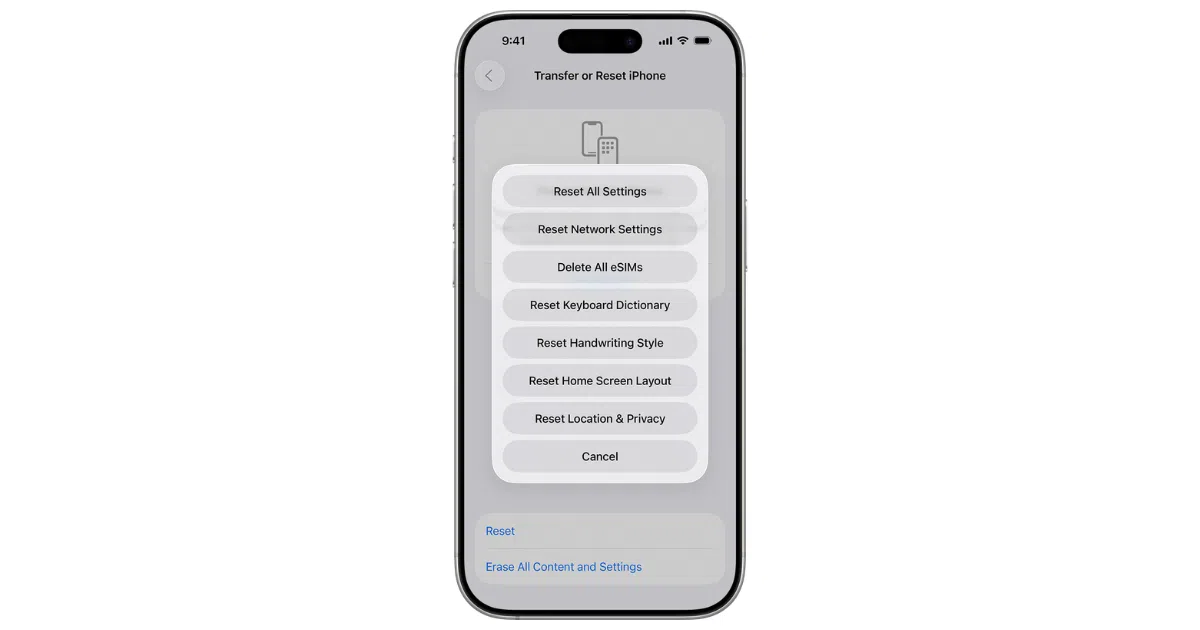
- Fix Wi‑Fi, Bluetooth, AirDrop, and CarPlay: Toggle Airplane Mode on for about 30 seconds, then off again. Restart both your iPhone and the accessory, then forget and re‑add the Wi‑Fi network or Bluetooth device if needed. If problems continue, go to Settings > General > Transfer or Reset iPhone > Reset > Reset Network Settings and enter your passcode.
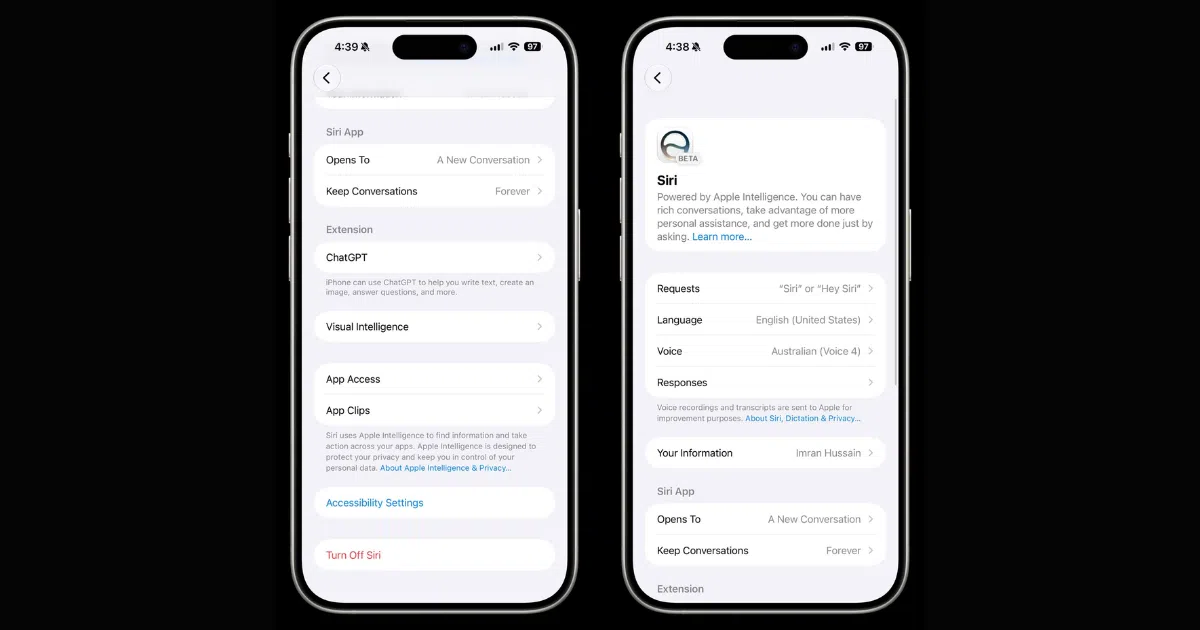
- Refresh Siri and Apple Intelligence: If Siri becomes unresponsive or fails often, open Settings > Apple Intelligence & Siri, turn Siri off, restart your iPhone, then turn Siri back on. Keep your phone on Wi‑Fi or cellular data and install the latest beta build, because Siri AI bugs are actively being fixed during testing.
- Tackle lag and storage bloat: If your phone still feels slow after a couple days, restart, close unused apps, and check Settings > General > iPhone Storage. Delete unneeded apps and large videos, enable Optimize iPhone Storage in Settings > Photos if you use iCloud Photos, and clear downloaded TV, music, and podcast content.
- Decide whether to stay on the beta: If, after all this, your iPhone still overheats, crashes, or struggles with Apple Intelligence features, remember that the public beta is “generally more stable than the developer beta” but still unfinished. Staying on it means living with some risk until the official release, while downgrading trades the new features for stability.
The main gotcha is impatience: judging battery health and performance too soon. According to one source, “One of the most common complaints after installing any iOS beta is poor battery life,” but much of that early drain comes from indexing and Apple Intelligence tasks finishing in the background. Give those processes time before you assume your iPhone is permanently worse.
Making Sense of Battery Drain, Crashes, and Connectivity Bugs
If you’re trying to fix battery drain on iPhone while running the iOS 27 beta, start by separating normal post‑update behavior from real problems. Heavy drain and a warm device during the first day or two are expected as the system reindexes Spotlight, analyzes your Photos library, syncs iCloud, and processes Apple Intelligence features. If you still see rapid drain after 48 hours, the Battery settings page tells you which apps to blame. Unbalanced usage, like a single social or game app dominating the chart, points to a compatibility issue that a reinstall or developer update can tame.
For iOS 27 app crashes, remember many third‑party apps are racing to catch up with the new APIs. Banking, messaging, and games may misbehave until they’re updated. Updating, force‑closing, restarting the phone, then reinstalling the app is the beta‑tester loop to fall back on. Wi‑Fi and Bluetooth problems often look dramatic but respond well to basic resets and, if needed, a reset of network settings, which wipes saved networks and VPN profiles but clears out stubborn beta glitches. It’s annoying to re‑enter Wi‑Fi passwords, but far better than living with broken AirDrop or CarPlay when you rely on them daily.
Apple Intelligence, Siri AI, and Performance Quirks
Apple Intelligence is doing a lot behind the scenes in iOS 27, and that can poke at system stability. When Siri AI is tied into these features, any bug in the beta can ripple into voice requests, Photos searches, and overall responsiveness. If Siri starts ignoring you or fails to complete tasks, turning Siri off in Settings > Apple Intelligence & Siri, restarting, then turning it back on is your first reset. Staying connected to Wi‑Fi or cellular data matters too, because many Siri actions and Apple Intelligence features rely on online processing.
Slow performance after updating is usually the system catching its breath rather than permanent damage. Animations stutter, scrolling feels sticky, and apps take longer to open while iOS optimizes your device. If lag lingers beyond a couple of days, clearing out storage and applying the latest public beta troubleshooting updates can help. On the storage side, iOS builds caches and downloads intelligence assets, which temporarily shrink free space; deleting unused apps, large videos, and offline media, and turning on Optimize iPhone Storage in Photos if you use iCloud Photos, can restore breathing room. This is the quiet maintenance work that keeps your beta experience from grinding to a halt.
Is Staying on the iOS 27 Public Beta Worth It?
If you’ve made it through these steps, you’ve done the practical public beta troubleshooting that most early adopters need. The reward is early access to features like Siri AI, more customizable Liquid Glass, faster apps, and significantly quicker AirDrop transfers that can finish up to 80 percent faster. The cost is living with the occasional bug, heavier battery usage during indexing, and the chance that one or two mission‑critical apps will misbehave until their developers catch up.
Whether it’s worth it comes down to how you use your phone. If you enjoy testing new features and can tolerate some rough edges, staying on iOS 27 public beta makes sense, especially if you follow a clear troubleshooting routine when bugs appear. If you depend on your iPhone for work, banking, or driving every day, consider installing the beta on a secondary device as one source recommends, and keep your main phone on the stable release. Either way, pay attention to battery trends after that initial 48‑hour window and keep your storage and updates in good shape; that’s what turns beta testing from a headache into something fun.