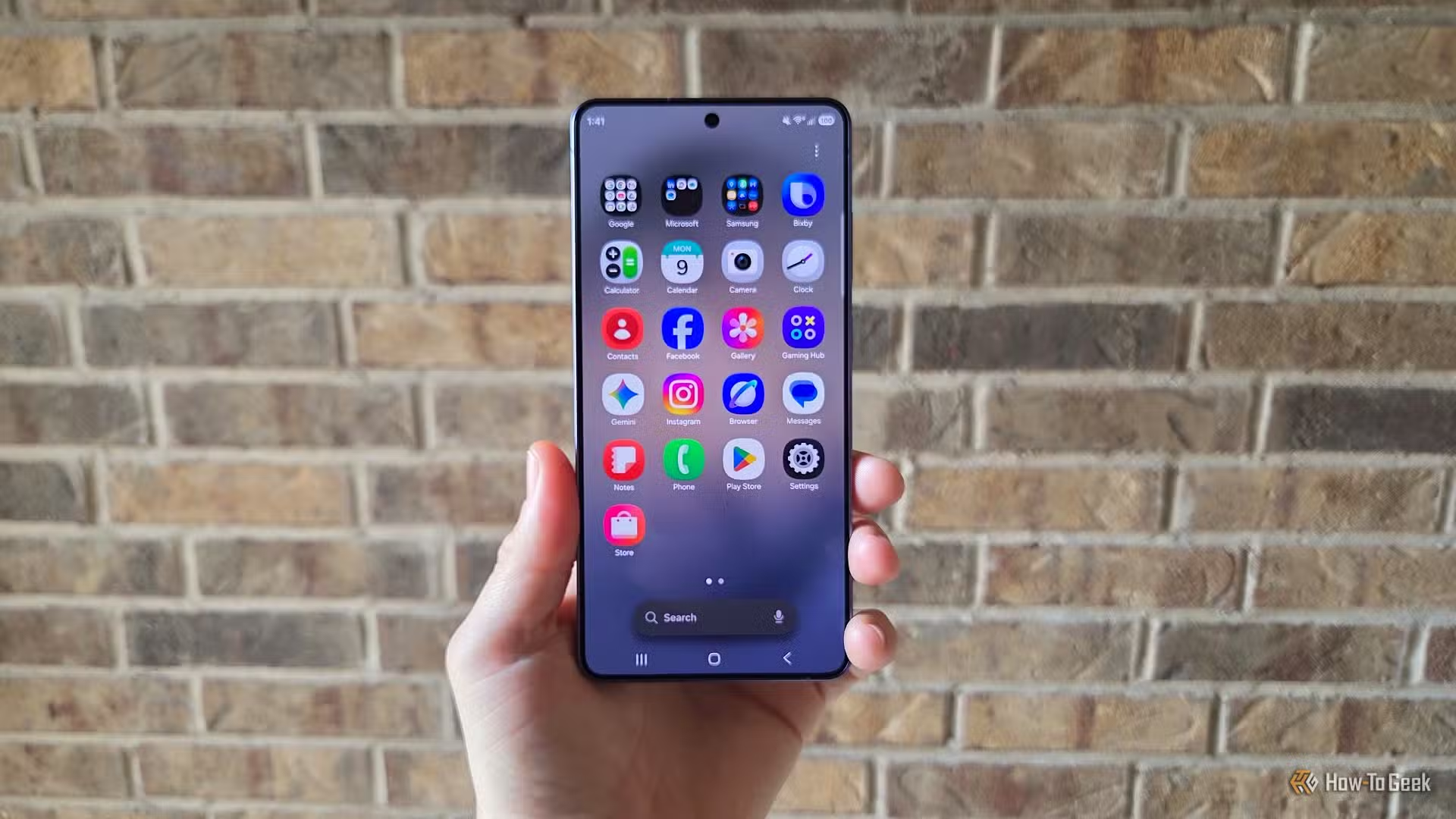

Your Galaxy Is Not the Problem — Your Settings Are
Samsung hidden features are powerful One UI settings and tools buried in menus that quietly solve everyday frustrations—like missed calls, flaky gestures, or vanishing pop-ups—without needing any third‑party apps or hacks, but most people never discover them because they are disabled by default or tucked away behind several screens.
Most Galaxy owners live with small annoyances because they assume “that’s how phones work”. One user thought disappearing pop-ups were proof their phone was too fast for them; another assumed gesture glitches were the “price of using gestures” until a buried slider fixed it. These are not limitations of the hardware. They are unflipped switches. One UI is so packed with options that the helpful ones vanish under the flashy ones, so everyday problems persist while the solutions sit untouched in Settings. The fix is not a new app or a new phone; it is learning where Samsung hid the good stuff.
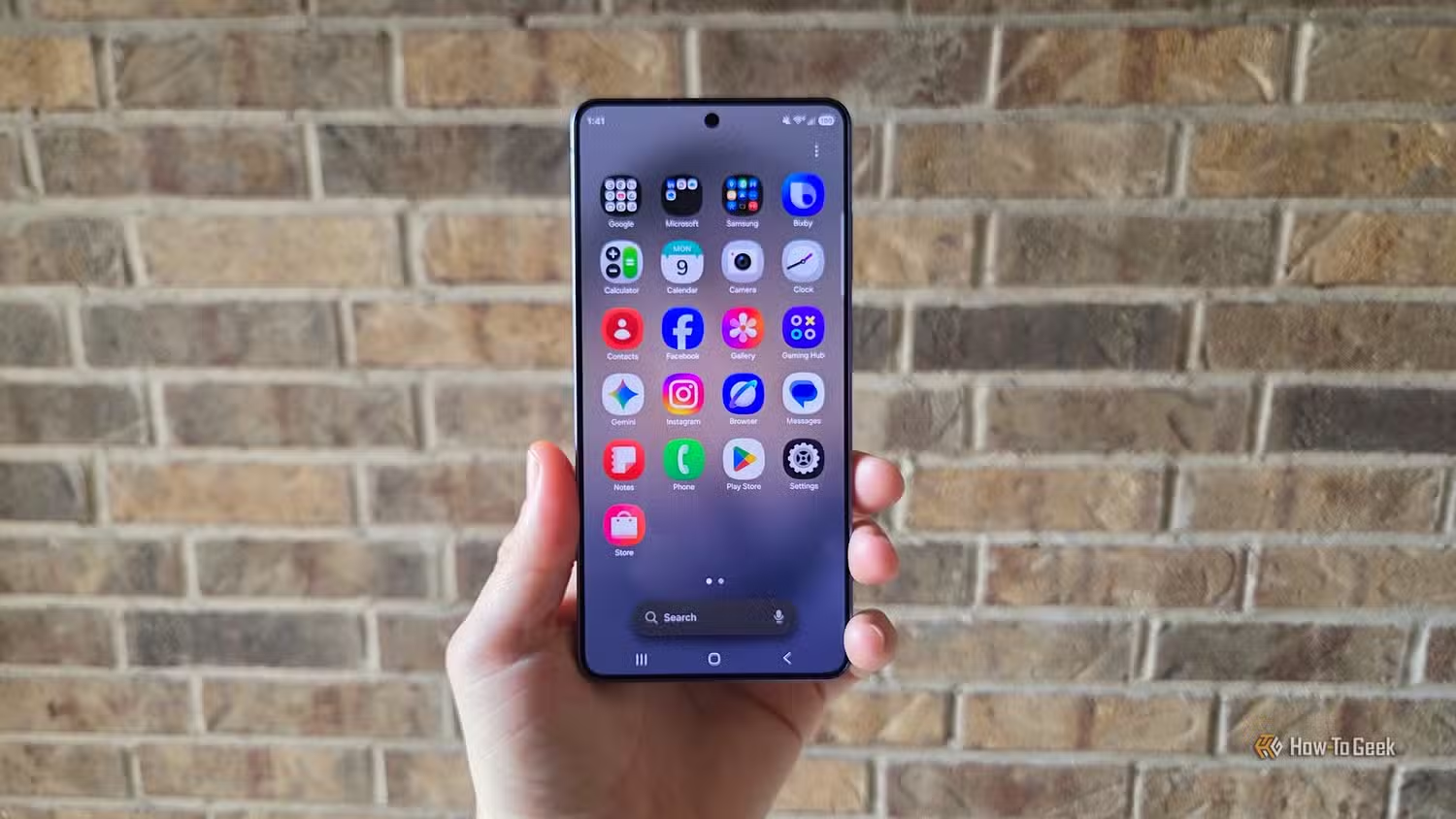
Modes and Routines: Put the “Smart” Back in Smartphone
If you only change one thing on your Galaxy, make it Modes and Routines. Samsung itself describes these tools as one of its most underrated features, buried in Settings and disabled by default. Yet this is where your phone stops being a slab of glass and starts behaving like an assistant. Modes adjust your device based on context—work, driving, sleep—while Routines follow “if this, then that” rules to change settings or trigger actions automatically. It makes your Galaxy “smarter, faster, and does things you’d usually have to do manually”.
To try it: open Settings and tap Modes and Routines (usually around the fourth or fifth option). Set a Mode for work that bumps brightness, turns up notifications, and disables distractions when you arrive. Then play with Routines: one owner keeps their phone on silent 24/7 but created a rule so calls from their partner ignore silent mode, temporarily turn on the ringtone, then drop back to silent as soon as the call ends. Another Routine forces auto‑rotate only when opening YouTube or other streaming apps, so the phone behaves exactly how they expect every time. These are the Galaxy phone tricks that remove daily friction instead of adding more apps.

Give Pop-Ups Time: Fix Vanishing Prompts with One Slider
You are not slow; your pop-ups are impatient. Many people think notifications and system bubbles disappearing before they can act is “just how fast phones are”, and that they are the ones lagging behind. One UI hides a direct fix: Time to Take Action. This setting controls how long prompts stay on screen before timing out. Extend it, and suddenly your phone feels less pushy and more cooperative.
To change it, go to Settings → Accessibility → Advanced settings and find Time to Take Action near the bottom. You can pick 10 seconds, 30 seconds, 1 minute, or 2 minutes; the user who uncovered it moved straight to the longest option and stopped feeling rushed by their own device. The concrete benefit is simple: volume sliders no longer vanish mid-adjustment, notification bubbles stay long enough to tap, and subtle prompts become readable instead of flickering obstacles. This is a textbook hidden smartphone setting—ordinary, unadvertised, and far more useful than yet another flashy feature.
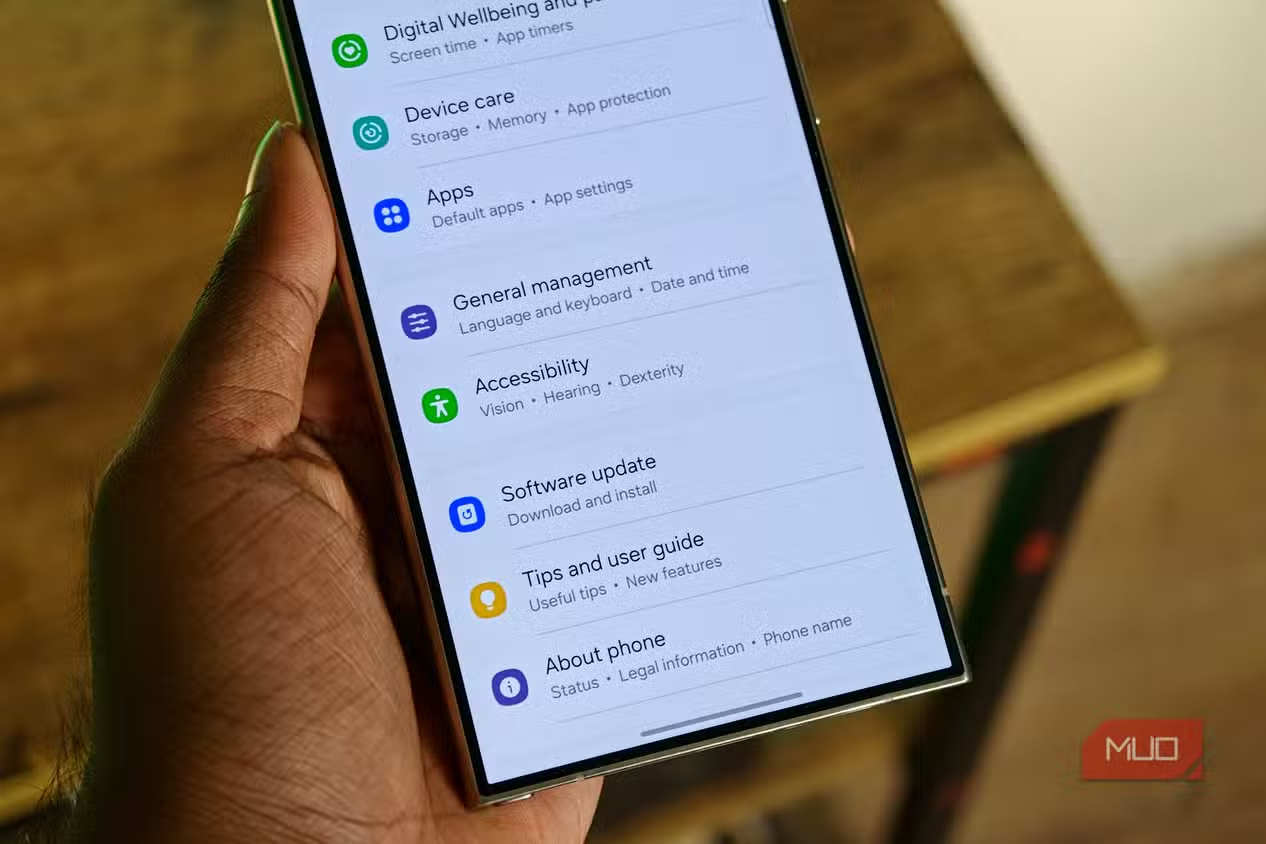
Tame the Back Gesture: Stop Accidental Swipes for Good
Gesture navigation should feel like flicking through pages, not fighting with them. Many Galaxy owners put up with back gestures that trigger when they are simply dragging from the edge, or ignore clear swipes altogether. One long‑time user assumed this was the cost of gestures—until they found the hidden sensitivity slider and fixed it in seconds. Samsung did not remove the problem with an update; it shipped the solution on day one and buried it.
Head to Settings → Display → Navigation bar, then tap More options and look for Back gesture sensitivity. Slide it toward “low” to stop accidental swipes, or toward “high” to make back more responsive. Spend a minute experimenting and you will feel the difference immediately: fewer unintended exits, fewer dead swipes, more confidence using the edges of the screen. This is one of those One UI settings tips that sounds trivial on paper but transforms how relaxed you feel using your phone every hour of the day.
Stop Audio Hijack: Keep Your Earbuds Loyal to What You Picked
Nothing breaks focus like your podcast cutting out because a random reel decided it was more important. Many people accept that when a social app autoplays video, their earbuds will switch over and kill whatever they were listening to. One user sighed and restarted their podcast “every single time”, assuming this is how phones and earbuds work together—until they found a switch that prevents those hijacks completely.
Open Settings → Sounds and vibration and look for an option that lets you route specific app audio to the phone speaker instead of your Bluetooth device; it is off by default, which is why most people never see it. Turn it on, choose the apps that keep interrupting you, and their sound will play out of the phone while your main audio stays in your earbuds. As the original user describes it: when a reel autoplays during a podcast, the reel uses the phone speaker and the podcast continues “completely undisturbed”. This is one of the most satisfying Galaxy phone tricks because it gives you back control of your own attention.
The Real Upgrade: Learn Your Menus, Not Your Next Model
What these hidden smartphone settings have in common is not complexity but neglect. Samsung Galaxy phones come “packed with underrated features”, many of which “aren't enabled by default and go unnoticed”. One UI is “so stuffed with features that the genuinely useful ones get lost under everything louder and shinier”. The result is a strange gap: users tolerate annoyances, invent workarounds, and even blame themselves, while the fixes sit a few taps away.
According to one long‑time Galaxy owner, “the fixes for your most boring daily frustrations are probably already on your phone right now. You've just never had a reason to go looking for them”. That is the real takeaway. Before chasing yet another app or hardware upgrade, spend an evening exploring One UI with purpose. Modes and Routines to automate your life; Time to Take Action for calmer prompts; back gesture sensitivity for cleaner navigation; audio routing to keep your earbuds loyal. These Samsung hidden features are not party tricks—they are quality‑of‑life improvements you have already paid for. Use them.