
What the iOS 27 Public Beta Is and Who Should Install It
The iOS 27 public beta is an early test version of Apple’s next iPhone software that delivers features like contextual Siri, Liquid Glass visual effects, and new parental controls months before the final release, but it also carries bugs, shorter battery life, and occasional app issues that make it best for curious testers rather than risk‑averse everyday users.
This release is aimed at people who enjoy iPhone beta testing and do not mind rough edges. The public beta “just landed” and the stable version is expected in the fall alongside new iPhones, so you are getting a sneak peek well ahead of everyone else. Compatible devices go back to the iPhone 11, though Apple Intelligence and some of the Siri AI features are limited to iPhone 15 Pro, 15 Pro Max, and later models. Because beta software can be buggier than the final build and may drain your battery faster, the safest approach is to use an extra device if you have one.
Before you start, make a fresh backup of your current phone so you can roll back if something breaks or you dislike the beta experience.
Step-by-Step: How to Enroll and Install the iOS 27 Public Beta
Installing the iOS 27 public beta is less about technical skill and more about following the order carefully so you do not lock yourself out of a backup or enroll the wrong device. You must join Apple’s public beta program before the update even appears on your iPhone.
- Back up your iPhone using iCloud or a computer, so you have a safe restore point if the beta misbehaves.
- On a browser, visit beta.apple.com and sign in with the Apple Account you use on your iPhone to join the Apple Beta Software Program.
- After enrollment, pick up your iPhone and open Settings, then go to General > Software Update.
- Tap Beta Updates, then choose iOS 27 Public Beta so your device knows which preview track to follow.
- Return to the Software Update screen, wait for iOS 27 Public Beta to appear, then download and install it like a normal update.
- If you want to test on an iPad too, repeat these steps but select iPadOS 27 Public Beta instead of iOS.
Once the installation finishes, your phone will reboot into iOS 27 and you should see new interface touches, including a slider for the Liquid Glass effect that makes the system feel different right away. The big risk here is that you cannot easily downgrade without erasing your phone, so be sure the device you enroll is one you can afford to experiment with.
Configure Contextual Siri and New Parental Controls First
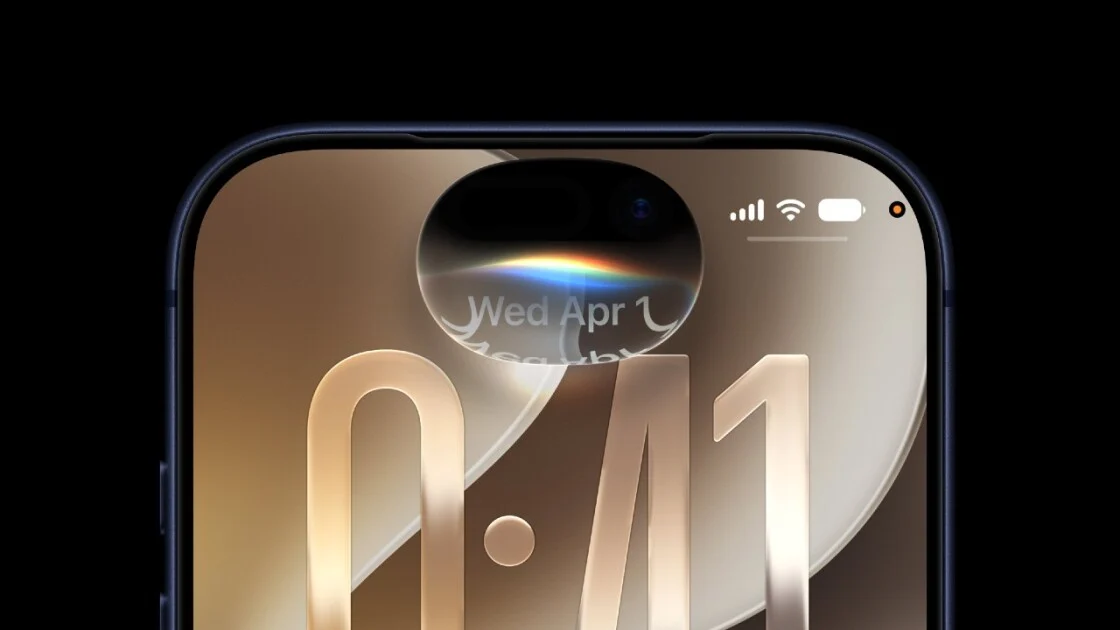
Once the beta is live, your first priority is to tame the new Siri AI features and tighten parental controls, especially if you share the device with kids. The revamped assistant, sometimes called Siri AI, is integrated across your phone, accessible via a dedicated Siri app, the Dynamic Island, and other parts of the OS. It now supports contextual Siri behavior and cross‑app actions so you can ask for multi‑step tasks instead of hopping between apps yourself.
To explore contextual Siri, start by issuing natural requests like “Find my latest Airbnb reservation in Mail and message it to this person,” or “Extract the date from my last text and add it to my calendar.” Siri now understands entities inside apps and can fetch, combine, and send information as a single command. You can also adjust voice controls for Pace and Expressivity so Siri talks faster or more expressively, depending on what you prefer.
Next, set up Ask to Browse, the new granular parental control suite that goes beyond simple blocking. Go to Settings > Screen Time > Content and Privacy Restrictions, enable them, then look for the Ask to Browse toggle. From there, kids can request access to specific websites, messages, or content, and you can enforce a kill switch that logs them off when their screen time ends. This is the part that has the most real‑world impact, so make sure you test it thoroughly before handing the phone to a child.
Rebuild Command Center and Explore Liquid Glass and Audio Features
Your next setup task is to rework Command Center so it fits how you use your phone in iOS 27. The beta adds support for multiple Command Center pages, which means you can separate controls for work, entertainment, and smart home use instead of piling everything into one crowded panel. Think of it as reorganizing your kitchen drawers: it takes a few minutes now but saves constant friction later.
After Command Center, head to the display and personalization settings and try the new Liquid Glass customization options. According to one report, “once you load the software and it offers a slider for the Liquid Glass interface effect, it definitely feels like something new.” That slider is your sign that the beta is installed correctly and that your device supports the upgraded interface.
The public beta also includes a range of Apple Intelligence integrations, Write with Siri, and improvements to messaging such as updates to iPhone‑to‑Android RCS chats, though availability depends on your model. On supported devices, you can try features like Visual Intelligence in the Camera app, which lets Siri extract text from receipts, signs, or business cards and send it to another app. Together with planned additions like AirPods custom EQ support, these tweaks make the beta feel like a meaningful step forward even before the final release.
Troubleshooting, Stability, and When to Stick With the Beta
Because this is pre‑release software, you should expect some glitches and be ready with a basic troubleshooting plan. The public beta is generally more stable than in past years, but it is still beta software and can introduce bugs or battery drain. The most common symptoms are faster battery drop, occasional app crashes, and minor interface oddities. If something misbehaves, check for the latest beta update first; Apple will keep updating the public beta every couple of weeks with bug fixes and new features.
If your daily apps work and the battery hit is manageable, iOS 27 public beta can be stable enough for everyday use on a secondary phone. However, if your device is mission‑critical for work or family, the safer call is to keep that phone on the stable release and limit beta testing to spare hardware. Remember that some headline features, especially those tied to Apple Intelligence, are limited to newer hardware like iPhone 15 Pro and later, so older devices may not show the full experience even though they can run the beta. Overall, it is worth the experiment if you are curious and backed up; otherwise, wait for the official release.