
What the iOS 27 Public Beta Is and Who Should Install It
The iOS 27 public beta is an early, test version of Apple’s next iPhone operating system that anyone with a compatible device can install to try upcoming features before the official release, at the cost of potential bugs, instability, and the need to follow strict backup and downgrade precautions.
The public beta is now available for compatible iPhones, so you can try iOS 27 months before the general release expected in the fall. This is aimed at enthusiasts and tinkerers who are comfortable dealing with glitches, app crashes, and possible battery problems. If your iPhone is mission‑critical for work, banking, or travel, you should pause and think hard before enrolling. Before you download any beta version, you are warned to back up your device and avoid installing it on your main iPhone because “it’s likely to have bugs and glitches”. The good news: there is a supported path to return to iOS 26 if you regret installing the beta, as long as you understand that downgrading means erasing your device and living with backup limits.
Compatible iPhone Models: Does Yours Qualify?
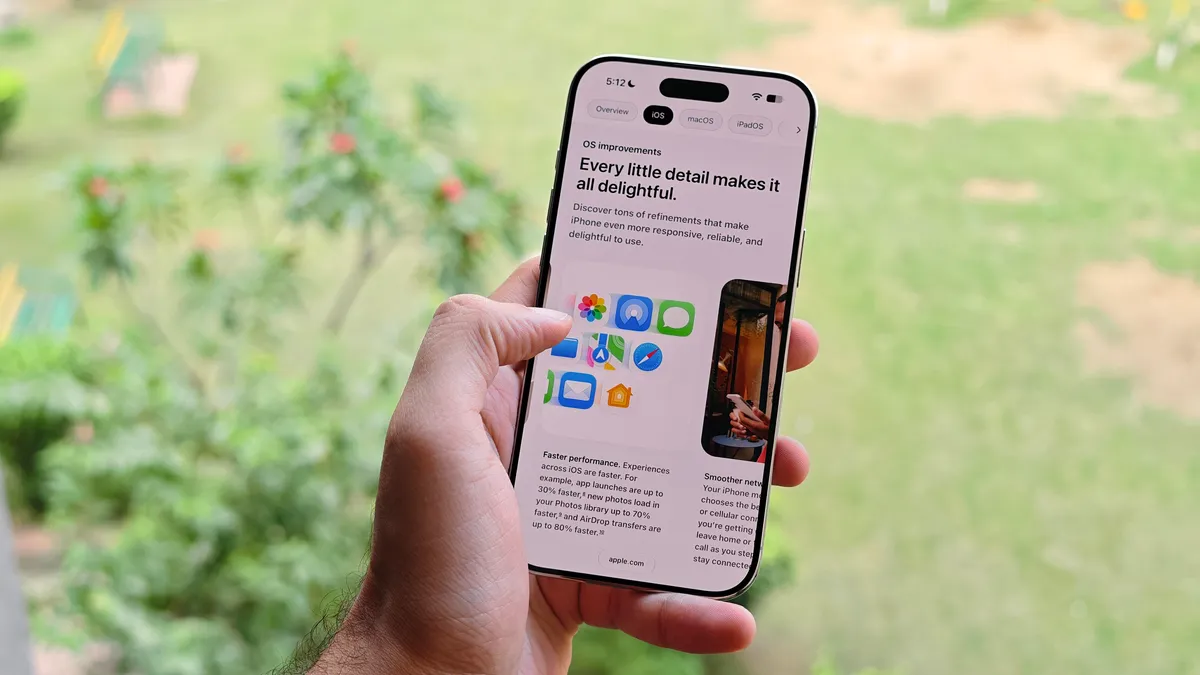
Before you think about how to download iOS 27, you need to confirm that your iPhone is on the compatibility list. Apple has dropped support for the iPhone X family and the second‑generation iPhone SE, so “any iPhone 11 or newer is compatible with the new operating system, including the new iPhone SE and iPhone Air”. Another source notes that Apple went out of its way to stress that the iPhone 11 line is supported after rumors suggested it would be cut off.
In practice, that means if you are holding anything older than an iPhone 11, you are locked out of the iOS 27 public beta and the final release. Every iPhone 11 model and later can install both the public beta and the future official update when it arrives. That said, not every compatible device will get the same experience: newer models will unlock more of the latest features, especially around Apple’s new intelligence and Siri upgrades, while older supported phones will receive a more limited feature set.
How to Download iOS 27 Public Beta Safely
Installing the iOS 27 public beta is straightforward, but the preparation is where people slip up. The biggest mistake is rushing in without a backup of your current iOS 26 setup, or installing the beta on your only phone and then discovering that a banking app or work tool no longer behaves properly. You should also plug in, connect to reliable Wi‑Fi, and clear enough storage for a multi‑gigabyte update. If you later decide to experiment with the developer beta instead of the public beta, you will need a compatible iPhone newer than the iPhone 11 that already runs iOS 17 or later, and you must install the Apple Developer app to enroll your Apple ID.
- Back up your iPhone while it is still on iOS 26 using iCloud or a computer, and confirm the backup finished successfully so you have a safe restore point if iOS 27 causes problems.
- On your iPhone, open Settings, tap General, then tap Software Update; wait a moment while the device checks for new software.
- When you see the iOS 27 public beta appear as an available update, tap Download and Install, then agree to the terms and conditions when prompted.
- Keep your iPhone connected to power and Wi‑Fi while the iOS 27 public beta downloads and installs, and let it restart and complete the update before using it again.
- If you later choose to try the iOS 27 developer beta instead, download the Apple Developer app from the App Store, enroll your Apple ID, then go to Settings > General > Software Update > Beta Updates and select iOS 27 Developer Beta.
Once the process finishes, your iPhone will boot into iOS 27 and you can start exploring the new features. Pay attention over the next few days: if you notice deal‑breaking bugs or performance problems, remember that you still have an escape hatch back to iOS 26, as long as you are willing to erase the phone and live within backup limits.
How iOS 27 Downgrade Works (and Its Biggest Gotchas)
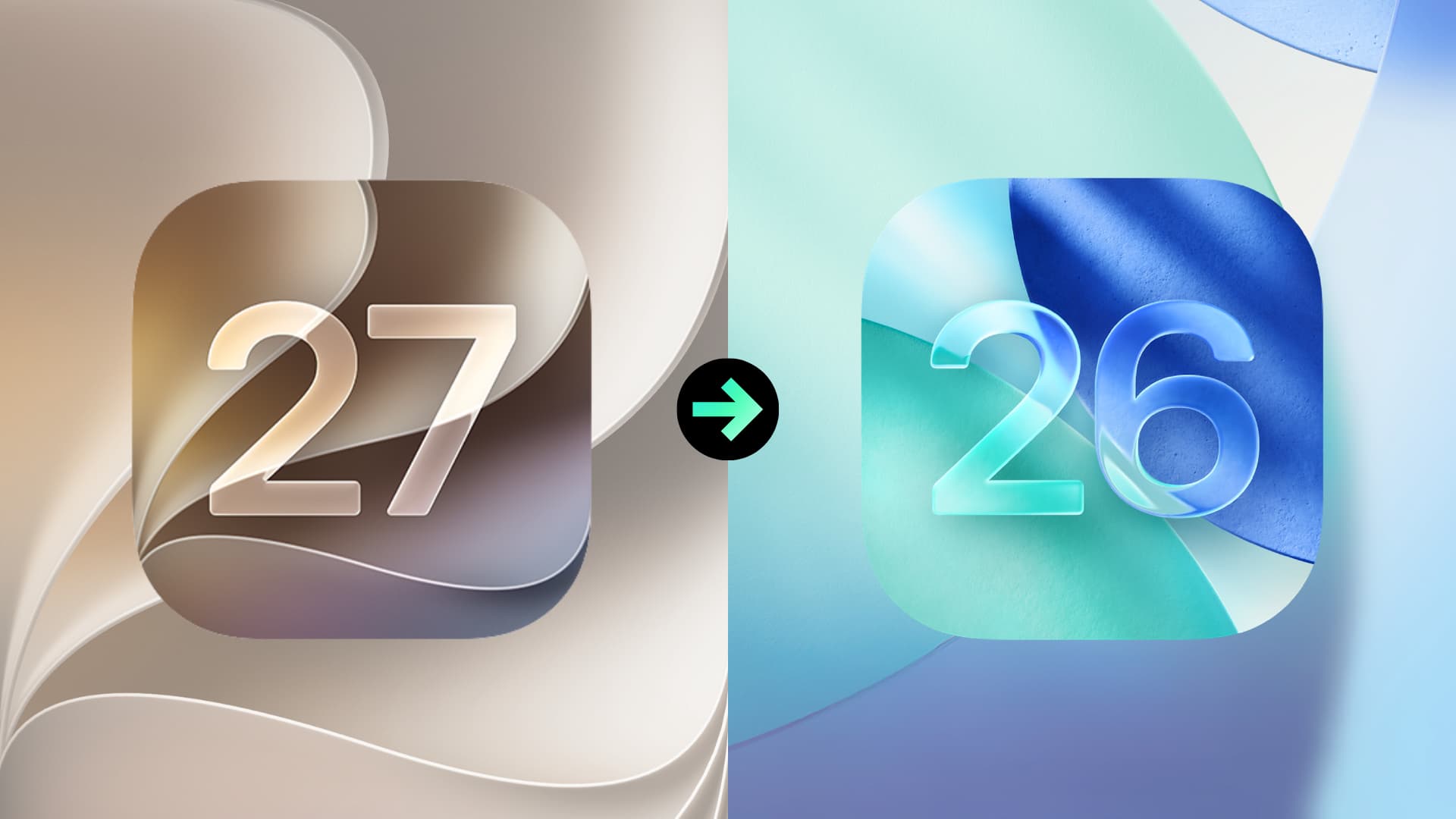
If the iOS 27 public beta or developer beta becomes too unstable, you can downgrade to the latest stable iOS 26 release. This is not a light decision. According to one downgrade guide, “the only way to downgrade from iOS 27 is to fully erase your device and reinstall iOS 26”. Full device backups made while running iOS 27 cannot be restored once you are back on iOS 26, because those backups are not backward compatible. The only backups you can restore after downgrading are archived backups made when your iPhone was still on iOS 26, and those will return your data to the state it was in on the day of that backup. Everything else will depend on what you sync through services like iCloud photos, contacts, and calendars.
To make downgrading possible, you need a Mac or Windows PC, a USB‑C or Lightning cable (plus any needed adapter), and a fast internet connection so your computer can download the full iPhone software image. You will also have to put your iPhone into recovery mode before your computer can erase it and reinstall iOS 26.
Step-by-Step: Downgrade from iOS 27 Beta Back to iOS 26
Here is the full downgrade process in order. Take your time; interrupting a restore half‑way through is one of the few ways to turn this from a stressful evening into a full device recovery job. Do not unplug your iPhone until your computer says the restore is complete.
- Save important data to the cloud or a computer, because the downgrade will erase your iPhone and anything that is not synced or backed up will be lost.
- Put your iPhone into recovery mode: either power it off, hold the power button until you see “Loading recovery options,” choose Recovery Mode, tap Restart, and connect it to your computer, or connect it first and then quickly press volume up, volume down, and hold the power button until the recovery icon appears.
- On a Mac, open Finder and select your iPhone in the sidebar; on Windows, open the Apple Devices app and select your iPhone.
- When the computer reports that there is a problem requiring the iPhone to be updated or restored, click Restore, or click the Restore iPhone button manually if the popup does not appear.
- Confirm by clicking Restore and Update (or Restore), accept the terms, and let your computer download the latest iOS software for your device without disconnecting the cable.
- After the download finishes, confirm Restore iPhone again if prompted, and wait while the computer extracts the software, prepares the device, restores firmware, and reinstalls iOS 26.
- When you see the message that your iPhone has been restored to factory settings and is restarting, keep it connected until it appears again in the sidebar, then set up the phone and restore any compatible iOS 26 backup or allow your iCloud data to sync back.
When the restore completes, your iPhone has been successfully downgraded from iOS 27 to iOS 26, which is the latest stable, non‑beta version currently available. At that point, it behaves like a fresh device: you walk through setup, sign in with your Apple account, and choose which older backup (if any) to restore.
Is the iOS 27 Public Beta Worth It?
Trying the iOS 27 public beta gives you early access to new features and a chance to shape the final release by reporting bugs. It is aimed at people who are curious and comfortable fixing problems on their own phones, not those who expect rock‑solid stability every day. Before installing, you should know which iPhone models are compatible, understand how to download iOS 27 safely, and be fully aware of the risks around backups and the erase‑everything nature of any iOS 27 downgrade.
If you go ahead, follow the steps methodically and keep that older iOS 26 backup archived somewhere safe. If anything about the beta makes your iPhone unreliable, you can return to the stable release with a bit of patience and a USB cable. The trade‑off is time and risk versus early features; as long as you treat the beta like an experiment, not a guarantee, you will know what to watch for and how to recover if things go wrong.