
What Suno iMessage Music Generation Does (and Who It Is For)
Suno iMessage music generation is a feature that lets iPhone users turn short text or voice prompts into 30‑second AI songs directly inside the Messages app, so they can create and share music without leaving their conversations or opening a separate interface.
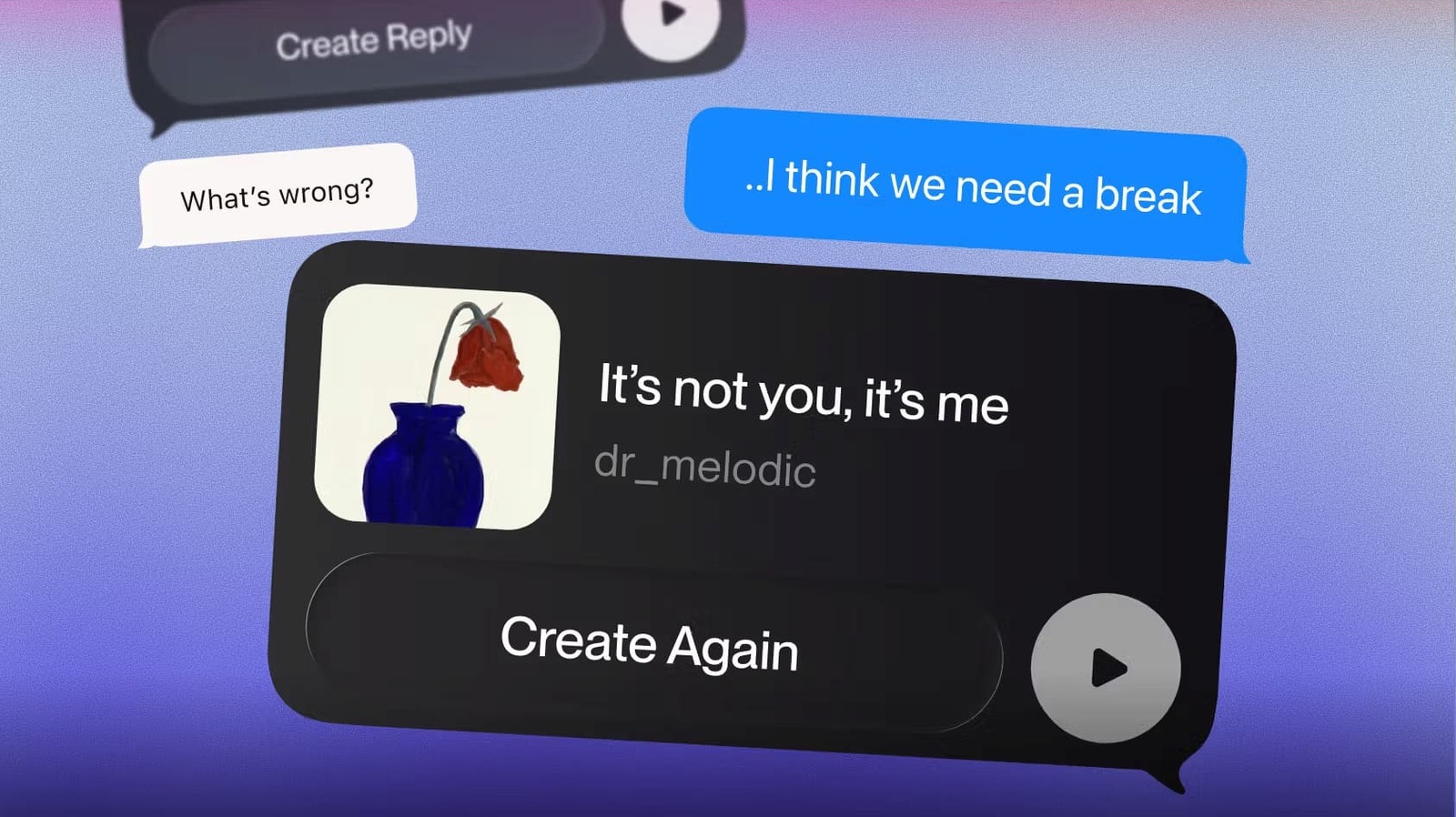
If you already spend most of your time in group chats, this feature is aimed at you. With the Suno iPhone app installed, you can generate AI music in the Messages app using either typed text or a voice memo, and send the result back into the same thread. It is a playful way to turn inside jokes, birthday wishes, or even reminders into shareable audio moments. One quotable fact here: “Those who have the latest version of the Suno iPhone app can now generate a 30-second output right from their messages with a text or voice prompt.” The main catch is that this is not for everyone; the person you are chatting with needs the Suno app installed too if they want to hear what you made.
What You Need Before You Start
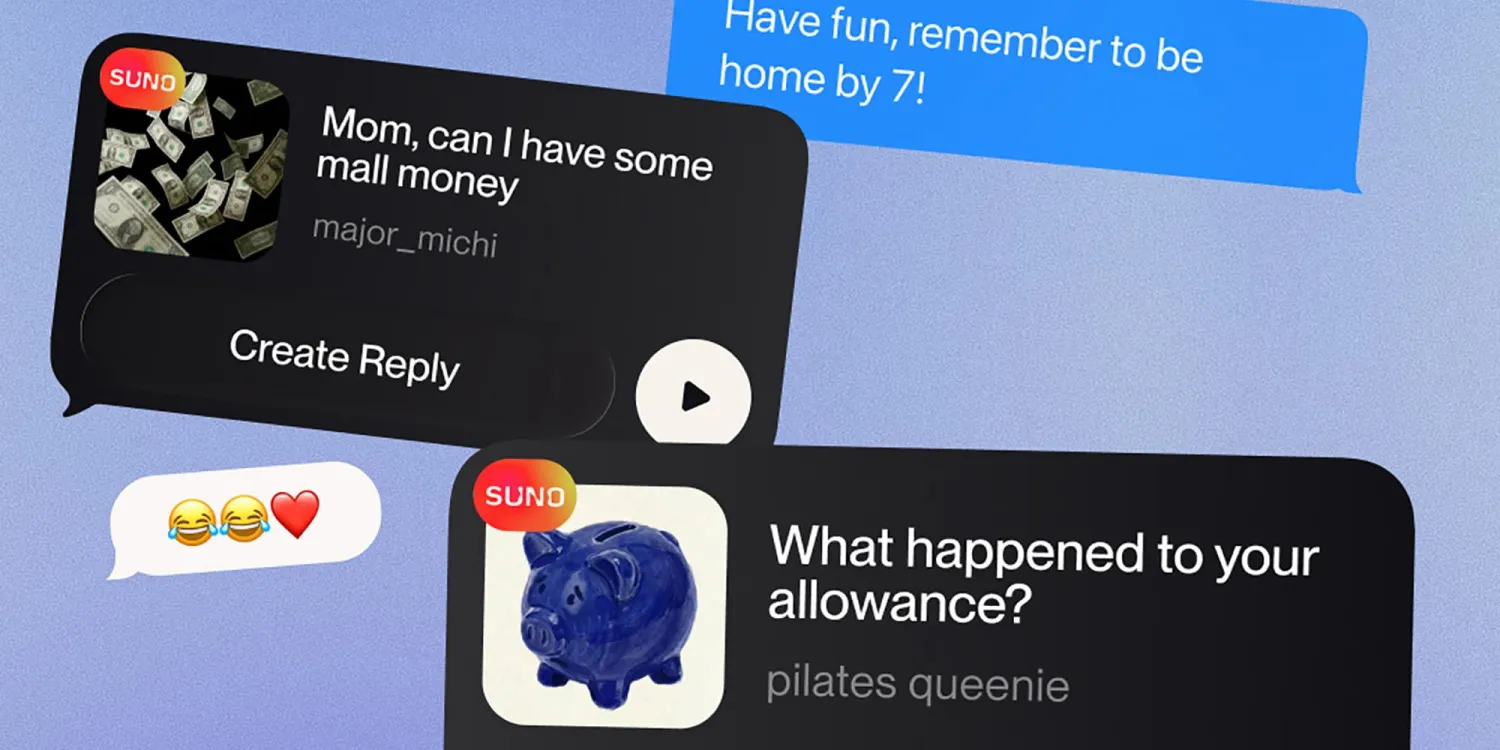
Before you try to generate songs on iPhone inside Messages, make sure you have the basics in place. You need an iPhone with the Suno app installed, because Suno’s iMessage music creation depends on that app being present. The latest version of the Suno iPhone app is required to generate a 30‑second output right from your messages. Once installed, Suno appears in the Messages app drawer alongside your other iMessage apps, so you can access its AI music in the Messages app without leaving the chat.
There is one important limitation to keep in mind: both sides of the conversation need the Suno app to experience the feature fully. Suno explains that the person on the other side of the chat needs to have the app installed to hear the output. So if you plan to surprise your friends with AI-generated songs, give them a heads-up to download the app first. According to one report, Suno already has more than 2 million paid subscribers and sees 7 million songs generated each day, which shows how many people are experimenting with its tools.
How to Generate AI Music in iMessage with Suno
Here is the core workflow, step by step, as if you were walking a friend through it while texting each other. The idea is to stay in the conversation the whole time, using Suno’s iMessage integration to handle the music while Messages handles the chat. You can start from a blank message, a busy group thread, or a private joke with one friend; the sequence is the same.
- Install or update the Suno iPhone app so you have the latest version that supports iMessage music generation.
- Open the Messages app, enter any conversation, tap the plus button, and select Suno from the iMessage app drawer.
- Choose how to prompt Suno: type a text prompt, paste in a message from a friend as the prompt, or record a voice memo inside Suno.
- Pick a genre for the audio before generating the song, using the options Suno gives you in the Messages interface.
- Generate the 30‑second song, refresh generations if you want to explore different versions, then send your chosen version into the chat.
The key advantage of this setup is that you never have to leave the conversation to generate songs on iPhone; Suno’s iMessage music creation lives right inside the Messages app. You can base prompts on live chat messages, which makes turning a friend’s comment into a song feel quick and playful. The main gotcha is that if the other person has not installed Suno, they will not be able to hear your output, so check with them first to avoid confusion. Within those limits, you get an easy way to turn everyday chats into short, AI-generated performances.
Using Suno Songs in Group Chats and One-on-One Threads
Once you know the basic steps, the fun is in how you use AI music in the Messages app. Because Suno lives in the same app drawer as your other iMessage tools, you can generate a song inside any chat without opening a browser or switching apps. That makes it easy to turn ongoing conversations into musical call-and-response. You can riff on a friend’s joke by pasting their line into Suno as the prompt and picking a genre that fits the mood, from something mellow for a late-night chat to something upbeat for a party plan.
In group chats, Suno’s AI songs can become a shared toy: one person sends a 30‑second track, another replies with a different genre, and everyone hears a slightly different version after using the refresh option. In one-on-one threads, it can serve as a more personal touch, like turning a birthday message or reminder into a mini song. Keep in mind that this feature works best when everyone in the thread is comfortable with AI-generated content and has installed the app, so the experience feels collaborative rather than one-sided.
Is Suno in iMessage Worth Using?
After you try Suno iMessage music generation a few times, you will know if it fits your style of chatting. On the plus side, it combines the convenience of the Messages app with Suno’s AI music creation capabilities, letting you turn text or voice prompts into short songs without leaving the thread. For people who enjoy playful, creative messaging, that mix can make everyday conversations feel more expressive.
The trade-off is that not everyone likes AI-generated art, and your friends need the Suno app installed to hear your songs at all. If your group is into AI music in the Messages app, though, this feature can be a low-friction way to experiment. Use it sparingly, keep the focus on shared jokes and moments, and it can add a bit of musical color to the usual scroll of text and photos.