
Why Hidden Device Settings Are Worth Your Time
Hidden device settings are built‑in options buried deep inside One UI, Wear OS, and stock Android menus that quietly fix everyday annoyances—things like pop‑ups vanishing too fast, gesture controls misfiring, or smartwatch batteries dying too soon—without any third‑party apps, technical knowledge, or special hardware, and they often work across multiple device generations once you know where to look.
If you use a Samsung Galaxy phone or a Pixel Watch, you are carrying around more power and flexibility than the default setup shows. Samsung Galaxy phones, for example, come with endless customization options and are packed with underrated features that aren’t enabled by default and go unnoticed. The same story repeats on Wear OS 7 smartwatches, where Google undersold battery improvements that have a bigger impact than most of the shiny new features. The only real prerequisite here is a bit of patience and a willingness to poke around in Settings for ten minutes—you don’t need to be technical, and you can’t break anything by turning these on.
Step‑By‑Step: Turn On 5 Hidden Settings That Change Daily Use
Think of this as a mini tune‑up for your phone and watch. We’ll walk through one ordered sequence that hits five buried toggles: smarter automation, calmer notifications, better gestures, clearer sounds, and longer Wear OS battery life. Follow the steps in order once, then tweak the details to fit your routine.
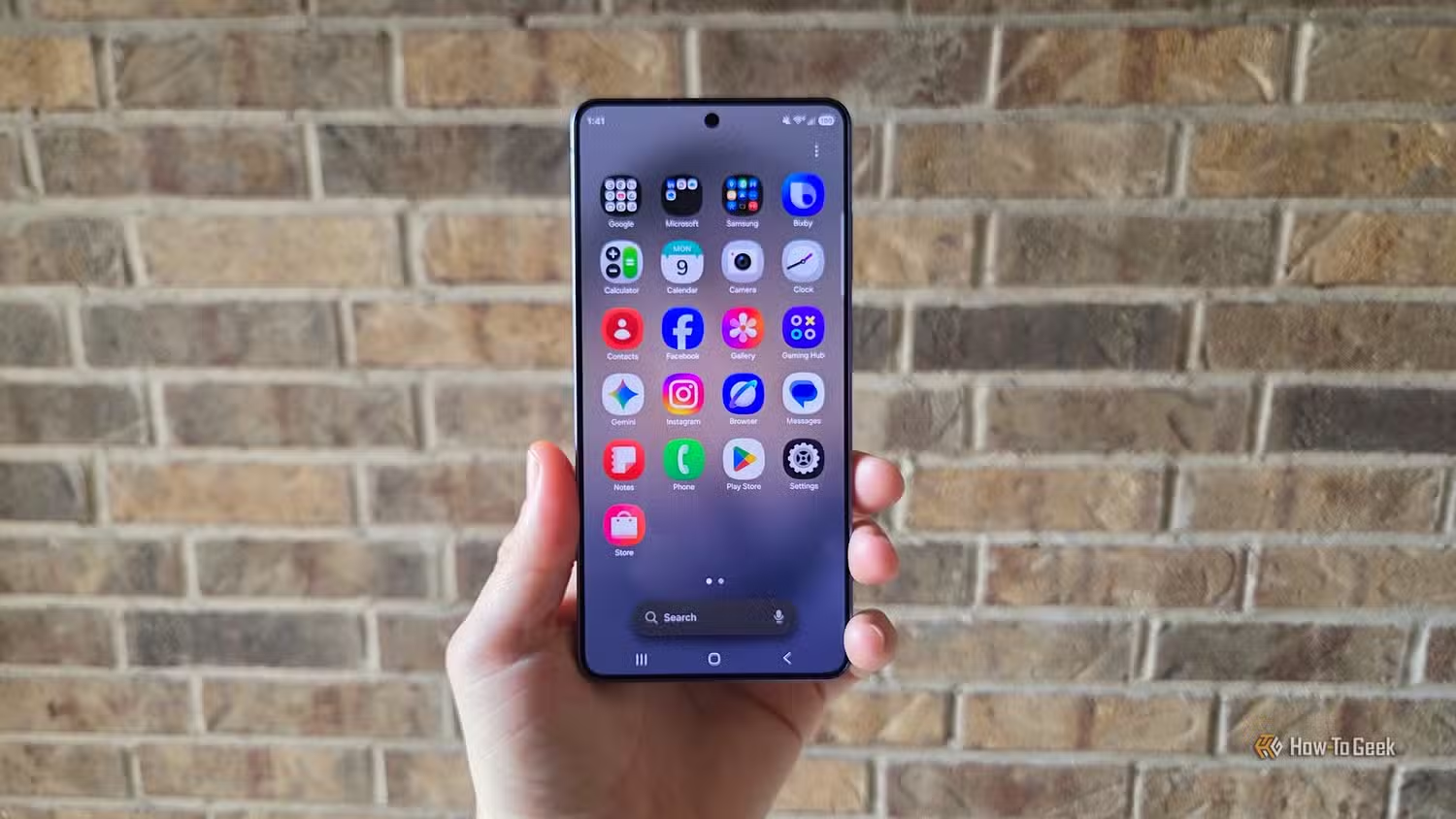
- On your Samsung Galaxy, open Settings and look for the 4th or 5th option labeled “Modes and Routines”, then open it to see both features. Turn on at least one Mode (for example, Work or Driving) and one Routine so your phone can automatically change settings or perform actions when conditions are met, like arriving at work or connecting to your car.
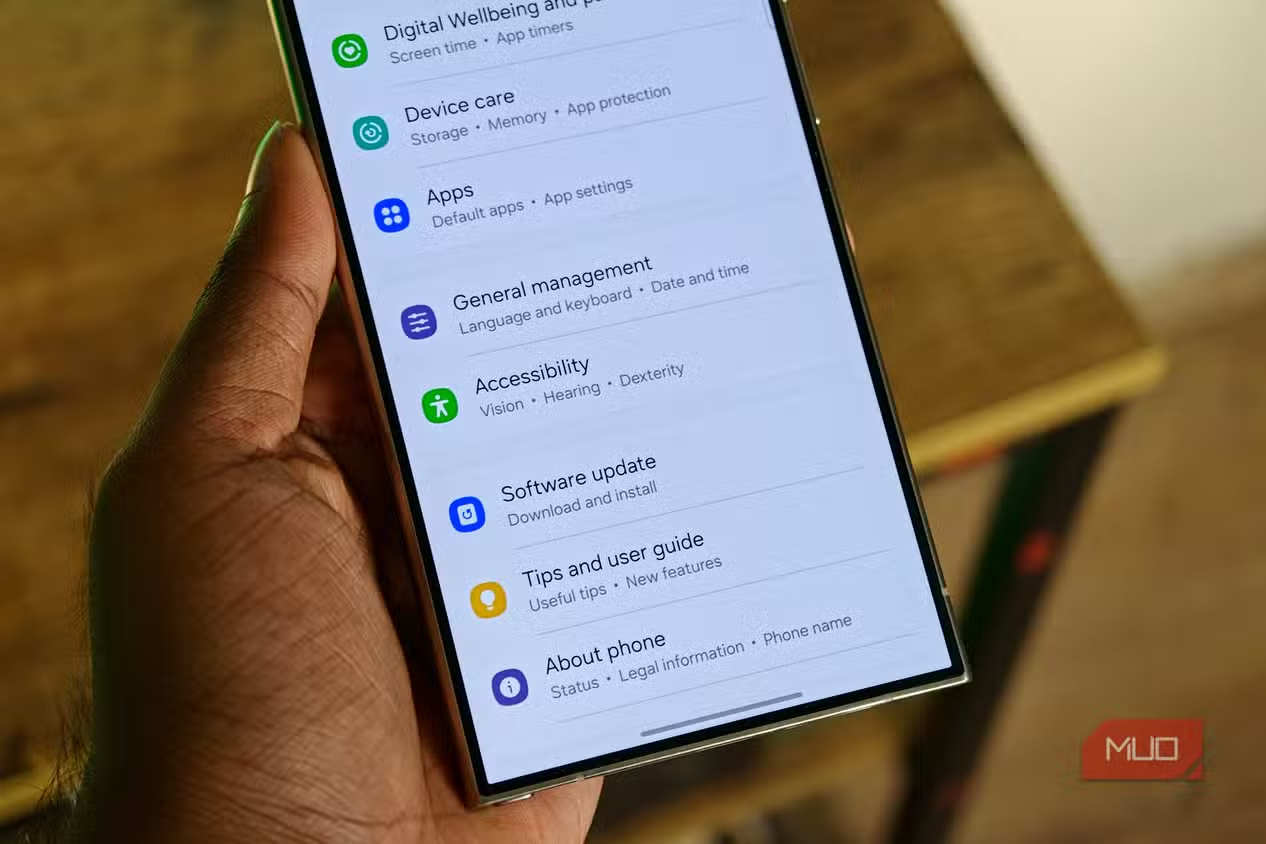
- Still on your Galaxy, go to Settings → Accessibility → Advanced Settings, then scroll down and adjust “Time to Take Action” so pop‑up prompts and notification bubbles stay on screen longer—choose up to 2 minutes if you often miss them.
- Go to Settings → Display → Navigation Bar, tap “More options”, and move the “Back Gesture Sensitivity” slider until accidental back swipes stop, but intentional ones register reliably.
- Open Settings → Sounds and Vibration and look for additional toggles that are off by default; the useful ones are often buried here and can fix small frustrations like alerts behaving in unexpected ways.
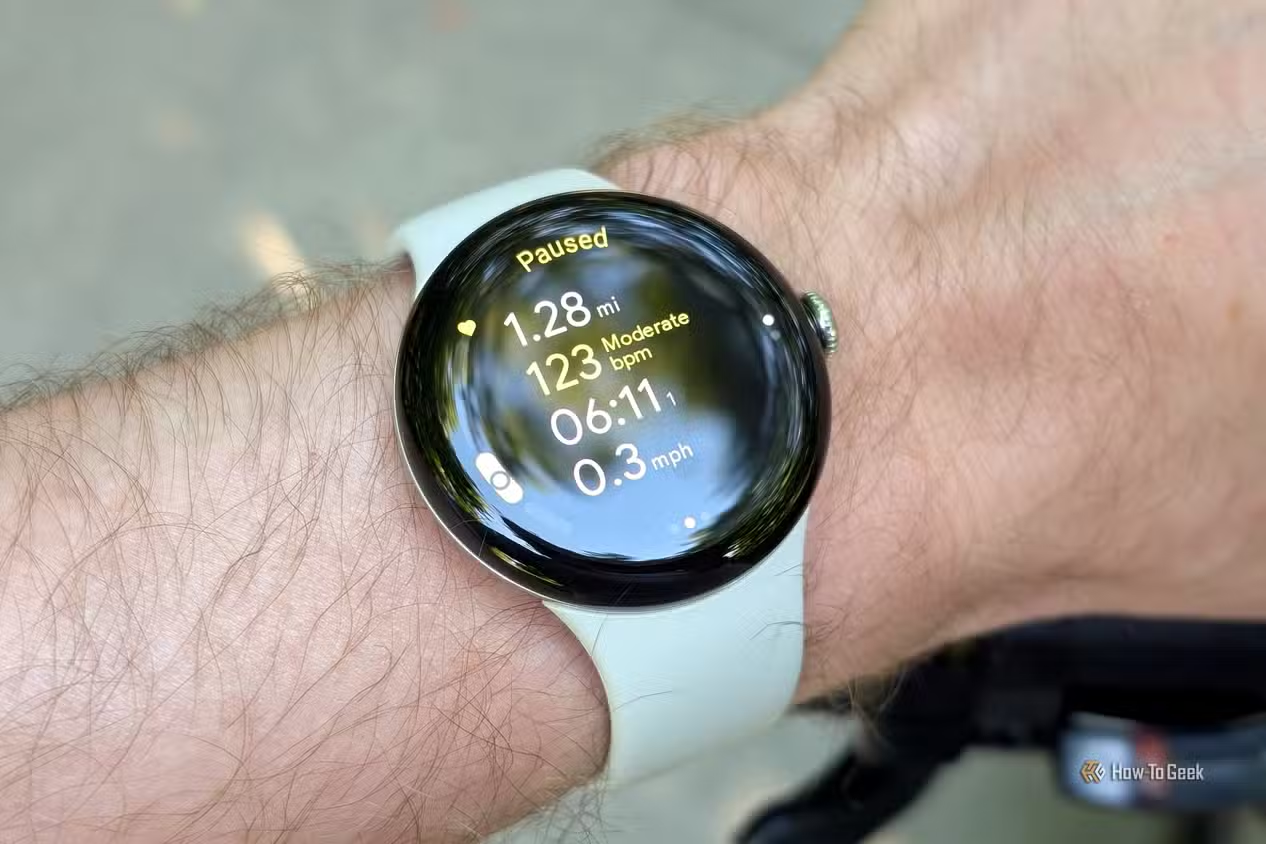
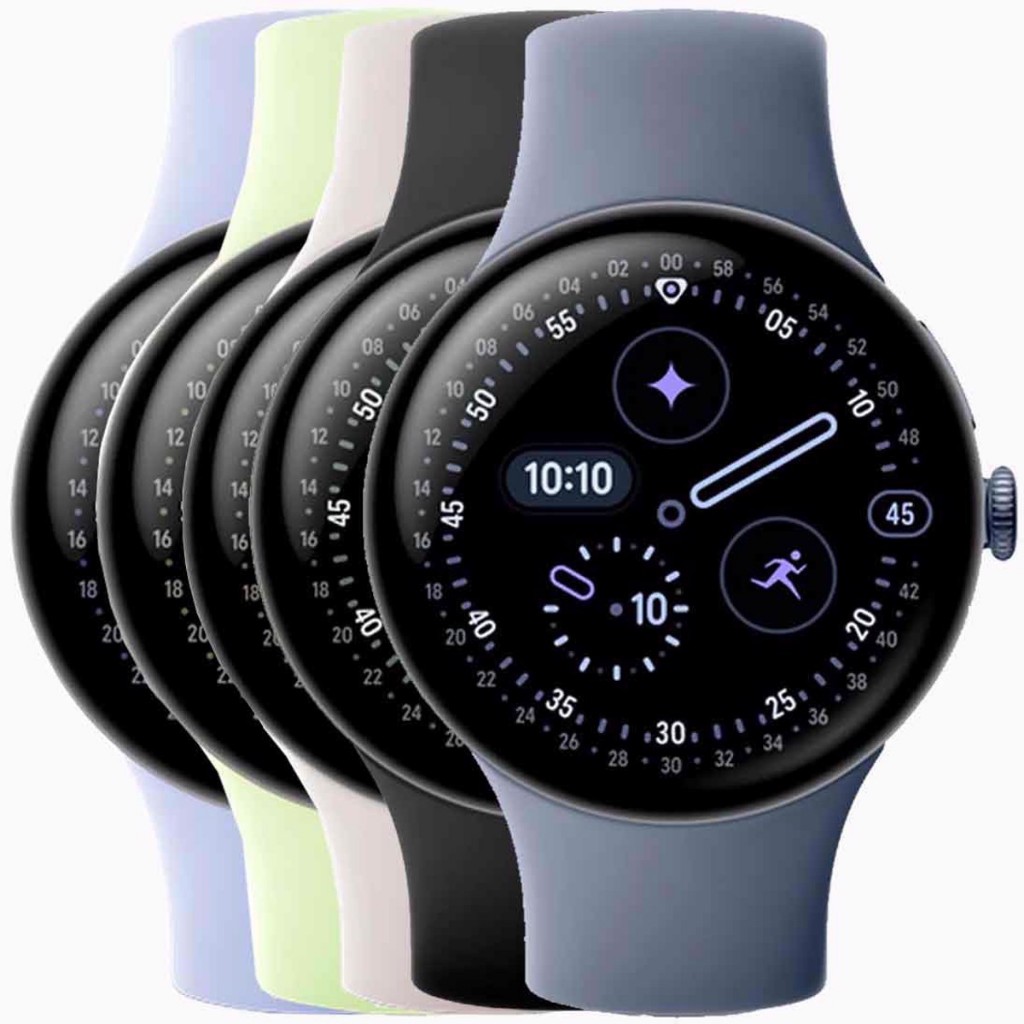
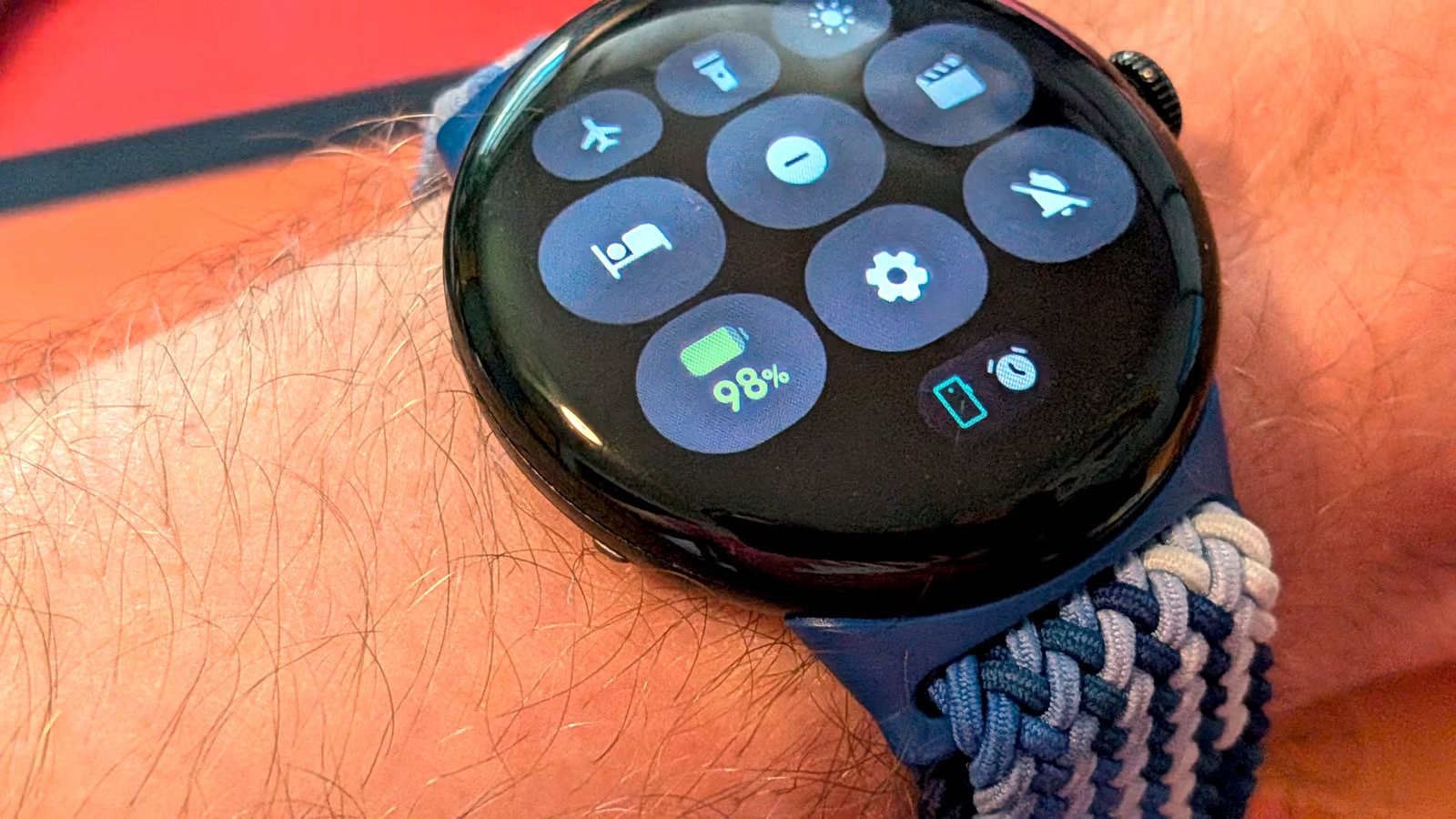
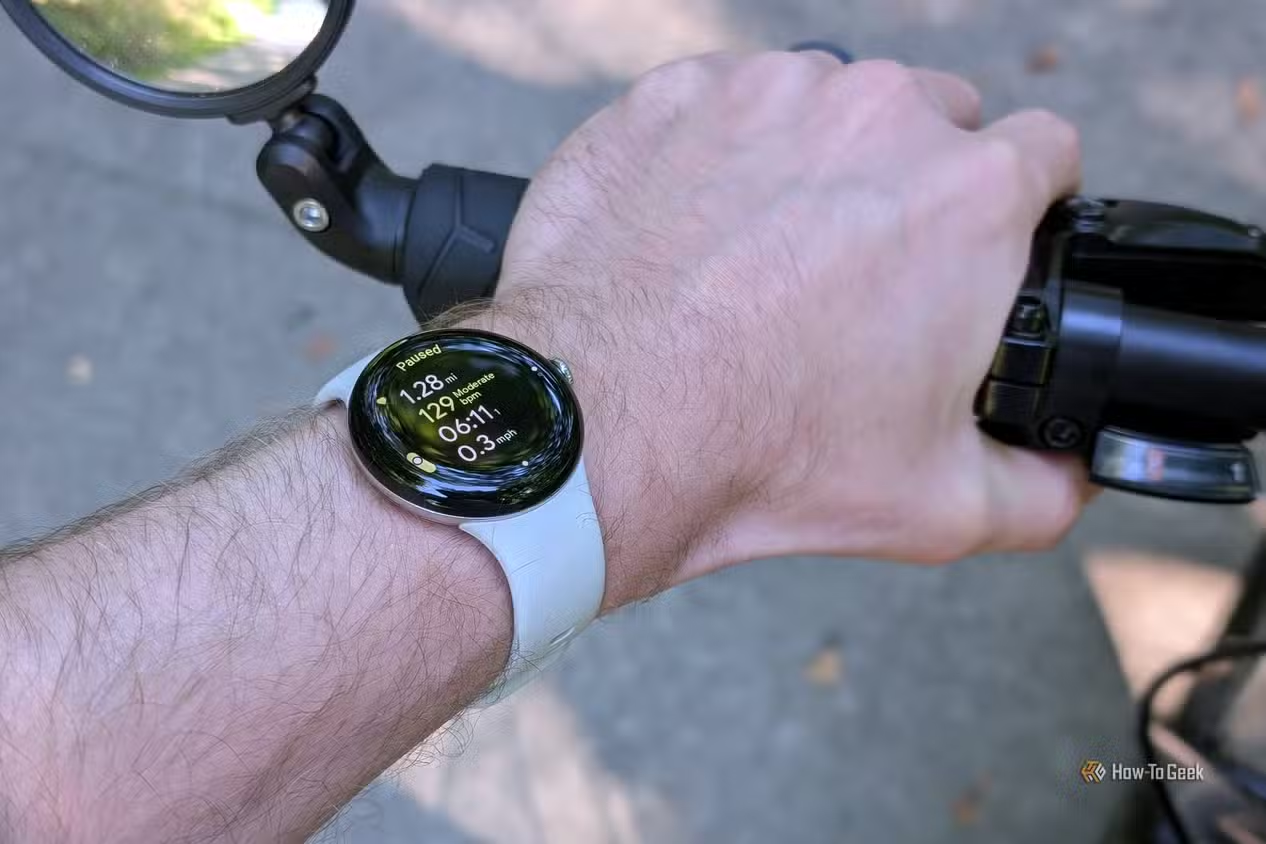
- On your Pixel Watch or other Wear OS 7 watch, install the latest system update, then enable Battery Saver and activity settings that match your actual usage; average users upgrading from Wear OS 6 to Wear OS 7 can expect up to 10% improvement in battery life, and some see around three full days with Battery Saver not even kicking in yet.
Modes and Routines put the “smart” in smartphone by letting your Galaxy automatically adapt to where you are and what you are doing, so it becomes smarter, faster, and does things you would otherwise handle manually. The hidden accessibility and navigation sliders handle two opposite problems: prompts disappearing before you can act, and gestures triggering when you never meant them to. On Wear OS 7, the deep, system‑level power optimizations are quiet but effective; Google notes that users upgrading from Wear OS 6 can expect up to 10% better battery life, and some Pixel Watch owners report battery life that feels incredible now.
Why These Android Hidden Features Stay Buried
None of these switches are secret, but they may as well be. You have probably seen the Modes and Routines option in settings and never taken the time to check it out because people rarely talk about it. The same goes for accessibility sliders like Time to Take Action on One UI, which sit under Settings → Accessibility → Advanced Settings and are easy to miss unless you are deliberately exploring. The good stuff is usually buried, and that is the slightly annoying truth about One UI—it is so stuffed with features that the genuinely useful ones get lost under everything louder and shinier.
There is also a mindset issue: small annoyances don’t feel big enough to hunt down a fix. Many long‑time Samsung users stop noticing the little frustrations and assume that is simply how phones behave. Meanwhile, Wear OS 7 hid its most practical improvement behind a single sentence in a developer blog, even though battery life on some Pixel Watch units improved far more noticeably than new widgets or media controls. According to Google, “average users who upgrade their watches from Wear OS 6 to Wear OS 7 can expect up to 10% improvement in battery life.” Once you accept that these annoyances are not inevitable, diving into settings becomes a lot more rewarding.
What Changes Once You Flip These Toggles
The payoff is subtle but constant. With Modes and Routines tuned to your day, your phone starts handling repetitive tasks for you—turning on loud notifications at work, muting alerts at night, or changing Bluetooth and Wi‑Fi behavior when you get in the car—so it feels smarter and faster without you doing the same taps every time. On the usability side, extending Time to Take Action means notification bubbles and prompts linger a reasonable amount of time; one user reported that setting it to the longer options made them stop feeling rushed by their own phone.
Back Gesture Sensitivity and hidden sound toggles upgrade your device from “good enough” to “pleasant” by making navigation and feedback match how your hand actually moves. On your wrist, Wear OS 7’s battery optimizations plus a sensible Battery Saver configuration turn overnight charges into multi‑day stretches, with three full days possible for some people, including one day with activity tracking before Battery Saver even activates. That kind of Wear OS battery life makes the watch feel more like a reliable tool than a gadget you are babysitting.
Takeaway: Ten Minutes in Settings Is Worth It
Set aside ten minutes and dig through your settings; there is a good chance something in there is quietly waiting to fix the thing that has been bothering you for months. These hidden device settings do not require any technical skill, and most of them work across multiple generations of phones and watches as long as you have reasonably current software. Samsung rarely talks about Modes and Routines even though they are among the features that some people use every single day. Google undersold Wear OS 7’s power improvements even though they change how often you think about charging.
You don’t need to find every tweak; focus on the ones that touch your daily pain points: prompts that vanish, swipes that misfire, batteries that drain faster than they should. The gotcha is that you have to look—these Android hidden features will not pop up on their own. Once you flip the right switches, your devices feel calmer, smarter, and far less annoying, and you get that quiet satisfaction of fixing problems you had assumed were permanent.