

Stop Treating Settings Like a Mystery Box
One UI hidden settings are lesser-known controls and toggles inside Samsung’s software that sit several menus deep and quietly solve common everyday annoyances, from disappearing pop-ups to unreliable gesture navigation, without needing extra apps or advanced technical knowledge, yet most Samsung users never discover or enable them at all. One UI is packed with hidden Samsung features that aren’t enabled by default and go unnoticed, even though they can make your Galaxy feel smarter and faster in daily use. The problem is simple: Samsung spends its marketing energy on flashy tools while the settings that fix real daily friction stay buried. The result is millions of users living with tiny frustrations—missed taps, erratic gestures, hijacked audio—assuming that’s “just how phones behave.” It isn’t. These are design problems your phone already knows how to fix, if you dig a little deeper.
Modes and Routines: The Automation Engine You Ignore
If you only explore one hidden Samsung feature, make it Modes and Routines. This is One UI’s built‑in automation engine, yet many users have seen the menu name and moved on because it rarely gets mentioned. That’s a mistake. Modes change your phone’s behavior based on where you are or what you’re doing—work, driving, sleep—while Routines respond to specific triggers like an app launch, time, location, or when a certain person calls. It’s like having an IFTTT-style rule system baked into your phone. To find it, open Settings and look for the option labeled "Modes and Routines", usually around the fourth or fifth item. Inside, you can build your own automation or tap the "Discover" tab to browse pre‑made routines for inspiration. Set aside ten minutes; this One UI trick can quietly handle things you keep doing manually, from silencing notifications at night to changing brightness at work.
Real‑world use is where this shines. One example: a user keeps their phone on silent 24/7, but lets calls from their partner ignore silent mode; when that number rings, ringtones turn on, and after the call ends the phone returns to silent. Another routine lets calls from a parent break through silence at a lower volume and with a different ringtone. According to one detailed walkthrough, these automations "make your Galaxy smarter, faster, and do things you'd usually have to do manually." This is the difference between a phone you manage and a phone that quietly manages itself.
Give Pop‑Ups More Time: Time to Take Action
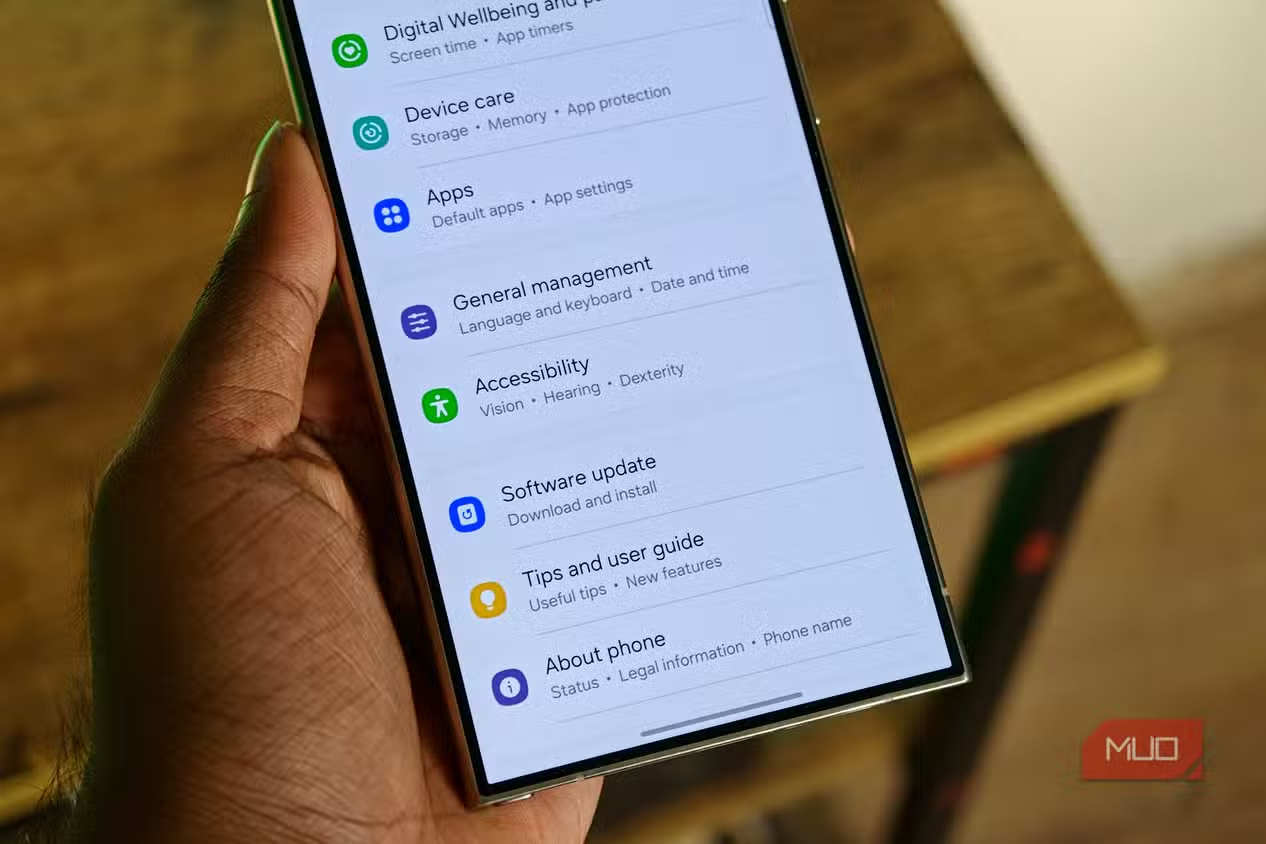
Every Samsung user knows the moment: a notification bubble drops down, you reach for it, and it vanishes. Or you nudge the volume, and the slider disappears midway, like the phone is impatient with you. Many people assume they are slow, not that One UI is rushing them. There is a fix built in: Time to Take Action. This One UI hidden setting controls how long prompts linger before they give up and disappear. On a Galaxy S24 Ultra, it lives under Settings -> Accessibility -> Advanced Settings, near the bottom. There you can choose 10 seconds, 30 seconds, 1 minute, or 2 minutes. Pick the longer options if you feel hurried or often miss taps. One user who switched to the maximum duration reports they no longer feel rushed by their own phone. This is a small change with outsized impact: your device stops treating you like a speed test and starts behaving like a tool on your schedule, not its own.
Fix the Back Gesture That Never Listens (or Won’t Shut Up)
Gesture navigation should feel invisible, but on many Samsung phones the back swipe is either hypersensitive or stubborn. Half‑swipes from the side of an app can suddenly kick you back when you meant to drag content, and other times you swipe to go back and nothing happens, so you swipe again and again like you’re poking at your phone in frustration. Plenty of users assume this is the price of using gestures. It isn’t. One UI hides a simple slider called Back Gesture Sensitivity that lets you dial this behavior in. Go to Settings -> Display -> Navigation Bar. There, tap "More options" and look for Back Gesture Sensitivity. Drag the slider one way to stop accidental back triggers from stray swipes. Drag it the other way to make the gesture register more reliably when you mean it. This is one of those One UI tricks that no keynote will ever celebrate, but it can end a long‑standing annoyance in about 20 seconds.
Stop Reels From Killing Your Podcast Audio
If you use wireless earbuds with your Samsung phone, you’ve probably met this infuriating behavior: you’re deep into a podcast, open a social app, scroll past a reel, and the video’s audio hijacks your earbuds, cutting off your podcast mid‑sentence. Most people accept this as how phones and earbuds work together and go back to their show every time. One UI has a quiet solution for this, hidden behind a simple toggle. Open Settings, then go to Sounds and Vibration. There is a setting there—off by default—that lets you pick specific apps and route their audio to the phone speaker instead of your earbuds. Turn it on, select the social or video apps that constantly interrupt you, and let them play out loud while your main audio stays private. After enabling this, when a reel autoplays while you’re listening, the reel’s sound comes from the phone and your podcast continues in your ears, completely undisturbed. It is a perfect illustration of how One UI hidden settings can fix a nagging problem you had assumed was permanent.