

What PC Insights Is—and Why Microsoft Thinks You’ll Use It
Windows 11’s Copilot PC Insights is an AI system diagnostics feature that reads hardware and system metrics through Windows APIs, then explains performance issues and resource usage in plain language and conversational answers aimed at users who find Task Manager and traditional tools confusing.
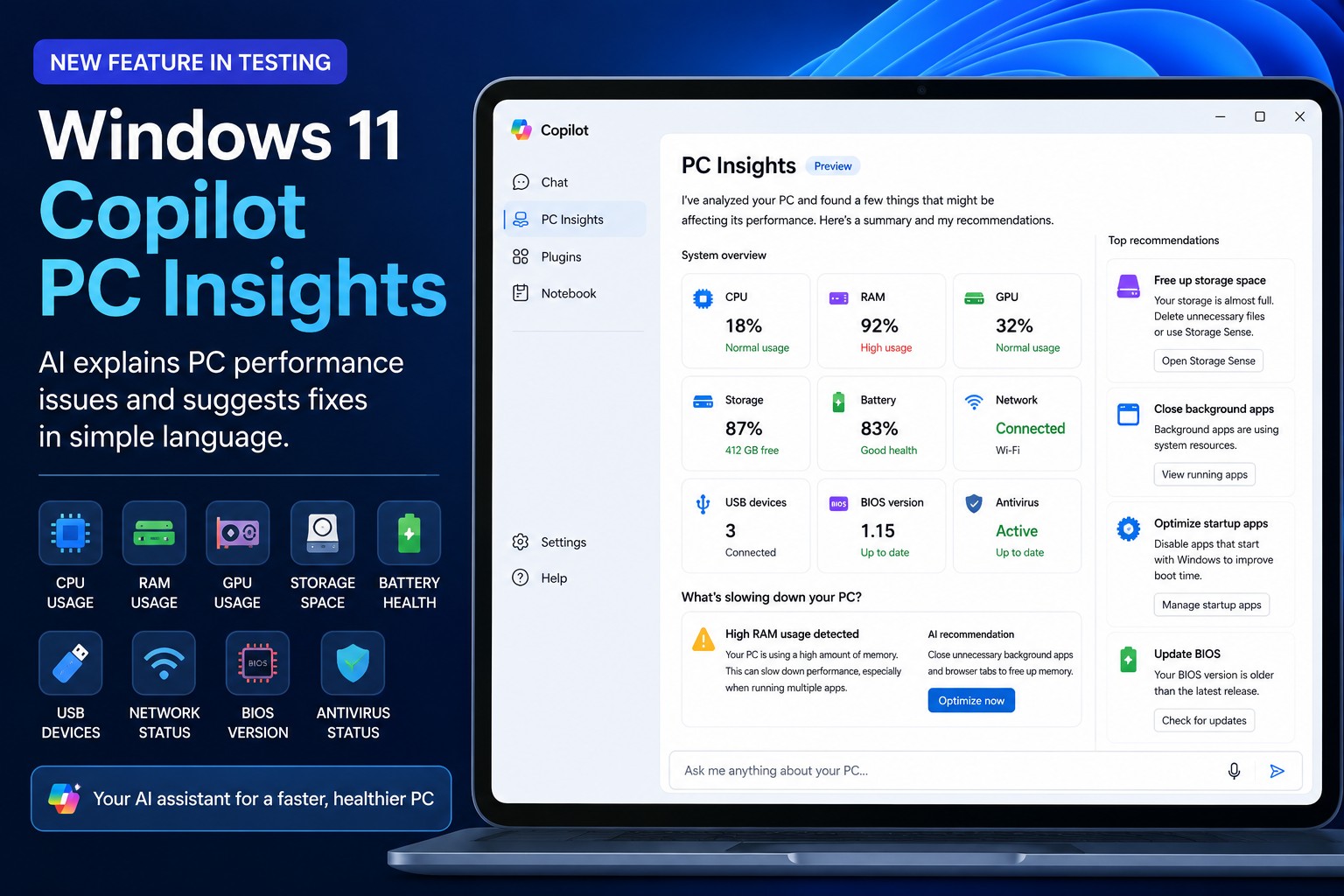
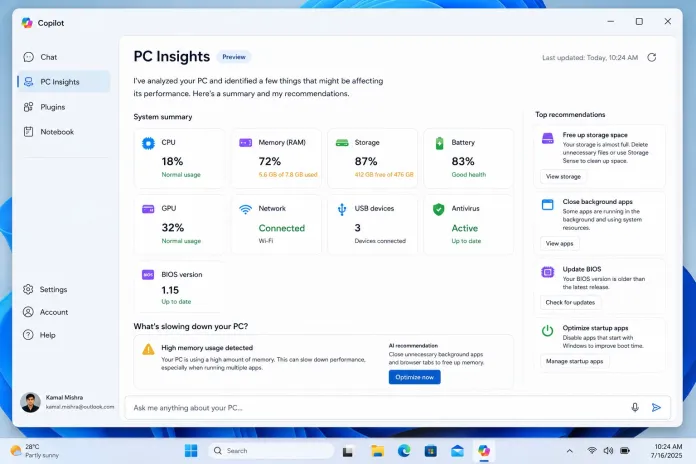
Microsoft is testing PC Insights as part of its push to turn Copilot into a full Windows assistant rather than a floating chatbot. The feature sits inside the Copilot app and, once enabled, lets you ask natural-language questions about your device: why your PC is slow, what’s using your memory, how much storage you have left, or even what GPU is installed. Instead of sending you hunting through Settings, Task Manager, and security panels, Copilot can examine CPU, RAM, GPU, disk space, battery health, USB devices, network status, BIOS version, and antivirus protection, then translate the raw data into explanations and performance suggestions. In theory, Windows 11 Copilot diagnostics turn PC performance troubleshooting into a chat instead of a scavenger hunt.
How PC Insights Tries to Fix the ‘Why Is My PC Slow?’ Problem
PC performance troubleshooting has always been a two-step job: find the numbers, then interpret them. Task Manager and other tools excel at the first part but leave most people stuck on the second. PC Insights tries to close that gap by identifying resource bottlenecks and spelling out what they mean. The AI assistant examines live metrics, spots patterns—like consistently high RAM usage or storage running on fumes—and explains them in everyday English.
You can ask, “Why is my PC running slowly?” or “What’s using all my memory?” and Copilot will analyze CPU usage, RAM utilization, GPU load, available storage, and more to answer. It might tell you your RAM is nearly full because too many applications are open, or that your SSD has very little free space and this can hurt performance, then recommend steps such as closing background apps or freeing disk space. Unlike traditional AI hype, this is a concrete promise: AI system diagnostics that do more than list processes—they suggest practical fixes aimed at real performance improvements.
The Skeptic’s View: Bloat, Accuracy, and ‘Might Be Lying to Me’
The backlash was inevitable. PC Insights lives inside the Copilot app, which in its latest form behaves like a standalone spin-off of the Edge browser and is already criticized as bloated. There is a pointed irony here: some users worried about sluggish performance are being told to run an AI assistant that can use the best part of 1GB of RAM while sitting in the background doing nothing. For a feature tied to performance, that memory footprint is hard to ignore.
Then there’s the trust problem. Microsoft openly warns that Copilot “may not always provide complete or accurate information,” especially while PC Insights is in testing. One frustrated commenter likened it to Task Manager “except instead of lightweight and authoritative, it’s bloated and might be lying to me.” That criticism cuts to the core question: when you’re diagnosing problems, authority matters. If a Windows 11 Copilot diagnostics panel sometimes hallucinates, its friendly explanations risk becoming dangerous guesses. Even fans of AI need to ask whether they want a tool that sometimes misreads symptoms anywhere near system-level troubleshooting.
Who PC Insights Is Really For
Despite the noise, PC Insights is not aimed at people who already live in Task Manager. It is for less informed PC owners who find performance graphs intimidating and would benefit from explanations and guided advice. For casual users, Copilot’s ability to answer questions about RAM, storage space, GPU details, processor usage, antivirus status, and battery health in plain English could remove a lot of guesswork.
Even advanced users may appreciate quick summaries of system health instead of opening several utilities for a simple check. You can choose whether Copilot gets one-time access or “always allow” access to your device’s hardware details, keeping privacy decisions in your hands. This opt-in model matters: you are not forced into AI system diagnostics, and you can leave PC Insights turned off if you prefer classic tools. Put bluntly, if you already know how to dissect a memory leak, PC Insights is optional convenience. If you do not, it might be your first understandable window into what your PC is doing.
So, Should You Trust Copilot’s PC Insights?
Trust PC Insights, but only in the right way. At the moment it is a Windows 11 Copilot diagnostics layer that interprets data; it does not automatically fix anything and may point to issues without resolving them for you. That means its real value is as a guide, not a mechanic. You should treat its advice as a starting point for PC performance troubleshooting, then confirm with traditional tools before making big decisions.
If your main problem is understanding what the numbers mean, the PC Insights feature could be one of the most helpful additions to Windows in years. If your main worry is resource use or AI accuracy, its 1GB-scale footprint and admitted possibility of incomplete information will stay hard to stomach. The smart move is pragmatic: enable it if you struggle with diagnostics, keep an eye on how much it slows your system, and always cross-check its claims. Copilot’s PC Insights does not yet earn blind trust—but as an explain-it-to-me layer on top of existing tools, it is worth trying with your skepticism switched on.