
If your Apple Watch dies by dinner, your settings are to blame
Apple Watch battery drain is the avoidable loss of charge caused by power-hungry default settings and background processes that run constantly, even when you are not actively using the watch, reducing all-day performance and forcing more frequent recharging than most people expect.
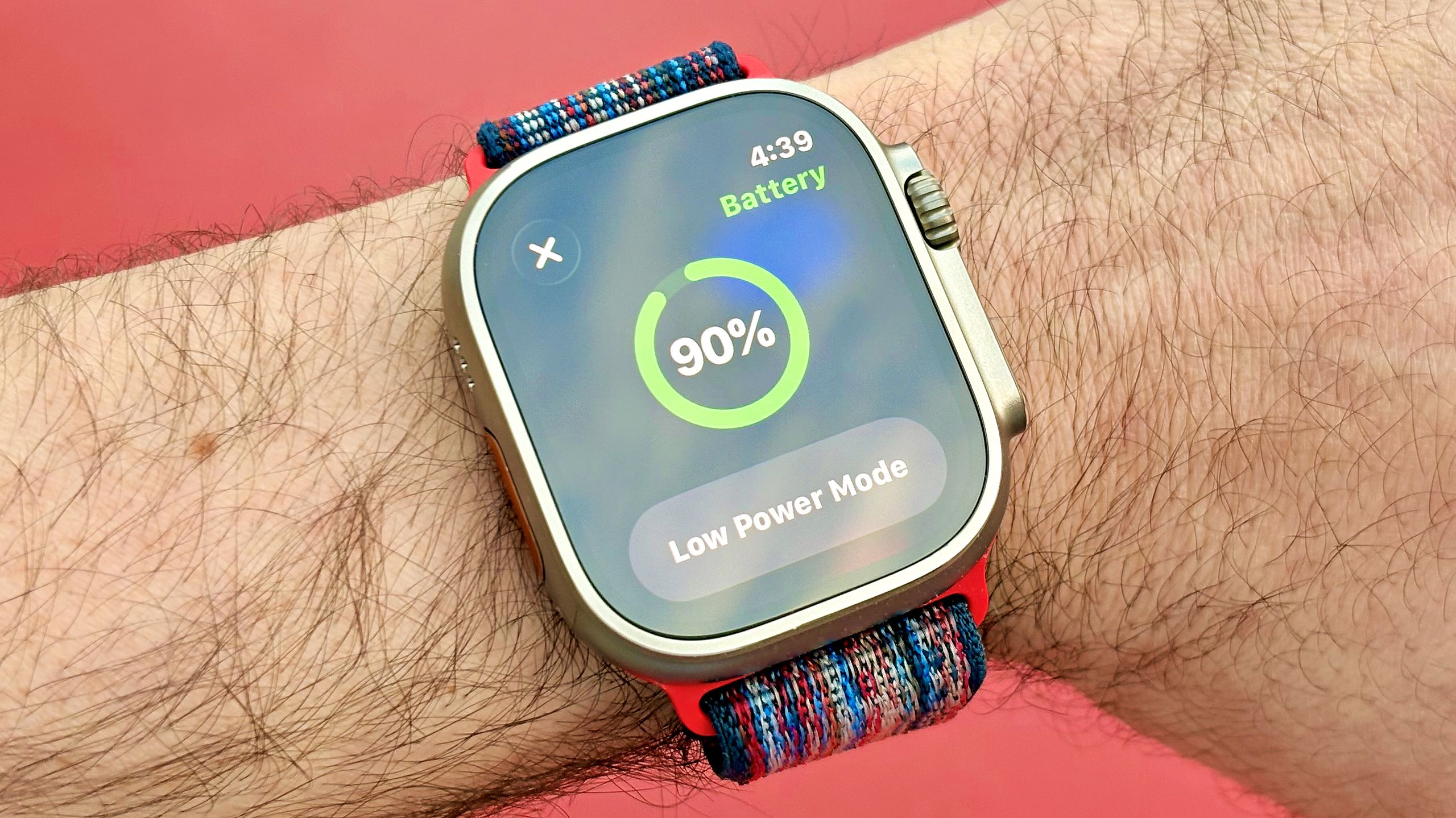
Apple Watch battery life has never matched the ambition of the device: the Series 11 averages about 24 hours, the SE 3 roughly 18 hours, and the Ultra 3 about 42 hours per charge. That is fine on paper, but in daily use, features you rarely notice quietly eat into those hours. You could flip on Low Power Mode and stretch a Series 11 to around 38 hours, but you give up features you likely bought the watch for in the first place. The smarter move is to hunt down the worst offenders in your Apple Watch settings and disable them while keeping core health tracking and notifications untouched. If your watch is conking out by late afternoon, the problem is far more likely to be configuration than hardware.
Turn off Background App Refresh: stop invisible battery leaks
The single most underrated cause of smartwatch battery drain is Background App Refresh. Apps on your Apple Watch constantly update and refresh behind the scenes, pulling in new data even when you are not looking at them, which can lead to faster-than-normal battery drain, especially if you use lots of third‑party apps. That means a news app, weather app, and a few utilities can quietly burn through a big chunk of your remaining charge while your wrist is idle.
To disable it on the watch: open Settings > General > Background App Refresh, then toggle it off for apps that do not need real-time data. Keep it on only for essentials where delay matters, like a navigation app during a trip. According to one source, these simple changes “won’t impact the user experience much but will noticeably improve your device’s battery life”. After this change, many users see their Apple Watch battery life go from “barely makes bedtime” to finishing the day with comfortable reserves.
Enable Reduce Motion: cut fancy animations, keep functionality
Your Apple Watch user interface is full of quick animations that make opening and switching apps look smooth and polished. Those transitions exist to make the watch feel premium, not because they are necessary for you to read a notification or track a workout. As one review notes, the interface is “chock-full of quick animations” that are visually appealing but far from essential, and the Reduce Motion option switches them off, saving you battery.
On your watch, go to Settings > Accessibility > Reduce Motion and toggle it on. That is it. The watch still does everything it did before. You can still track workouts, respond to messages, and check complications. You only lose some eye candy when moving between apps. Many people hardly notice a difference in feel but notice that the battery now holds up better through a long workday and evening. If you want to extend battery performance without losing features, sacrificing animations is one of the least painful moves you can make.
Rethink Optimize Charge Limit: more charge now, with a trade-off
Optimize Charge Limit is a clever Apple Watch setting with a downside most people do not consider. It is designed to protect long-term battery health by preventing overcharging, which in practice means your watch often stops charging at around 80%. That sounds good for longevity, but it also means you start each day missing the top 20% of capacity you paid for, and on a device already known for modest Apple Watch battery life, that missing slice matters.
If your priority is all-day endurance now, go to Settings > Battery > Battery Health (or Battery settings on your watch) and turn off Optimize Charge Limit. Then build a habit: charge the watch when you are nearby and avoid leaving it on a charger unattended for long stretches, especially overnight, to reduce wear over time. Recent models recharge from 0% to 100% in about an hour, so topping up to full in a controlled window is realistic. With a true 100% charge plus reduced background activity and motion, your watch is far more likely to survive heavy days without Low Power Mode.
What kind of battery gains can you expect in real life?
No two wrists are the same, but the pattern is clear: when you curb invisible background work and visual flair, you extend battery performance without gutting what makes the watch useful. Official figures show a Series 11 at about 24 hours, SE 3 at roughly 18 hours, and Ultra 3 at about 42 hours per charge. With Low Power Mode, a Series 11 can reach up to 38 hours; trimming Background App Refresh and motion animations nudges everyday battery life in that same direction while keeping continuous heart rate tracking and other core features intact.
The bigger win is freedom from battery anxiety. On older models, these tweaks work too, not only on the latest versions. Instead of ending the day in the red, many users end up with a buffer big enough for a late workout or night out. If your smartwatch battery drain has become a daily headache, ruthlessly tuning these Apple Watch settings is the most sensible first step before blaming the hardware.