
Apple Watch Battery Life Is a Feature, Not a Fate
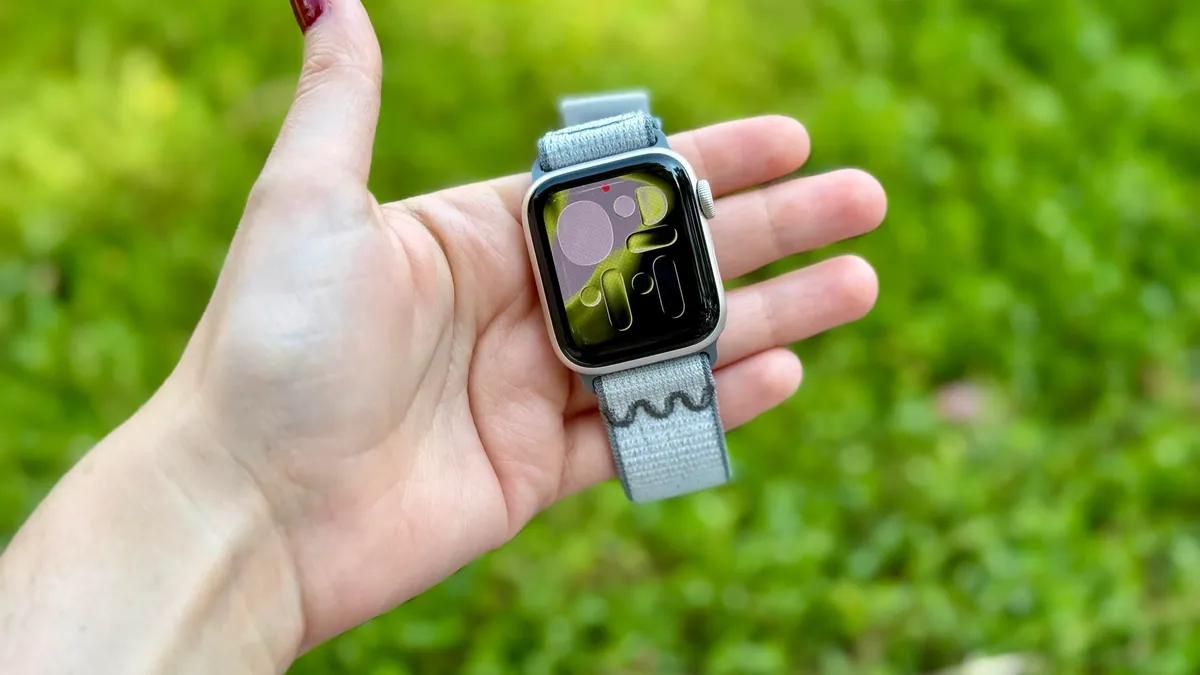
Apple Watch battery life refers to how long the device can provide core health tracking, notifications, and fitness features between charges, and it is shaped not only by hardware but also by settings choices and daily habits that either conserve energy or cause unnecessary wearable battery drain. The uncomfortable truth is that this smartwatch’s greatest strength is also its biggest weakness: accuracy costs power. Its optical sensors, software, and near-continuous heart rate sampling during workouts outperform many wearables, but they are also why the battery drains so quickly. The result is familiar to any owner: recharging every day, often right when you’d rather be recording sleep, recovery, or overnight health trends. Yet accepting this as inevitable is a mistake. You can maximize smartwatch battery without gutting the features that make the Apple Watch worth wearing. The key is targeted battery optimization tips, not blanket low-power compromises.
Tip 1: Kill Background App Refresh Before It Kills Your Battery
If your Apple Watch feels like it loses power faster than it should, start with background app refresh. The apps on your watch constantly update and refresh with new content behind the scenes, which can cause faster-than-normal battery drain, especially if you use lots of third‑party apps. That’s invisible energy use that rarely improves your day. Turning this setting off means an app like a news reader may need a few extra seconds to load the latest headlines when you open it, but you trade a slight delay for noticeably better Apple Watch battery life. According to one review, these changes don’t meaningfully hurt the user experience but do improve battery performance. To take control, open Settings on the watch, go to General, then scroll to Background App Refresh and disable it for all but your most important apps. This is low-effort, high-impact optimization that keeps health and fitness tracking intact while cutting invisible wearable battery drain.
Tip 2: Reduce Motion—Animations Are Pretty, Not Essential
Apple packs the Apple Watch interface with slick animations to make switching between apps and screens feel smooth and visually appealing. Those transitions look nice, but they come at a subtle energy cost: more motion means more work for the graphics system, which means more battery usage over the course of a day. However, these animations are far from essential. The Reduce Motion setting switches them off, saving battery while leaving core health and fitness features untouched. In practice, the difference between motion on and off is minimal; many users find it hardly noticeable once they’ve lived with it for a day. To enable it, open Settings, go to Accessibility, then scroll about halfway down to toggle Reduce Motion. If you care more about accurate heart data and lasting through the night than about flashy UI flourishes, this is an easy way to maximize smartwatch battery without sacrificing what matters.
Tip 3: Use Low Power Mode Strategically, Not as a Crutch
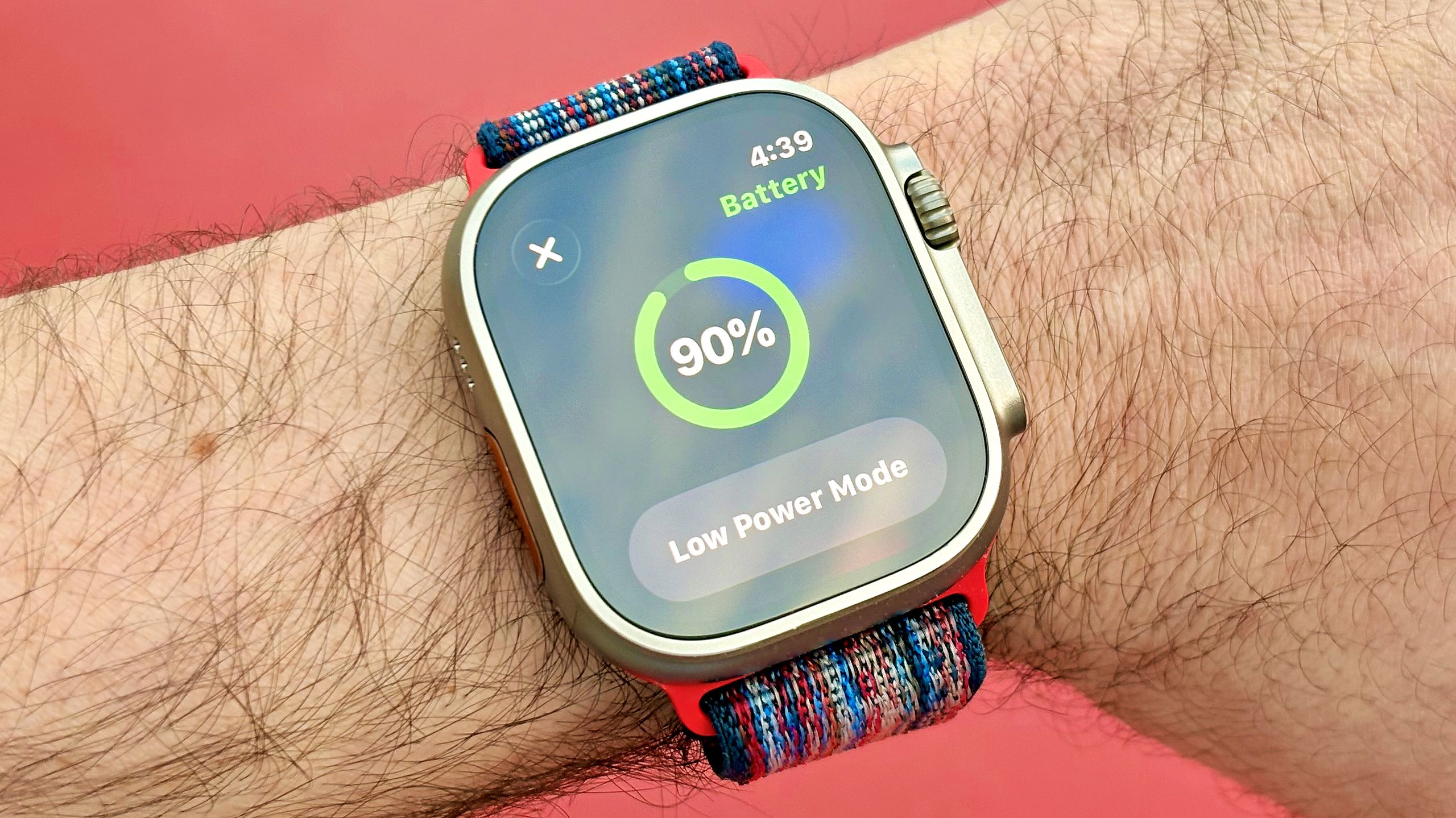
Low power mode is often treated as an emergency lever, but it can be a strategic tool when you plan ahead. On an Apple Watch Series 11, low power mode can extend battery life up to 38 hours per charge, compared with the typical 24 hours. That’s a meaningful boost—enough to get you through a travel day plus a night of sleep tracking. The catch is serious: handy features like the always‑on display and continuous heart rate monitoring are disabled. In other words, use it full‑time and you’ve paid for a premium health wearable only to turn off some of its best tricks. Instead, treat low power mode as a time‑bound tool. Enable it before long flights, late nights, or times when you care about notifications more than high‑frequency sampling. This way, battery optimization tips complement the watch’s accuracy and feature set instead of undermining them.
Why These Tweaks Matter More Than New Hardware
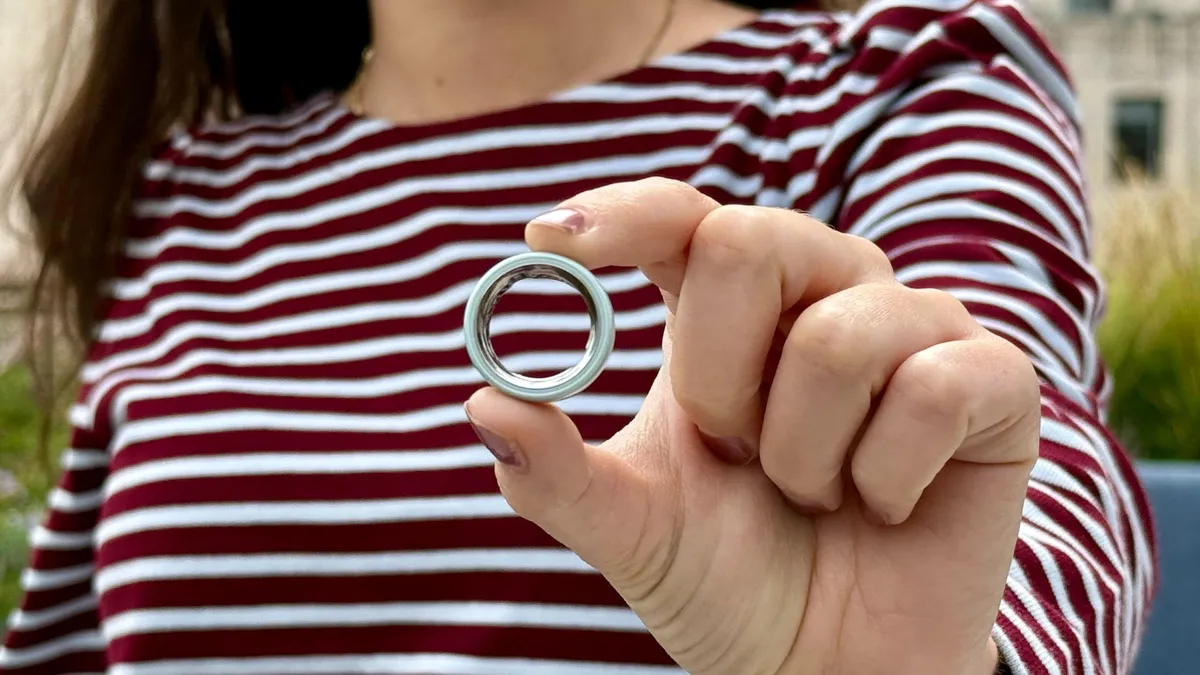
Apple Watch battery limitations are a known trade-off: the device delivers some of the most accurate heart rate tracking among wearables, but needing to recharge daily means it often sits on a charger overnight when the most valuable health metrics are collected. As wearables increasingly compete on long-term health insights, not just workout stats, that gap in around‑the‑clock data is Apple’s biggest weakness. Many smart rings and screenless bands approach the problem by disappearing into the background with week‑long battery life, trading some workout precision for continuous trends. Apple has chosen the opposite path—maximum accuracy now, battery advances later. That makes your settings and habits crucial today. The good news: you don’t need the latest model, and you don’t have to give up essential Apple Watch features; these battery life tips work on older watches too and won’t impact the user experience much while noticeably improving battery performance. Smart configuration is the missing piece between powerful sensors and dependable daily wear.