
Single vs Multiple Monitors: The Core Trade-Off
A monitor setup is the way your screens are arranged on your desk, and choosing between a single display, a dual monitor setup, or an ultrawide screen directly affects how you manage multitasking, visual comfort, and available workspace throughout a typical day. If you want the fastest desk upgrade, moving beyond a small single display is almost always the biggest win: either add a second standard monitor or replace your main screen with a large curved ultrawide. My bottom line: if you constantly juggle apps, timelines, and reference material, multiple monitors workflow options give clearer separation between tasks and feel more spacious. If you prefer simplicity and fewer cables, a single large or ultrawide monitor can deliver a major monitor productivity upgrade without the management overhead of extra screens.
Why Dual Monitors Feel So Fast for Everyday Work
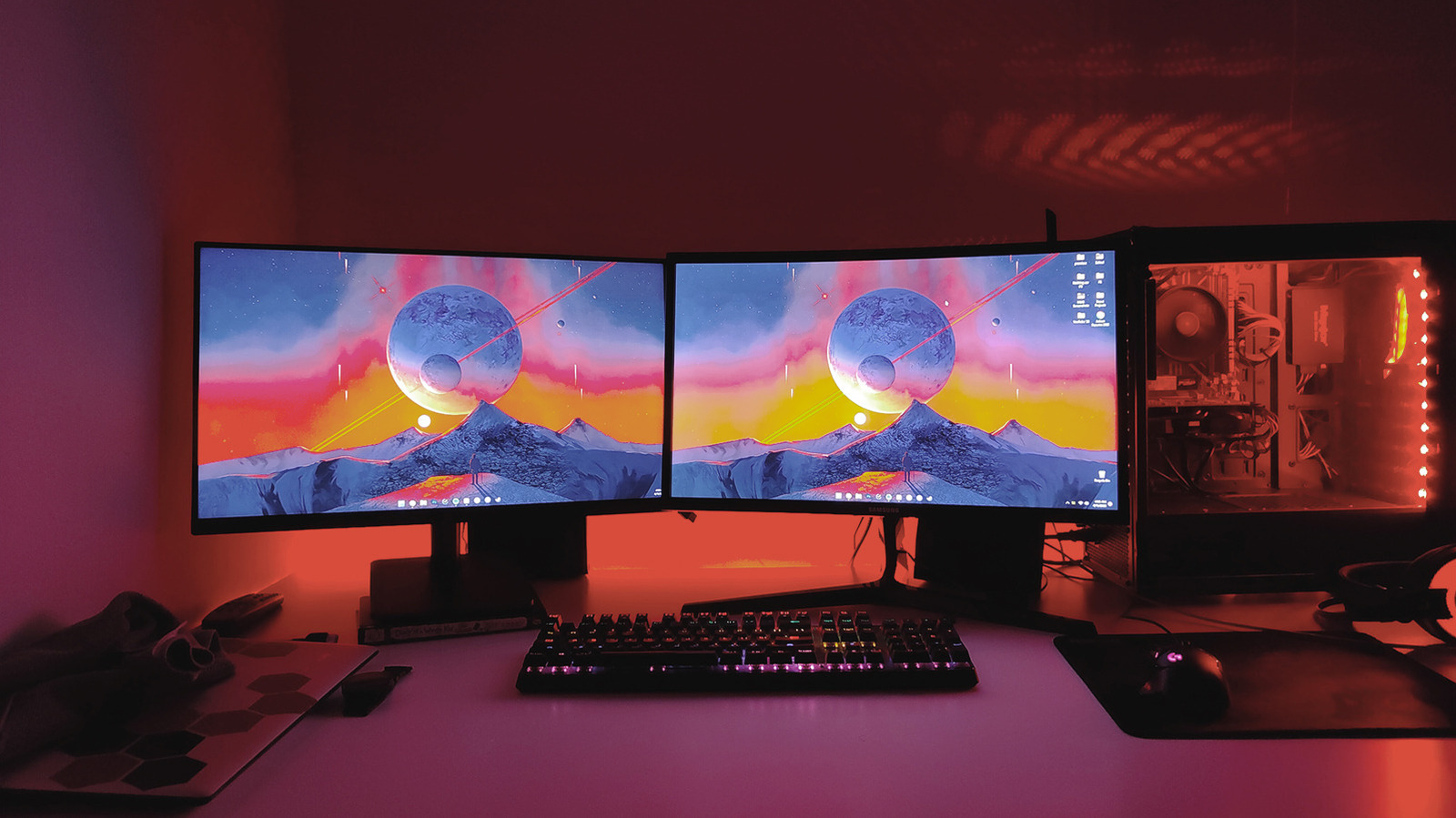
A dual monitor setup shines when your day is built around multitasking. With two displays, email can stay open on one while documents, code, or timelines live permanently on the other, so you stop shuffling windows and can see more at once. This makes dual screens a strong multiple monitors workflow choice for writers, coders, project managers, and anyone who spends hours comparing information. There are downsides: two or more monitors introduce cable clutter, require extra power outlets, and take up considerably more space on the desk. You also have to think about matching sizes, calibrating colors, and aligning heights to avoid neck strain. Dual screens excel if you value clear separation between tasks and don’t mind the extra hardware. If you hate visual noise, or your desk is small, the complexity may outweigh the speed gains.
Ultrawide Monitors: A Cleaner Alternative to Traditional Dual Setups
Ultrawide monitors offer an unparalleled level of immersion for movies and games thanks to their curved panels, surrounding your peripheral vision on both sides. On a practical level, they are also excellent for getting work done because the extra horizontal real estate lets you lay out several windows side by side while keeping a single, uninterrupted canvas. According to one reviewer, a single 32-inch 1440p curved display took up more than half of the desk yet still provided enough room for multiple windows, without the complexity of owning a second monitor. This is where ultrawide monitor benefits overlap with productivity: you keep the simplicity of one display, reduce bezels slicing through your workspace, and avoid relying on fussy window management tools because apps remember their positions more easily on one large screen. As a result, an ultrawide can be a space-efficient and visually clean alternative to traditional dual-monitor configurations.
| Spec | Best ultrawide monitor | Second best ultrawide |
|---|---|---|
| Panel type | QD-OLED | QD-OLED |
| Resolution | 3440 x 1440 | 5120 x 1440 (32:9 super ultrawide) |
| Refresh rate | 360Hz | 240Hz |
| Response time | - | 0.03ms |
| Curvature | 1800R | 1800R (screen curvature) |
| Panel size | 34-inch | 49-inch |
| Key I/O ports | 2x HDMI 2.1, 1x DisplayPort 2.1a, 1x Type-C, 2x USB 5Gbps Type-A, 1x USB 5Gbps Type-B, 1x Headphone-out | Noted for 90W USB-C Power Delivery, KVM switch, ethernet port & integrated mic |
| Shared weaknesses | Little to no cable management; corner brightness varies; expensive | Lots of screen wobble; cheap build quality; limited brightness; this size & aspect ratio isn’t for everybody |
Matching Your Monitor Layout to Gaming, Design, and Coding
Different workflows benefit from different monitor configurations. For gaming, few experiences feel as immersive as a large curved monitor that wraps around your field of view. High-refresh ultrawide panels, like a 34-inch QD-OLED at 3440 x 1440 with 360Hz, deliver smooth motion and rich color that make fast-paced titles look and feel responsive. Super ultrawide 49-inch, 32:9 OLED options with 240Hz and 0.03ms response times extend this across an enormous horizontal span. For design and video work, ultrawides and multi-monitor workflows both help: ultrawides keep timelines and tools on a single canvas, while dual screens let you dedicate one display to full-screen previews. Coders often prefer dual setups so they can pin documentation or logs on one screen and code on the other. The best choice depends on whether you value seamless immersion (ultrawide) or strict separation between tasks (dual).
Ergonomics and Comfort: Getting Any Setup Right
Whatever layout you choose, proper monitor placement and ergonomic positioning matter more than an extra few inches of screen. A life-changing tip from experienced users is to pick up a monitor arm, which provides more flexibility and lets you set the right height and tilt for your display when built-in stands fall short. This applies to single, dual, and ultrawide setups alike. With dual monitors, aim to keep the primary display directly in front of you and the secondary angled slightly, so you turn your head rather than twist your neck. With ultrawides and super ultrawides, be aware of the huge desktop footprint and make sure the curve and width match your viewing distance, or you may find yourself leaning or craning to see the edges. Done well, any configuration can be a monitor productivity upgrade; done poorly, even the best hardware will feel tiring.
Buy if / Skip if
- Buy the dual monitor setup if you multitask heavily and want permanent space for email, reference material, and active work windows at the same time.
- Skip the dual monitor setup if your desk is small or you dislike extra cables, power bricks, and physical clutter around your workspace.
- Buy the ultrawide monitor if you want a single-screen monitor productivity upgrade that still lets you keep multiple windows open with no bezel cutting through the center.
- Skip the ultrawide monitor if you are sensitive to screen wobble, limited brightness, or find very wide aspect ratios and huge footprints awkward to use daily.
- Buy the high-refresh ultrawide monitor if gaming immersion and smooth motion at up to 360Hz or 240Hz are as important to you as work performance.
- Skip the high-refresh ultrawide monitor if you rarely play fast-paced games and would rather invest in simpler ergonomics, a monitor arm, or a more modest single display.