
Why Your Junk Drawer Is Hiding the Perfect Desk Smart Display
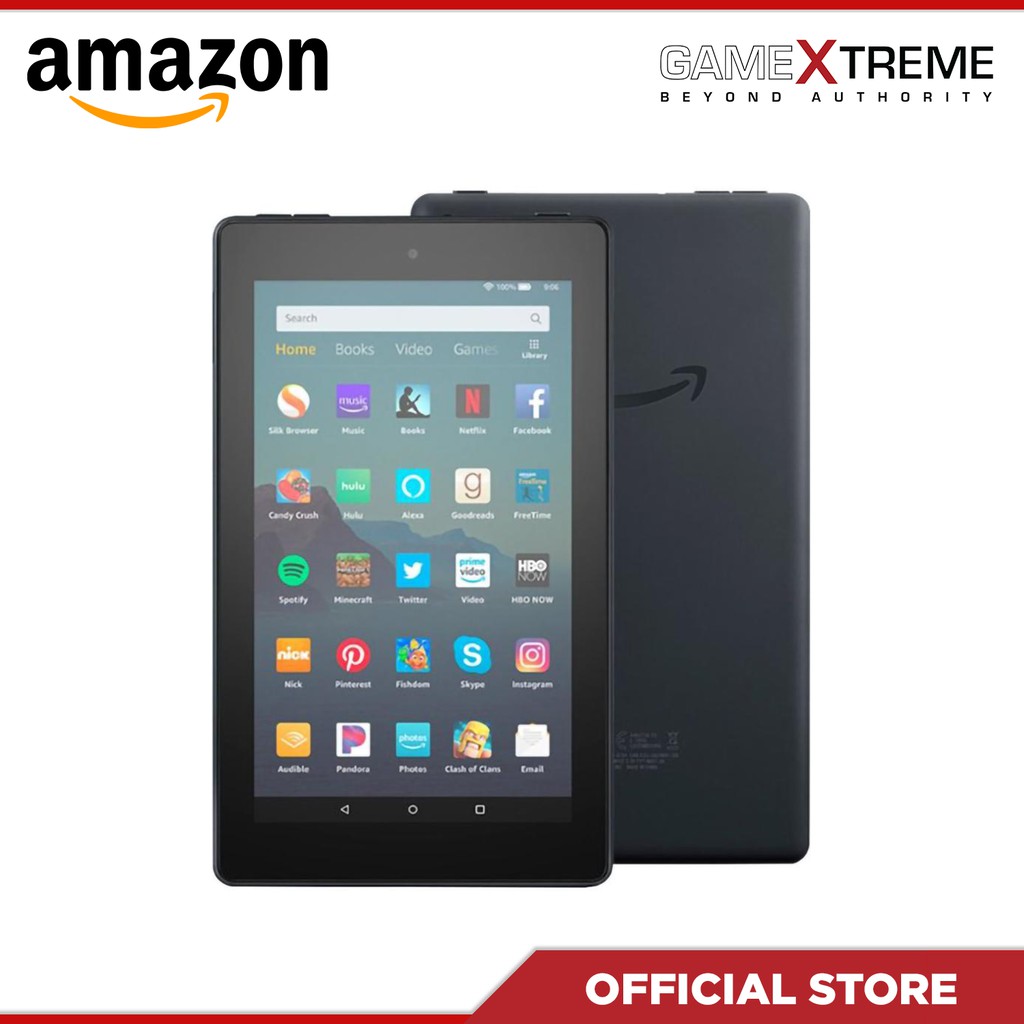
A productivity dashboard setup is a dedicated screen made from a repurposed old tablet or smartphone that stays on your desk to show key information, media controls, and quick actions, turning forgotten hardware into a constant smart display that supports your work instead of sitting unused in a drawer. Repurpose old tablet projects are more than fun weekend hacks; they are a practical way to add a secondary display and reduce e‑waste at the same time. One ninth‑generation Fire 7 tablet from 2019, with a modest quad‑core 1.3 GHz processor and 1 GB of RAM, went from frustrating daily driver to smooth information panel once it was treated as a simple display instead of a full tablet. It feels good to put old tech to use that would otherwise gather dust in a drawer.
Turn an Old Fire Tablet Into a Home Assistant Desk Smart Display
If you have an aging Fire tablet, you do not need a new monitor to get a desk smart display; you need the right app and a bit of patience. One underpowered Fire 7 was turned into a minimalist Home Assistant dashboard that sits on a desk and shows key information with a few taps. The trick is to treat the device as a single‑purpose screen rather than a tablet that must run many tasks. The Home Assistant Companion app exists on mainstream app stores, but an open‑source F‑Droid build was chosen instead, using a community‑run catalog that distributes free and open‑source software built from public source code. That choice keeps the setup light and privacy‑friendly, and it shows how open‑source apps can transform older Fire Tablets into functional desktop smart displays without extra hardware.
- Find your old Fire tablet, even if it is a low‑spec ninth‑generation Fire 7 with 1 GB of RAM.
- Download the Home Assistant Companion APK from F‑Droid, a catalog of free and open‑source Android apps built from public source code.
- Enable “Apps from Unknown Sources” in the tablet settings so you can install the downloaded APK.
- Install the app, then log in with your Home Assistant credentials like you would on any other device or browser.
- On your main computer, create a new Home Assistant dashboard sized for the tablet’s landscape screen because configuring on‑device is slow.
- In the Companion app settings on the tablet, lock the app to landscape mode for a stable desk‑friendly layout.
- Leave the tablet plugged in and positioned on your desk; use it only as a dashboard to display information and controls.
Once configured, even this old and underpowered Fire 7 does not need large amounts of RAM or a fast processor to act as a usable dashboard. The small screen might be poor for wall mounting, but it is ideal when sitting right in front of you on the desk. This is a low‑cost alternative to buying a dedicated smart display, and it proves that a repurpose old tablet project can be both practical and satisfying.
Build an Android Auto Desktop Dashboard From a Spare Phone
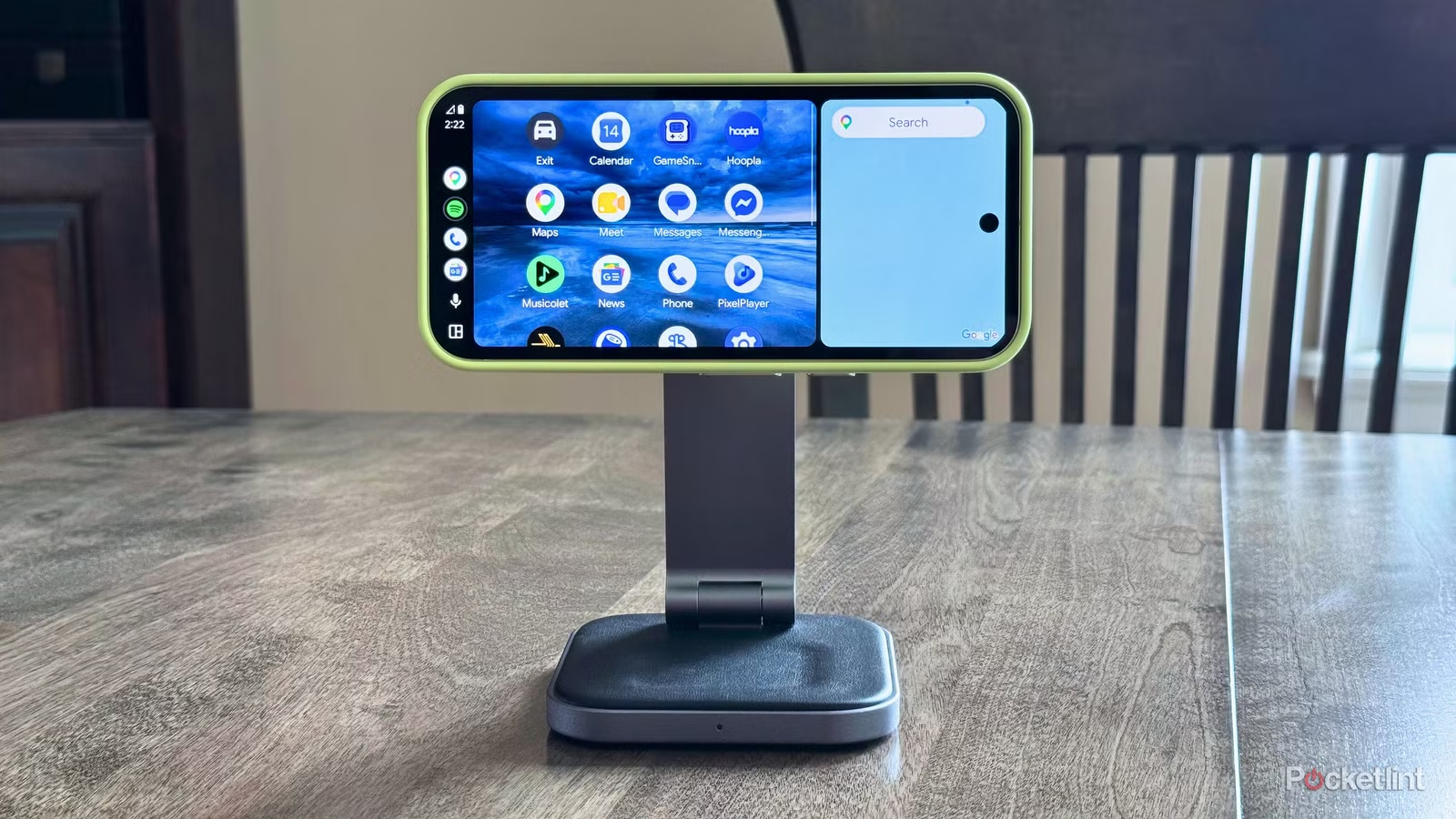
Old phones are even more common than old tablets, and they make excellent desk smart display candidates when paired with the Android Auto interface. Android Auto usually turns your smartphone into an in‑vehicle infotainment hub, but third‑party apps can emulate the same dashboard on a phone or tablet without a car. Headunit Revived allows you to emulate the Android Auto experience directly on an Android‑based smartphone without the need for a vehicle, and it is designed to work with a companion app so that a secondary device can trigger the connection. According to the described setup, Android Auto works surprisingly well as a quick‑access dashboard at a desk, with big icons and controls that are convenient to press. This is how an Android Auto desktop turns yesterday’s handset into a focused productivity dashboard setup for music, calls, and core apps.
- Download and install Headunit Revived on the old Android device you want to use as a dedicated Android Auto display.
- Download and install the WiFi Helper companion app on a second Android device that will start the connection.
- On Headunit Revived, open Settings, go to Wireless Mode, then Helper Connection Strategy, and select WiFi Direct (P2P), followed by Save.
- In WiFi Helper, open Settings, go to Connection Mode, and select Wi‑Fi Direct.
- Still in WiFi Helper, go to Settings, then Wi‑Fi Direct Device Name(s), and enter the same name you see near the top of Headunit Revived.
- Tap Start Android Auto in WiFi Helper and tap the WiFi button in Headunit Revived to start the connection.
- Accept any requested permissions on both devices; once done, the Android Auto interface appears on your target phone or tablet and works as a dedicated app you can return to via the multitasking carousel.
When the setup is complete, the Android Auto interface shows on the target Android phone or tablet and behaves as its own dedicated application. Stationed at a desk, this layout functions as a companion dashboard that streamlines access to music, the phone dialer, and other essential functions. It is an elegant Android Auto desktop solution that saves you from buying another screen.
The Payoff: Less E‑Waste, More Screen Space, Almost No Cost
The real win in turning old hardware into a productivity dashboard setup is not the novelty; it is the combination of extra functionality and reduced waste. When a Fire 7 tablet that was slow and frustrating in normal use becomes a reliable Home Assistant desk smart display, you avoid throwing away electronics that still have life left. It feels satisfying to put old tech to good use instead of letting it gather dust. Likewise, emulating Android Auto on an unused phone means one less device discarded and one more tailored interface that streamlines music, calls, and essential tools at your desk. Far from being a proof of concept, this Android Auto dashboard functions as a useful companion screen in an office setting.
Repurposing devices reduces e‑waste while adding secondary display functionality to creative workspaces, and open‑source and third‑party apps make the process accessible. You are not buying dedicated monitors or smart displays; you are reusing what you already own, from underpowered tablets that now excel at showing information to phones that gain a focused Android Auto desktop role without a vehicle. The conclusion is clear: the best new screen for your desk might be the old device you nearly threw away. Give it a narrow job, install the right software, and turn clutter into a quiet, helpful dashboard.