
Why Turn Old Phones and Tablets Into Desk Dashboards?
Turning an unused phone or tablet into a smart desk dashboard means using it as a dedicated screen for time, calendar, notifications, and smart home controls so you avoid buying single-purpose gadgets, reduce e-waste, and keep key information visible while you work.
If you have an old Fire tablet or a tired smartphone sitting in a drawer, it can still do one thing well: display information. Even a ninth‑generation Amazon Fire 7 with a quad-core 1.3 GHz processor and 1 GB of RAM is painfully slow for normal apps but fine for a minimalist tablet desk dashboard that lives on your desk. The same goes for an aging iPhone or Android handset with weak Wi‑Fi or a cracked back—perfect for a clock, calendar, and smart home remote instead of daily driving.
The real prerequisite is simple: a device that can power on and connect to Wi‑Fi, plus patience for a 30‑minute setup. You don’t need technical expertise, paid software, or fancy smart desk gadgets. Free and open‑source apps from catalogs that distribute only free and open‑source software make it accessible even for slower hardware. If you’re the kind of person whose desk is crowded with a separate clock, calendar, and smart display, repurposing old tech can replace several devices in one go.
What You Need Before You Repurpose an Old Phone or Tablet
Before we get into the step‑by‑step process, it helps to gather the basics. Think of this as building a tiny control panel for your working day, using what you already own instead of buying new smart desk gadgets. You’ll turn an underpowered tablet into a dedicated Home Assistant dashboard, and an Android phone into an Android Auto secondary display setup.
| Item | Why You Need It | Typical Example |
|---|---|---|
| Old tablet | Acts as a dedicated Home Assistant tablet desk dashboard on your desk | Amazon Fire 7 with 1 GB RAM and quad-core 1.3 GHz CPU |
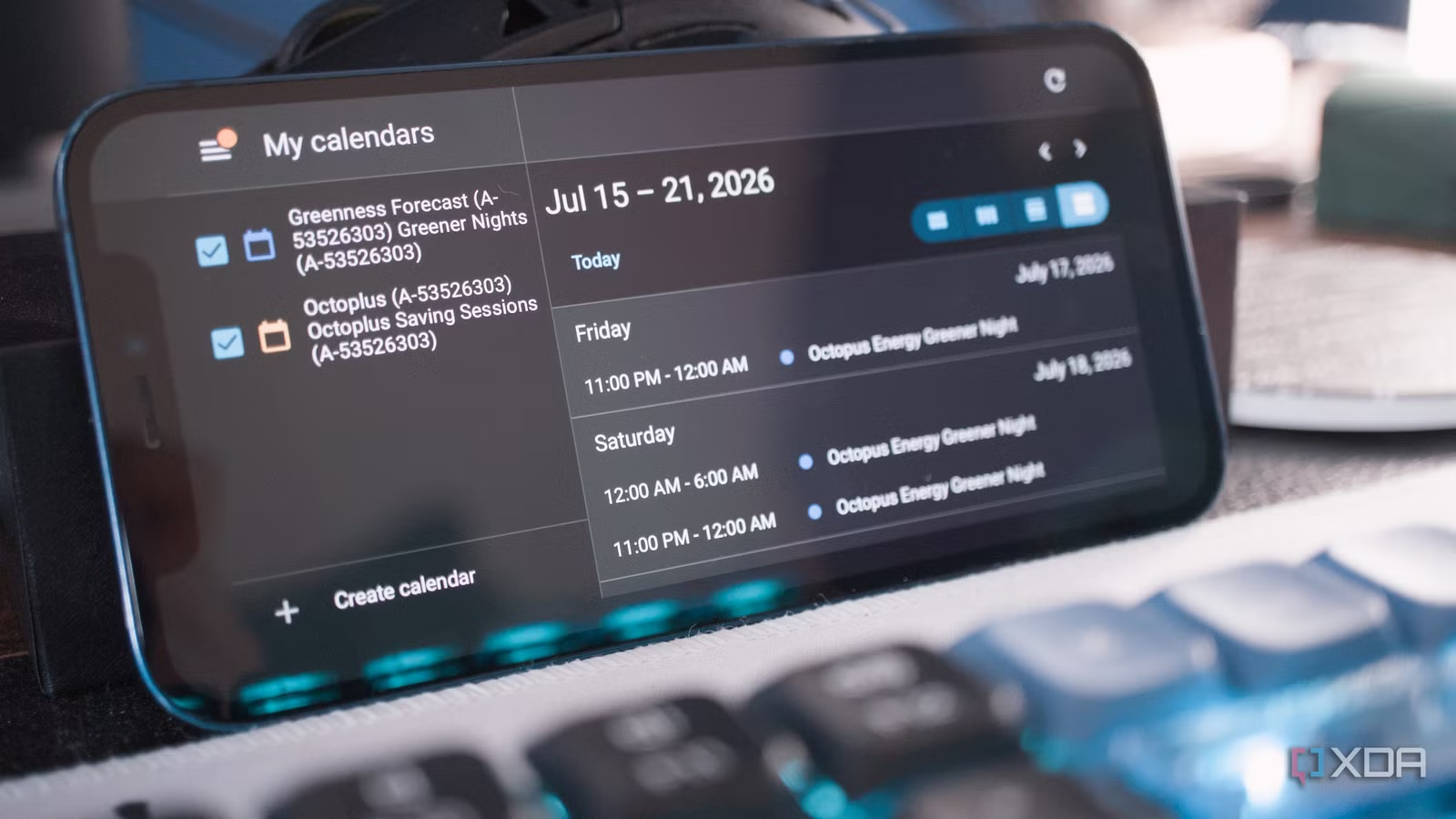
| Old phone | Runs calendar, clock, notifications, and smart home remote controls | iPhone 12 turned into a time‑providing, calendar‑checking Home Assistant remote |
| Wi‑Fi & power | Keeps your dashboard online and always-on | Any home Wi‑Fi and a charger, ideally via a smart plug automation |
| Home Assistant & companion app | Provides smart home dashboards and controls | Home Assistant Companion app, including a build distributed through an open‑source catalog |
| Two Android phones | One acts as the Android Auto display, the other triggers the connection | Target device plus a secondary device running WiFi Helper |
| Android Auto headunit app | Emulates Android Auto as a stand‑alone dashboard | Headunit Revived installed on the target phone or tablet |
| Phone or tablet stand | Props the device up so it feels like a mini smart display | Any stand; some people use a 2‑in‑1 wireless charging stand on their desk |
| Optional smart plug | Automates charging so the battery stays healthy on a device that’s always plugged in | Smart plug that turns the power cable on at 20% and off at 80% battery |
The only caveat: your very old hardware won’t be good for heavy apps or video, but it doesn’t need huge amounts of RAM or a fast processor to act as a usable dashboard. That’s the point—you’re using broken or outdated devices to avoid paying for extra single‑function gadgets like a dedicated smart display, separate remote, desk clock, and calendar.
Step‑by‑Step: Turn an Old Device Into a Home Assistant Desk Dashboard
Let’s start with the smart home side: turning that forgotten tablet or phone into a Home Assistant‑powered tablet desk dashboard. This turns a sluggish device into a permanent clock, calendar, and smart home control panel that sits on your desk and stays in dashboard view all day.
- Power on your old tablet or phone and connect it to Wi‑Fi. On an older Fire 7, expect it to feel slow for general use, but that’s fine for this role.
- Install the Home Assistant Companion app. On Android tablets you can use the build distributed via the community‑run catalog that focuses on free and open‑source software, which strips out features that rely on Google Play Services to better suit underpowered hardware.
- If you installed via an APK, enable “Apps from Unknown Sources” in system settings, then install the app and log in with your Home Assistant credentials.
- Open Home Assistant on the device and navigate through your existing dashboards as you would on any other phone or browser, checking that key controls for lights, sensors, and scenes work with a tap.
- Create a simple dashboard focused on desk use: add a clock, calendar card, and a few office controls like lights, climate, or power switches so the device becomes a tiny control panel for the working day.
- Place the device on a stand and set the screen timeout generously or use a screensaver mode so the dashboard view stays front and center instead of bouncing back to your home screen.
- Optional but recommended: connect the device’s power cable to a smart plug and automate charging based on battery level, turning the plug off at 80% and back on at 20% so the battery isn’t hammered by permanent full charge.
Once this is done, even an old, underpowered tablet becomes a perfect desk‑side dashboard because it’s sitting right in front of you and only needs to display information. Instead of feeling like an old phone running one app, your repurposed device turns into a neat time‑providing, calendar‑checking Home Assistant remote with convenient access to functions you frequently use. The gotcha to watch for is battery health—keeping a device always plugged in without that smart plug automation will age the battery faster over time.
Step‑by‑Step: Use Android Auto as a Desk‑Side Secondary Display
Now let’s repurpose an Android phone or tablet into a secondary display setup using Android Auto. Instead of being locked to your car, Android Auto’s interface can be emulated on a device at your desk with third‑party apps, turning it into a quick‑access dashboard for calls, messages, and media. When propped up on a stand, it complements your main computer so you juggle fewer windows while working.
- On your target Android device—the one you want to repurpose as the dedicated Android Auto display—download and install the Headunit Revived application.
- On a second Android device—the one that will handle the connection—download and install the WiFi Helper companion app.
- On the target device, open Headunit Revived and go to Settings > Wireless Mode > Helper Connection Strategy. Select WiFi Direct (P2P), then tap Save to store that setting.
- On the helper phone, open WiFi Helper and navigate to Settings > Connection Mode. Select Wi‑Fi Direct so both apps expect a peer‑to‑peer wireless link.
- Still in WiFi Helper, go to Settings > Wi‑Fi Direct Device Name(s) and enter the same name that appears near the top of the Headunit Revived app, so the two devices recognize each other.
- Tap Start Android Auto in WiFi Helper, then tap the WiFi button inside Headunit Revived. This triggers the wireless connection and starts Android Auto on the target device.
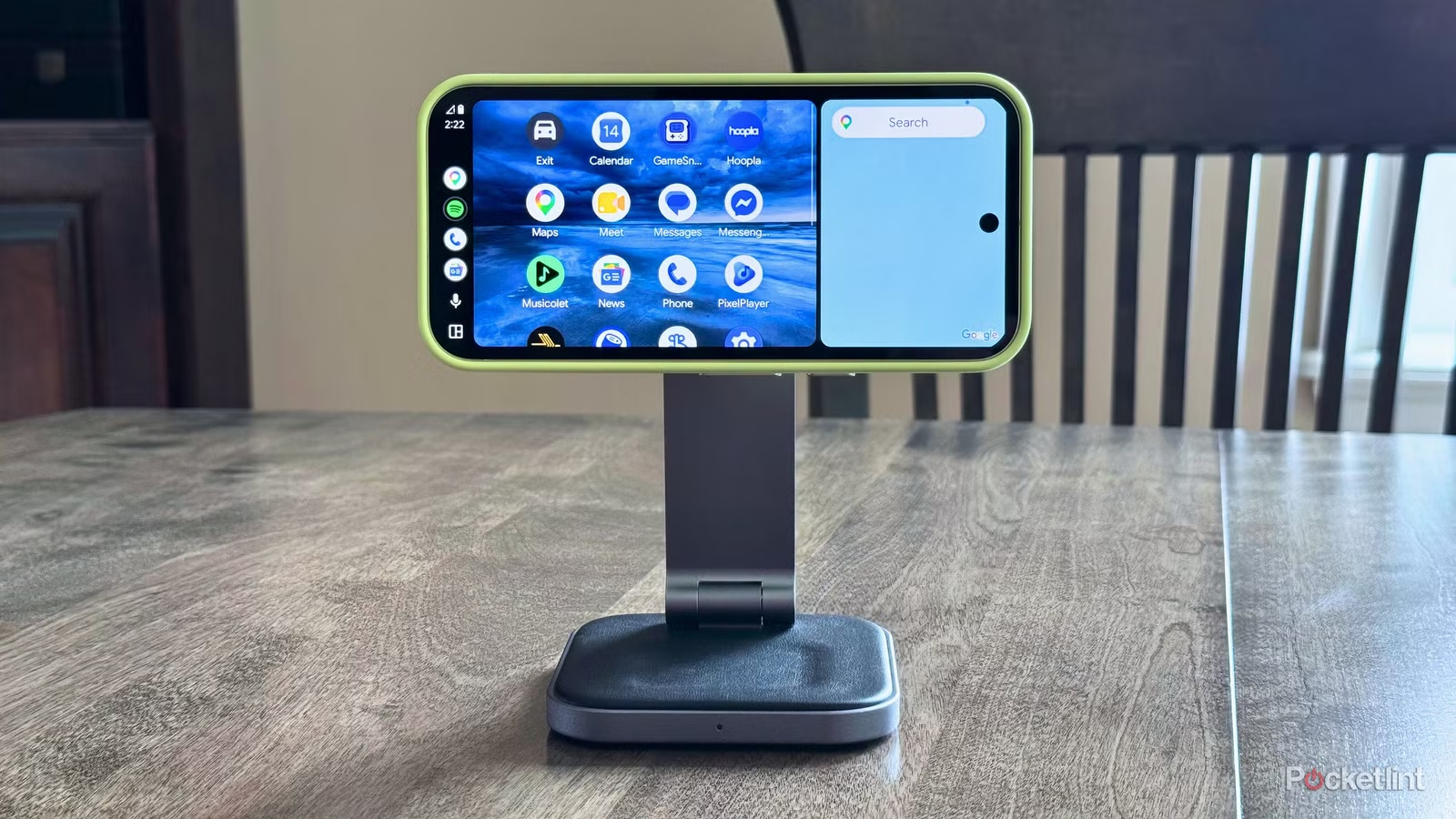
- Once connected, leave the target phone or tablet on a stand at your desk. Android Auto’s interface appears on the screen and functions as its own dedicated app you can leave and return to through the normal multitasking carousel.
According to one hands‑on setup, “Android Auto’s interface works surprisingly well as a quick‑access dashboard when stationed at a desk or in an office setting,” helping streamline access to music, phone dialer, and other functions. The main gotcha here is that you need two Android devices and a stable Wi‑Fi Direct link; if either one loses connection, you’ll have to restart the helper apps. But once it’s up, the repurpose old phone idea turns into a practical smart desk gadget with minimal effort.
Is This Smart Desk Dashboard Setup Worth It?
If you enjoy making the most of hardware you already own, turning an old phone into a clock, calendar, and smart home remote is an easy win. The same goes for taking that ninth‑generation Fire tablet that was rotting in a drawer and giving it new life as a minimalist Home Assistant dashboard on your desk. It feels good to put old tech to use instead of letting it gather dust or sending it straight to e‑waste.
The calendar view often ends up being the most useful part of this project—having your next meeting or deadline at the ready makes it simple to keep tabs on the day without opening a laptop calendar. Combined with Android Auto acting as a desk‑side secondary display, you cut down on context switching and extra smart desk gadgets. Taking this approach, you skip buying a separate smart display, remote, desk clock, and calendar while still getting a tiny control panel that’s handy, easy to use, and completely free. Watch out for power management and Wi‑Fi stability, but once those are handled, the setup is more than worth the small effort.