
Your Apple Watch Battery Problem Is Mostly a Settings Problem
Apple Watch battery life refers to how long the device can run between charges while supporting features like notifications, health tracking, and apps, and it depends heavily on watchOS settings that control background activity, animations, and power-saving modes rather than on hardware alone. If your watch dies before the day is over, blame more than the small battery—blame the default configuration. The Series 11 averages about 24 hours per charge, the SE 3 around 18 hours, and the Ultra 3 roughly 42 hours. Those figures assume you leave energy-hungry features switched on. Low Power Mode can push the Series 11 up to about 38 hours, but it disables key tools like the always-on display and continuous heart rate tracking. That trade-off is too blunt. Instead of turning your smartwatch into a dumb watch, you should focus on three specific settings that quietly eat into your battery every hour.

Setting #1: Background App Refresh – Stop the Constant Behind-the-Scenes Chatter
Background app refresh sounds helpful, but on an Apple Watch it often feels like leaving every app in a permanent light jog. Apps continually update and pull new content behind the scenes, which can lead to faster-than-normal battery drain, especially if you install a lot of third‑party apps. That background activity is invisible until you notice your watch hitting single‑digit battery by dinner. Turning it off barely affects real use: when you open an app like a news reader, you might wait a couple of seconds for fresh headlines, but you regain meaningful battery life in return. To disable it, open Settings on your watch, tap General, then scroll down to Background App Refresh and toggle it off. If you cannot live without live data in a few apps, leave refresh on for those alone and disable it for everything else. This single change often delivers the most noticeable improvement in day‑to‑day stamina.
- On your Apple Watch, open the Settings app.
- Tap General.
- Scroll to Background App Refresh.
- Toggle Background App Refresh off, or selectively turn it off for nonessential apps.
Setting #2: Reduce Motion – Cut the Eye Candy, Keep the Function
watchOS is designed to feel smooth and polished, so the interface is packed with quick animations that make app transitions and scrolling look more fluid. These flourishes are nice, but they are not essential, and every little animation costs a bit of power. The Reduce Motion setting switches off many of these transitions, which in turn saves battery. In practice, the difference in day‑to‑day use is subtle to the point of being hard to notice; what you will notice instead is a watch that feels snappier and lasts longer on a single charge. To enable it, open Settings on your watch, go to Accessibility, then scroll about halfway down to Reduce Motion and toggle it on. If you care more about responsiveness and battery life than tiny interface flourishes, this is a clear win. You keep all functions—notifications, workouts, health tracking—while trimming graphical excess your battery does not need.
- Open the Settings app on your Apple Watch.
- Tap Accessibility.
- Scroll to find Reduce Motion.
- Toggle Reduce Motion on to disable most interface animations.

Setting #3: Complications and Low Power Mode – Smarter, Not Lower, Power Use
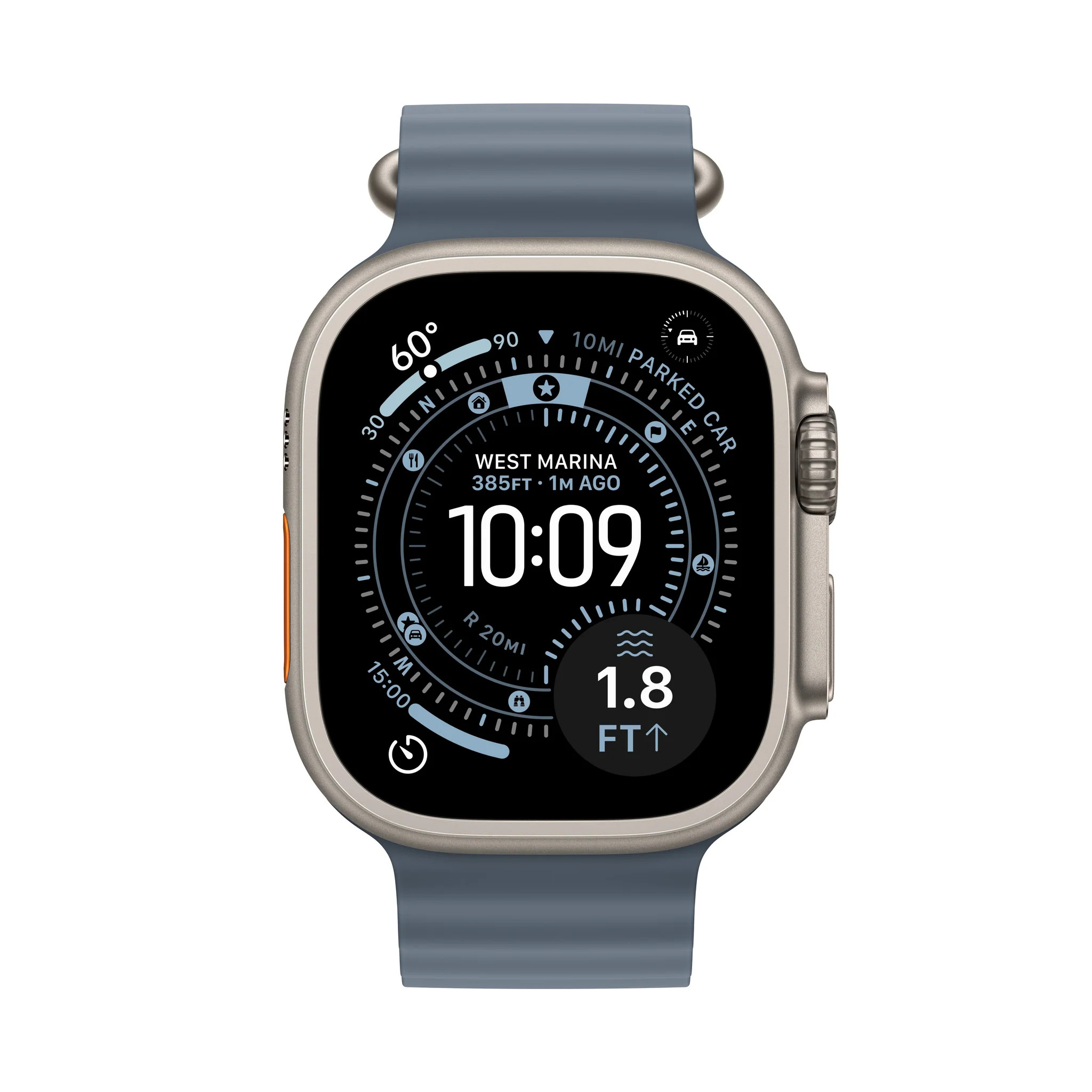
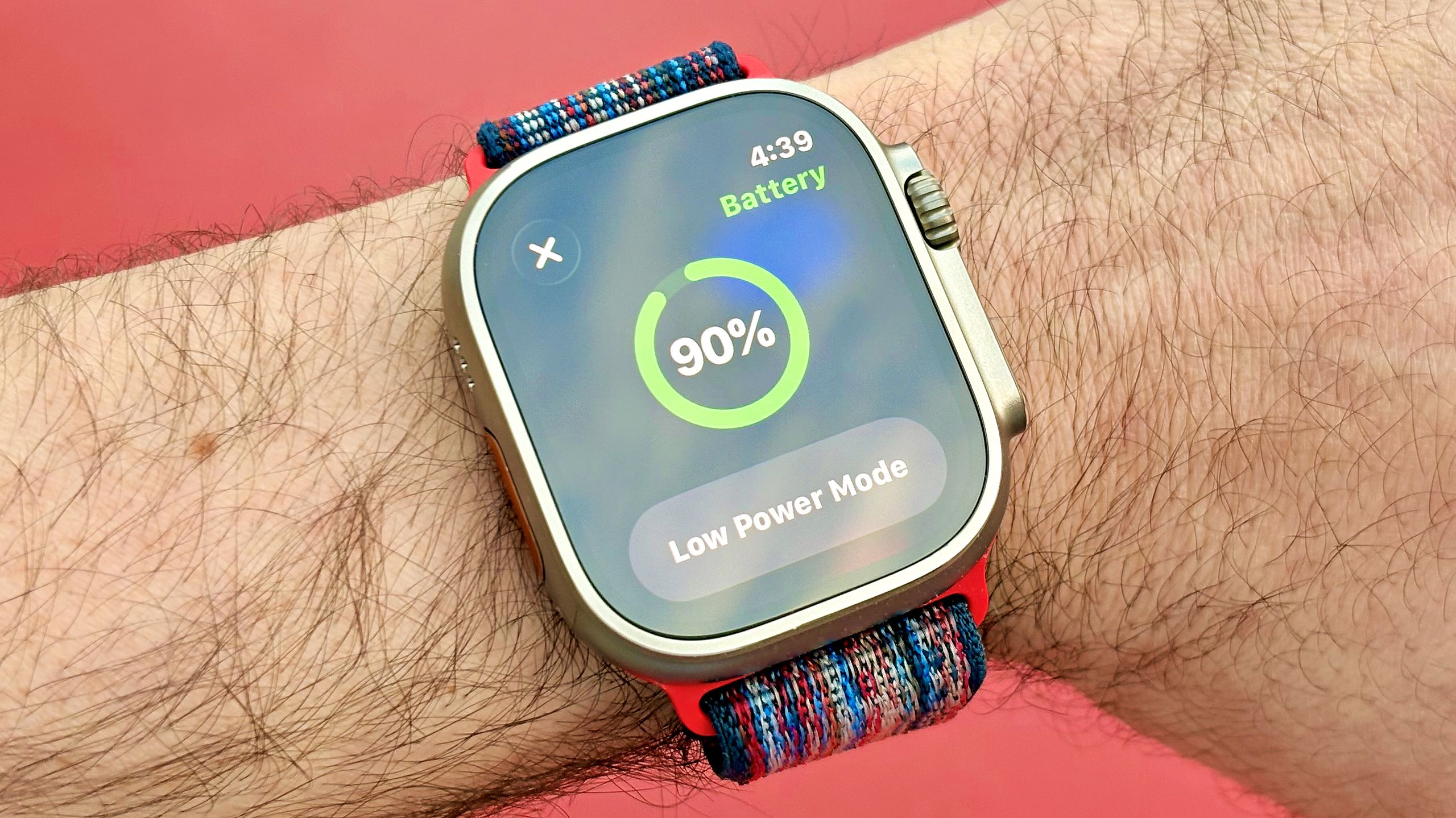
Many people treat watch faces like dashboards, filling them with complications for weather, heart rate, calendars, and more. Each complication can trigger frequent data updates, and having several on one face makes your watch work harder all day. Reducing the number of complications on your watch face is a simple way to extend watch battery without sacrificing the core experience of quick glances and notifications. Edit your current face, remove nonessential complications, or switch to a simpler design for long days. When you truly need more endurance—travel, overnight tracking, or long hikes—use Low Power Mode instead of living there permanently. This mode can extend a Series 11 from about 24 hours to up to 38 hours per charge by turning off features like the always-on display and continuous heart rate monitoring. That is a powerful emergency lever, but it should complement, not replace, everyday watchOS optimization.
- Press and hold your current watch face and tap Edit.
- Swipe to the Complications screen.
- Remove or replace nonessential complications with static ones.
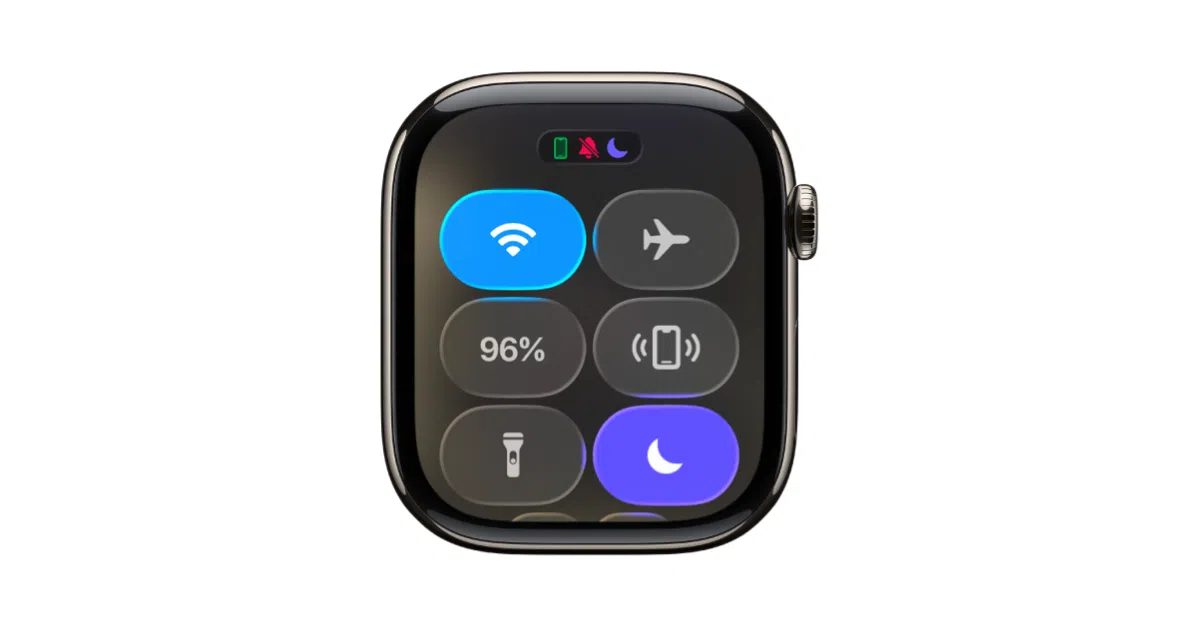
- When you need extra endurance, swipe up (or open Settings) and turn on Low Power Mode.
watchOS Optimization, Beta Quirks, and What Battery Gains to Expect
If you are on a recent beta like watchOS 27, you must separate real battery drain from temporary system housekeeping. Battery drain is common during the first 24 to 48 hours after installing a major beta update, while watchOS syncs data, rebuilds indexes, and optimizes system processes. Battery life usually improves once these background tasks finish. You should give the system that 24–48‑hour window before judging performance, restart both your Apple Watch and paired iPhone, and check for available watchOS updates if battery life stays poor. After that, the three settings above—background app refresh, motion, and complications—do the everyday heavy lifting. Combined with occasional Low Power Mode, they turn the quoted averages (18–24 hours for mainstream models and about 42 hours for the largest model) from upper limits into realistic daily expectations. The point is not to cripple your device; it is to reserve power for what matters: health tracking, alerts, and the hours of your day, not app vanity features.