


Copilot PC Insights: What It Is and Why It Exists
Copilot PC Insights is an experimental Windows 11 diagnostics feature that gives Microsoft’s AI real-time access to your system’s hardware specs, performance data, storage, and peripherals so it can answer troubleshooting questions in plain language instead of forcing users to dig through Task Manager and Settings menus. Microsoft is testing this as an opt-in capability inside the Copilot on Windows app, allowing people to conversationally ask about their PC’s state—CPU usage, graphics card, storage, antivirus status, battery health, and connected devices—without manual hunting through system tools. The goal is clear: move Windows 11 diagnostics from arcane panels into AI system troubleshooting that feels like chatting with a support tech instead of running your own PC performance monitoring dashboard.
On paper, that sounds helpful. In practice, especially for PC builders and enthusiasts, the story is more complicated. PC Insights sits at the intersection of two trends: Microsoft’s drive to embed Copilot into every corner of Windows, and its public commitment to improve Windows 11 performance and baseline memory usage under load. If you care about clean builds, lean systems, and authoritative data, you need to look past the demo and ask what this feature costs in accuracy, overhead, and control.

What Copilot PC Insights Can Actually See and Answer
Once enabled, Copilot PC Insights taps Windows system APIs to pull live information about your processor, RAM, GPU, storage, connectivity, battery health, and connected peripherals. At launch, it can respond to questions about graphics cards, storage, current CPU usage, antivirus status, battery condition, and whether peripherals like printers or webcams are online. You can ask, for example, how much RAM you have, what GPU you are running, how loaded your CPU is, how much storage is left, or even whether there is enough free space to install a specific 100GB-class game or application.
Crucially, this is AI system troubleshooting that is informational only. PC Insights aims to replace generic canned answers—"restart your PC"—with personalized explanations based on your current telemetry, such as high memory usage, low free disk capacity, sustained CPU activity, or a heavily loaded GPU when your system feels slow. However, Copilot cannot yet change settings or apply fixes on its own; it will point you at possible bottlenecks but won’t adjust power plans, uninstall bloat, or tweak startup items. That keeps it relatively safe for non‑experts, but also limits its appeal for enthusiasts who already know how to read Task Manager and Resource Monitor.
Accuracy, Hallucinations, and the ‘Bloated Task Manager’ Problem
The feature’s biggest red flag for power users is trust. Microsoft itself warns that Copilot “may not always provide complete or accurate information,” especially while PC Insights is in testing. That caveat matters: system diagnostics must be authoritative. A Redditor summed up the mood among enthusiasts bluntly: “Oh hey it's like Task Manager except instead of lightweight and authoritative, it's bloated and might be lying to me.” When you are chasing an intermittent stutter or thermal throttle on a high-end build, a tool that might hallucinate causes, or over‑simplify complex interactions between CPU, GPU, and storage, is more liability than help.
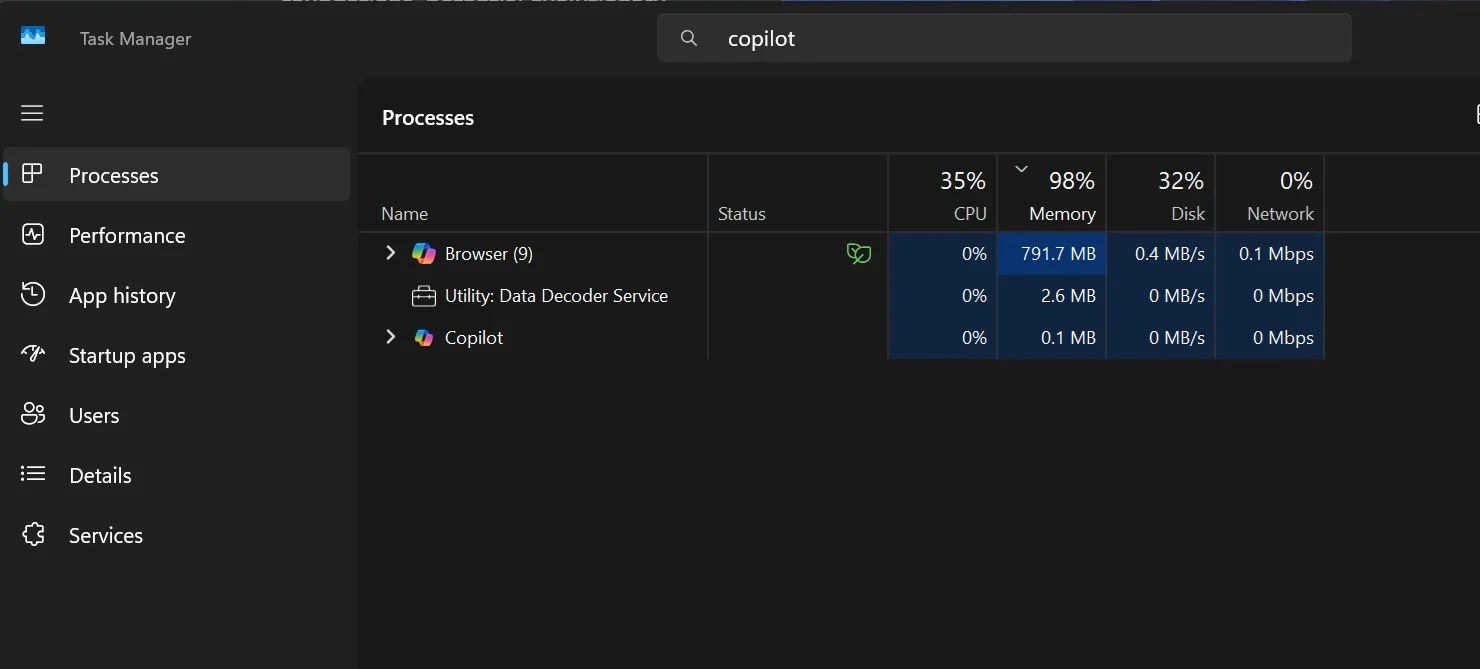
Then there is the overhead. Copilot for Windows runs as a web application with a private Edge instance, and independent tests show it can consume up to 1 GB of RAM while idle, making it one of the heaviest background processes on the system. That is a bad joke for anyone opening PC performance monitoring because their system feels sluggish. Firing up an assistant that burns “the best part of 1GB of RAM when running in the background and doing nothing” is the opposite of lean troubleshooting. Enthusiasts who obsess over process lists will not tolerate an AI overlay that eats more memory than some games’ launchers.
Who PC Insights Is Really For—and When It Helps
Despite the skepticism, Copilot PC Insights is not useless; it is just misaligned with enthusiast expectations. The feature is aimed squarely at less‑technical Windows 11 users who experience slowdowns and want explanations without learning Task Manager. Instead of dumping them into Storage Settings or Resource Monitor, PC Insights can translate telemetry into human language: telling them their disk is nearly full, their CPU is pegged by a browser tab, or their laptop battery health is poor. For that audience, this kind of conversational AI system troubleshooting is far less intimidating than juggling multiple admin consoles.
From a privacy standpoint, Microsoft is at least trying to be transparent. PC Insights is optional, must be turned on, and requests permission each time Copilot wants to read system or file data, with options for one‑time or always‑allow access. Visibility into folder sizes is limited to metadata unless users grant deeper permissions. There will still be users who do not want any AI peeking at their hardware, but the model—explicit consent, specific scopes—makes sense. For non‑enthusiasts, the trade‑off of convenience for tightly gated telemetry is reasonable, especially when they are desperate to know why their machine crawls.
The Road Ahead: Useful Assistant or Always-On Nuisance?
PC Insights is a preview of where Windows is heading: AI woven into system management rather than bolted on the side. The feature is being gradually rolled out in the Copilot app, with Microsoft saying it will improve the experience over time and may add new capabilities, but without a firm general availability date or fixed permissions model yet. Commentators already expect that when fully fledged AI agents arrive in Windows 11, this kind of telemetry access will underpin “full‑on troubleshooting” that can not only diagnose but also apply simple fixes, like toggling Settings options or cleaning up storage.
For PC builders and performance‑obsessed users, the smart approach is cautious distance. Keep your existing toolkit—Task Manager, Resource Monitor, vendor utilities—as your source of truth. Treat Copilot PC Insights, if you enable it at all, as a second‑opinion narrator that might help less technical friends or clients understand what you already know from proper tools. Until Copilot can prove it is light on resources, conservative with permissions, and consistently accurate, it is more interesting experiment than essential part of any serious Windows 11 diagnostics workflow.




