

The Big Idea: AI That Diagnoses Your PC Like a Human Expert
Windows 11’s Copilot PC Insights is an AI-powered performance diagnostics feature that connects to system APIs, reads hardware and resource metrics, and then explains why your PC is slow in clear, everyday language instead of forcing you to decode graphs, technical jargon, or scattered tools across Task Manager, Settings, and Windows Security.
The key takeaway is blunt: Windows 11 is betting that AI system optimization will beat manual PC performance troubleshooting for most people. Rather than making you dig through resource graphs and obscure settings, PC Insights lets Copilot examine your system, identify potential bottlenecks, and recommend practical fixes through a natural conversation. In other words, you talk to your operating system about performance the way you’d talk to a knowledgeable friend, and it responds with a diagnosis instead of a wall of numbers. That is a radical shift from the traditional model where Windows dumped data in front of you and walked away.
How PC Insights Works Under the Hood
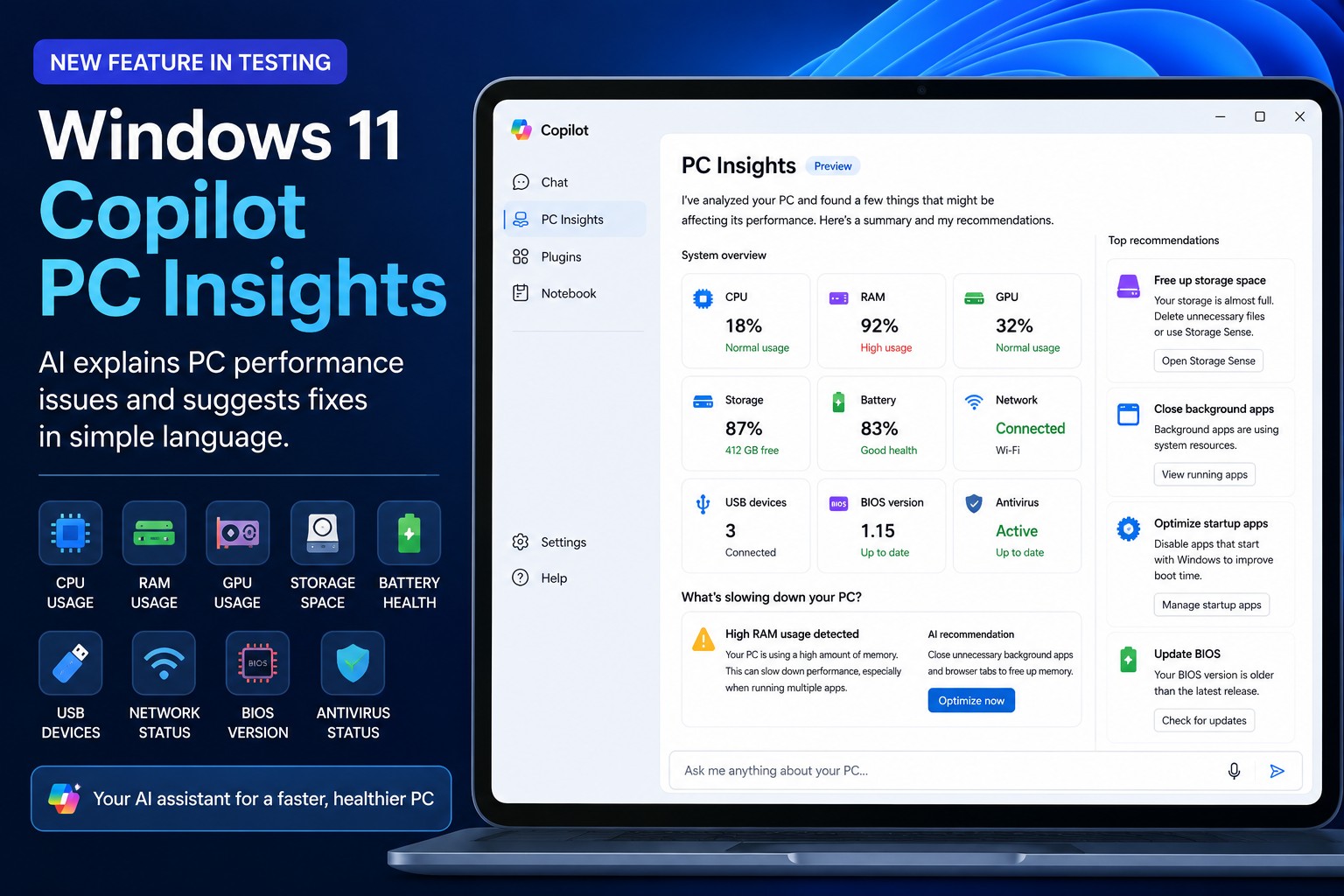
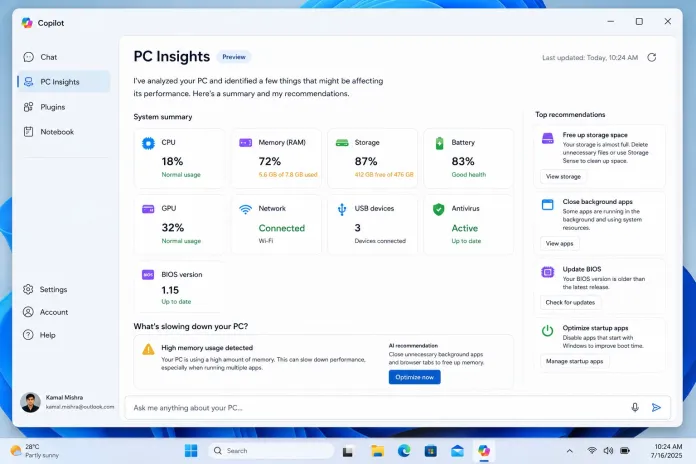
PC Insights turns Copilot into a performance analyst that plugs directly into Windows APIs and your system’s health metrics once you grant permission. After access is approved, Copilot can analyze CPU usage, RAM usage, GPU utilization, available storage, battery health, connected USB devices, network status, BIOS version, and antivirus protection. Instead of asking you to open three different built‑in tools, the AI assistant does the heavy lifting and gathers all that information into a single, conversational view of your PC’s behavior.
Functionally, this means you can ask targeted questions like “What is my current CPU usage?” or “Do I have enough space for a 100 GB game?” and Copilot responds with real‑time diagnostics. It is not content with reporting raw numbers—PC Insights is designed to interpret those numbers, highlight what looks abnormal, and connect the dots between system metrics and the sluggishness you feel while using the machine. That interpretive layer is where the AI earns its keep: it turns scattered telemetry into a performance narrative.
Plain English Explanations Instead of Cryptic Tools
Traditional Windows 11 performance diagnostics rely on tools that speak in charts, percentages, and process names that many users never fully understand. PC Insights flips that approach by explaining performance problems in “simple, easy‑to‑understand language” and translating metrics into clear statements anyone can follow. You get answers like: your RAM is nearly full because too many applications are running, your SSD has very little free space and may be slowing Windows, your battery health has degraded, or your antivirus definitions are outdated.
The point is not just clarity; it’s guidance. Instead of dumping system information, Copilot also suggests ways to improve your PC’s performance. According to one report, “the AI assistant would examine your system, identify potential bottlenecks, and recommend practical fixes—all through a natural conversation”. That moves Windows from passive status panel to active troubleshooter. For many users who rarely touch Task Manager unless they are following a tutorial, being able to ask “Why is my PC running slowly?” and get a plain English, action‑focused answer is a major usability upgrade.
Turning Metrics into Actionable PC Performance Troubleshooting
The real value of PC Insights is its bias toward action. With access to live system metrics, Copilot does more than spot high CPU or RAM usage—it interprets them as potential bottlenecks and ties them to specific processes, settings, or hardware conditions that could be slowing your machine. Instead of telling you that memory usage is high, it can explain that too many applications are running in parallel or that one background app is hogging resources, then recommend closing or adjusting those processes. The same logic applies to storage, outdated BIOS firmware, weak battery health, or misbehaving USB devices that can drag down responsiveness.
This approach turns Copilot PC Insights into a practical PC performance troubleshooting companion. Users can ask questions such as, “What’s using all my memory?”, “Why is my laptop battery draining quickly?”, or “How can I improve performance?”, and Copilot responds with personalized recommendations built from the system’s own telemetry. For casual users, this removes much of the guesswork that used to define Windows problem‑solving. For those who care about efficient performance, it provides quick summaries of system health without forcing them to dig through multiple specialized utilities.
The Trade‑Off: AI Help That Eats Your RAM
There is a catch: the Copilot app that powers PC Insights can itself be a hungry resident in your memory. The AI model lives in the cloud, but the Edge‑based Copilot web app installed on your machine has been recorded idling at about 791.7 MB of RAM and can reach up to 1 GB of system memory usage. That makes it one of the more RAM‑heavy applications on some systems, even when it is sitting in the background.
That trade‑off is not trivial. Anyone using Copilot to hunt down resource‑sapping applications may discover that Copilot itself is near the top of the list, especially on machines with limited memory. As one account notes, the app can be “the third most RAM‑heavy application currently running” and may be taking “the biggest chunk of precious RAM space” on some PCs. This makes PC Insights a bit of a paradox: an advanced AI system optimization tool that can consume a sizable slice of the very resources it is there to help protect. The decision to use it will depend on how much you value guided diagnostics versus every last megabyte of free memory.





