

What Copilot PC Insights Is—and Why It Matters
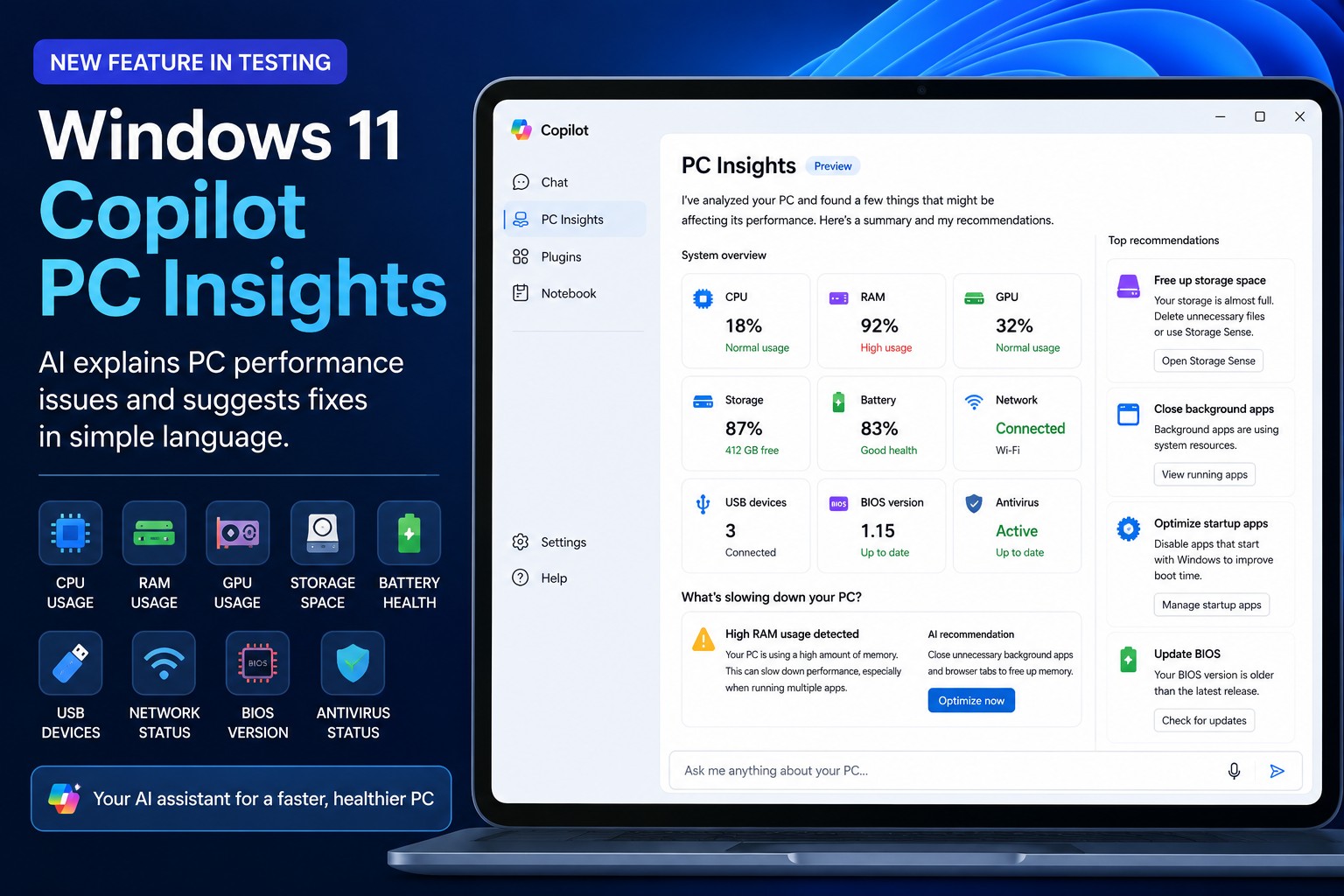
Copilot PC Insights is an experimental Windows 11 performance diagnostics feature that lets Microsoft’s Copilot use real-time hardware data to explain PC slowdowns, translate system metrics into plain English, and suggest practical fixes through a chat-style interface. This is Microsoft’s latest attempt to turn Copilot from a generic chatbot into a real Windows assistant, one that can analyze your CPU, RAM, GPU, storage, battery health, and connected devices without forcing you through Task Manager and obscure settings panels. In theory, that is a big deal: instead of staring at graphs and guessing, you can ask, “Why is my PC slow?” and get a human-readable answer with concrete next steps. But the promise of hands-off AI system troubleshooting bumps straight into a practical concern: the tool itself is heavy.
How PC Insights Diagnoses Slowdowns in Real Time
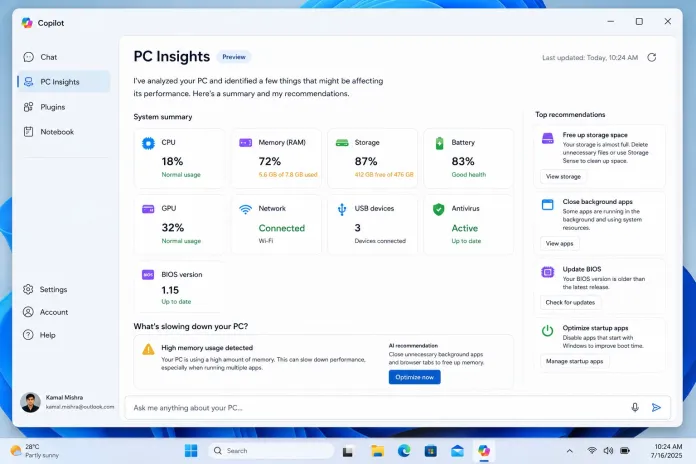
Under the hood, Copilot PC Insights is an AI system troubleshooting layer wired directly into Windows APIs. With your permission, it can read live CPU, RAM, and GPU usage, available storage, total capacity, folder sizes like Downloads and Documents, battery condition, antivirus status, BIOS version, Bluetooth and Wi‑Fi state, and connected USB devices, printers, webcams, external drives, and adapters. Instead of generic advice, Copilot tailors its answers to what is happening on your hardware right now. If your system is slow, it can point to unusually high memory usage, low free disk space, sustained CPU activity, or a heavily loaded GPU as likely culprits. Microsoft’s own framing is clear enough to quote: “PC Insights aims to replace generic troubleshooting responses with personalized answers based on the current state of a user’s PC.”
For everyday users, this is the Windows 11 performance diagnostics tool that should have existed years ago. Instead of being bounced between Task Manager, Storage, and Windows Security, you can stay in one place and ask simple questions: How much free memory is left? Do I have enough space for a 100 GB game? Is my antivirus active? Copilot combines those readings with context—like comparing your free storage with what an app needs—and explains what is wrong and what to do next, from cleaning up disk space to closing hungry apps. It is computer maintenance translated from engineer-speak into everyday language, which is exactly what many non‑expert users need.
Plain-English Fixes vs. AI Hallucinations and Privacy Fears
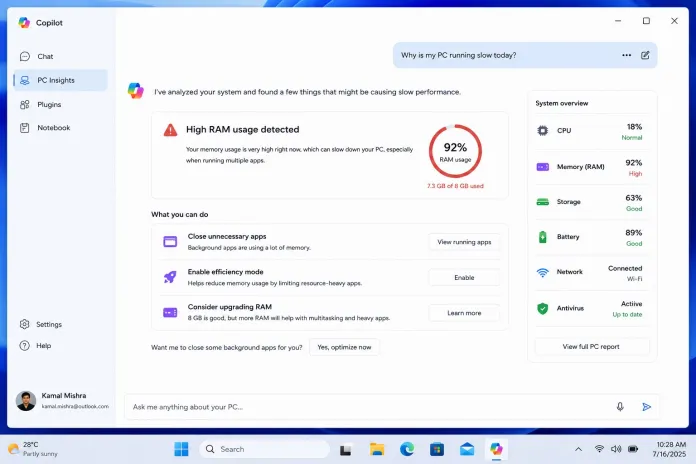
The biggest upside of Copilot PC Insights is not that it knows more than Task Manager—it is that it explains more. Rather than dumping graphs, it tells you your RAM is nearly full because too many apps are open, your SSD is almost out of free space, your battery health has degraded, or your antivirus definitions are outdated, then follows up with concrete recommendations to improve performance. This is PC slowdown diagnosis for people who would never touch Resource Monitor. The catch is trust. Microsoft warns that Copilot “may not always provide complete or accurate information,” which means its explanations can be wrong or misleading during this experimental phase. That is a serious problem: if the authority that is supposed to demystify your system might be “lying,” you are back to double‑checking everything yourself.
Privacy and control are the other fault lines. PC Insights is optional, and Copilot must ask for permission before reading system data, with a choice between one‑time access and an “always allow” setting. File visibility is limited to metadata like folder sizes unless you explicitly grant more permissions. On paper, this is a cautious design that respects boundaries. In practice, some users remain wary of another AI layer hooked into their hardware, especially when the tool cannot yet take direct actions: the first version only has read access and cannot close processes, delete files, or repair the system on its own. That limits mischief—but also limits how much it can help power users who expect automation rather than guidance.

The Ironic Cost: A Diagnostics Tool That Eats RAM
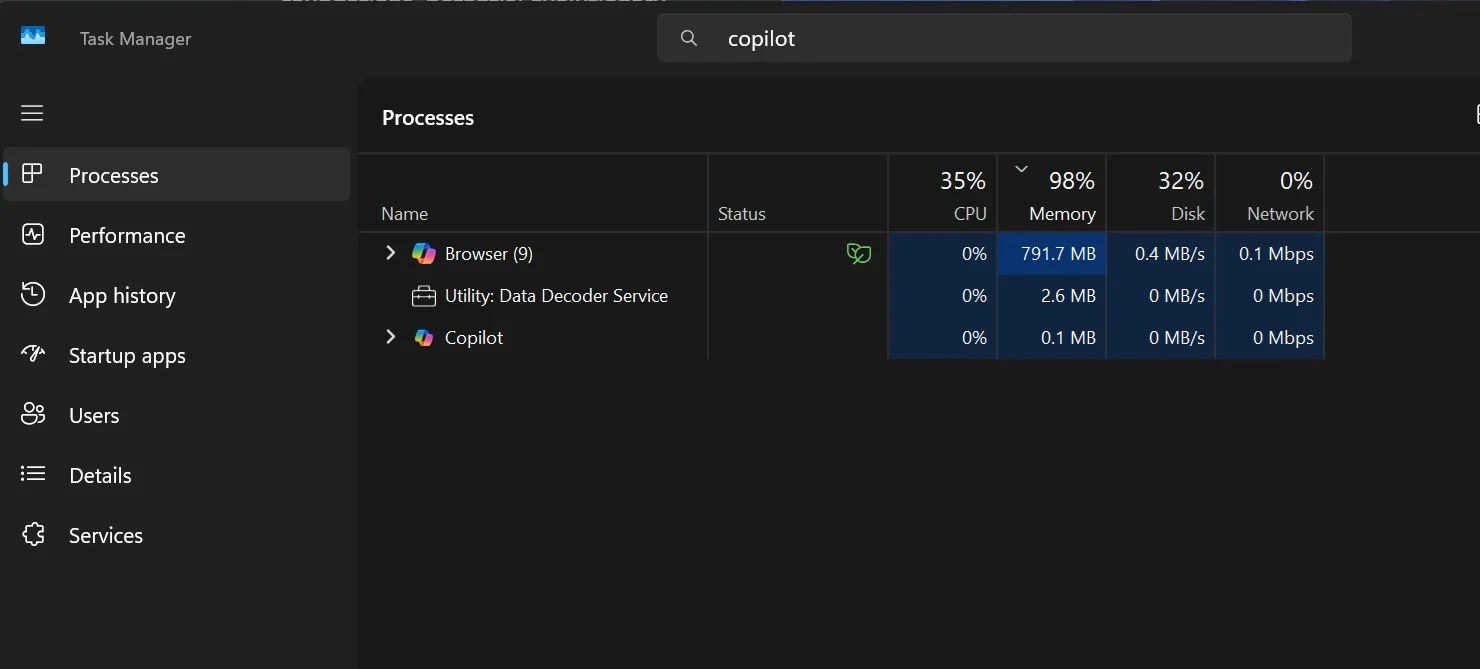
Here is the irony at the heart of Copilot PC Insights: the AI that tells you why Windows is slow is itself one of the heavier background processes on the system. Copilot for Windows runs as a web application with a private instance of the Edge browser, and independent tests show it can consume up to 1 GB of RAM while idle. Another report notes that the Copilot app can use “the best part of 1GB of RAM when running in the background and doing nothing.” For users already struggling with 8 GB machines, that overhead is not abstract—it is another chunk of memory gone, before you even open a browser tab or game.
Enthusiasts have been quick to call this out. One commenter summed up the mood with a harsh comparison: “Oh hey it’s like Task Manager except instead of lightweight and authoritative, it’s bloated and might be lying to me.” That might be unfair—Task Manager does not explain context, and PC Insights does—but it captures a real trade‑off. AI‑driven PC slowdown diagnosis offers clarity, but it also adds its own performance tax. Meanwhile, Microsoft’s Windows leadership is promising to reduce the OS’s baseline memory usage and improve responsiveness under load, even as Copilot adds another large resident process. The question is whether the guidance you gain outweighs the overhead you pay.
Rollout, Reality Check, and Whether You Should Use It
Right now, PC Insights is an optional experimental feature in the Copilot app, rolling out gradually and available to a limited set of Windows 11 users so far. Microsoft has not announced a general availability date, and it openly reserves the right to change capabilities, permissions, performance impact, and the rollout schedule as testing continues. Internally, this is part of a bigger push: Microsoft has been expanding Copilot to manage settings, take actions, assist with files, and now maintain and troubleshoot PCs. In other words, PC Insights is not a one‑off; it is another step toward a Copilot‑centric Windows.
So should you turn it on? If you often feel lost in Windows internals and your system has comfortable RAM headroom, PC Insights could be worth enabling when it reaches you. Asking “Why is my system slow?” and getting a plain‑language answer with specific recommendations is a real quality‑of‑life upgrade. If you are a power user already fluent in Task Manager, or you are sensitive to background memory usage, you may be better off watching from the sidelines until the feature matures, sheds some weight, and proves it can be authoritative rather than approximate. The promise is strong: AI system troubleshooting that finally bridges the gap between telemetry and understanding. The verdict will depend on whether Microsoft can deliver that clarity without compounding the very slowdowns it is supposed to explain.




