
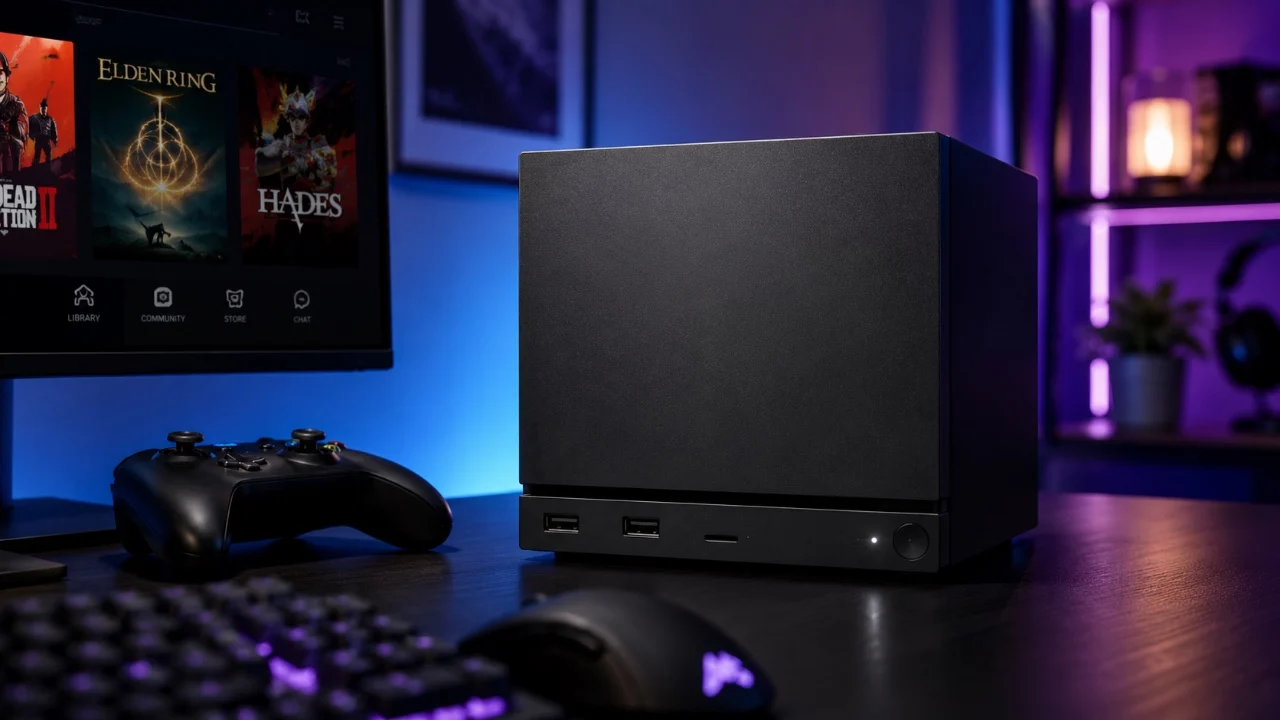

What Steam Machine Optimization Really Means
Steam Machine optimization is the process of configuring SteamOS, upgrading storage and memory in the right order, and validating accessory compatibility so your compact gaming PC runs reliably at its highest possible performance level without introducing boot problems or data loss during or after hardware changes.
Think of your Steam Machine as a tiny, flexible gaming PC that can be tuned for years of smooth play rather than a sealed console. Whether you are new to gaming PCs or already comfortable swapping parts, the real prerequisite here is patience: you should be willing to do the initial software setup before grabbing a screwdriver. According to Gaming Bible, “the safest approach is to let the system complete its first startup before making any hardware changes.” Skipping that first-boot sequence is where most horror stories start, so this guide focuses on the order of operations that keeps your frame rates high and your troubleshooting time low.
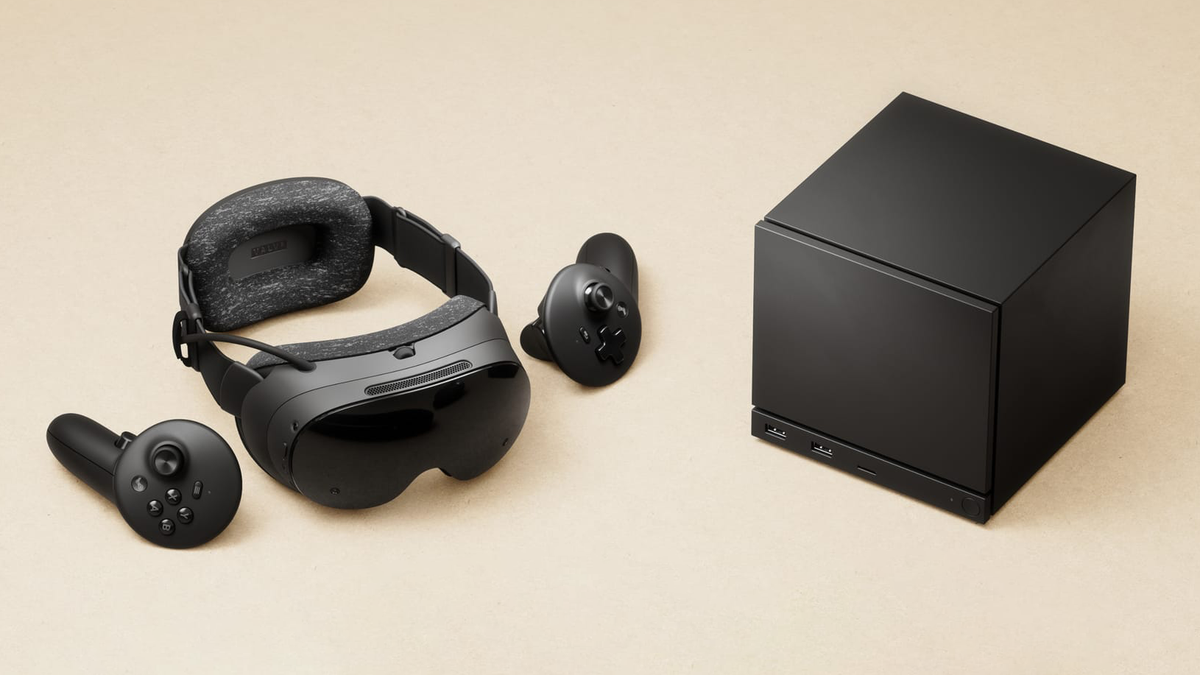
Pre‑Upgrade Software Setup: Protecting Boot and Data
Before you touch the hardware, you need SteamOS in a healthy state. The factory SSD holds firmware that gets applied during the initial setup, and that firmware is what lets the system see new drives and memory later. If you replace parts before that first startup, the system may never install those updates, which can result in recovery loops, missing boot menus, or drives that refuse to appear. Taking a few extra minutes to update the system before opening the case can help prevent boot errors, reduce troubleshooting, and ensure a hassle‑free upgrade experience.
- Power on the Steam Machine with all factory hardware installed and connect it to the internet.
- Complete the initial SteamOS setup wizard, including signing into your Steam account.
- Install all available system, BIOS, and firmware updates shown in the update or settings menus.
- Restart the system at least once to confirm it boots cleanly into SteamOS without recovery messages.
- Create any backups you need (save files or configuration) to external storage such as SSDs, HDDs, or microSD cards before changing hardware.
The big gotcha here is being eager and swapping the SSD right out of the box. Several users have reported that replacing the factory‑installed SSD immediately after unboxing caused the system to boot into a recovery screen instead of launching normally. In some cases, the Steam Machine could not access the recovery or boot menus because a required BIOS update had never been installed. Doing the software setup first avoids those traps and gives SteamOS a stable base for more aggressive performance tuning later.
Safe Hardware Upgrade Checklist: RAM, SSD, Cooling
Once the software side is ready, you can work through a hardware upgrade checklist to push performance without sacrificing stability. Upgrading a Steam Machine is one of the easiest ways to improve storage capacity and overall performance, but the sequence matters when you change RAM and the SSD that holds SteamOS. The compact design helps, yet the tighter the space, the more careful you need to be about airflow and cable placement so thermal management stays effective over time.
One Steam Machine owner replaced the original SSD with a 2TB NVMe drive before powering on the system for the first time and ended up stuck in recovery mode until they put the factory SSD back in, completed setup, and installed firmware updates. Once the updates were finished, the owner swapped the SSD again; this time, the installation proceeded without any issues, and the Steam Machine recognized the new drive normally. Use that experience as a model: treat the factory SSD as a firmware install tool first and as disposable storage only after the system is fully updated and stable.
Accessory Compatibility and SteamOS Features for Better Performance
Beyond core hardware, Steam Machine optimization includes picking accessories that play nicely with SteamOS and unlocking system features that reduce friction while you game. The Steam Machine is a versatile gaming platform that caters to a wide range of gaming preferences, supporting external SSDs, HDDs, and microSD cards for storage expansion. That flexibility means your performance plan can include fast external drives for less‑played titles while your main SSD focuses on your competitive library.
Compatibility is straightforward but worth checking in advance. The Steam Machine is compatible with a wide range of third‑party controllers, including those from Xbox, PlayStation and Nintendo, over Bluetooth or USB. Its customizable LED lighting system goes beyond aesthetics, offering functional indicators like game loading progress or account notifications, which you can tune to make debugging and monitoring a bit easier while you play. Desktop mode turns the device into a more traditional PC where you can install third‑party launchers, emulators for retro gaming, and Proton versions that improve Windows game performance. All of that adds up to more performance and convenience, as long as you remember that every add‑on should be tested after your core firmware and hardware upgrades are locked in.
Putting It All Together: A Reliable, High‑Performance Cube
If you follow a clear sequence—first‑boot updates, backup, hardware upgrades, and then accessory tuning—you end up with a compact machine that behaves like a well‑built gaming PC instead of an experimental project. Maximize your gaming experience by treating firmware and SteamOS setup as non‑negotiable, and by respecting the role of the factory SSD in delivering those updates before you replace it. Taking a few extra minutes at the beginning prevents boot issues that can waste hours later.
In practical terms, this means you can expand storage over time, add RAM as your multitasking needs grow, and plug in external SSDs or controllers while still enjoying reliable launches, fast game loads, and flexible desktop mode when you need it. It is worth the effort: once your Steam Machine is configured safely, you can focus on frame rates and game choice instead of recovery screens and missing drives.





