
What Hidden Motherboard Bottlenecks Are and Why You Should Care
Hidden motherboard bottlenecks are performance limits created by PCIe lane configuration, M.2 slot placement, and outdated BIOS settings, where your CPU’s finite high-speed PCIe lanes are misallocated and shared poorly, quietly cutting your GPU bandwidth and SSD speeds in half while the system appears healthy and no obvious hardware fault is reported. If your gaming FPS feels lower than it should be, or a flagship NVMe drive opens programs no faster than a basic SSD, there’s a good chance the problem lives in your board’s layout and firmware, not in your components. A BIOS update is now one of the easiest, zero-cost ways to get more performance from the hardware you already own. And in most cases, a few minutes with the motherboard manual is enough to fix storage and GPU lane conflicts so you avoid buying parts you don’t need.
How PCIe Lanes and M.2 Slots Quietly Cut GPU and SSD Performance
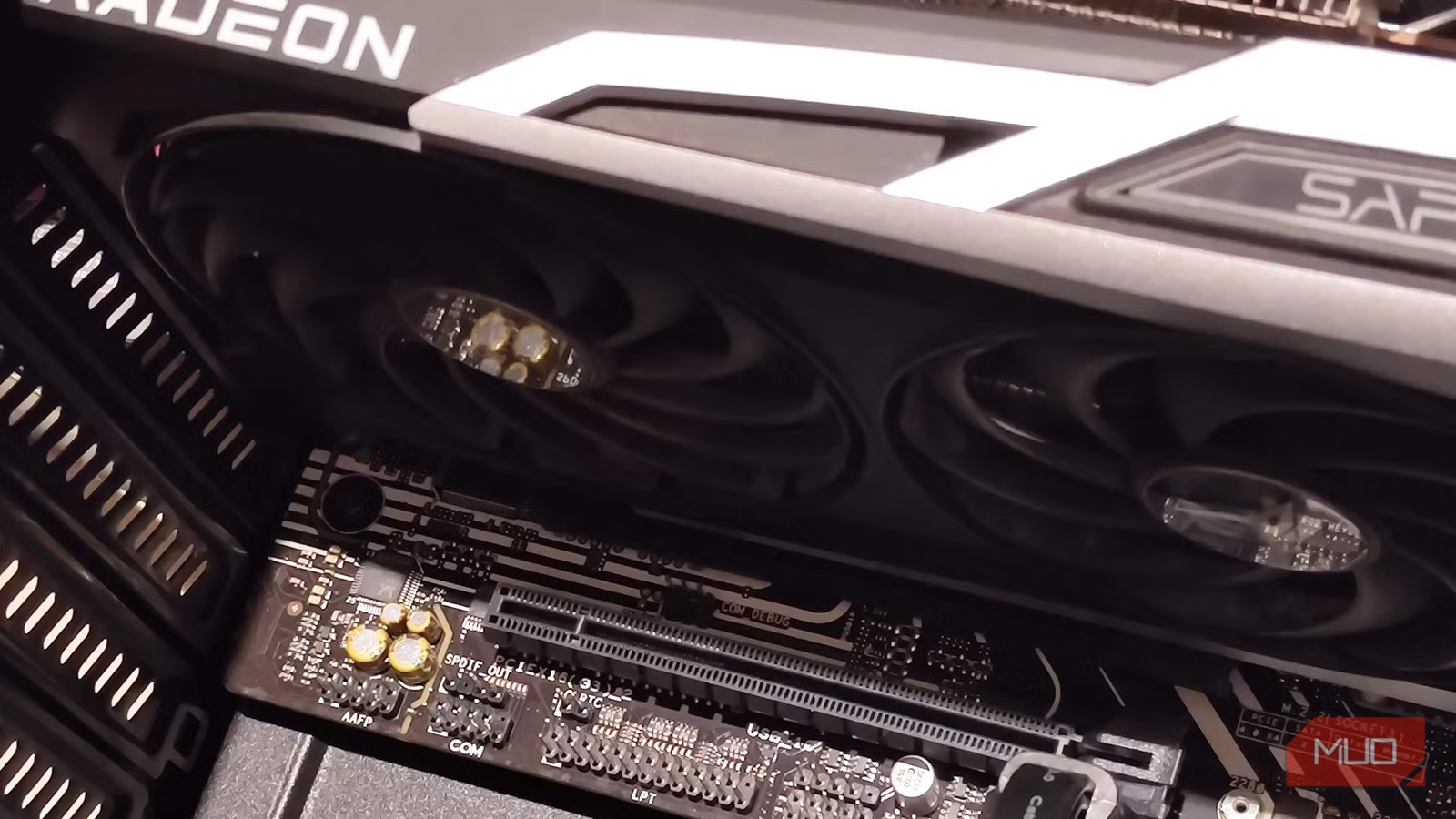
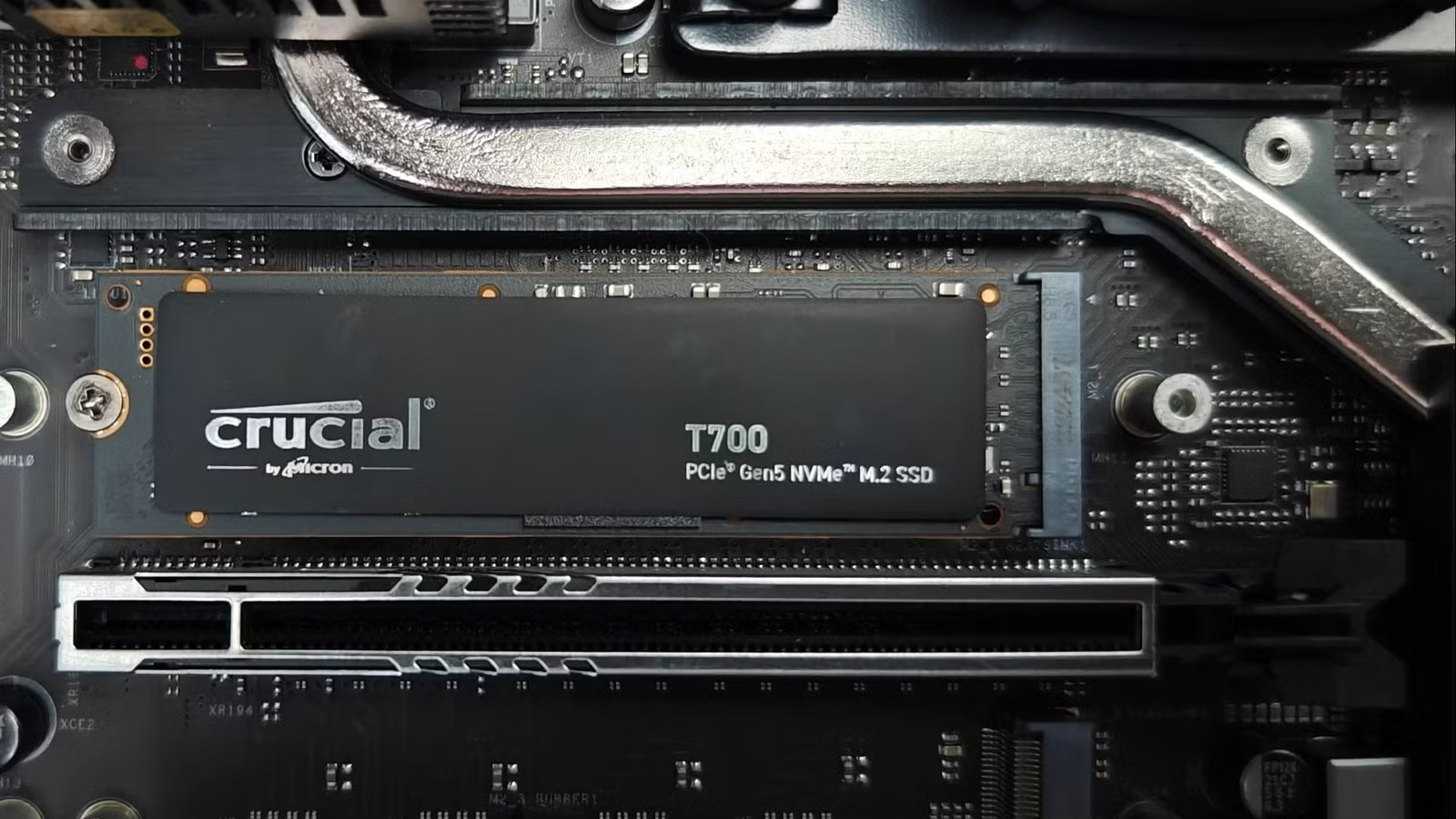
To understand any motherboard bottleneck fix, you need to know what PCIe lanes do. PCIe lanes are the number of data paths between the motherboard and the device that goes into a PCIe slot. Your CPU can only process a limited number of lanes at a time, and modern desktop chips can handle up to 24 lanes, with 20 PCIe 5.0 lanes wired directly to the CPU and four PCIe 4.0 lanes going through the chipset link. The root of the entire problem is that these high-speed pathways are a finite resource. When you install extra devices, they start sharing that budget. Populate certain M.2 slots and your GPU’s x16 connector can be downshifted to x8, cutting its bandwidth by 50% and slowing graphics performance because both slots draw from the same shared CPU lanes. The same trade-offs hit SSDs: a PCIe Gen 5 drive rated around 14,000 MB/s cannot reach that speed when it sits behind a busy chipset link with SATA, USB, and networking traffic.
Step-by-Step: Fixing Motherboard Bottlenecks Without Buying New Parts
The good news is that most GPU and SSD speed issues are configuration problems, not dying hardware. Many consumer boards have M.2 slots that borrow lanes from the GPU or chipset the moment you install a drive, and the manual reveals the trade-offs in a single, easy-to-miss line such as, “When M.2_2 is occupied, PCIEX16 will run at x8 mode,” which means a second SSD instantly halves your graphics card’s bandwidth. All of this is documented in the storage section of the motherboard manual, but most users never look, because the system boots and nothing screams that anything is wrong. Before you start swapping components, you want a deliberate process: confirm whether your drives and GPU are running at full lane width, then move hardware or tune BIOS settings to restore the bandwidth you already paid for.
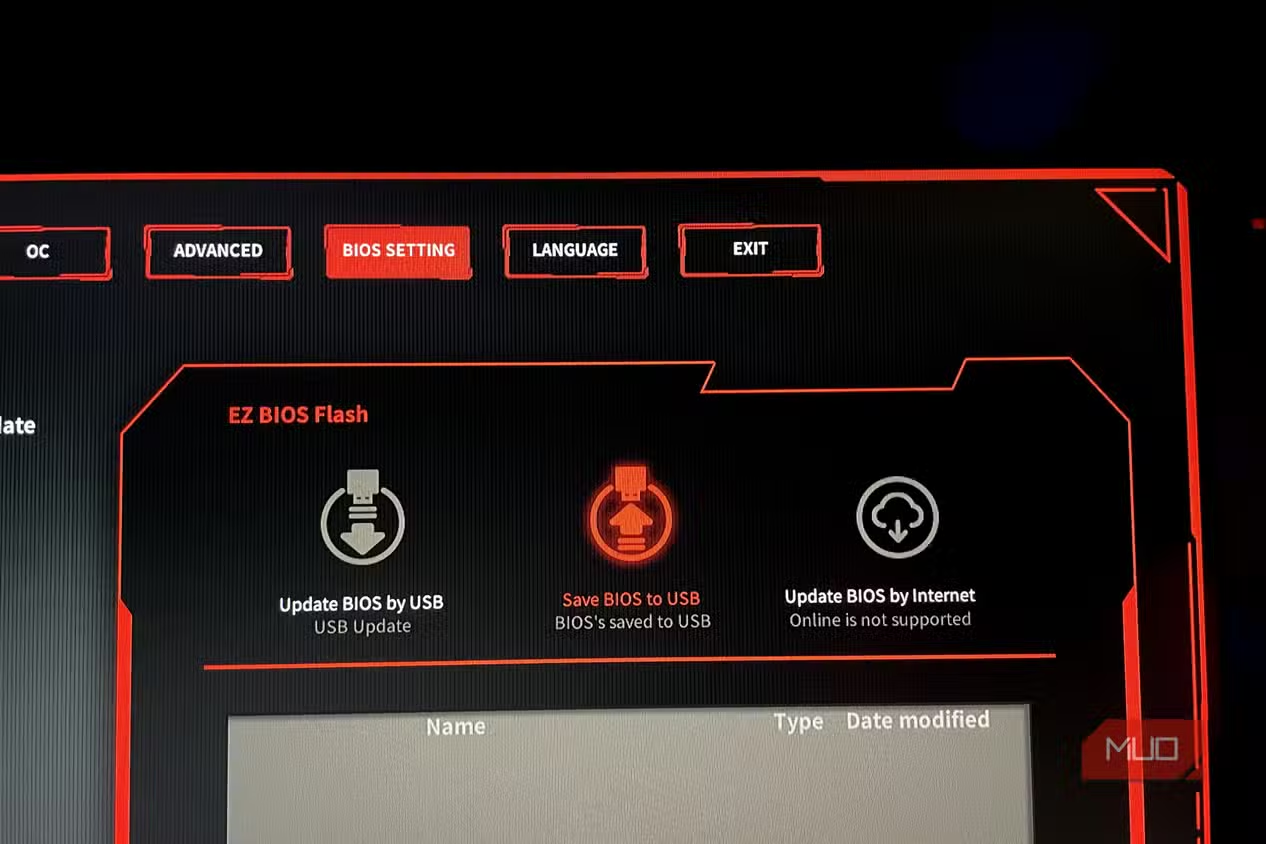
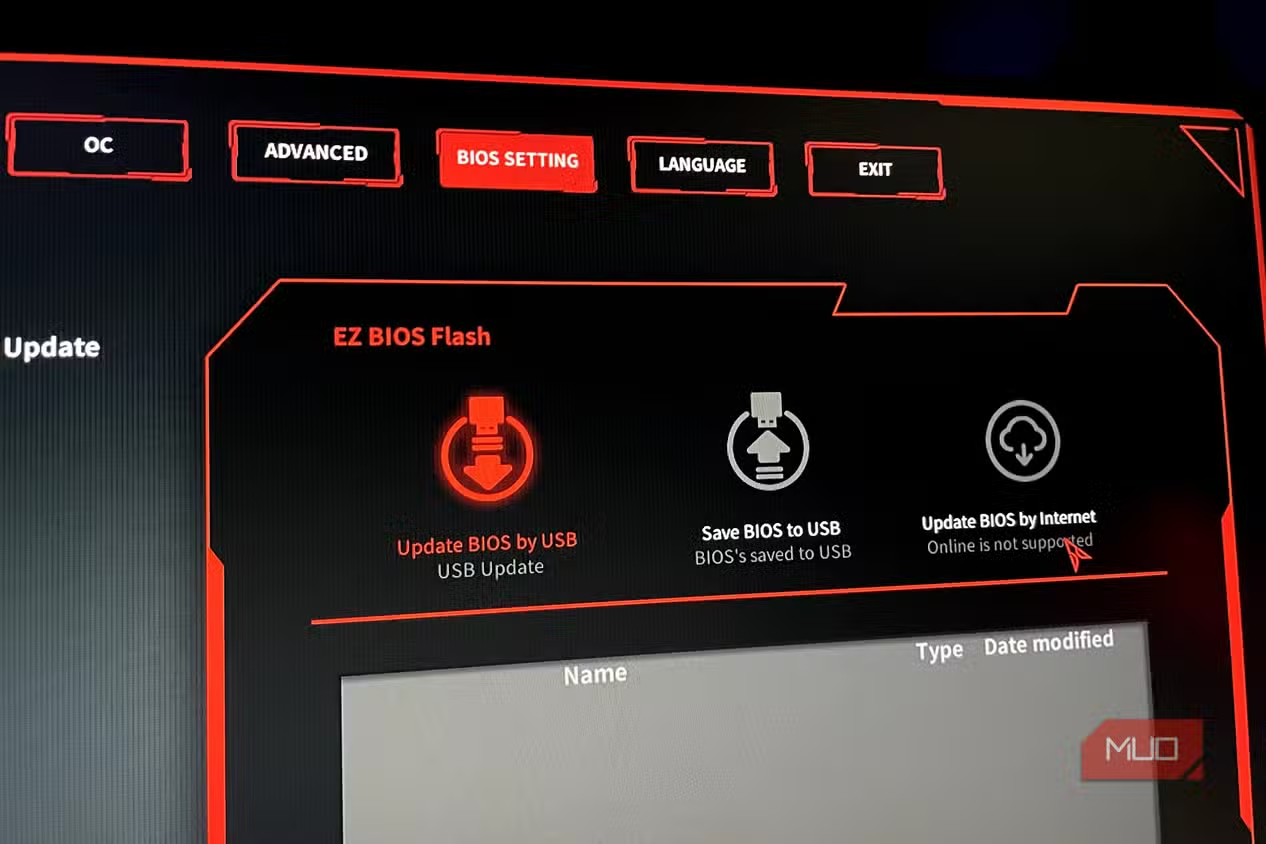
- Check your motherboard support page for the latest BIOS, read what the update offers, and confirm it addresses performance, compatibility, or storage behavior.
- Prepare for the BIOS flash: ensure you have stable power and an internet connection so the update doesn’t corrupt your board, and back up any existing BIOS settings because a flash wipes custom configurations.
- Update the BIOS following your board’s instructions, then explore new firmware options such as AI overclocking profiles, enhanced CPU boost settings, and advanced PBO controls on supported AMD boards, which can improve responsiveness and frame rates.
- Measure SSD speeds with a benchmark tool; if the drive is within 10–15% of its rated speed, you’re fine and can stop here, but if it’s closer to half speed, investigate further.
- Use a hardware info utility to check each drive’s PCIe link speed and width, then open your motherboard manual’s storage and slot allocation tables to see which M.2 connectors share lanes with the GPU or chipset.
- Rearrange drives so your fastest SSD sits in the primary, CPU-connected M.2 slot, and move lower-rated or secondary drives to chipset-connected slots, keeping the GPU on a full x16 link whenever possible.
- Reboot into BIOS performance tuning menus and enable proven features like updated boost behavior or stability improvements for XMP/EXPO memory profiles, which newer firmware often refines for fewer crashes and better throughput.
There are two common mistakes here. The first is populating an M.2 slot that silently steals eight lanes from the GPU, leaving an expensive graphics card running at x8 while its x16 slot still looks occupied. The second is assuming a slow SSD must be defective and rushing into an RMA, when the board is quietly capping its speed through shared chipset bandwidth or older BIOS microcode. According to one firmware example, AGESA 1.2.0.2 improved performance by up to 10% for certain Ryzen processors through a new 105W TDP mode and latency fixes. These kinds of gains, plus newer features like Resizable BAR and smarter boost behavior, mean a BIOS update can be the most effective free upgrade for a gaming or productivity PC, helping you “pump out a few more FPS” without touching your wallet.
What Results to Expect and When the Motherboard Is the Limit
If you give your GPU a full x16 lane configuration and move your flagship SSD onto the fastest, CPU-connected slot, the changes are immediate. Storage that was stuck behind the chipset link stops contending with SATA, USB, and networking traffic, which makes your system feel much snappier. When your SSD benchmark lands within roughly 10–15% of the advertised speed, you can relax; nothing in your setup is holding it back in a serious way. On the graphics side, restoring lost GPU lanes can recover frames you paid for, especially when newer BIOS microcode improves how the CPU boosts under load and coordinates with modern cards. These performance enhancements and firmware features will help you easily gain a few more FPS, making motherboard bottleneck fixes and BIOS performance tuning one of the best free upgrades available. However, if every M.2 slot on your board tops out below your SSD’s generation and the lane-sharing table offers no layout that avoids robbing bandwidth from the GPU or CPU link, then the bottleneck comes down to the motherboard itself, not any mistake in your build.
Takeaway: Worth Tuning Before You Spend on New Hardware
If we were sitting together in front of your PC, this is where I’d say: don’t rush to buy parts. In almost every case, a slow flagship SSD or underperforming GPU is a symptom of lane sharing, slot choices, and outdated firmware, not broken hardware. Your motherboard has a bandwidth budget and your CPU only has so many lanes to give, so thoughtful PCIe lane configuration and M.2 slot optimization matter more than most people think. A careful BIOS update, moving drives to better slots, and knowing what that obscure note in the manual really implies can eliminate SSD speed issues and GPU bottlenecks in under an hour. It’s worth doing because these simple configuration tweaks often deliver the performance uplift people seek from expensive upgrades, while also teaching you how your system really works so future changes are easier and safer.