
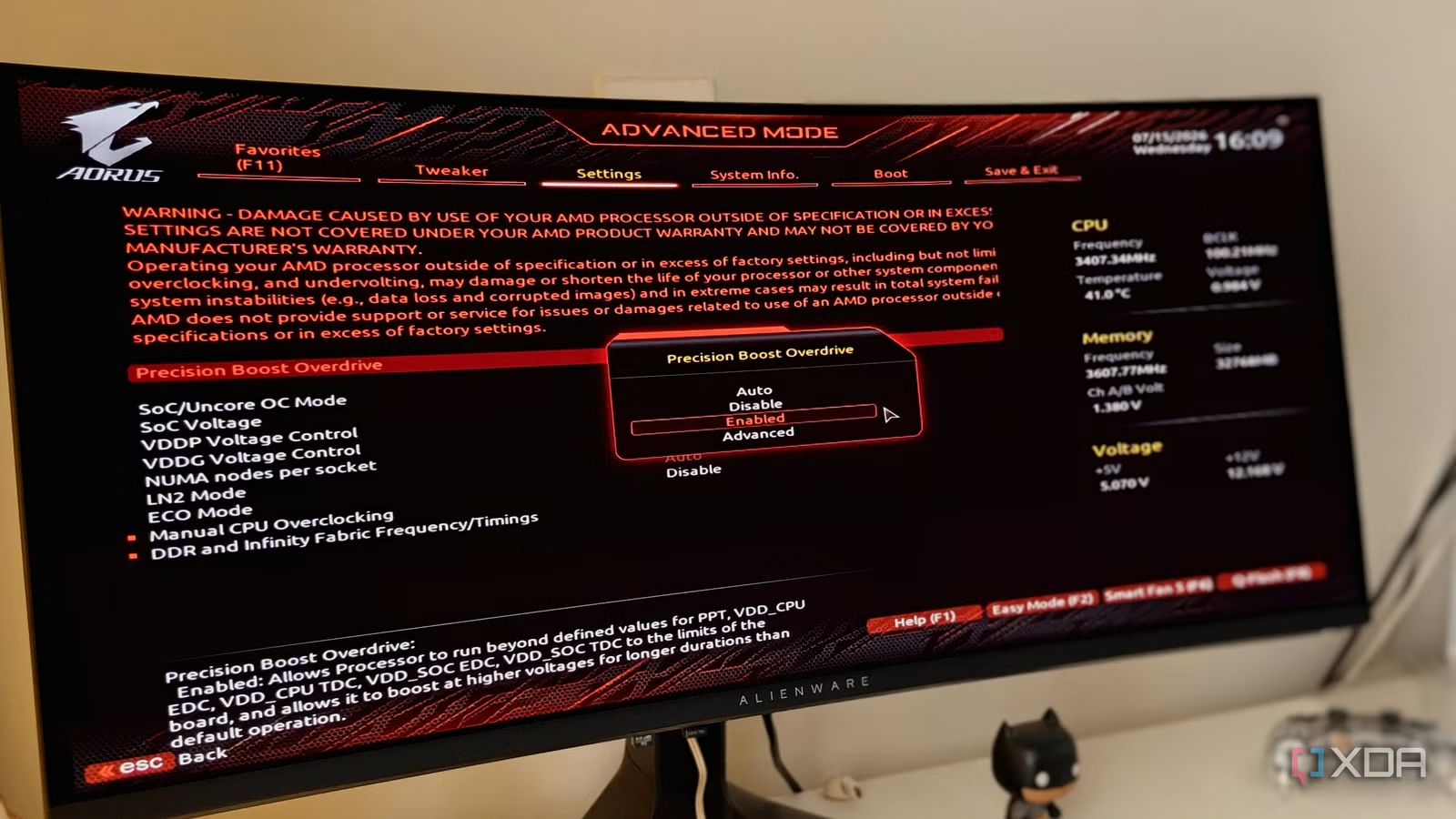

Why BIOS throttling performance is the silent FPS killer
BIOS throttling performance refers to your motherboard’s firmware using default power, thermal, and boost settings that quietly limit CPU and GPU speed, causing frame drops, stutters, and slow workloads even when Windows and drivers look fine and standard monitoring tools do not show obvious throttling flags.
If your games stutter, your streams hitch, or your renders crawl, it is tempting to blame Windows, drivers, or your aging hardware. But many systems are held back long before the OS loads, because BIOS/UEFI defaults prioritize stability and power saving over speed, which means they also limit performance and can cause BIOS throttling performance problems. Your BIOS defines CPU boost behavior, power limits, memory speed, system temperatures, and even aspects of GPU performance. When those defaults are too conservative, you see random dips and low FPS while monitoring tools insist everything is fine.
This guide is for PC enthusiasts who feel their hardware should perform better than it does. There is one important caveat: you are changing low‑level firmware behavior, so move slowly, change one thing at a time, and always be ready to revert.
Common mistakes that hide BIOS-related slowdowns
Most PC performance troubleshooting starts in the wrong place. People reinstall chipset drivers, blame Windows 11, or argue about whether their CPU is bottlenecking their GPU. Meanwhile, the firmware quietly enforces limits that no amount of OS tuning will fix. According to one detailed analysis, "the BIOS defaults ensure stability on a new PC, but they also limit the performance of your system".
A few gotchas show up over and over. Many gamers never change the BIOS defaults after building a PC, unknowingly throttling their system's performance. Memory XMP/EXPO profiles are disabled by default, so your fast DDR kit runs at slow JEDEC speeds unless you enable a profile. Default fan curves are tuned for silence, not cooling, which means your CPU gets close to thermal limits before fans speed up, and performance starts dropping long before obvious throttling flags appear. On top of that, firmware features like Resizable BAR can silently turn off after hardware changes, leaving gaming performance on the table unless you remember to check the BIOS.
The real trap is that standard tools might show no PROCHOT or thermal throttle flags, so you assume the CPU is fine while boost algorithms quietly slash clocks to stay under hidden limits.
Step-by-step: Check and fix hidden CPU throttling in BIOS
Here is a practical sequence you can follow before blaming Windows or buying new parts. The idea is to capture how your system behaves under load, look for subtle throttling, then apply a targeted CPU throttling fix and BIOS settings optimization instead of random tweaks.
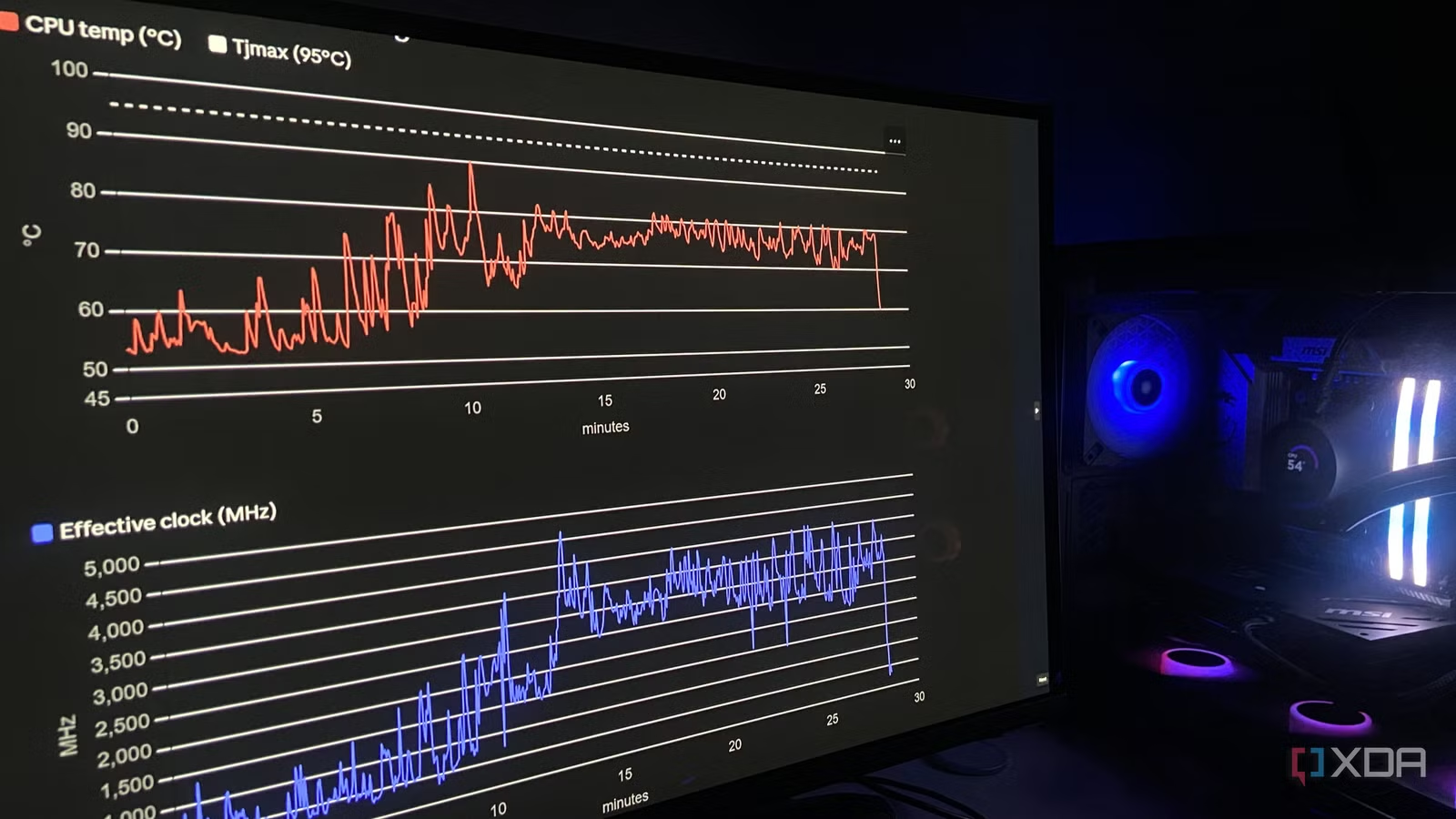
- Reproduce the problem and log sensors: Run a game or workload that causes stutter and log CPU telemetry at one‑second intervals using a tool like HWiNFO for around 30 minutes, making sure the issue appears during the session.
- Export your log to CSV: When you are done, export the monitoring session to a CSV file so you can analyze all samples and sensor columns later.
- Analyze the log with an AI tool: Upload the CSV to an advanced AI model, describe your hardware and symptoms, and let it inspect thousands of rows for patterns in temperatures, effective clocks, and power behavior.
- Confirm thermal or power-triggered slowdowns: Look for signs like temperatures spiking into the upper range followed by effective clock drops into very low MHz values, even if throttle flags such as PROCHOT remain off.
- Enter BIOS/UEFI and find CPU tuning: Reboot into your BIOS, navigate to the CPU or AMD Precision Boost / similar section, and locate options like Curve Optimizer or voltage/frequency controls.
- Apply a mild negative Curve Optimizer offset: As prescribed in one successful fix, use Curve Optimizer to apply a modest negative voltage offset in the range of about -10 to -15 steps to reduce heat at the same performance level.
- Save changes and reboot: Store the modified profile in BIOS, exit, and boot back into your OS so the new voltage behavior takes effect.
- Re‑test under the same load and log again: Repeat the original 30‑minute workload with logging enabled; compare peak temperatures and effective clock behavior to confirm lower temps and the absence of clock collapses.
- If stable, keep the profile; if not, dial back: If your system runs cool and smooth, keep the offset; if you see instability, reduce the magnitude of the Curve Optimizer setting and retest.
In one documented case, this approach showed a temperature spike from 78°C to 90.4°C in 5 seconds followed by an effective clock crash from 4,200MHz to 740MHz, even though the CPU reported no throttling. The AI pointed to Precision Boost and voltage as the culprits and prescribed a small negative Curve Optimizer offset. Following that prescription, the user set a -15 offset, rebooted, and logged a fresh session; the peak temperature dropped to 74.9°C and the random stutters disappeared.
The reason this CPU throttling fix works is straightforward: Curve Optimizer trades voltage, not clock speed, and voltage is what creates the heat. Less voltage at the same performance means less heat, so the CPU stays away from its temperature limit and firmware no longer yanks clocks down to protect the chip.
Other BIOS settings optimization to check before blaming Windows
Once you have tackled core CPU behavior, there are a few more BIOS settings worth auditing during PC performance troubleshooting. Start with memory profiles: XMP/EXPO is disabled by default, so your high‑speed DDR kit may be running far below its rated data rate. Enabling the right profile moves the RAM from safe JEDEC baselines to the speed, voltage, and timings you paid for, which can deliver noticeably higher framerates and snappier applications without any hardware upgrade.
Next, look at fan curves in the BIOS. Default curves ramp fans late and favor silence, which lets CPU temperatures creep close to throttle points before extra airflow arrives. That means performance begins to decline earlier than you expect as boost algorithms back off. Custom curves that increase fan speed earlier in the temperature range can prevent BIOS throttling performance penalties while keeping idle noise low. Also check whether features like Resizable BAR are enabled; older setups or systems that have had CPU swaps may have this turned off again, reducing gaming performance unless you re‑enable it.
Once you know which firmware settings to enable and tune, you can extract more performance without threatening system stability or touching Windows.
Is digging into BIOS worth it?
If you feel your system is underperforming, it is worth checking the BIOS before you spend hours on Windows tweaks or buy a new CPU. Diagnosing PC performance on forums often turns into jumping through fifteen hoops with no guarantee of a fix, while a focused look at firmware behavior can reveal the real bottleneck. In the example above, methodical logging plus AI analysis led to a BIOS‑level CPU throttling fix that removed stutters and significantly lowered peak temperatures without any hardware change.
Hidden BIOS throttling is easy to overlook because on the surface, everything "looks fine" and utilities report no explicit throttling flags. But your BIOS/UEFI is one of the biggest determinants of performance and stability. The takeaway: before you use Windows optimization tools or aggressively disable background processes, check your UEFI once. You might unlock free FPS and smoother workloads by resetting or optimizing BIOS profiles, and you will know that if you still need an upgrade afterward, you are not leaving free performance on the table.





