


Copilot PC Insights: An AI Layer on Top of Windows 11 Diagnostics
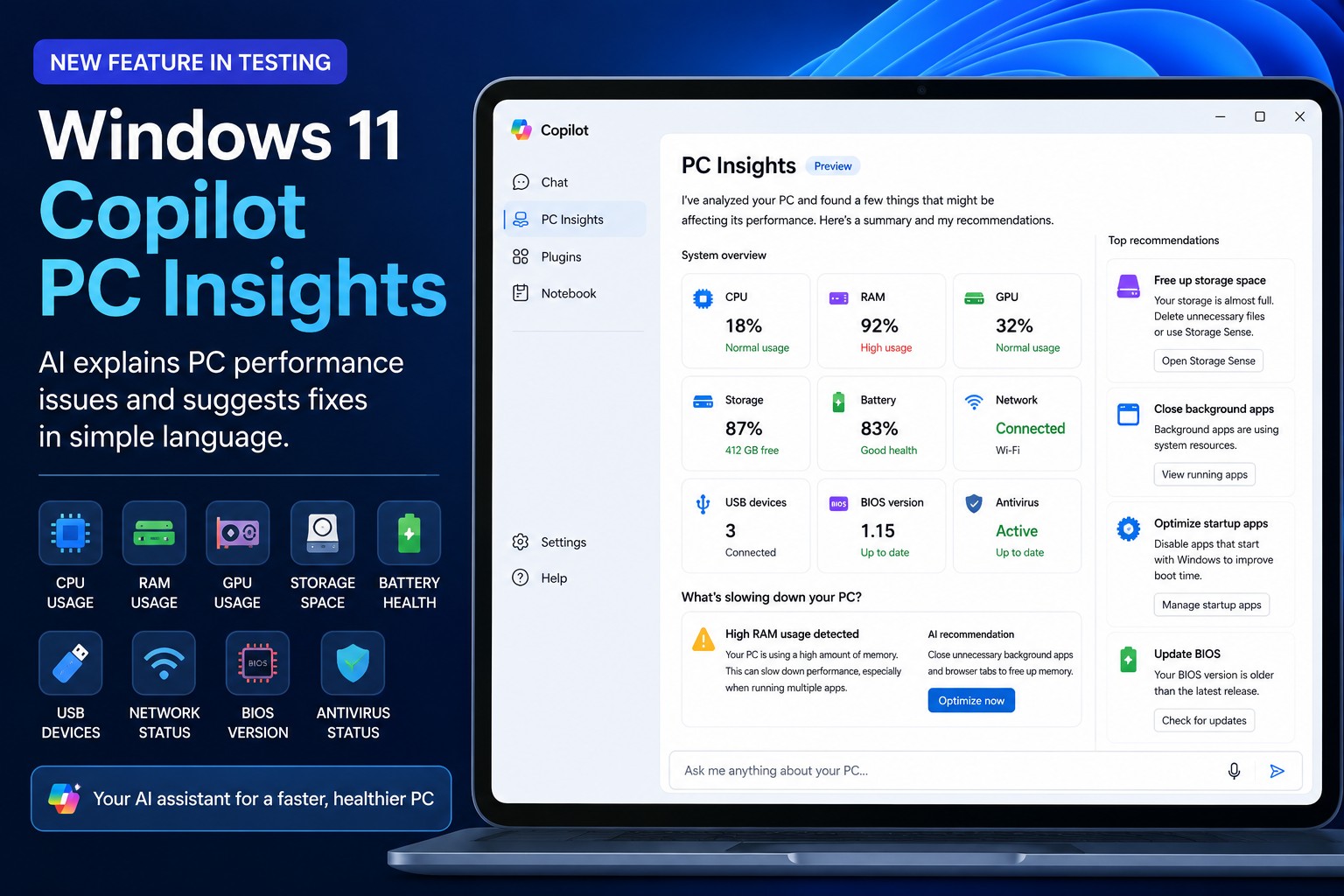
Copilot PC Insights is an experimental Windows 11 AI diagnostics feature that lets the Copilot app read system metrics such as CPU, RAM, GPU usage, storage, battery health and security status, then explain performance issues and hardware details in plain English so users can troubleshoot PC slowdowns without digging through traditional tools like Task Manager or Settings.
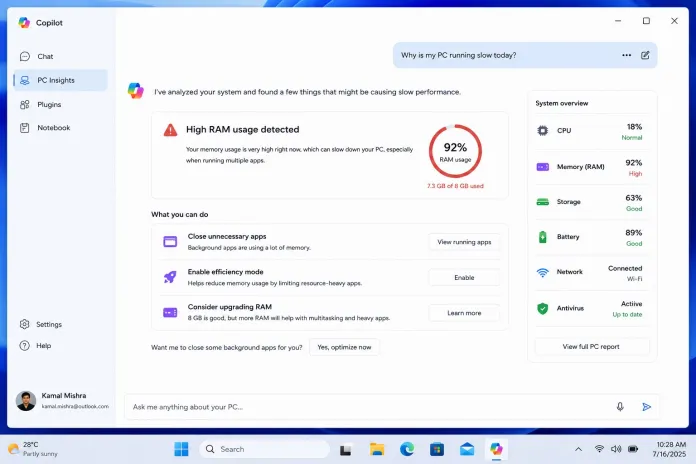
Microsoft is not shy about its goal here: turn Copilot from a chat assistant into a resident PC performance troubleshooter. Copilot PC Insights plugs into Windows APIs and your hardware data to answer questions like “Why is my PC running slowly?” or “What’s using all my memory?” in conversational form. In theory, this could make Windows 11 AI diagnostics feel far more approachable than scrolling through columns of processes and cryptic acronyms. Instead of numbers and graphs, you get narrative explanations and suggestions for PC performance troubleshooting and AI system optimization. That is a clear usability win—if the advice is reliable and the overhead stays under control.
What Copilot PC Insights Promises for Everyday Users
The pitch is straightforward: let AI do the detective work when your machine feels sluggish. Rather than sending users on a tour through Task Manager, Settings, and Windows Security, Copilot PC Insights aims to examine system health, identify bottlenecks, and recommend fixes through a single chat window. Microsoft describes this as a way to “conversationally ask Copilot questions about their Windows PC and receive clear responses based on their device's state without having to dig through system settings”.
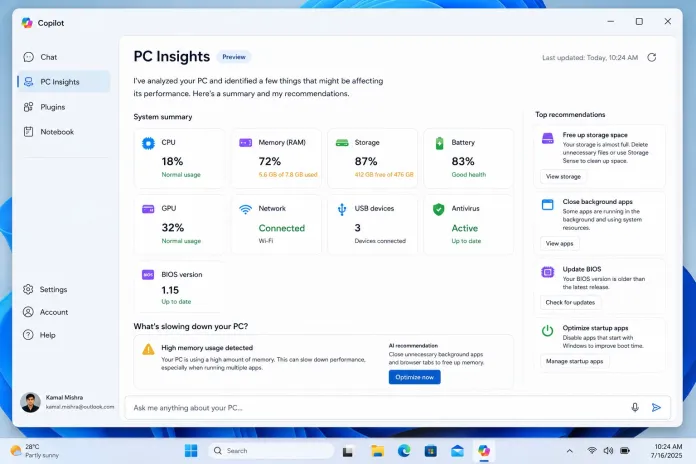
Once you grant permission, Copilot can read CPU usage, RAM load, GPU utilization, free storage, battery condition, USB devices, network status, BIOS version, and antivirus protection. Instead of raw telemetry, it rewrites all that into clear statements such as “Your RAM is nearly full because too many applications are running simultaneously” or “Your SSD has very little free space, which could impact Windows performance”. For less technical users, this kind of Windows 11 AI diagnostics could genuinely remove a lot of guesswork. You get an explanation of what’s wrong plus suggestions for performance improvements, even if Copilot currently stops short of automatically applying fixes.
Why Enthusiasts See Bloat, Hallucinations and Limited Upside
The enthusiasm from Microsoft’s side is not fully mirrored in the enthusiast community. Power users are quick to point out the irony of using a heavyweight AI client to check resource usage on a lagging system, when the Copilot app itself can sit in the background consuming a substantial chunk of RAM while idle. One Redditor summed up the mood with a pointed line: “Oh hey it's like Task Manager except instead of lightweight and authoritative, it's bloated and might be lying to me”. That bloat claim matters, because PC performance troubleshooting tools are supposed to stay out of the way, not compete with your game or render workload for memory and cycles.
Accuracy is the other red flag. Microsoft openly warns that Copilot “may not always provide complete or accurate information,” especially while PC Insights is in testing. Enthusiasts already trust Task Manager, Performance Monitor and vendor utilities that give direct telemetry. Introducing an AI layer that can misinterpret that telemetry risks turning serious diagnostics into a confidence game. When an AI system optimization tool might hallucinate about your hardware state, the cost is not just a wrong answer—it is wasted time chasing the wrong bottleneck and, in worst cases, applying unnecessary changes. For users who already know how to read the charts, Copilot PC Insights can feel like an over-engineered middleman.
Privacy, Opt‑In Design and the Slow March Toward an AI-Heavy Windows
To Microsoft’s credit, Copilot PC Insights is strictly optional. The diagnostics ability must be turned on manually, and the AI asks for permission before accessing system and hardware details. You can grant access for a single session or choose to “always allow”, and Copilot does not proactively inspect your machine without this consent. That opt‑in design is essential for an AI feature that reads sensitive data like BIOS versions and antivirus status, but it does not settle the broader privacy unease around a growing, always‑connected assistant baked into the OS.
PC Insights sits within a larger push to make Copilot a deeply integrated Windows assistant, handling settings, files, productivity features and system controls. It is currently an experimental feature in gradual rollout and could ship in a later Windows 11 update if testing goes well. The direction is clear: diagnostics, optimization hints and health checks will increasingly flow through AI. Whether that is good for users depends on your tolerance for background overhead and your trust in an assistant that, by its creator’s own admission, might still get details wrong.
Should You Enable Copilot PC Insights?
If you struggle to understand what Task Manager is telling you, Copilot PC Insights could be worth trying once it reaches your system. It wraps Windows 11 AI diagnostics in plain language, anchors PC performance troubleshooting in a single chat window, and offers clear suggestions instead of opaque graphs. For many everyday users, that is a practical improvement, and the opt‑in model plus explicit permission prompts reduce the risk of unwanted data access.
If you are a PC enthusiast who already tracks every watt and frame, the case is weaker. You gain little information you cannot already see in existing tools, but you add another RAM‑hungry process and an AI layer that can admit its own fallibility. In that context, Copilot PC Insights looks less like progress and more like clutter. The sensible stance for power users is to leave it disabled, keep an eye on how it evolves, and treat its recommendations as a second opinion—not a replacement for the data and utilities you already trust. Until AI diagnostics can match the reliability and light footprint of classic tools, skepticism is not only reasonable; it is healthy.




