

Copilot PC Insights: A Smarter Way to Ask “Why Is My PC Slow?”
Copilot PC Insights is an optional Windows 11 performance diagnostics feature that feeds Microsoft’s Copilot assistant real-time hardware and system metrics so it can answer plain‑language questions about slowdowns, storage limits, and device health based on the current state of your PC rather than generic advice.
Microsoft is testing PC Insights inside the Copilot app, after it was first spotted by Windows Latest, and is rolling it out gradually to users in one region with no firm date for wider availability. Once enabled, Copilot can query Windows APIs for CPU, RAM, and GPU usage, disk capacity, connectivity, battery condition, BIOS details, and connected peripherals. In practice, that means you can ask why your Windows 11 machine feels sluggish, how much storage you have left, or whether there is enough space for a game or application instead of hunting through Task Manager or Settings. On paper, this is exactly what an AI assistant should do: turn telemetry into understandable answers.
How PC Insights Changes Windows Slowdown Troubleshooting
The core promise of PC Insights is to turn tedious Windows slowdown troubleshooting into a conversation. Rather than pointing you toward Task Manager, Storage Settings, Resource Monitor, or Device Manager, Copilot uses live system data to give contextual replies about what is happening on the machine right now. If your system drags, you can ask Copilot for the cause, and it can flag unusually high memory usage, low free disk space, sustained CPU activity, or an overloaded GPU as potential culprits. It can also break down folder sizes, report on Bluetooth and Wi‑Fi connection states, show battery and charging status, and confirm whether USB devices, webcams, printers, or external drives are being detected.
This matters because Windows has long buried actionable performance information under layers of tools and terminology. Being able to ask, “Do I have enough space for a 100GB game?” or whether 87GB of remaining storage is sufficient and get a direct answer is more than convenience; it is a way of turning the operating system’s complexity into clear, guided decisions. The catch is that, for now, PC Insights is read‑only: it can identify problems and suggest actions, but it cannot fix anything on your behalf.
The 1GB Irony: A Diagnostic Tool That Eats Performance
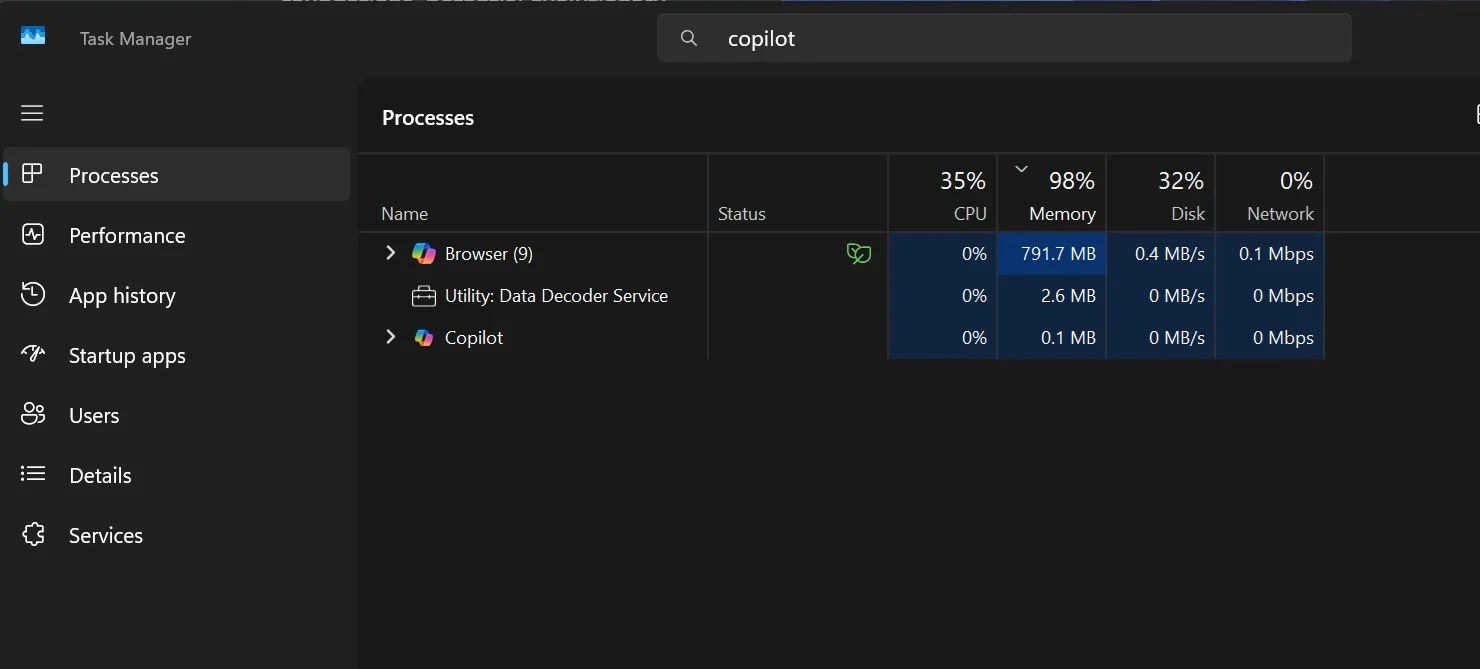
There is an obvious and uncomfortable irony built into PC Insights: the very Copilot interface designed to diagnose Windows 11 performance issues is itself a notable resource hog. Copilot for Windows runs as a web application with its own private copy of Microsoft Edge, meaning it brings along msedge.exe and much of Chromium’s code. Independent tests show that this setup can consume up to 1GB of RAM while idle, making Copilot one of the more memory‑intensive processes on the system. That is a non‑trivial chunk of memory for anyone who cares about keeping background usage low.
Microsoft is, on the one hand, publicly chasing a lower baseline memory footprint and more consistent performance under load, as Windows leadership has recently outlined. On the other hand, it is wiring performance diagnostics into a heavyweight shell that frequently shows up near the top of Task Manager’s memory list, alongside large productivity apps. This tension helps explain why the company has already pulled back some Copilot integrations in built‑in tools like Snipping Tool, Photos, Widgets, and Notepad after complaints about bloat. PC Insights sits right at the center of that debate: valuable insight trapped inside a bloated container.
Privacy, Permissions, and the Limits of an Experimental Tool
Microsoft is trying to blunt the most obvious concerns about PC Insights with a permission‑driven, opt‑in design. The feature does not run as a constant background monitor; instead, Copilot requests access to relevant data only when you ask a question, and you can choose to allow once, always allow, or decline. File and folder visibility is limited to size metadata unless you grant extra permissions, and Microsoft says that personal files and system information gathered via PC Insights are not stored or used to train AI models, though your conversation activity may still inform model improvements.
At the same time, Microsoft is clear that PC Insights is experimental and that its answers may be incomplete. There is no announced date for general availability, and the company warns that the feature’s final capabilities, permission model, performance impact, and rollout plan could change as testing continues. In other words, this is a moving target. For power users and enthusiasts, that means any workflow built around PC Insights needs an exit plan: the feature could improve, become more efficient, or be scaled back if the resource trade‑offs prove unpopular.
The Verdict: Helpful Insight, Flawed Delivery
PC Insights shows how useful AI‑driven Windows 11 performance diagnostics can be when the assistant is allowed to see what your system is doing in real time. Turning messy performance counters into direct answers about why a PC feels slow or whether it can handle a large install is exactly where Copilot earns its place. For users who are tired of spelunking through Task Manager tabs, that is a meaningful upgrade over static troubleshooting scripts.
But that usefulness is undercut by Copilot’s own appetite for resources. A diagnostic tool that idles at up to 1GB of RAM sounds less like a smart assistant and more like another process you will end up asking, “Are you the reason my PC is slow?” Unless Microsoft can deliver the same insight through a leaner, more native implementation, PC Insights will remain a clever idea wrapped in the same bloat it is supposed to help you fight. For now, it is worth testing, not trusting.





