


Copilot PC Insights: Windows 11’s AI Mechanic for Slow PCs
Copilot PC Insights is a new Windows 11 AI diagnostics feature that lets Microsoft’s Copilot analyze your computer’s health through system APIs, interpret hardware and process data, and explain performance issues in clear everyday language so users can understand what is slowing down their PC and how to fix it without digging through technical menus. This is not another passive dashboard; it is Microsoft turning Copilot into an active system troubleshooter. The strategy is blunt: move PC performance troubleshooting out of Task Manager graphs and into plain English. In an OS that has long buried vital information behind confusing tabs, Windows 11 now puts an opinionated assistant front and center. If your machine feels sluggish, Copilot PC Insights aims to be the first place you ask what went wrong and what to do next.
How Windows 11’s AI Diagnostics Actually Work
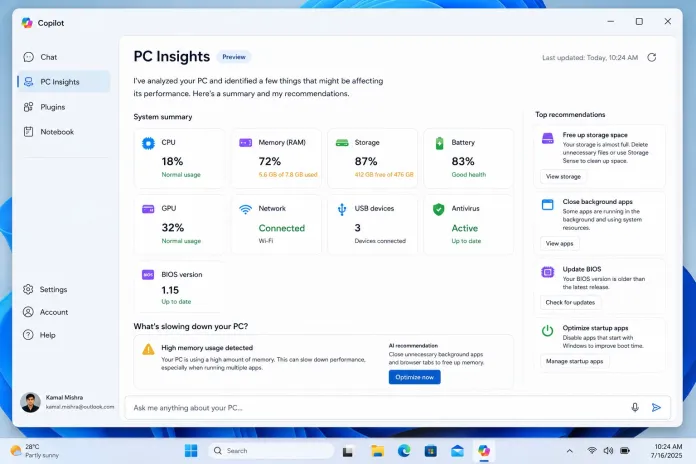
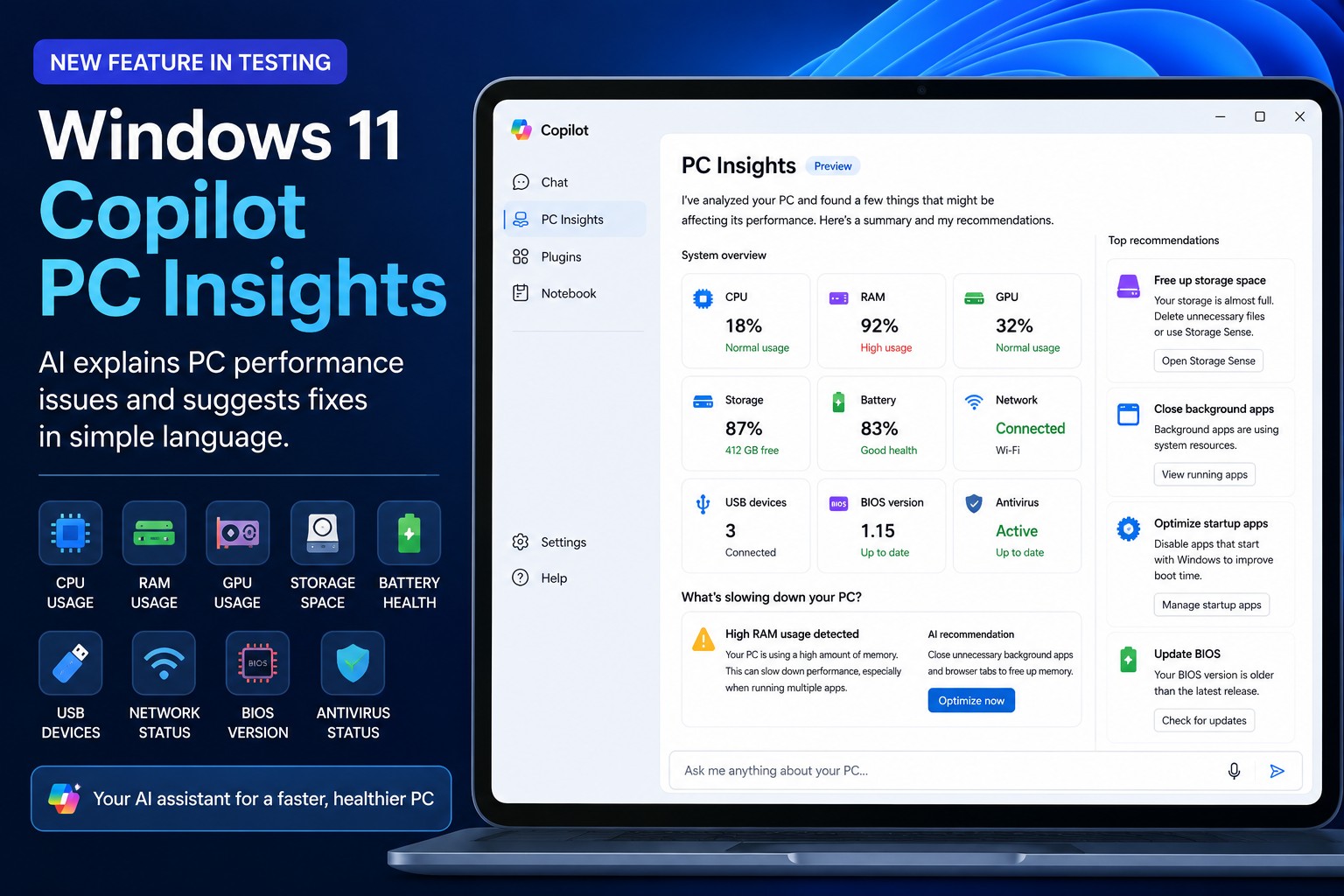
Under the hood, Copilot PC Insights uses Windows APIs—with your explicit permission—to read live system metrics and turn them into performance advice. It inspects CPU usage, RAM utilization, GPU load, available disk space, battery health, connected USB devices, network status, BIOS version, and antivirus protection. That data fuels natural-language answers instead of raw charts. Instead of asking you to open Task Manager, Settings, or Windows Security, Copilot examines the system itself, identifies potential bottlenecks, and recommends practical fixes through a conversation. In this first iteration, Copilot has read-only access: it can diagnose but cannot close processes, delete files, or repair the system automatically. That limitation matters; the tool is closer to a highly informed consultant than a one-click repair wizard. The real win is interpretation—turning scattered Windows telemetry into a coherent description of your PC’s state.
Beyond Task Manager: From Cryptic Numbers to Real Answers
The most important difference between Copilot PC Insights and Task Manager is that Task Manager only displays numbers and graphs, while PC Insights is designed to interpret those numbers and explain what they mean for performance. High CPU, near-full RAM, or low SSD space no longer show up as intimidating charts; Copilot can state that your RAM is nearly full because too many applications are running, or that very little free SSD space is slowing Windows. According to one report, Copilot can describe degraded battery health, outdated antivirus definitions, or misbehaving USB devices as direct causes of sluggish behavior. Many users rarely open Task Manager unless they are following a guide, and Microsoft is attacking that friction by letting people ask things like “Why is my PC running slowly?” or “What’s using all my memory?” instead of decoding performance counters themselves.
Real-World PC Performance Troubleshooting and System Slowdown Detection
In practice, Copilot PC Insights turns vague frustration—“my PC is slow”—into targeted system slowdown detection. Microsoft wants users to ask simple questions: how much free memory is left, which graphics card they have, or whether there is enough space to install a 100 GB game, and Copilot responds by combining the current state of the PC with contextual information. If the system has 87 GB free and a game needs more than 100 GB, Copilot explains the mismatch and suggests cleaning up storage. It can answer whether a printer or webcam is detected, if the antivirus is active, or whether network and Bluetooth hardware are present and healthy. For casual users, this conversational approach removes much of the guesswork from PC performance troubleshooting and makes technical checks feel like everyday questions instead of a maze of submenus. Slowdowns stop being mysterious; they become concrete problems with concrete recommendations.
Privacy, Control, and What This Means for Windows 11
There is a trade-off: effective diagnostics need access to sensitive system data, and Microsoft is trying to keep control in the user’s hands. Copilot will not inspect your PC automatically; PC Insights is optional, and you must grant permission before the assistant can read hardware and process information, with settings to always allow or restrict that access. The company also states that personal files and system information are not used to train its models, only conversations, depending on user settings. That is the right default, but it will still divide opinion among power users. What is clear is that Microsoft has spent the past year transforming Copilot from a general chatbot into a deeply integrated Windows assistant, adding settings management, actions, file help, productivity features, and system controls, with PC Insights marking the shift toward active maintenance and troubleshooting. The conclusion is simple: Windows 11 is betting that AI-driven diagnostics will be the new front door to understanding your PC.





