
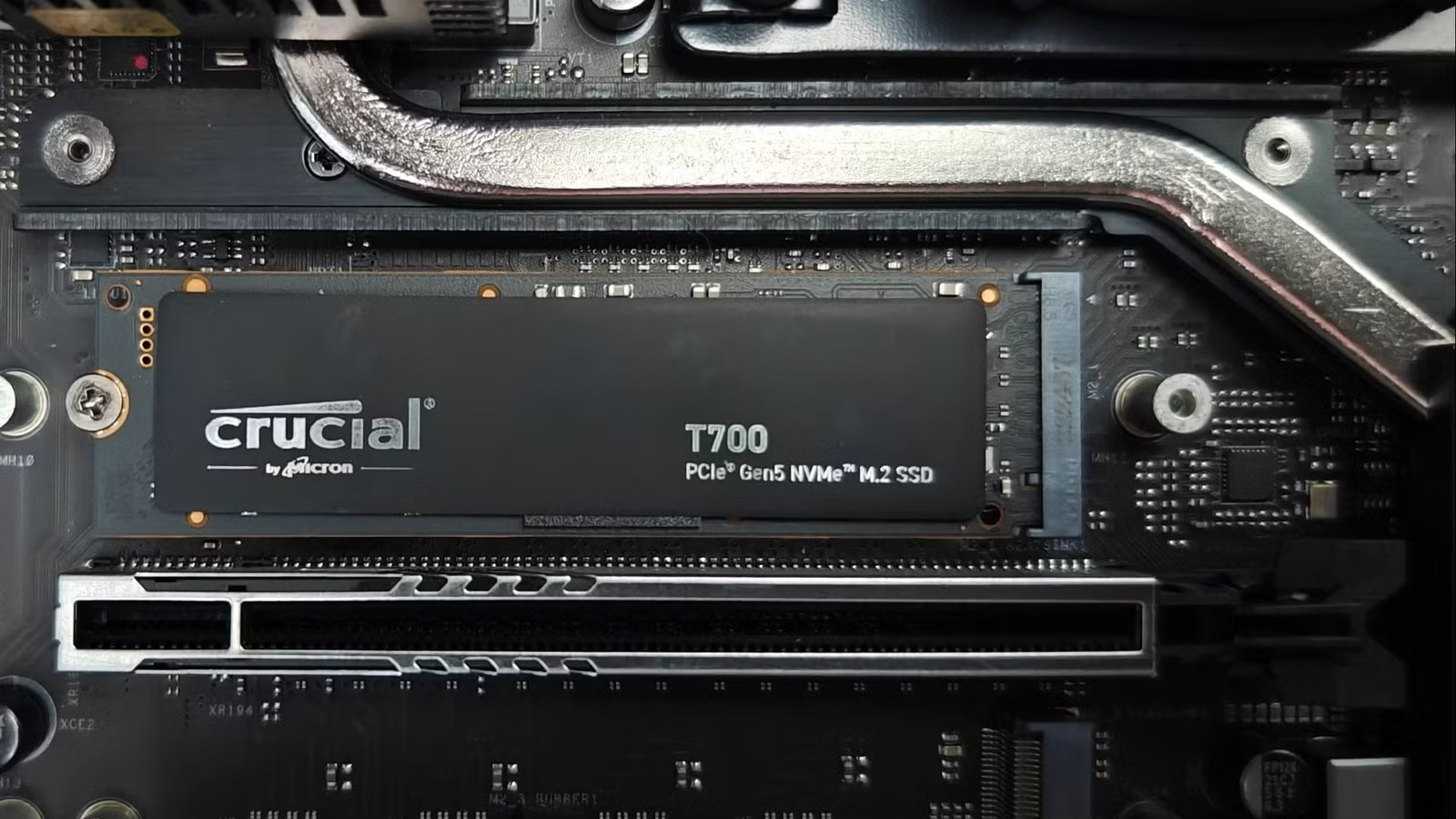

What motherboard PCIe lanes are and why they matter
Motherboard PCIe lanes are the high‑speed data paths that connect your CPU to devices like GPUs and NVMe SSDs, and when they are misallocated or shared, they can silently reduce graphics performance and SSD speed even though your hardware appears healthy and stable.
If you’re a PC enthusiast who has spent good money on a flagship graphics card or NVMe drive and something still feels slow, this guide is for you. The main prerequisite is that you can enter your system BIOS, run a couple of free utilities, and pop the side panel off your case. Everything else is configuration work, not a shopping list. PCIe lanes are finite: modern consumer CPUs expose around 20–24 usable lanes, and every GPU or SSD you add consumes part of that budget. When the budget runs out, the motherboard starts sharing or downgrading connections. The annoying part is that these compromises are often hidden in a single line of the motherboard manual that nobody reads, yet they can cut GPU bandwidth in half or make a top-end SSD run at midrange speeds.
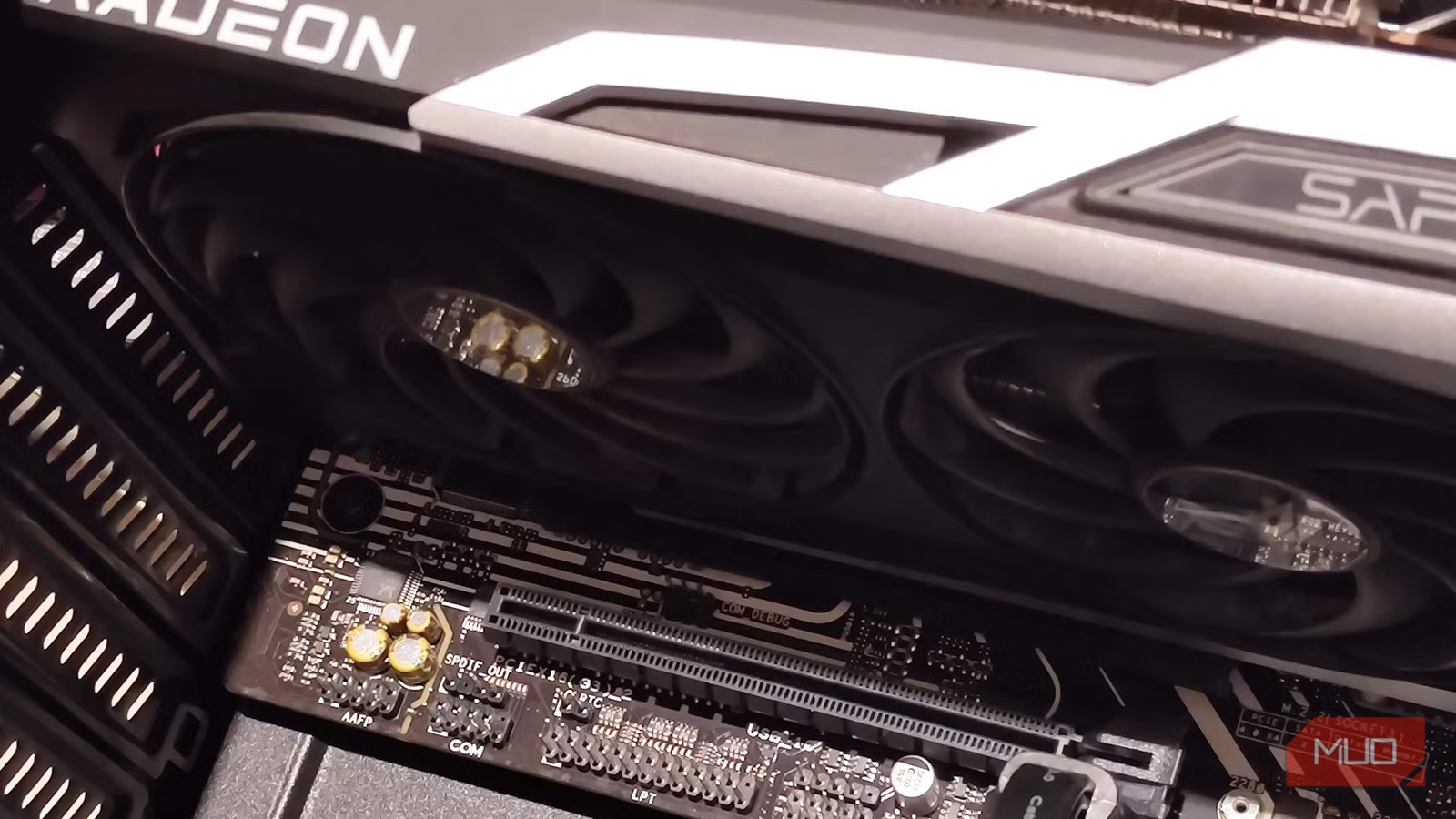
The two hidden traps: shared GPU lanes and slow SSD slots
The big trap with modern boards is that the main PCIe x16 slot for your GPU often shares lanes with at least one M.2 slot. When that M.2 slot is populated, the board silently drops the GPU from x16 to x8, because both devices are drawing from the same pool of CPU-connected lanes. Many manuals spell this out as, “When M.2_2 is occupied, PCIEX16 will run at x8 mode,” which in plain language means installing a second SSD can halve your graphics card’s bandwidth. If you run a PCIe 5.0 GPU, one recommended fix is to skip that particular M.2 slot so you avoid cutting your GPU bandwidth in half.
Your SSD can hit an equally sneaky limitation. Once the CPU-connected lanes are allocated, extra M.2 slots sit behind the chipset, sharing a single uplink with SATA ports, USB, networking, and other devices. A PCIe Gen 5 SSD rated for up to 14,000 MB/s cannot reach its advertised speed if it sits behind that shared path. Another common mismatch is dropping a PCIe Gen 5 drive into a Gen 4 slot. Nothing appears broken, but the drive will negotiate down and run at about half the interface ceiling. Most people assume the SSD is defective, when in reality the motherboard layout and manual-defined lane sharing are the real bottlenecks.
Step‑by‑step: find and fix your GPU and SSD bottlenecks
Before touching hardware, gather what you need: your motherboard manual, a way to enter the BIOS, and two free tools—CrystalDiskMark and HWiNFO. CrystalDiskMark lets you compare your SSD’s sequential read speed against the rated spec from its box or documentation, while HWiNFO reveals the PCIe link speed and width reported for each device. You’re going to use these together to pinpoint whether the problem is the drive, the slot, or the lane configuration.
- Run CrystalDiskMark on your primary SSD and compare the sequential read figure against the drive’s rated speed from its spec sheet; if you’re within about 10–15% of the rating, you can relax because nothing in this guide applies to that drive.
- If the measured speed is around half or less than half of the rated value, leave the SSD installed and open HWiNFO, then locate the drive’s entry and note the PCIe link speed (Gen 3, 4, 5) and width (x2, x4).
- If HWiNFO shows a lower generation or fewer lanes than the drive supports, open your motherboard manual’s storage section and lane-sharing table to see which M.2 slots connect directly to the CPU and which share bandwidth with PCIe or SATA ports.
- Power down the PC, then move your fastest NVMe drive into the CPU-connected primary M.2 slot indicated in the manual, and relocate any slower or secondary drives to the chipset-backed slots, giving the fastest drive the fastest lane.
- If the manual notes that a specific M.2 slot forces the main PCIe x16 slot to run at x8 when occupied, avoid that slot if you use a high-end GPU, or accept the mild performance trade-off if your card is not native PCIe 5.0.
The main gotcha is assuming the problem is a bad SSD or GPU and tearing your build apart. If HWiNFO shows the link speed coming up short, the manual’s storage table usually explains why and which slot to use instead. One clear, quotable takeaway is: “You need to shift the drive to the CPU-connected primary slot, relocate a lesser-rated drive to the chipset slot, and let your fastest drive have the fastest lane.” Avoid rushing into motherboard swaps; changing boards means redoing cable routing and power connections for what might have been a five-minute slot reshuffle.
What to expect after the fix—and when the board is the limit
Once you move the SSD and adjust slots according to the manual, re-run CrystalDiskMark. If you now see results within 10–15% of the rated sequential read speed, you have achieved effective SSD speed optimization and can stop worrying about hidden bottlenecks. In many systems, that alone restores the “snap” you expected from a flagship NVMe drive. Likewise, keeping the GPU on a full x16 link when possible helps avoid unexpected frame rate dips from lane sharing, especially with PCIe 5.0 cards that feel the cut to x8 more sharply.
Sometimes, there is no perfect configuration. If every slot is limited to a lower generation than your SSD, or every lane-sharing option steals bandwidth from something important, then the motherboard itself is the permanent bottleneck. According to one report, “the unfortunate situation is that the bottleneck comes down to your motherboard, and not your PC building prowess.” Even in that case, living with a slight shortfall is often better than replacing the board, undoing your cable work, and rebuilding your system for a single drive. The real lesson is this: before blaming your GPU or SSD, give the manual five minutes of attention; it often contains a zero-cost GPU bottleneck fix and the map to the fastest paths on your board.





