
The real bottleneck: your habits, not Windows
PC performance throttling in games is often blamed on Windows or aging hardware, but in most real systems the root cause is misconfigured BIOS defaults, poor OS settings, or hidden CPU safeguards silently pulling clocks down under load. That means many stutters and low frame rates can be fixed by configuration and diagnostics instead of expensive new components. Before you blame Windows 11 or your GPU, you should assume your firmware and settings are guilty until proven innocent. The payoff is simple: more stable FPS, fewer frame-time spikes, and fewer wasted upgrades that never needed to happen in the first place.
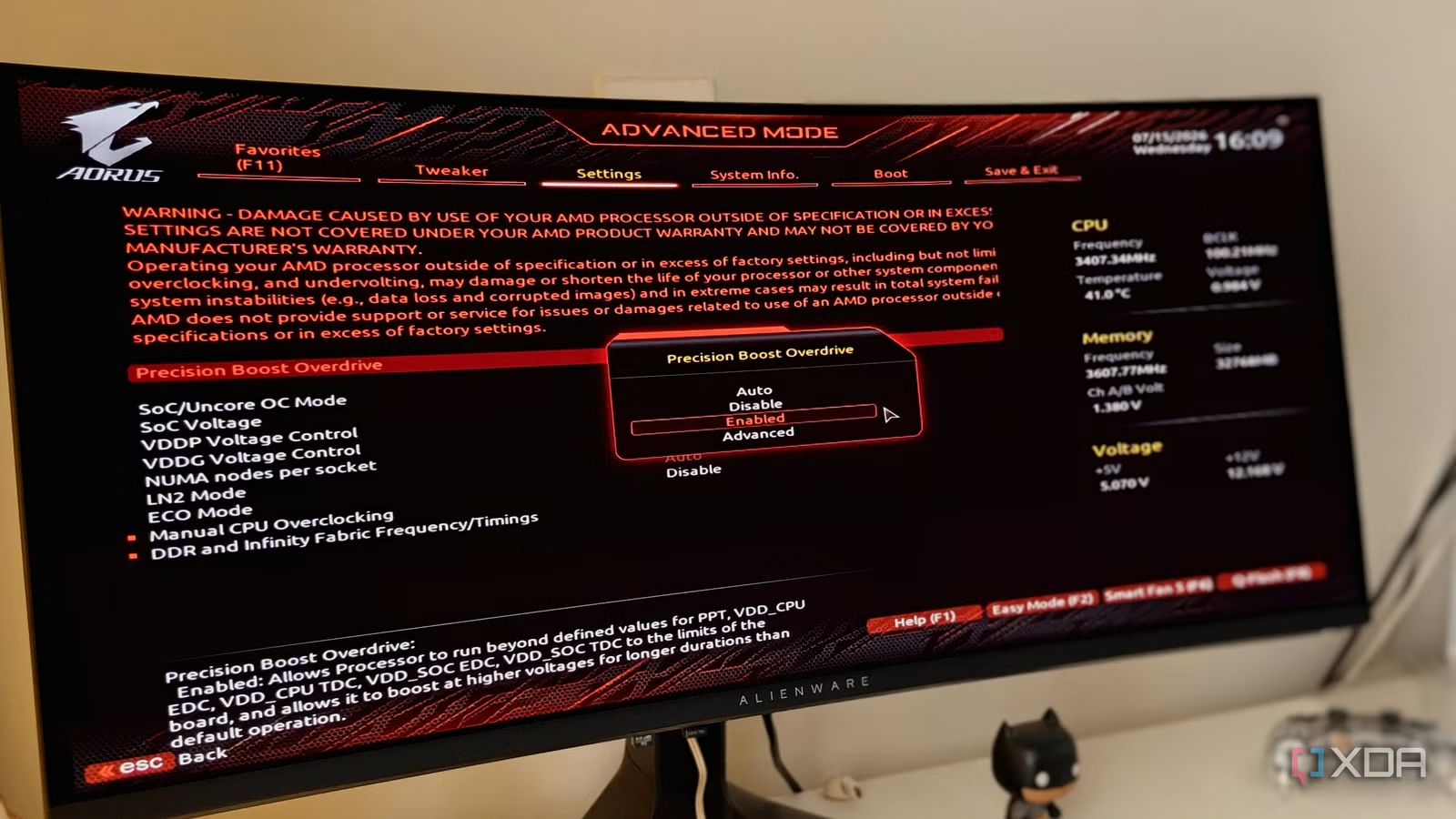
Your BIOS or UEFI has more control over gaming performance than any registry hack or debloater. It defines CPU boost limits, power behavior, RAM speed, thermals, and even GPU headroom. Those "safe" defaults are tuned for stability on a new PC, but that stability comes at the cost of lost performance. Many gamers never touch these settings after building a rig, unknowingly throttling their system while yelling at Windows. The smarter mindset is: Windows tweaks are last, firmware checks are first. Once you know which knobs to turn, you unlock speed you already paid for without touching your wallet.
Start in the BIOS: free performance hiding in plain sight
A practical BIOS optimization guide starts with one loud rule: do not assume the defaults are good enough. Memory profiles like XMP and EXPO ship disabled on purpose. If you never select a profile, your DDR5-6000 kit can run at slow JEDEC baselines such as 4,800 or 5,200 MT/s instead. You paid for speed, but the system behaves like budget RAM, and your CPU is starved of bandwidth. For most gamers running a 32GB kit in the DDR5-6000 to DDR5-6400 range, these profiles are designed to be stable in normal setups. That means you leave a meaningful chunk of frame rate on the table by ignoring one toggle.
Thermals are the next silent killer. Default fan curves aim for quiet, not for sustained clocks, so fans often ramp up too late while your CPU creeps toward throttling temperatures. The BIOS might keep clocks and voltages conservative to avoid heat, capping performance long before Windows even loads. And because these limits come from firmware, no amount of Game Mode, debloating, or driver reinstalling will fix them. Not everything is Windows’ fault — your BIOS might be misconfigured. Once you know which settings to enable, you can extract more performance without harming stability.
Game Mode: misunderstood floor, not magic FPS boost
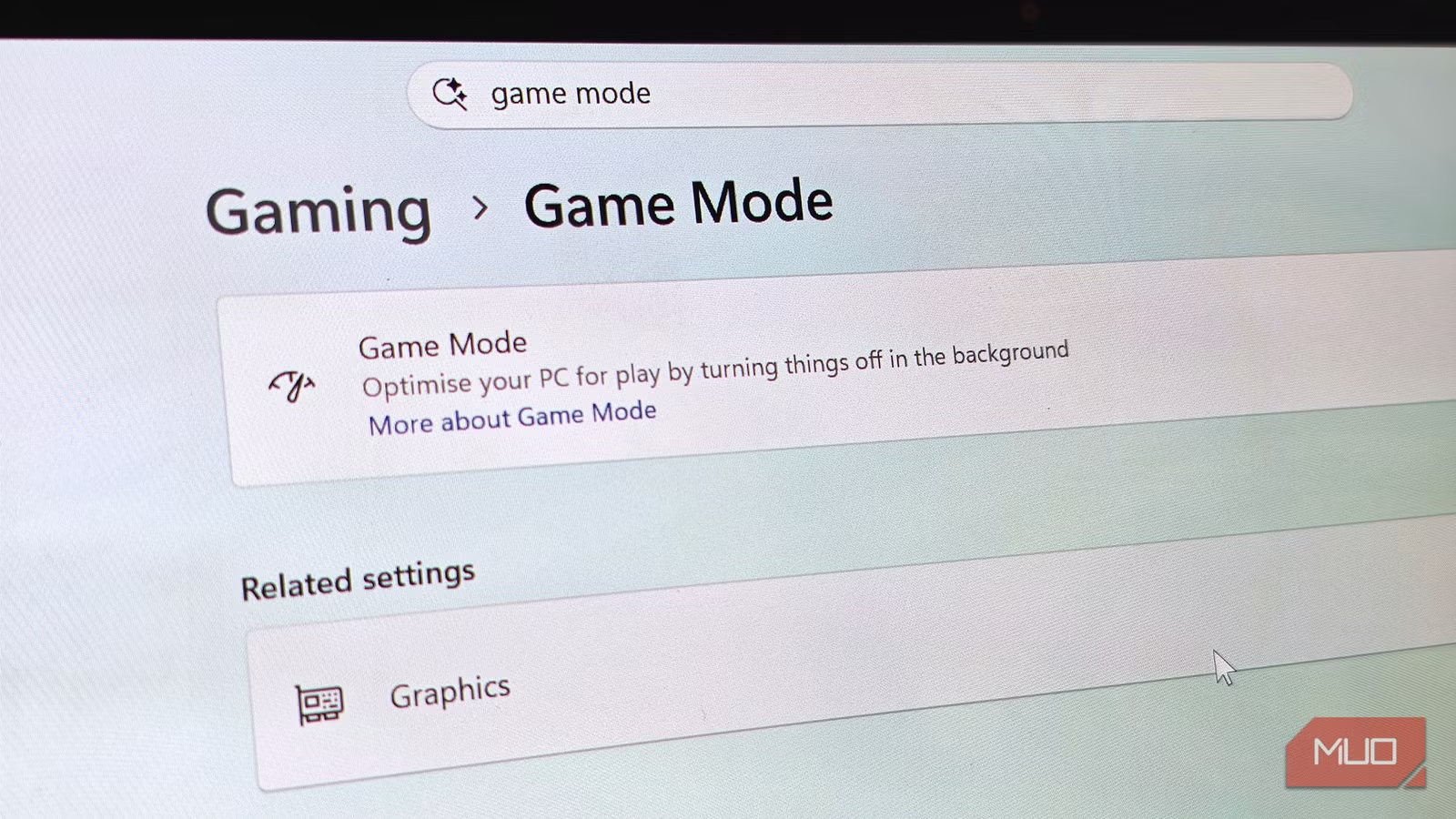
After firmware, then you look at Windows, and Game Mode is the most misunderstood switch in the menu. In testing over a month on an Intel Core i7‑13700H with an RTX 4060 Laptop GPU, 16GB of DDR5‑5200, and Windows 11 Pro 25H2, the feature was left on for two weeks and off for two weeks while frame times were logged with CapFrameX. The average FPS numbers barely moved in either direction, which destroys the myth that Game Mode is either a miracle or a disaster. Game Mode does not touch the hardware ceiling; it prioritizes game threads and prevents background processes from hogging CPU resources while gaming.
Where Game Mode did matter was frame consistency. In one CPU‑bound title, average FPS barely changed, but 1% lows improved by about 9% with Game Mode enabled. In another test, the 1% low rose from 48.2 FPS with Game Mode off to 71.5 FPS with it on, which is the difference between smooth play and annoying hitches. As the tester concluded, "its primary function was to stop the bad moments from happening" and it should be seen more as a floor than a boost. For weaker CPUs running Discord, many browser tabs, or streaming at the same time, leaving Game Mode on makes sense.
Let AI read your CPU sensors before you open your wallet
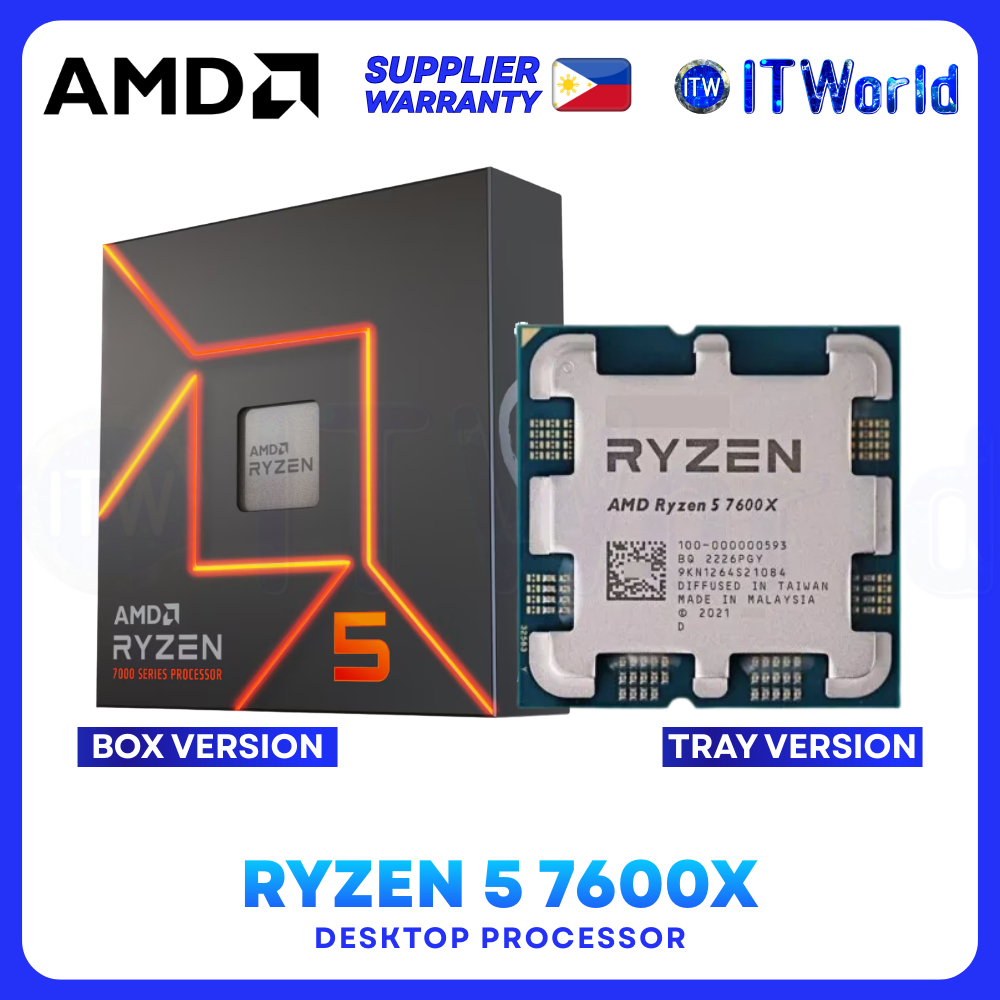
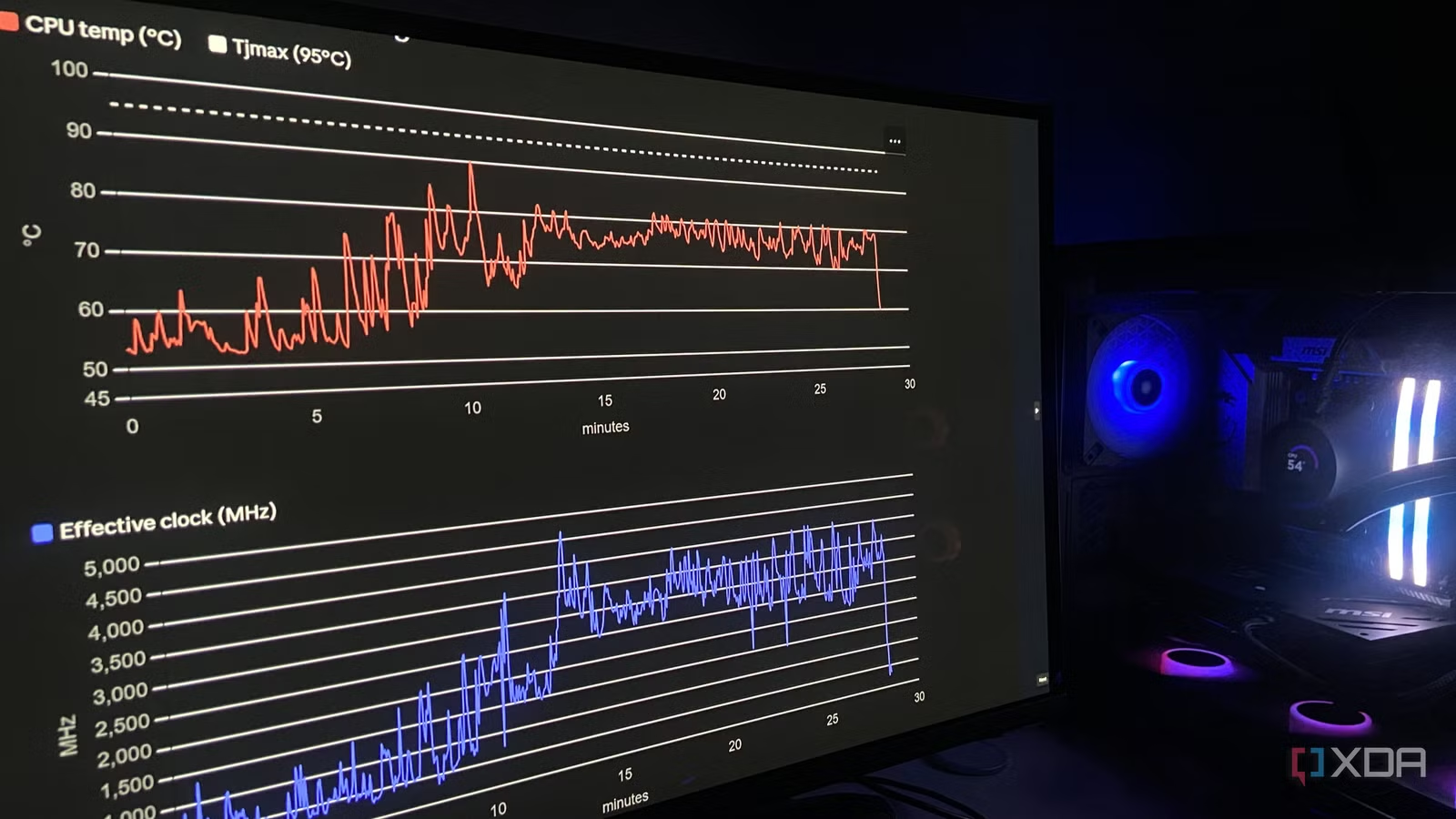
Once BIOS and Windows settings are sane and your PC still stutters, sensor data is your next tool. This is where CPU sensor diagnostics with AI are changing the game. One rig with a Ryzen 5 7600X and RTX 4070 Ti Super started showing intermittent stutters mid‑race in a demanding driving title, even after the usual fixes: killing background tasks, capping frame rate, and checking RAM EXPO in the BIOS. The owner almost upgraded to a 9600X, a move that would have cost USD 229 (approx. ₱12,800) for no guaranteed fix. Instead, they logged a thirty‑minute HWiNFO64 session at one‑second intervals and handed the data to an advanced Claude model.
The AI processed about 1,700 rows across 145 sensor columns over five minutes, then pointed to behavior that normal tools did not flag. HWiNFO’s PROCHOT and HTC throttle indicators showed "No" for every sample, so by official definitions the CPU never throttled. Yet the analysis exposed AMD’s Precision Boost yanking clocks to protect the chip, a form of throttling invisible to those flags. Fable 5’s biggest win was not suggesting a specific Curve Optimizer offset, but revealing which setting and boost behavior were behind the stutters. This kind of AI‑assisted sensor reading can stop you wasting money on upgrades that would not touch the root cause.
A sane troubleshooting order that saves money and time
If you want a stable, high‑FPS gaming PC, you need a systematic troubleshooting approach: BIOS first, OS second, data third. Step one is to enter the UEFI and enable your RAM’s XMP/EXPO profile, review CPU power and boost limits, and tune fan curves so thermals never force low clocks. Step two is to tidy Windows: keep Game Mode enabled unless you have a very specific reason, update GPU drivers, close overlays, and check whether background recording tools are capturing while you play, since those will fix more real‑world stuttering than flipping Game Mode alone.
Only after that do you escalate to CPU sensor diagnostics. If unexplained micro‑stutters remain, log sensor data while recreating the issue and let an AI model inspect the logs for patterns a human might miss. Before you throw hours at forum rabbit holes or start buying hardware, remember that the BIOS defaults are built for stability but often limit your performance. According to one detailed analysis, this kind of AI‑assisted troubleshooting may save you from spending USD 229 (approx. ₱12,800) on a CPU you did not need. Stop blaming Windows by default: in most cases, the real fix is already sitting in your BIOS and settings, waiting to be turned on.