
Game Mode, Defined: A Scheduler Tweak Masquerading as a Performance Feature
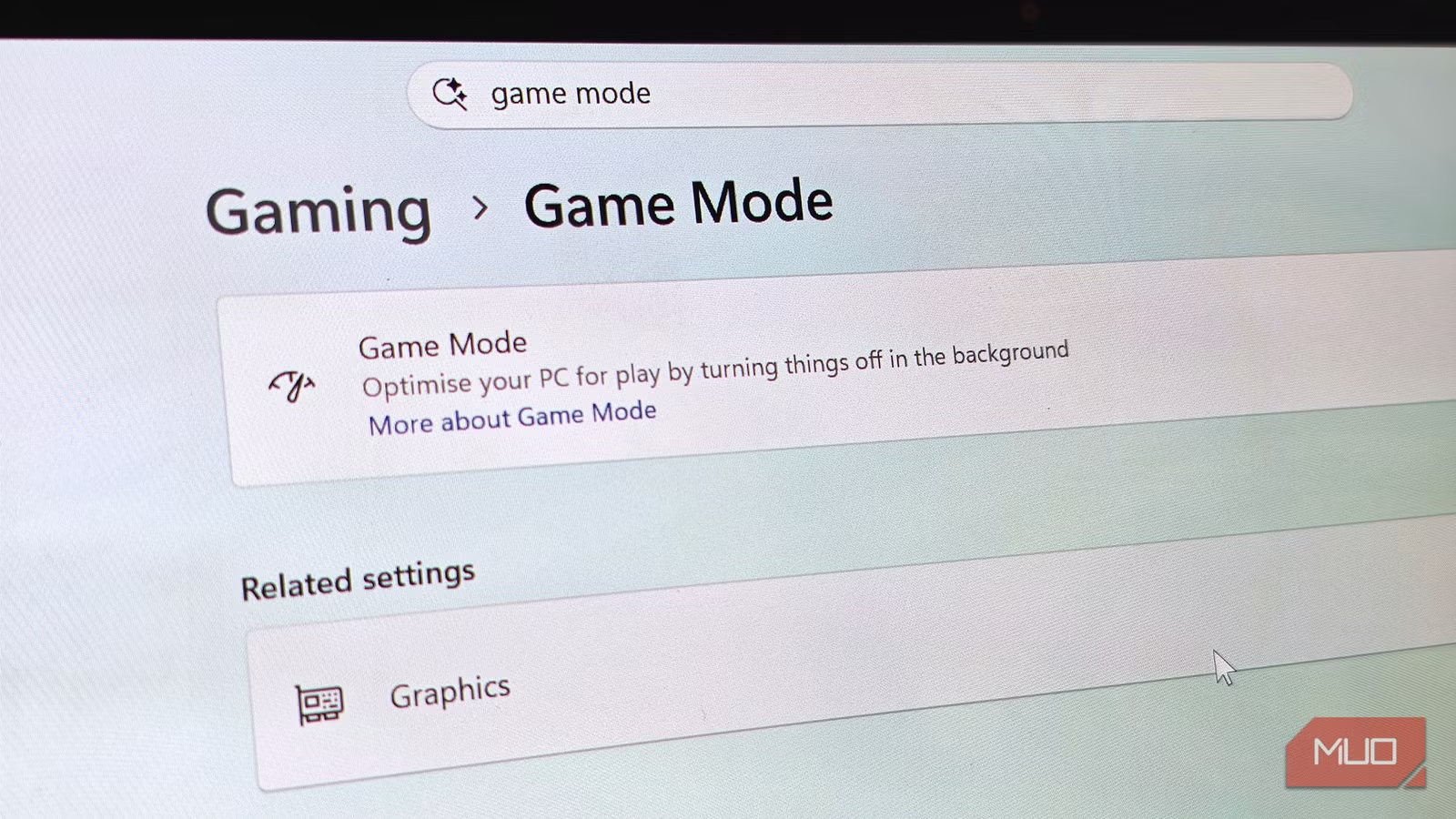
Windows Game Mode is a built-in scheduling feature that prioritizes game threads and limits background processes from hogging CPU resources during play, aiming to improve frame rate consistency and reduce stutters rather than raise the hardware ceiling or add raw performance gains on its own. The recent month-long test that matters here is simple but revealing: Game Mode was left on for two weeks and off for two weeks, using CapFrameX, an open-source tool that records and analyzes frame times, to log how real gaming sessions behave under each setting. The test PC was not some exotic halo build, but an “average computer”: an Intel Core i7-13700H paired with an RTX 4060 Laptop GPU, 16GB of DDR5-5200 RAM in dual-channel, running Windows 11 Pro 25H2. That mix makes the data meaningful for everyday players who want reliable Windows Game Mode performance instead of hype.
What the Frame-Time Benchmarks Really Show
The gaming benchmark results from a month of switching Game Mode on and off puncture both the fanboy myths and the doom posts. Across Cyberpunk 2077, Counter-Strike 2, Shadow of the Tomb Raider, and Forza Horizon 5, average FPS barely moved. Cyberpunk 2077 at 1080p Ultra with DLSS stayed essentially flat: 82.4 / 61.7 FPS with Game Mode off versus 82.9 / 62.1 FPS on. That is noise, not a win. The Counter-Strike 2 run at competitive settings tells the same story for headline numbers: 245.1 / 142.3 FPS off versus 246.8 / 154.6 FPS on, again no real change in averages but a measurable jump in 1% lows. As the tester put it, Game Mode “stopped the system from choking; it didn’t make the system faster”. In other words, if you are hoping for magical frame rate optimization, this feature will disappoint you—but it quietly improves the worst moments.
| Game & Load Type | Game Mode OFF (Avg / 1% Low) | Game Mode ON (Avg / 1% Low) |
|---|---|---|
| Cyberpunk 2077 – GPU-bound (1080p, Ultra, DLSS Quality) | 82.4 / 61.7 FPS | 82.9 / 62.1 FPS |
| Counter-Strike 2 – CPU-bound (1080p, competitive) | 245.1 / 142.3 FPS | 246.8 / 154.6 FPS |
| Shadow of the Tomb Raider – Balanced (1080p, Highest, DX12) | 114.7 / 82.1 FPS | 115.2 / 83.0 FPS |
| Forza Horizon 5 – Mixed Load (1080p, Extreme, Edge + Discord) | 94.6 / 48.2 FPS | 96.1 / 71.5 FPS |
Frame Consistency: Where Game Mode Quietly Earns Its Keep
The real story is not the averages; it is the floor. Those 1% lows—where your game stutters or stays smooth—are where Windows Game Mode performance matters. In Counter-Strike 2, Game Mode barely shifted the average FPS but delivered about a 9% jump in the 1% lows, cutting down the brief chokes you feel in frantic rounds. Shadow of the Tomb Raider showed similar behavior: 114.7 / 82.1 FPS off versus 115.2 / 83.0 FPS on, a marginal average bump and a cleaner low-end frame time profile. The mixed-load Forza Horizon 5 run is the standout. With Edge and Discord open, 1% lows went from 48.2 FPS with Game Mode off to 71.5 FPS with it on—a stark shift from “annoying” to convincingly smooth performance. The tester called this “the clear difference between smooth and annoying performance,” and that is precisely what a good scheduler should deliver.
Game Mode, Copilot, and the New Reality of PC Performance Tuning
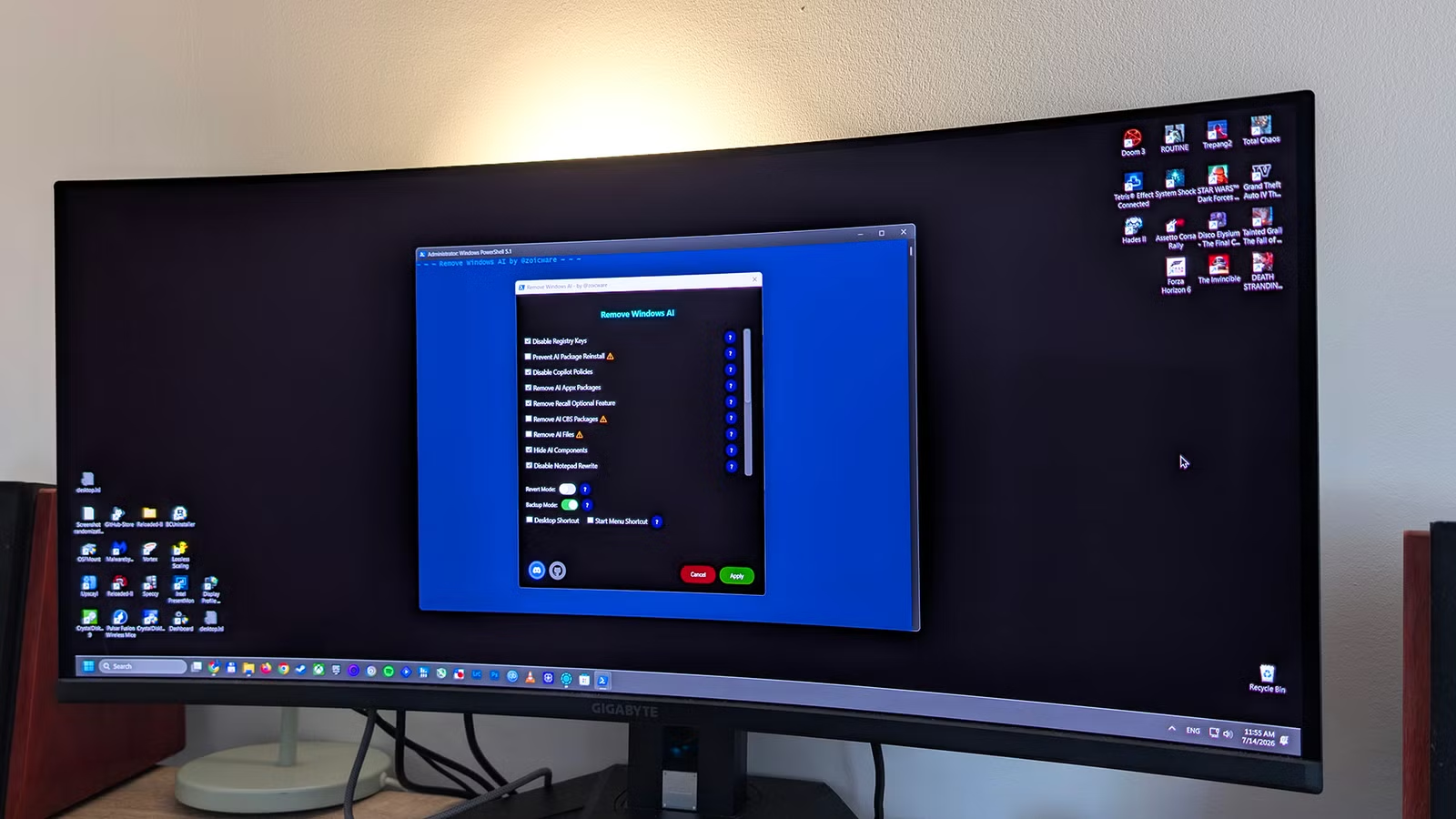
So why is Game Mode still controversial? In 2022, complaints were “loud and not unfounded”; the feature was linked with stutters, and turning it off became a common troubleshooting step. But Windows has changed. With about two years of scheduler updates, Windows Thread Director is now more efficient at juggling P-core and E-core assignments than it used to be. At the same time, Windows has grown bloated in other directions. One reviewer disables several features on every new PC and calls the new Copilot implementation a resource hog: the latest version ships with its own Edge instance, idles at about 500MB of memory, and can climb to roughly 1GB while in use, compared with under 100MB for the older native app. That is the sort of background load Game Mode is designed to push aside. In this environment, PC performance tuning is less about hunting pure FPS and more about controlling background noise.
When to Enable or Disable Game Mode
The month-long test did not crown Game Mode a miracle or a disaster—it showed it as a Windows switch most people can safely leave alone. For GPU-bound titles like Cyberpunk 2077 at high settings, Game Mode has “nothing to fix”; the card is already saturated and no scheduler trick can summon new frames. If you see stuttering in a single game, toggling Game Mode should not be your first instinct. But for CPU-bound shooters, mixed workloads, or setups with weaker CPUs juggling Discord, browser tabs, streaming, or recording, the evidence supports leaving Game Mode on, because it raises the performance floor when the system is under pressure. The tester’s practical advice is blunt: “Leave the feature on. I don’t see any real reason most people should disable it”. The smarter strategy today is to keep Game Mode enabled, trim bloated extras like an always-on Copilot session when you do not need it, and focus your effort where the real gains are—on the workloads around your games, not on a single toggle buried in Settings.