
What handheld performance tuning is and why it matters
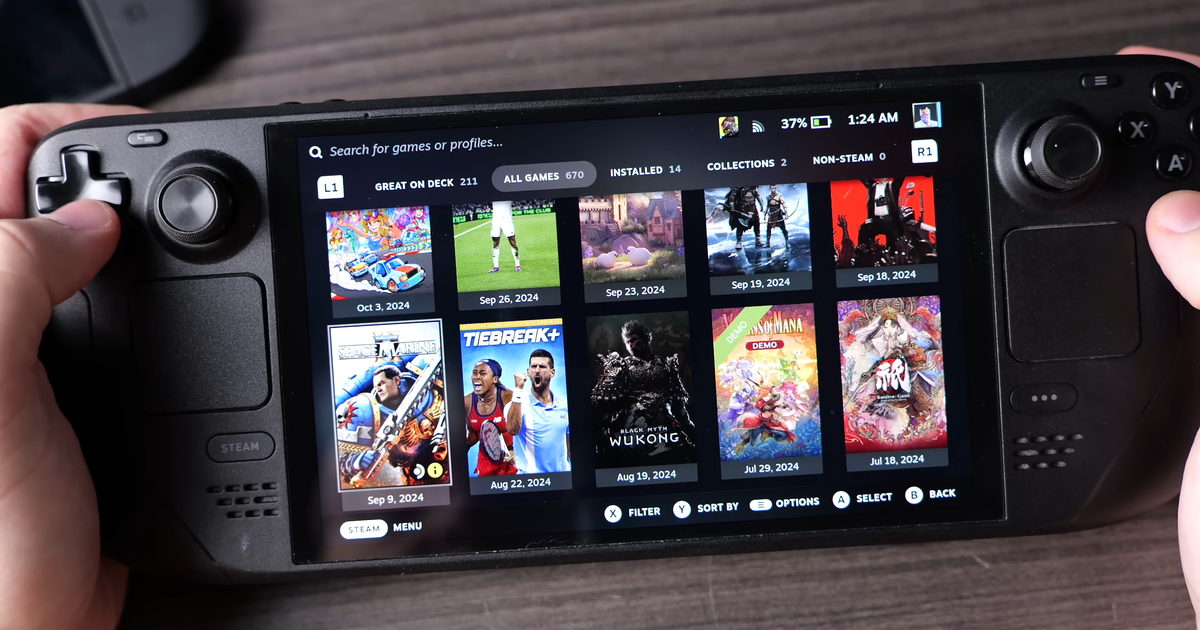
Handheld gaming performance tuning means adjusting game, system, and network settings on devices like the Steam Deck and Steam Machine so they deliver stable frame rates, responsive controls, and manageable download times without wasting power or sacrificing too much image quality. If you’re tired of stuttery cities in big open-world games or watching glacial download bars, this is for you. The prerequisite is simple: a SteamOS handheld, a bit of patience, and a willingness to tweak rather than rely on stock presets. The caveat is that every game behaves differently, so you’re not looking for one magic preset, but a repeatable process. Done right, you extend the number of games that feel “made” for portable play, instead of crossing your fingers every time you hit Install.
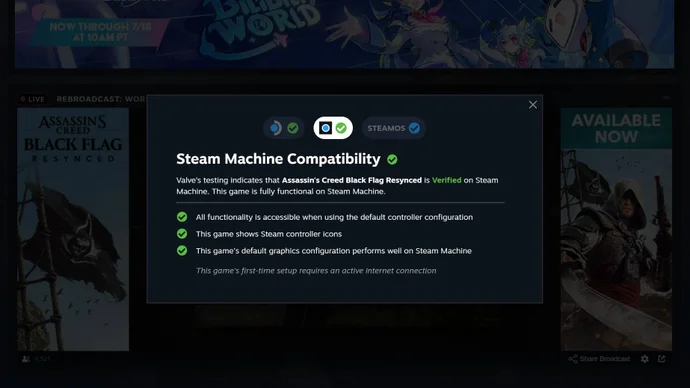
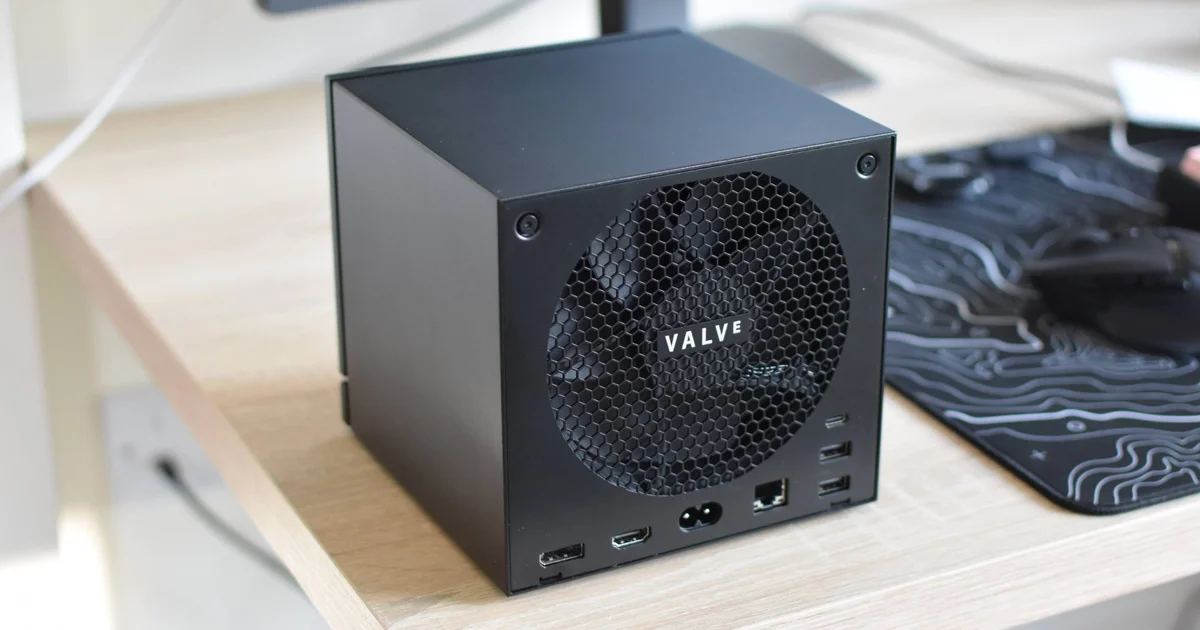
Valve now gives Steam Machine games the same kind of compatibility medals that handheld owners know from the Steam Deck, marking titles as Verified, Playable, or Unsupported depending on how smoothly they run and how well they handle gamepad controls. For the first couple of weeks after launch, those ratings were invisible on store pages, but Valve has enabled compatibility details to appear so you can see them at a glance alongside Deck info. It is a bit awkward that Steam Machine specifics live inside the Steam Deck Compatibility section, yet if you’ve bought the SteamOS box you at least have a clear way to check how well Windows-made games should adapt. That knowledge, combined with smart settings tuning, turns a cautious “maybe” into a confident “yes” when you build your handheld library.
Reading badges and picking good candidates to tweak
Before you touch a settings menu, start by choosing games that are worth the effort. The new Steam Machine compatibility medals are your first filter: Verified means Valve’s testing found no major technical issues, Playable means it works with caveats like minor UI quirks or needing the onscreen keyboard, and Unsupported is your warning sign. Even Valve’s own multiplayer arena game lands at Playable, scoring well for performance and gamepad support but missing top status due to inaccurate controller icons and occasional keyboard pop-ups. On the brighter side, newly released survival hits grab full Verified ticks thanks to well‑behaved settings and input compatibility. Those badges don’t replace tweaking, but they tell you where your time is best spent. Verified titles are perfect candidates for fine‑tuning, while Playable games may need more patience and acceptance of small rough spots.
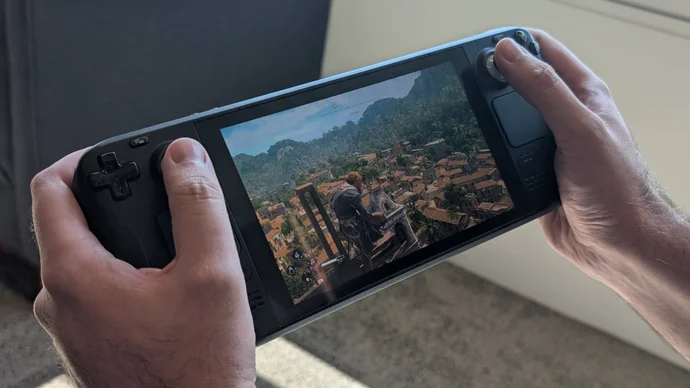
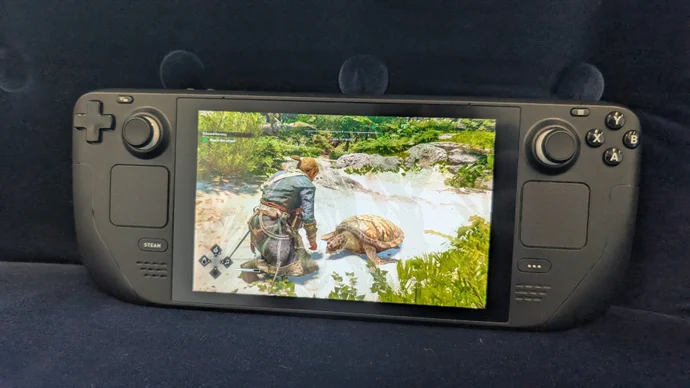
Assassin’s Creed Black Flag Resynced is a good example of how much you can gain. Valve has already granted it Steam Deck Verified status, and testing shows that both the Deck and the Steam Machine can run it without collapsing under the strain. The Steam Machine even punches above its weight, hitting average frame rates similar to a desktop with a stronger RTX 4060 card. On the Deck, the remaster exposes a full graphics options menu rather than locking you into a single handheld preset, which opens the door to targeted tweaks for 30–45fps performance instead of simply accepting the lowest quality. In other words, the badge says “this will work,” while your settings finesse turns “works” into “feels great,” especially in demanding cities and naval battles where stock presets can still stumble.
Step-by-step: tuning Steam Deck and Steam Machine for smoother play
- Update SteamOS for better WiFi and system behavior. On devices running SteamOS, install version 3.8.14 to fix a bug that limited WiFi speeds when routers incorrectly advertised their Modulation Coding Scheme (MCS) requirements, or use the 3.8.22 beta on Steam Deck through the Beta and Preview channels if you accept the extra risk. Faster downloads mean you can install updates and games more freely, and network-heavy titles won’t be held back by avoidably slow WiFi.
- Install required launchers in Desktop Mode when playing non-Steam builds. For Assassin’s Creed Black Flag Resynced through Ubisoft Connect, go into Desktop Mode, download the Ubisoft Connect installer, add it to Steam as a non-Steam game, run it, then repeat for the main Connect executable. Lutris would normally help, but a recent update to Ubisoft’s app has broken the Lutris setup, so this direct path is the reliable option. Expect slightly finicky behavior with the Deck’s gamepad-style controls in the launcher; once you start the game with the A button, input should be correct.
- Start from handheld presets, then adjust key performance levers. In Black Flag Resynced, you can begin with the handheld-tuned High, Medium, or Low variants, knowing they are aimed more at newer portables, and then raise or lower individual options. Focus on an AMD FSR upscaler on Balanced quality, dynamic resolution off, and frame generation off, then trim heavy features such as hair strands, post effects, particles, water quality, texture resolution, geometry, and shadows down to Very Low or Ultra Low, while leaving lighter taxes like screen space effects, light source quality, clouds, fog, and terrain quality around Low to Very Low. This balance pushes frame rates toward 30–45fps without forcing every slider to the absolute bottom.
- Test in demanding areas and refine based on minimum frame rate. Use in‑game benchmarks to get a baseline, but remember that some tests are easier than busy locations. For example, pairing the custom low mix above with FSR Balanced can average around the mid‑30s in built‑in tools, while actual play in crowded city hubs shows that Balanced does a better job of holding a solid 30fps floor than Quality mode. In calmer sections, the same setup can push performance as high as 45fps, giving you a comfortable buffer for combat or traversal spikes. On the Steam Machine, you can step resolution up to 1080p and even add ray tracing to the seas, relying on its stronger output that in testing reached about 70fps averages with enough cushion to avoid sub‑60fps drops during regular play.
- Use compatibility info to widen your handheld library. Once you’ve proven a process on Black Flag Resynced, apply it to other Verified titles and select Playable ones. Check the Steam Deck Compatibility section on store pages to see Steam Machine-specific badges, even though the label placement is not ideal, and use that to gauge whether a game’s performance and gamepad support are solid, or if there are known issues like inaccurate icons or reliance on the onscreen keyboard. Combining those badges with case‑by‑case tuning means you can comfortably expand your handheld library far beyond games explicitly marketed for portable play.
The two most common mistakes here are diving into beta OS updates without thinking and trusting launchers to behave like native games. The SteamOS 3.8.22 beta for Steam Deck lives in the Beta and Preview channels for a reason: it brings WiFi speed fixes sooner, but it also carries the usual beta risks. Install it only if you’re comfortable dealing with potential hiccups. On the launcher side, Ubisoft Connect can feel awkward with handheld controls, and if you poke around too much you may fight menus instead of playing. Launch the game directly and let its own controller handling take over. Quotation worth remembering: “This particular release can be downloaded through the Steam Deck’s Beta and Preview channels, so download at your own risk.”
Gotchas, expected results, and why this effort pays off
The main gotcha is assuming that one game’s “perfect” settings will copy cleanly to every other title. Black Flag Resynced behaves in a fairly consistent way across its sliders, with nearly every individual setting affecting frame rate to some degree, which is not true for all modern games. That’s why the goal is to learn which categories tend to be heavy—shadows, water, particles, detailed character features—and which can often stay at Low without wrecking performance. Another snag: handheld‑tuned presets are not always calibrated for older or less powerful portables. In Resynced, even the Handheld Low preset needed help from FSR upscaling to hit acceptable averages on the Deck’s 800p screen, jumping from about 28fps with native TAA to roughly 35fps with FSR set to Quality. If you ignore that and stick to native resolution, you may end up blaming the hardware instead of the settings.
When you invest the time, the payoff is clear in both feel and numbers. According to one performance guide, “All that translates into a 70fps average in the benchmark tool, with a generous cushion against sub‑60fps drops in the game proper.” Even on the Steam Deck, a fully custom approach can deliver 30–45fps that matches or beats the lowest handheld preset without pushing every slider to rock bottom. FSR Balanced may look a touch fuzzier than Quality, yet it proves much more effective at maintaining a 30fps floor in busy spots like Havana, while letting you enjoy smoother highs elsewhere. Combined with SteamOS WiFi improvements that keep downloads snappy on routers with bad MCS advertising and the spread of compatibility badges across store pages, performance tuning extends the number of games that feel at home on portable hardware. It’s worth the effort—provided you respect beta updates, treat launchers carefully, and accept that every game needs its own little bit of tinkering.