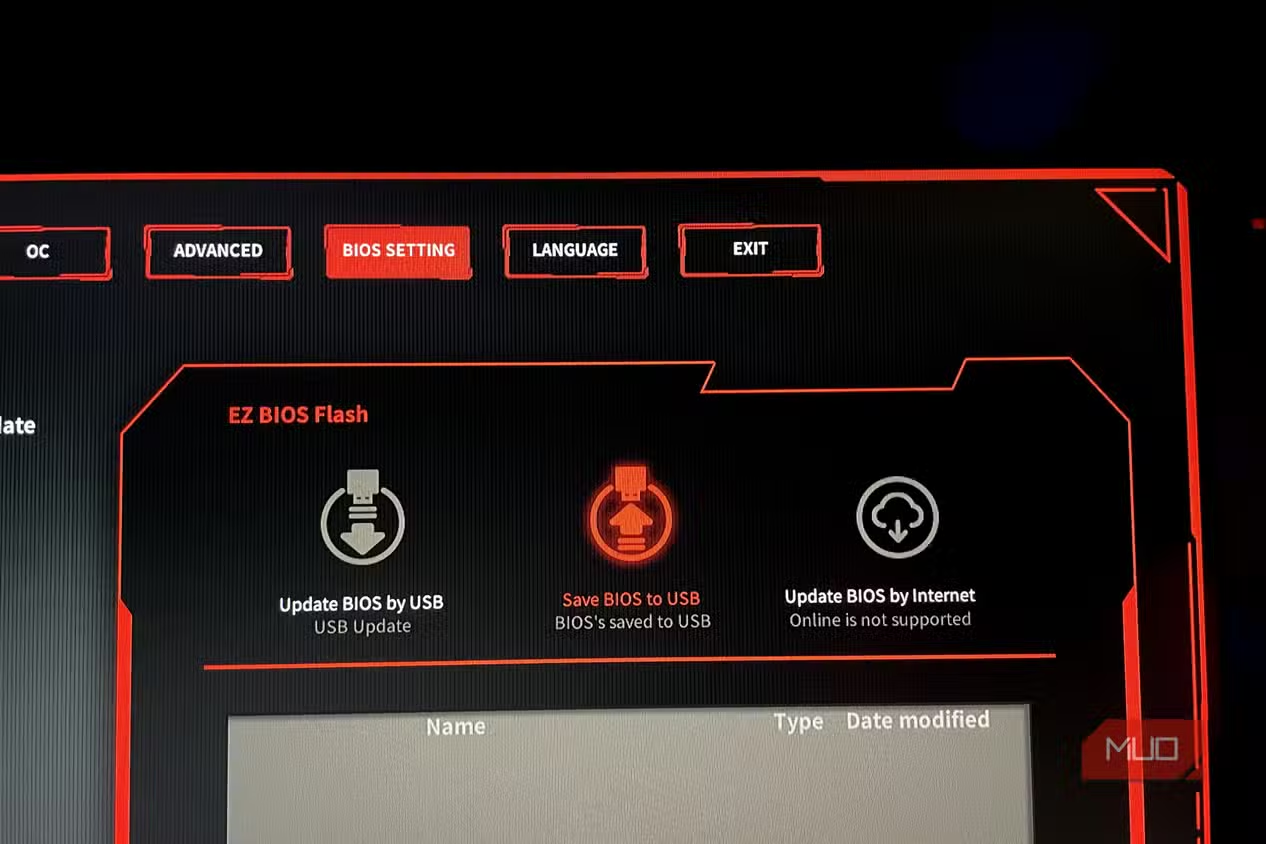
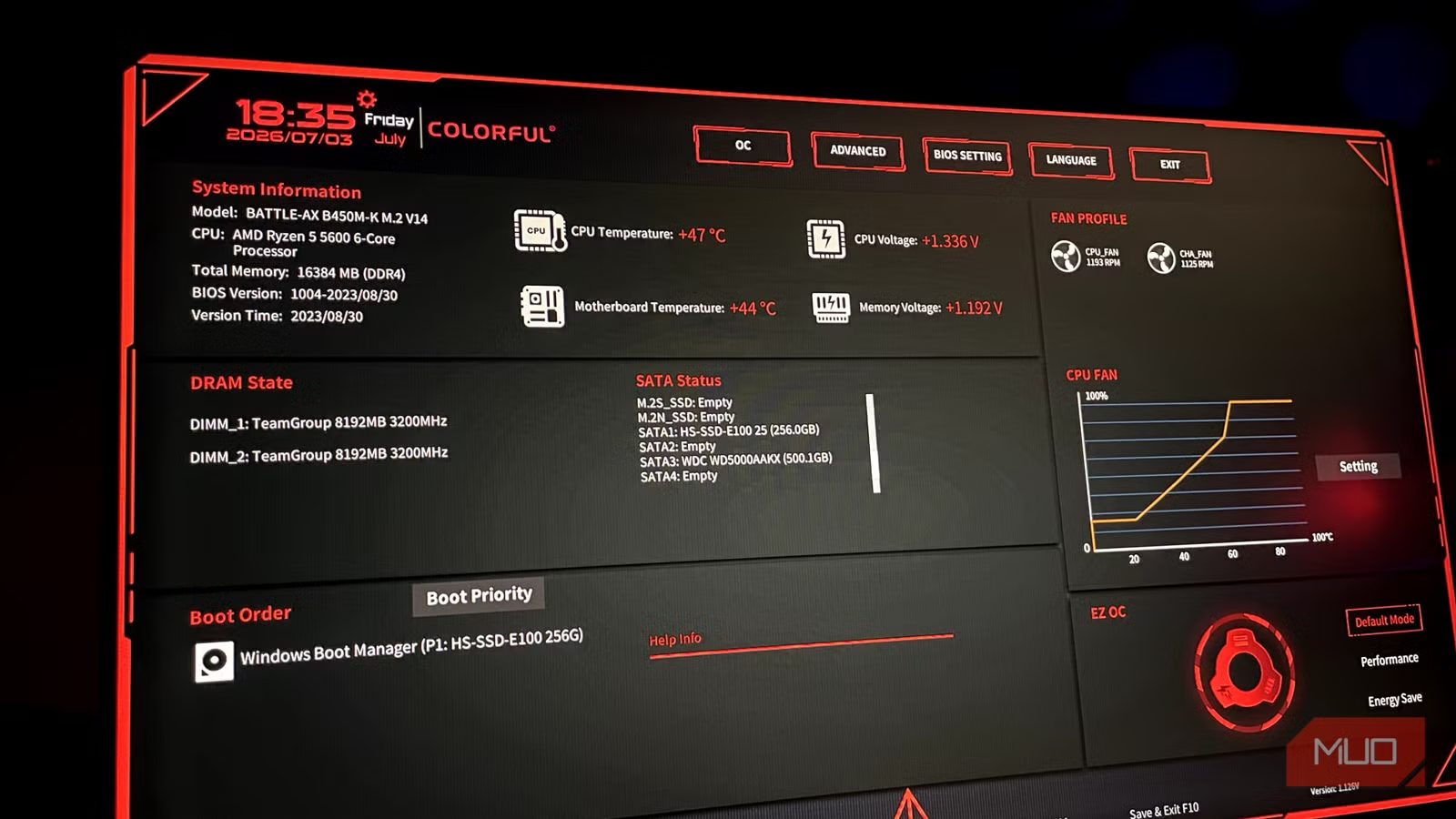

Why BIOS Optimization Performance Feels Like a Free Upgrade
BIOS optimization performance means using firmware updates and configuration tweaks in your motherboard’s setup utility to remove hidden limits, improve component communication, and reduce throttling, so your existing CPU, RAM, and GPU deliver more speed and stability without replacing any hardware.
If your PC feels slower than the parts you paid for, the BIOS is often the culprit. As the firmware that runs before your operating system, it decides how your CPU, RAM, and GPU talk to each other and how hard they are allowed to work. Manufacturers refine this code over time, adding new boost modes, fixing latency bugs, and improving memory training. One update, AGESA 1.2.0.2, improved Ryzen 9000 performance by up to 10% and fixed a core-to-core latency issue that helped heavily threaded games. In practice, that kind of gain can feel eerily close to a minor hardware upgrade. The catch: this power is locked behind settings you might never have opened, and updates you might have treated as optional. Done right, though, a BIOS update is “the easiest, zero-cost upgrade that will deliver more performance from your hardware”.
Spotting BIOS Settings That Quietly Throttle Your CPU
Before you start flashing anything, it helps to know what you’re fighting. Many performance problems stem from CPU throttling settings buried in the BIOS or enforced automatically by firmware. Some of these are obvious, like strict power limits; others hide behind features such as vendor boost algorithms that react to temperature spikes rather than explicit throttle flags.
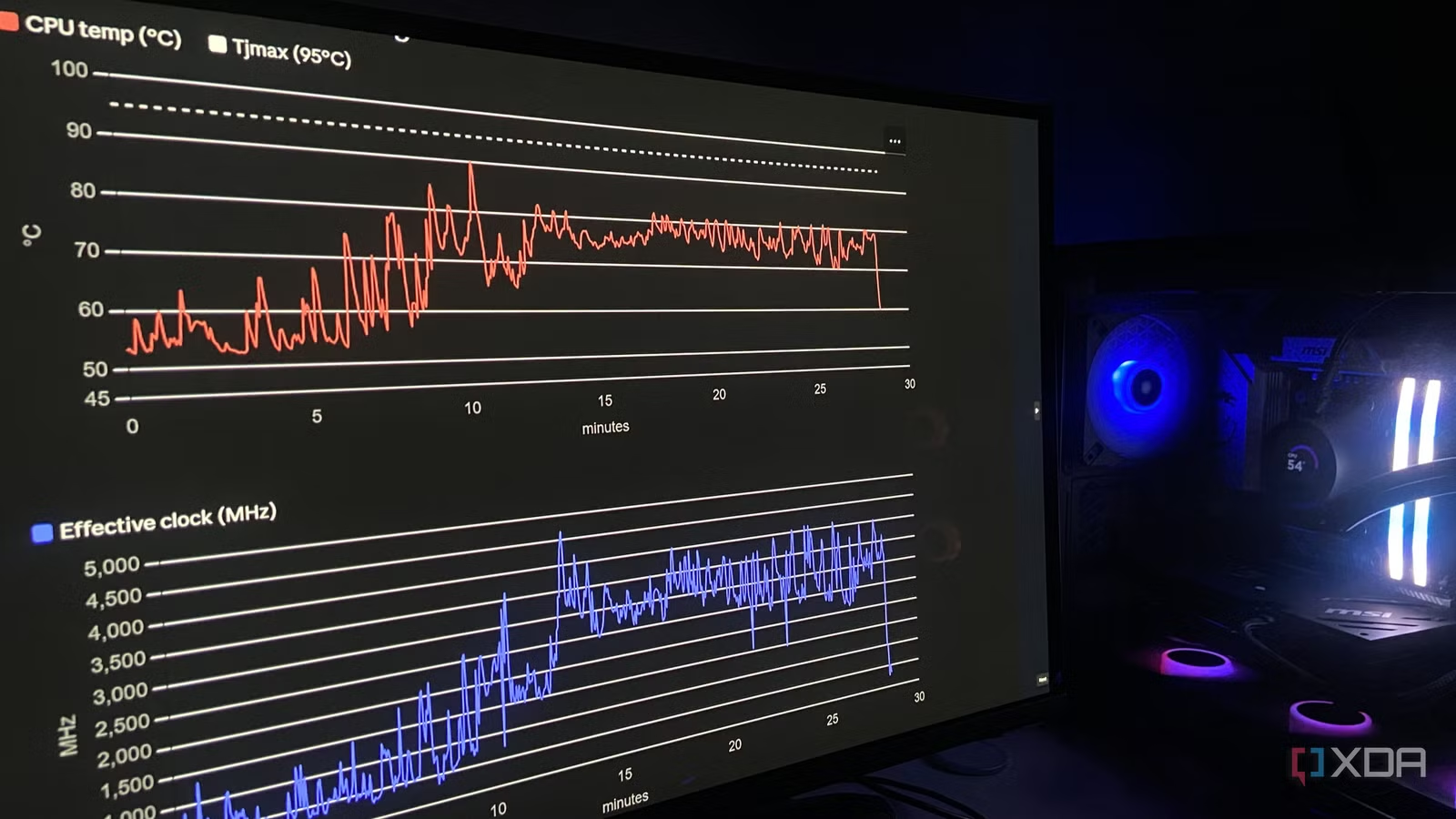
In one real troubleshooting case, sensor logs showed that the usual PROCHOT and HTC throttle flags stayed at “No” for every single sample, even when the user felt harsh stutters. The CPU looked fine at a glance, sitting at a typical Zen 4 plateau of 76–80°C under load. But buried in the data was a moment where temperature jumped from 78°C to 90.4°C in about five seconds, and effective clock speed collapsed from 4,200MHz to 740MHz. The explanation was that AMD’s Precision Boost was yanking clocks to protect the chip, and that behavior is invisible to every standard throttle flag. This is a classic example of hidden throttling: nothing looks wrong in the obvious places, yet a firmware-managed limit is slicing performance whenever thermals cross a line.
For PC performance tuning, these invisible limits matter more than you’d think. Curve Optimizer, for instance, trades voltage instead of raw clock speed, and voltage is what generates the heat. Less voltage at the same performance means less heat, which keeps the CPU away from its thermal ceiling and avoids those protective clock drops. In that same case, package power after tuning peaked at 94.5W instead of 122W, cutting the thermal limit from 93.7% to 80% and eliminating the stutters in later runs. If your games “feel wrong” but the usual dashboards show no throttling, it’s a sign that deeper BIOS-level behavior is in play.
Safe Step‑by‑Step BIOS Updates and PC Performance Tuning
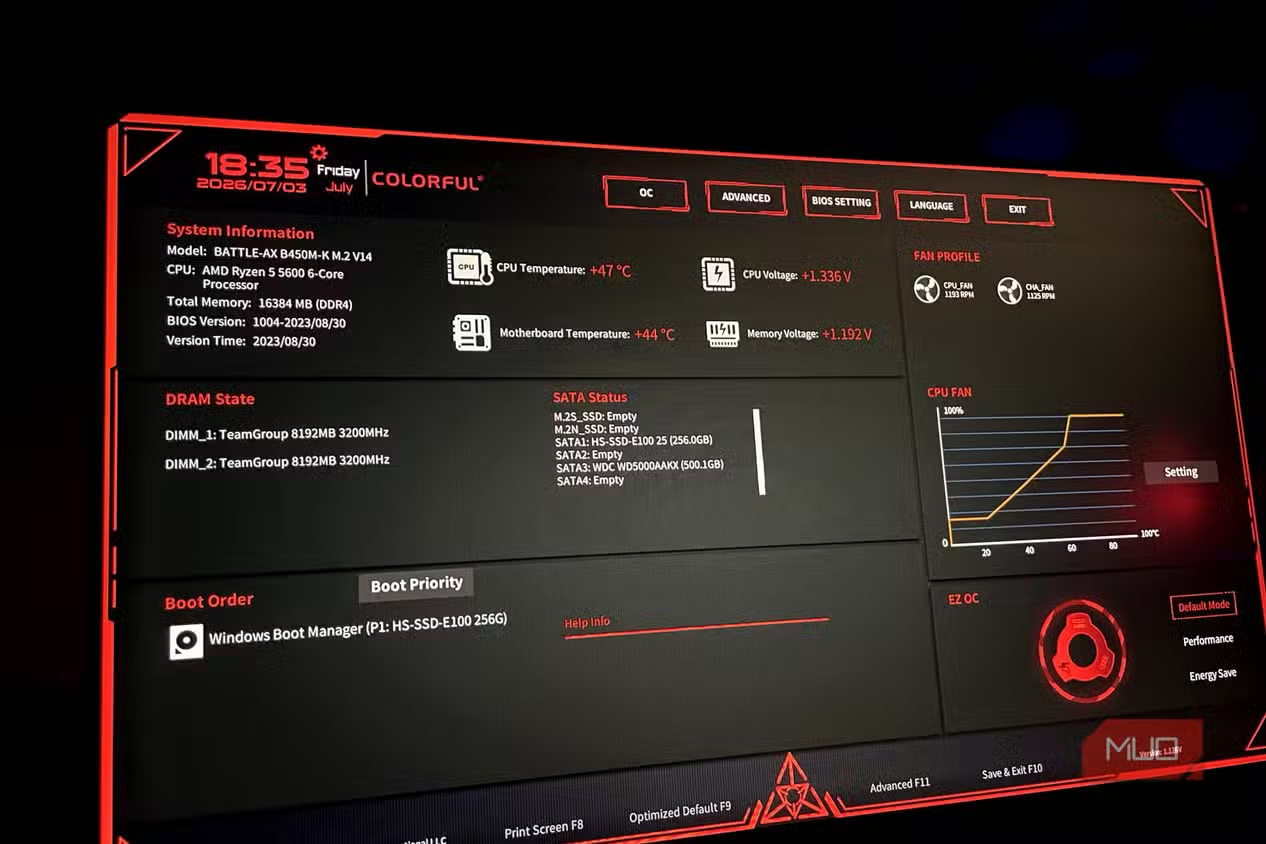
Here’s the practical part: how to update your BIOS and tune settings like a careful enthusiast, not a crash test dummy. Think of this as lending you the experience of someone who has done it many times and still respects how badly a rushed flash can go.
- Decide if a BIOS update is worth it by reading your motherboard’s support page notes and only updating when there are clear fixes, features, performance gains, or security patches mentioned.
- Prepare your system: ensure you have stable power and an internet connection so the update process doesn’t brick the motherboard, and back up existing BIOS settings because a flash erases custom configurations.
- Download the correct BIOS file for your exact board model and revision, plus any vendor flash tool or ensure you know how to use the built‑in flashing utility in the BIOS menu.
- Apply the BIOS update following the manufacturer’s instructions, then reboot straight back into the BIOS to re‑load or re‑enter your key settings, including memory profiles and fan curves.
- Enable compatibility and performance features such as updated CPU microcode, XMP/EXPO profiles for RAM stability, and options like Resizable BAR that improve how the CPU accesses GPU memory.
- Fine‑tune CPU behavior by checking power limits, boost settings, and, where available, tools like Curve Optimizer to apply a mild negative voltage offset (for example, in the range of –10 to –15) that reduces heat without sacrificing performance.
Two common mistakes are treating BIOS updates as something you do “because there’s a new version” and ignoring the changelog. Updating the BIOS is scary, and you shouldn’t update unless the new version brings tangible fixes, features, or performance improvements. The other mistake is rushing in without safeguards: skipping power checks or configuration backups can turn a free upgrade into a dead system. When you’re upgrading to newer CPUs or RAM, a BIOS update sometimes stops being optional altogether, because boards often won’t run newer chips without recent firmware. Handled carefully, though, these updates and tuning passes are a controlled way to unlock hardware you already own.
Verifying Gains and Using AI When the Usual Tools Fail
Once you update and tune, you need proof that it worked. This is where monitoring tools and a bit of discipline turn guesswork into data. Run your usual workloads or games while logging key sensors at short intervals so you can see what changed. A 30‑minute session recorded at one‑second intervals, like one enthusiast did, is long enough for intermittent stutters or thermal spikes to appear.
Tools such as HWiNFO64 can export CSV logs with temperatures, clocks, power use, and throttle flags across hundreds of sensors. After your BIOS optimization pass, look for smoother frame times, steadier clocks, and lower temperatures at the same performance level. According to one account, “these performance enhancements and newer features will help you easily pump out a few more FPS, making it the most effective free upgrade available”. In that throttling case, subsequent runs after tuning showed that the stutters were completely absent. That’s the kind of before‑and‑after difference worth chasing.
When logs get complicated, AI‑assisted troubleshooting can save you from the usual forum maze. Instead of spending hours jumping through generic advice, one user gathered detailed CPU sensor logs and handed the raw CSV plus symptoms to an advanced AI model. The diagnosis surfaced behavior that would have been nearly impossible to spot casually, especially because every throttle flag read “No” throughout the session. The AI recommended checking Curve Optimizer with a mild negative voltage offset, which reduced package power and thermal headroom, and fixed the stuttering. This is where AI shines: when your data is deep, your symptoms are weird, and your standard tools report “everything’s fine” while your game very clearly is not.
Is BIOS Tuning Worth It and What Should You Watch For?
BIOS optimization is worth your time if you feel your system underperforms, you’re changing to newer CPUs or RAM, or you care about closing security holes in firmware. Done with care, it can bring performance improvements that feel close to buying a slightly faster processor, without touching your wallet. These gains come from refined boost logic, better memory support, and features like expanded CPU access to GPU VRAM.
The caveats are straightforward. Don’t update for the sake of updating; read what each version adds and only move when there are clear BIOS update benefits such as bug fixes, performance, or security patches. Respect the process: stable power, good backups, and accurate files are non‑negotiable. Afterwards, take monitoring seriously and be willing to call in AI‑assisted analysis if your logs show puzzling behavior. If you treat the BIOS like a precise tool rather than a magic button, you can unlock hidden performance, avoid CPU throttling surprises, and stretch more life out of the PC you already own.