

Copilot PC Insights: An AI Mechanic for a Sluggish Windows 11
Copilot PC Insights is an experimental Windows 11 diagnostics feature that lets users ask plain‑English questions about PC performance and hardware, then uses live system data and Windows APIs to explain bottlenecks, resource usage, and component status without forcing people to dig through traditional tools like Task Manager or Settings. Microsoft is gradually rolling out this optional feature in the Copilot app, framing it as an AI system monitoring assistant for PC performance troubleshooting rather than another buried settings pane. In other words, Copilot PC Insights tries to become the friendly mechanic for a modern Windows machine: you describe “my computer is slow,” it responds with what the CPU, RAM, storage, and GPU are doing right now—and suggests where the real problem may lie.
Plain-English Diagnostics: Why This Matters for Everyday Users
The core promise of Copilot PC Insights is straightforward: turn opaque telemetry into understandable advice. Once enabled, Copilot can query Windows system APIs for processor, memory, graphics, storage, connectivity, battery health, and connected peripherals, then answer questions in context. Users can ask “Why is my computer so slow?”, “What is my current CPU usage?”, “Do I have enough space for a 100 GB game?”, or “Is my antivirus running?” and get targeted responses instead of generic troubleshooting scripts. For Windows 11 diagnostics, that is a meaningful shift. Rather than sending people to Resource Monitor or Storage Settings and leaving them to decipher charts, the assistant can highlight high memory usage, low free disk space, or sustained CPU activity as likely culprits for poor performance. According to Microsoft, PC Insights “enables customers to conversationally ask Copilot questions about their Windows PC and receive clear responses based on their device’s state without having to dig through system settings.” That is exactly the kind of guidance non‑expert users have been asking for.

The RAM-Hungry Doctor: An Irony at the Heart of PC Insights
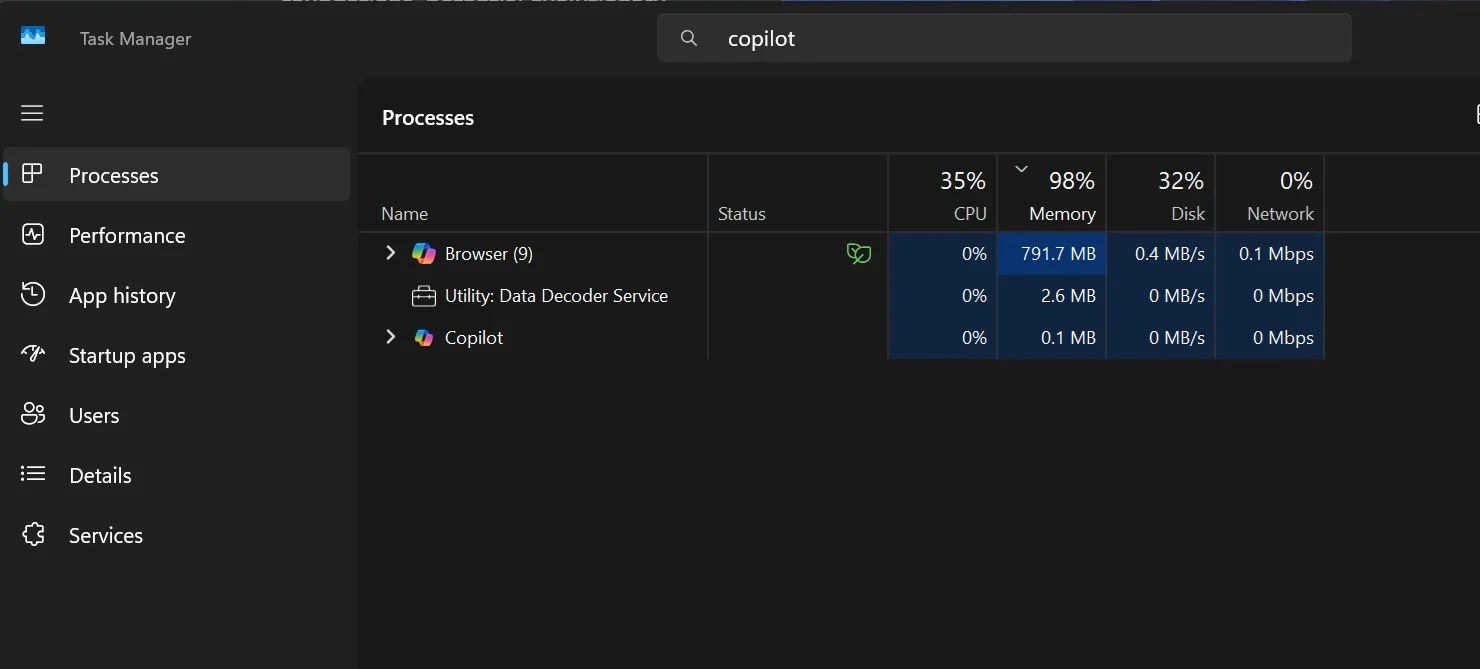
For all its convenience, PC Insights arrives with a glaring irony: the new diagnostics doctor is itself a performance patient. Copilot for Windows now runs as an Edge‑based web app with its own private copy of the browser, and independent testing shows it can consume up to 1 GB of RAM while sitting idle. One test recorded 791.7 MB of RAM usage from the Copilot app at idle, while another saw it as the third most memory‑hungry application, around 560 MB. In Task Manager, Copilot regularly appears alongside heavyweight productivity apps, despite often doing nothing more than waiting for the next prompt. That contradicts Microsoft’s parallel push to cut baseline memory usage and improve responsiveness in Windows 11. When a tool designed for PC performance troubleshooting is itself near the top of the resource chart, the message to users on low‑RAM hardware is uncomfortable: if your machine is slow, one of the first fixes might be closing the very assistant meant to diagnose the slowdown.
Skepticism, Hallucinations, and the Perception of Bloat
The user community’s reaction shows that Copilot PC Insights is landing in an environment of deep skepticism toward Windows bloat and AI reliability. Microsoft itself warns that Copilot “may not always provide complete or accurate information,” especially while PC Insights is still in testing. That admission feeds into wider fears about AI‑generated diagnostics hallucinating causes or misreading telemetry. One widely shared comment sums up the mood: “Oh hey it's like Task Manager except instead of lightweight and authoritative, it's bloated and might be lying to me.” Many enthusiasts already feel Windows 11 is heavier than leaner operating systems, and the decision to ship Copilot as a full web app, complete with msedge.exe and Chromium code, reinforces that perception. AI system monitoring sounds appealing, but if it cannot be trusted as authoritative—and consumes hundreds of megabytes of RAM—it will struggle to win over people who learned to rely on direct readings from Task Manager and Resource Monitor.
Optional by Design: Who Should Turn PC Insights On?
Microsoft’s smartest design choice with Copilot PC Insights is making it optional. The feature is an experimental toggle in the Copilot app that you must enable; you do not have to go near it if you prefer classic tools. When you do turn it on, Copilot requests permission to access hardware details via Windows APIs, which you can grant for a single session or set to “always allow.” The assistant can then provide AI‑powered diagnostics for performance bottlenecks, process identification, storage analysis, and hardware status using real‑time monitoring data. For less technical users, this opt‑in model offers a safety net: they get help with PC performance troubleshooting and Windows 11 diagnostics without mastering every settings page. Enthusiasts, meanwhile, can keep the feature disabled on resource‑constrained systems or when they do not trust AI to interpret telemetry. Microsoft has not announced a general availability date, and the capabilities, permissions model, and performance impact may still change as testing continues. For now, Copilot PC Insights is best viewed as an interesting experiment rather than a must‑enable upgrade.




