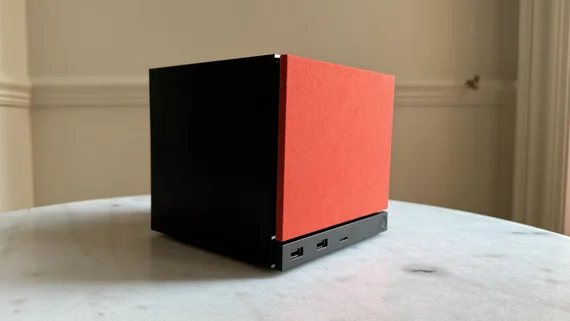
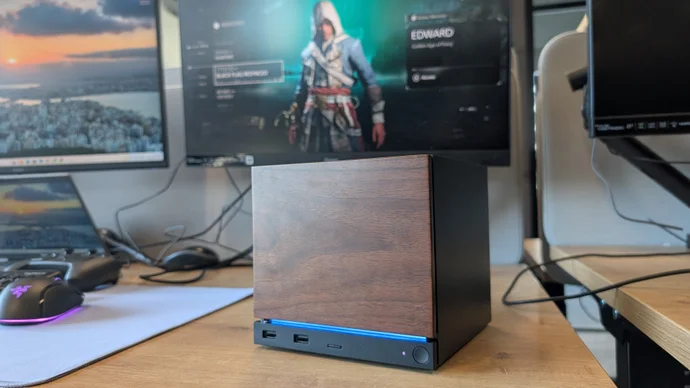

What Steam Machine Optimization Actually Means
Steam Machine optimization is the process of tuning SteamOS performance, game compatibility settings, and recovery options so Valve’s console-style PC delivers smooth, reliable gameplay across a wide library of titles and stays stable even when updates or hardware glitches cause problems.
If you’ve bought the SteamOS box because you want PC flexibility without constant tinkering, you’ll discover it still benefits from a bit of hands-on care. The upside is that Valve has built in tools to help: SteamOS updates can improve WiFi download speeds, compatibility verification badges now appear on game store pages, and modern titles like Assassin’s Creed Black Flag Resynced can be coaxed into surprisingly high frame rates with tailored graphics settings. The real caveat is that you’ll spend more time in menus than on a traditional console, and occasionally you may have to troubleshoot scary-sounding errors. But if you’re comfortable poking around in settings—without needing to be a full-on PC guru—the payoff is a smoother Steam Machine experience that feels far more premium than the defaults suggest.
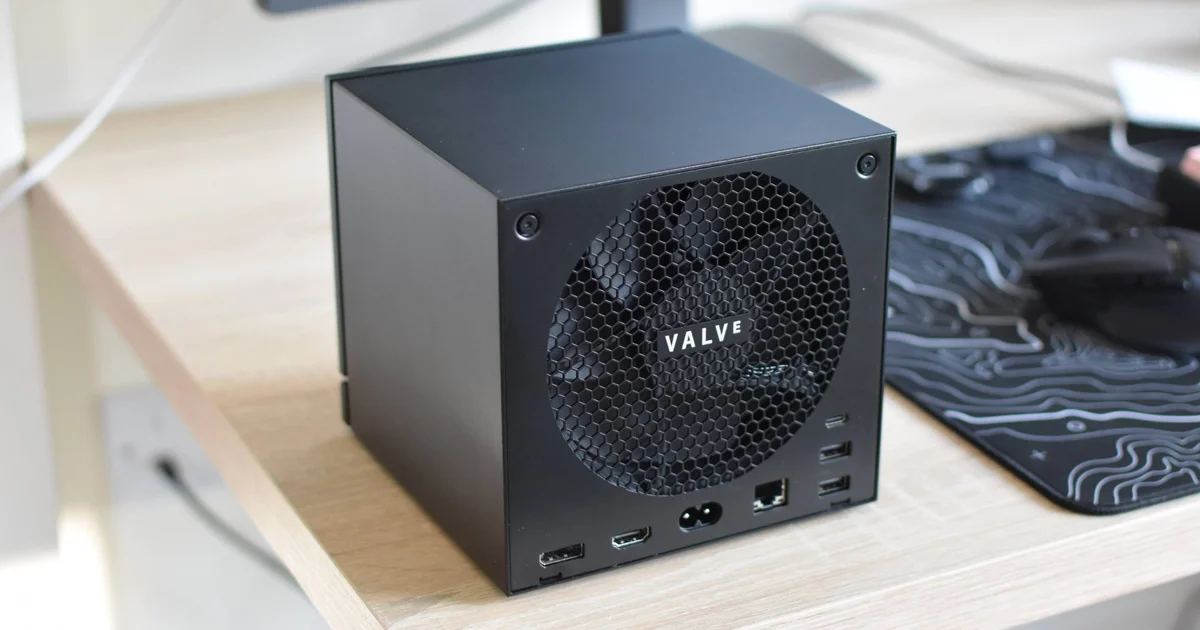
Use SteamOS Updates and Compatibility Verification as Your Foundation
Before you dive into per-game tweaks, get the operating system and your library on solid ground. Valve has rolled out SteamOS 3.8.14 with a fix that helps devices using a WiFi antenna reach better download speeds by correcting how routers advertise their Modulation Coding Scheme (MCS) requirements. According to Valve, this update stops SteamOS from defaulting to lower WiFi speeds when routers misreport their capabilities, which means faster installs and patches over wireless connections. On a console-style machine where you may not want cables everywhere, that’s a big quality-of-life improvement.
At the same time, Valve’s compatibility verification system for the Steam Machine is now visible on game store pages, piggybacking on the same Verified, Playable, and Unsupported badges used for its handheld. For the first couple of weeks the machine was out, those Steam Machine-specific results were hidden, leading to odd cases where a game like Assassin’s Creed Black Flag Resynced had full Steam Machine Verified status but couldn’t show that badge. Compatibility details are now enabled inside the existing Deck Compatibility section, giving you a quick way to see whether a Windows-focused game behaves well on SteamOS before you hit buy or install. Treat those badges as your first filter: Verified for plug-and-play, Playable if you’re willing to tweak, Unsupported if you enjoy experimenting or can wait for fixes.
- Update SteamOS on your Steam Machine to the latest stable release so you benefit from WiFi download speed improvements and other fixes.
- Open a game’s Steam store page and check the Deck Compatibility section, where you’ll now find Steam Machine-specific verification badges marked as Verified, Playable, or Unsupported.
- Prioritise installing titles with Steam Machine Verified status for a smoother starting experience, using Playable games second and Unsupported ones only if you are ready to troubleshoot.
- Once your core library is installed, run a few downloads or patches over WiFi to confirm the improved speeds and ensure your router and Steam Machine are talking correctly after the update.
The hidden gotcha here is that the Steam Machine’s details live inside the Deck section instead of having their own clearly labeled area, so it’s easy to overlook that small but important chunk of text when you’re skimming store pages. Slow WiFi can also feel like a game issue when it’s actually your router tripping up the MCS negotiations, so if downloads drag, checking your SteamOS version should be as routine as checking your speeds. Take ten minutes to do both before you start tuning visuals; it saves hours of frustration later.
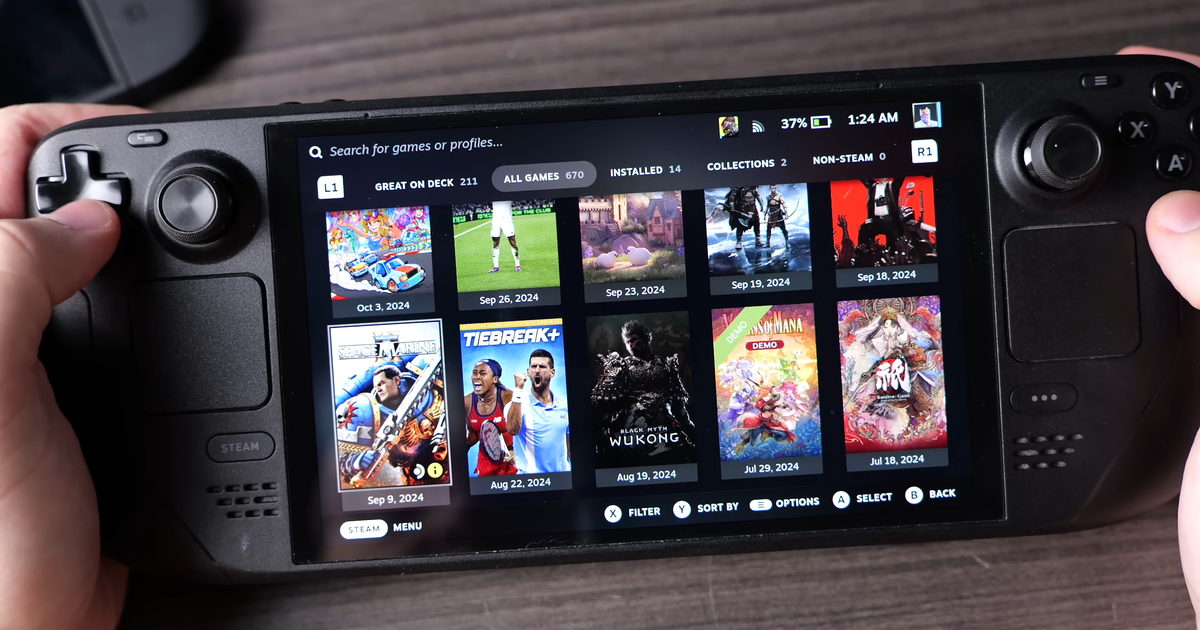
Dial In Steam Machine Gaming Settings for Smooth Performance
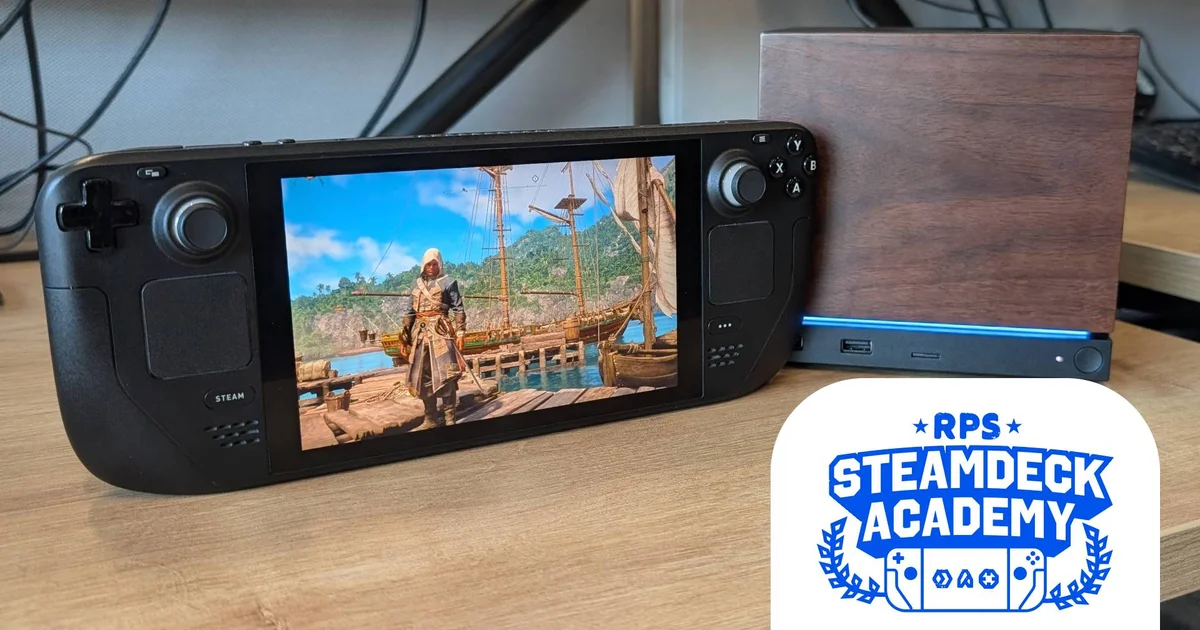
Once your base system is up to date and you know which games are safe bets, the fun part is squeezing better performance out of the hardware. The Steam Machine’s pace was never billed as its strongest trait, yet testing shows Assassin’s Creed Black Flag Resynced is decently performant on Valve’s cube at 1080p, with preset averages ranging from 43fps on Ultra High to 82fps at Ultra Low and around 57fps on the High preset. That already puts it in the same ballpark as a higher-specced RTX 4060 desktop for this particular title. The trick is to move away from presets and into hand-tuned options that keep image quality up while avoiding frame-rate dips during busy scenes.
For Black Flag Resynced, custom settings similar to those you’d use on a mid-range card work well: a mix of High and Medium choices with a few luxuries turned up where they barely dent performance, such as maxed texture resolution. Suggested settings include turning dynamic resolution off, selecting AMD FSR on Quality mode, and keeping motion blur off to reduce visual mush. Character quality at Medium, hair strands for the player only, and High-level post effects, geometry, lighting, and shadows balance clarity with speed. With this blend, the benchmark tool reports a 70fps average and leaves plenty of room to avoid drops below 60fps in the game itself. The gotcha is that nearly every individual setting has a real impact on frame rate—no fake Ultra options that do nothing—so random experimentation can tank performance. Make changes in small groups and re-run benchmarks so you know exactly which toggles help or hurt.
Recovering from Scary Errors Like the Red Line of Death
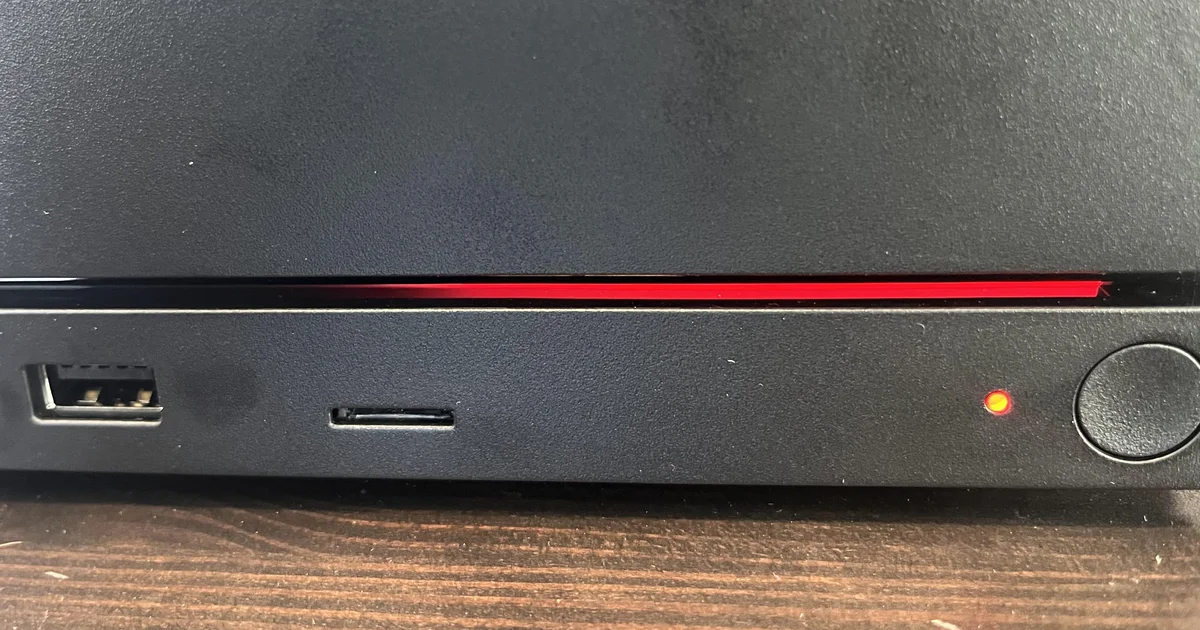
Even with careful tuning, hardware can throw curveballs—especially on a new platform. One Steam Machine user ran into what players started calling the “red line of death,” a half-red LED bar on the front panel that appeared after a system update caused the machine to crash and suggested a serious graphics card issue. That sounds fatal, but in this case the unit sprang back to life. The owner first tried leaving it powered off in 30-minute chunks across a day with no success, then left it unplugged overnight and followed community advice to enter the BIOS and trigger a full reset-style sequence. After that, the Steam Machine booted immediately without further issues.
The reassuring takeaway from that experience was clear: “If anyone encounters the same error, don't panic like I did, just let it sit for a few hours and it will somehow sort itself out.” Multiple commenters had suggested using the BIOS to force a reset, which appears to have cleared whatever glitch the update had caused. In practical terms, that means even dramatic-looking LED errors are not always true hardware failures; sometimes they’re firmware or update hiccups that time and a low-level reboot can fix. The hidden risk is rushing into warranty claims or assuming the GPU is dead when a calmer, stepwise approach—powering down fully, unplugging, then applying BIOS recovery steps—may save you the hassle. When your Steam Machine throws a red warning, take a breath before taking a hammer to your setup.
Putting It All Together: Is Steam Machine Optimization Worth It?
If you treat the Steam Machine like a sealed console, you miss a lot of its potential. With SteamOS WiFi improvements enabling quicker downloads on misbehaving routers, compatibility verification badges showing which games behave themselves, and careful graphics tuning that can push Assassin’s Creed Black Flag Resynced to around 70fps in benchmarks at 1080p, you turn Valve’s box into a solid living-room PC that feels far smoother than stock settings suggest. Add the knowledge that even dramatic errors such as the red line of death can be walked back with patient BIOS troubleshooting, and the platform starts to look less fragile and more like a flexible system still finding its footing.
The trade-off is time and a bit of curiosity. You have to be willing to read compatibility labels in an oddly placed section, install updates that don’t always shout their benefits, and experiment with per-game settings that behave more like PC sliders than console presets. But if you enjoy tinkering within limits and want a compact machine that can surprise you with its performance, Steam Machine optimization is worth the effort. Pay attention to WiFi behavior after updates, trust the verification system as your first line of defense, and keep a recovery plan in your back pocket. Do that, and the Steam Machine feels less like an early adopter gamble and more like a capable, tuneable part of your gaming setup.