
What RTX 50 hotspot monitoring is and why it suddenly matters
RTX 50 hotspot temperature monitoring is the practice of reading the hottest point on a Blackwell‑based graphics processor, rather than only its average core temperature, to expose hidden thermal throttling, cooling faults, and poor thermal interface material that standard tools can no longer show due to driver‑level restrictions. When the RTX 50 series launched, reviewers saw that hotspot values were misreported or missing in familiar GPU monitoring tools like HWiNFO and MSI Afterburner, even though the average GPU temperature looked normal at around 67–68°C under load. Over time it became clear that NVIDIA had removed access to the hotspot sensor in consumer drivers, while the physical sensor on the GPU remained intact. This guide is for PC builders, overclockers, and repair‑minded enthusiasts who care about complete thermal transparency and want to understand what their card is really doing when it heats up.
What NVIDIA hid: throttling at 107°C and why hotspot temps are vital
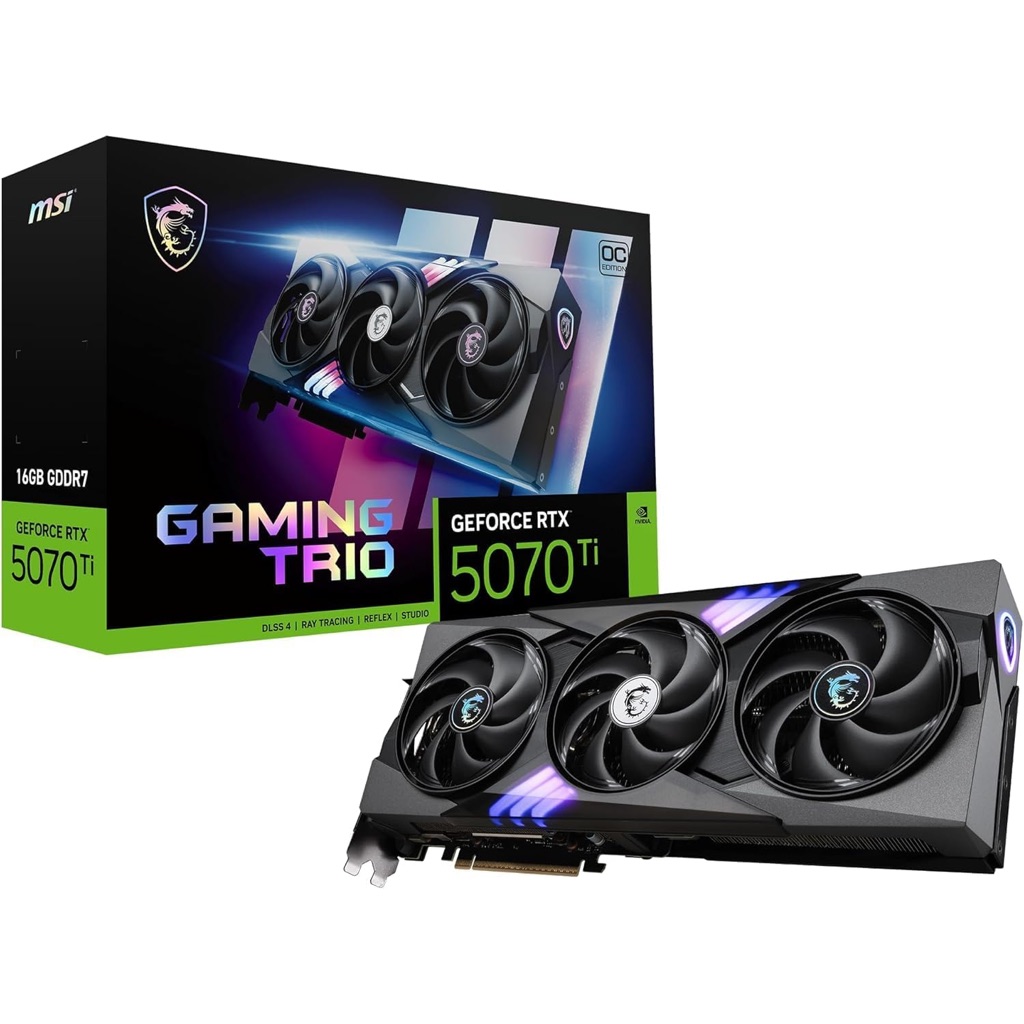
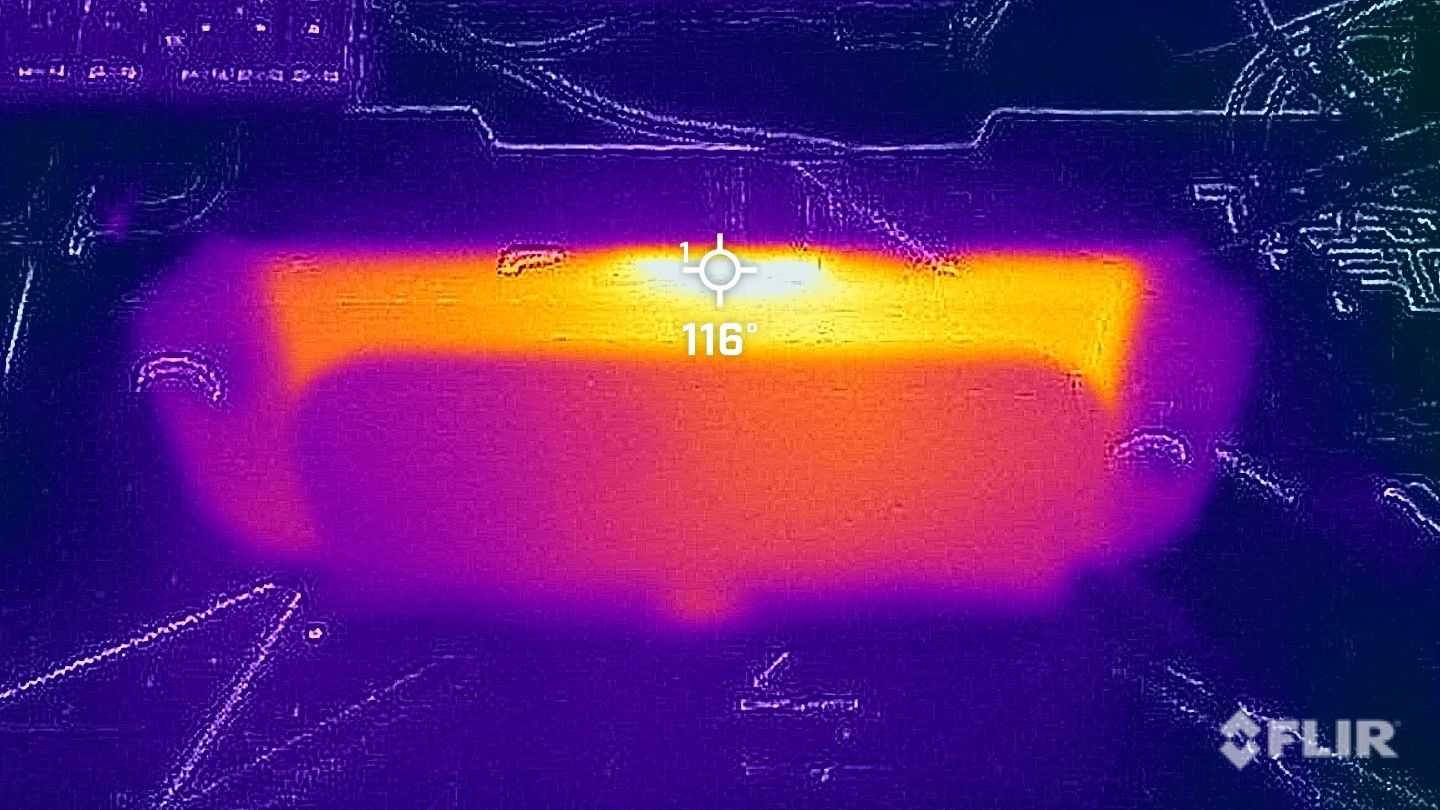
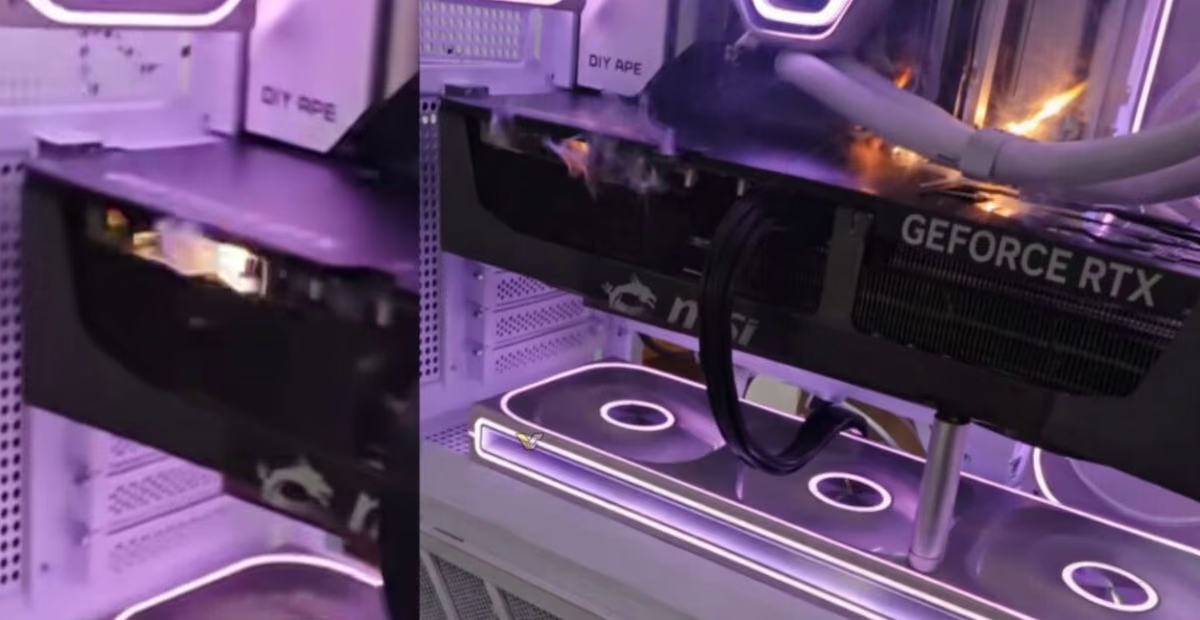
The main problem is that average core temperature can look healthy while the true RTX 50 hotspot temperature is dangerously high. In one widely discussed case, a RTX 5070 Ti reported a modest 67–68°C in Windows monitoring tools, yet an internal diagnostic run revealed the hotspot shooting to 107°C almost immediately under load, triggering instant clock speed drops to protect the card. NVIDIA sets 107°C as the upper limit for RTX 50‑series GPUs, so this is the threshold where thermal throttling kicks in to avoid damage. With hotspot data hidden in public drivers, a card could spend long sessions near that limit and slowly wear out, while the owner sees nothing but "normal" temps. According to one repair specialist, what could have been an easy user‑side fix turned into a workshop repair only because the hotspot sensor was concealed and the card’s internal condition misreported.
This is exactly why hotspot monitoring matters: it tells you what happens at the single hottest point on the die or substrate, where thin PCB sections, uneven cooling pressure, or bad thermal paste can create local hotspots even if the rest of the chip looks fine. Until you can see that metric, you are effectively tuning power and clocks with partial information, and you risk overclock profiles or fan curves that push the hidden hotspot to the throttling limit.
Step-by-step: enabling RTX 50 hotspot temperature in HWMonitor
To get back some of the visibility that the stock drivers removed, you’ll rely on third‑party GPU monitoring tools that have found ways around the restriction. HWMonitor is currently the standout option, because its developers bypassed NVIDIA’s block and restored hotspot sensor readings for RTX 50‑series cards within the existing driver model. The same program became the first mainstream PC monitoring tool to once again show the RTX 50 hotspot temperature, giving enthusiasts a window into the hottest point on cards that previously looked perfectly fine on ordinary charts. Other tools are still catching up, and many, like HWiNFO or MSI Afterburner, were the ones affected by the misreporting when this change first surfaced.
- Install the latest HWMonitor release that explicitly mentions RTX 50 hotspot support, since earlier builds cannot bypass the sensor restriction.
- Launch HWMonitor with your RTX 50 GPU under load, using a game or stress test, so you can see how temperatures behave in real conditions.
- In HWMonitor’s device list, locate your RTX 50 card and expand its sensor tree until you see a dedicated hotspot temperature entry distinct from the average GPU core reading.
- Watch the hotspot value during sustained load; if it approaches 100°C or more, start investigating your card’s cooling, even if the average GPU temperature looks safe.
- Use the readings to adjust case airflow, fan curves, or power targets, keeping the hotspot well below the 107°C limit where NVIDIA’s thermal throttling begins on RTX 50‑series GPUs.
Under normal gaming load, users with a RTX 5090 Founder's Edition have reported hotspot temperatures around 86–88°C, which suggests the RTX 50 line behaves similarly to previous RTX 40 cards when cooling is applied properly. If your hotspot is far above that range at stock settings, the sensor is doing its job by warning you that something in your setup or the card’s assembly is wrong. HWMonitor’s approach does not change how the card cools itself; it only restores missing information, so all the usual caveats around overclocking and power limits still apply.
Going deeper: what MODS reveals and how poor TIM shows up in hotspot data
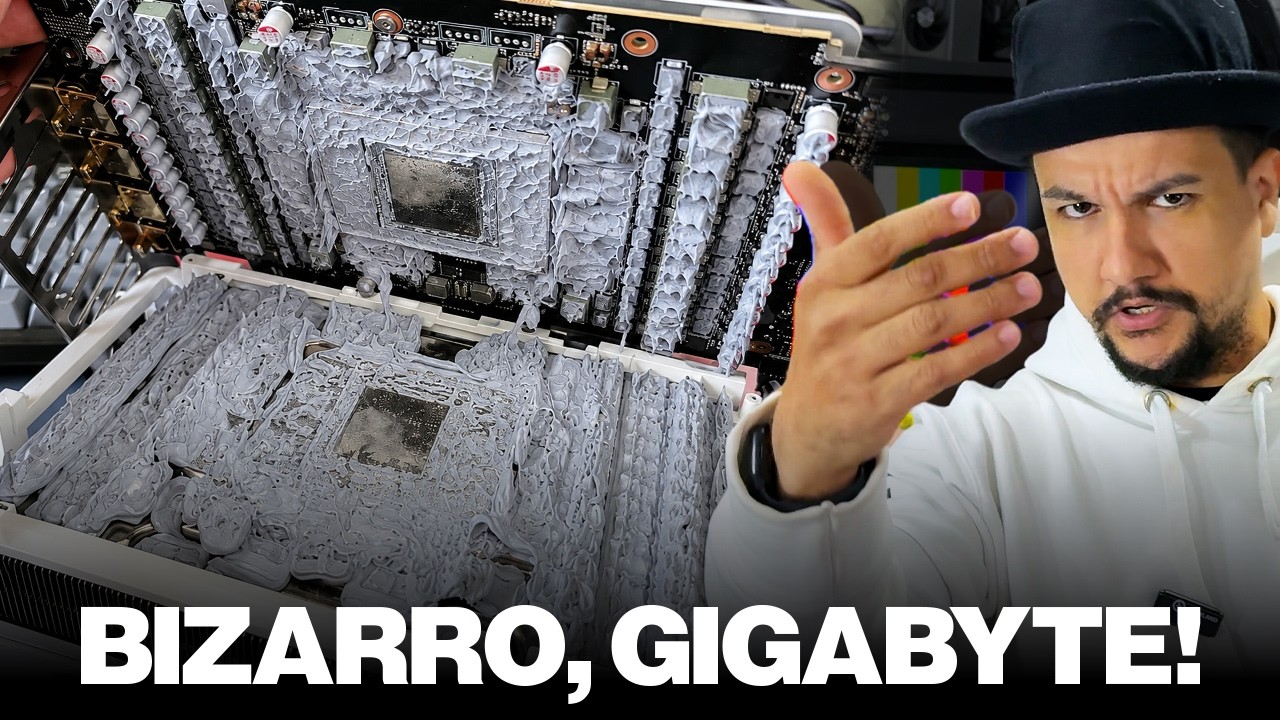
There is another path to hotspot data, but it sits mostly in professional repair territory. NVIDIA’s internal Modular Diagnostics Software, known as MODS, is used to test GPUs before they ship or during warranty analysis. It can read the same hidden hotspot sensor on Blackwell gaming GPUs that consumer tools were blocked from accessing. In the overheating RTX 5070 Ti case, technicians turned to MODS and saw the hotspot slam against 107°C under load while average temperatures stayed in the mid‑60s. That immediate spike explained the card’s sudden throttling and made it clear the problem wasn’t the silicon design but its thermal contact. After opening the card, they found poor contact between the cooler and components and a bad thermal interface material pattern, with paste pushed to the edges and the center nearly dry.
Once the old TIM was cleaned off and replaced with a more capable paste, the hotspot dropped to around 100°C under the same stress, bringing the card back within its intended operating range and stopping the throttling behavior. That kind of direct before‑and‑after result shows how sensitive hotspot metrics are to TIM quality and mounting pressure. Even if you never touch MODS yourself, it proves the sensor is alive on RTX 50 hardware and can uncover manufacturing or assembly mistakes that average GPU temperature can hide. This is the same reason consumer hotspot monitoring is valuable: if you see your hottest point creeping toward 100°C in HWMonitor during maximum load, it is time to check your cooler mounting, thermal paste coverage, or case airflow rather than trusting the smoother average reading.
Using hotspot data with other GPU monitoring tools and what to watch for
Once you have hotspot readings back, treat them as a second, stricter budget. Average GPU temperature tells you whether the cooler can handle general heat output; hotspot temperature tells you whether any part of the GPU package is operating on the edge. Many GPU monitoring tools still focus on the average core, and some were directly misled when NVIDIA removed hotspot access from drivers, causing them to report only the friendlier metric. Third‑party tools that add workarounds, like the updated HWMonitor build, give PC builders and overclockers a more complete picture by exposing both metrics side by side.
In practice, you want stable performance without hitting the 107°C cap where RTX 50‑series cards begin to throttle to prevent long‑term damage. If your hotspot sits in the mid‑80s under gaming load, that’s in line with what RTX 5090 Founder's Edition owners are seeing, and you likely have a healthy thermal setup. When that same metric climbs near 100°C at stock settings, it’s a sign to review mounting, TIM, and airflow before raising power or clocks. The main gotcha is ignoring hotspot data once you have it; watching only average temperature defeats the purpose of bypassing the driver restriction. The payoff is clear: a few minutes spent reading hotspot values can mean catching a bad paste job or weak cooler fit early, instead of discovering the issue after silent throttling or degraded silicon.