
The Hard Truth About watchOS Betas: Great Features, Messy Daily Use
A watchOS beta problems troubleshooting guide is a practical set of steps for diagnosing and fixing Apple Watch battery drain, syncing delays, charging glitches, app crashes, and connectivity issues that show up after installing pre-release watchOS software, with clear advice on when to keep testing and when to stop using the beta. The watchOS 27 Public Beta lets you try Apple’s latest Apple Watch features before the official release later this year, but it is still pre-release software, so bugs, performance issues, and app compatibility problems are expected. That trade-off matters: you are putting your everyday health tracking, notifications, and workouts on unstable ground for the sake of early access. Battery drain is one of the most common complaints after installing a beta, often alongside syncing delays between your Apple Watch and iPhone and even slower or inconsistent charging. If you rely on your Apple Watch to stay organized or to monitor your activity, you cannot afford to treat these problems as “normal beta behavior” and hope they disappear.
Taming Battery Drain and Performance Lag Before They Ruin Your Day
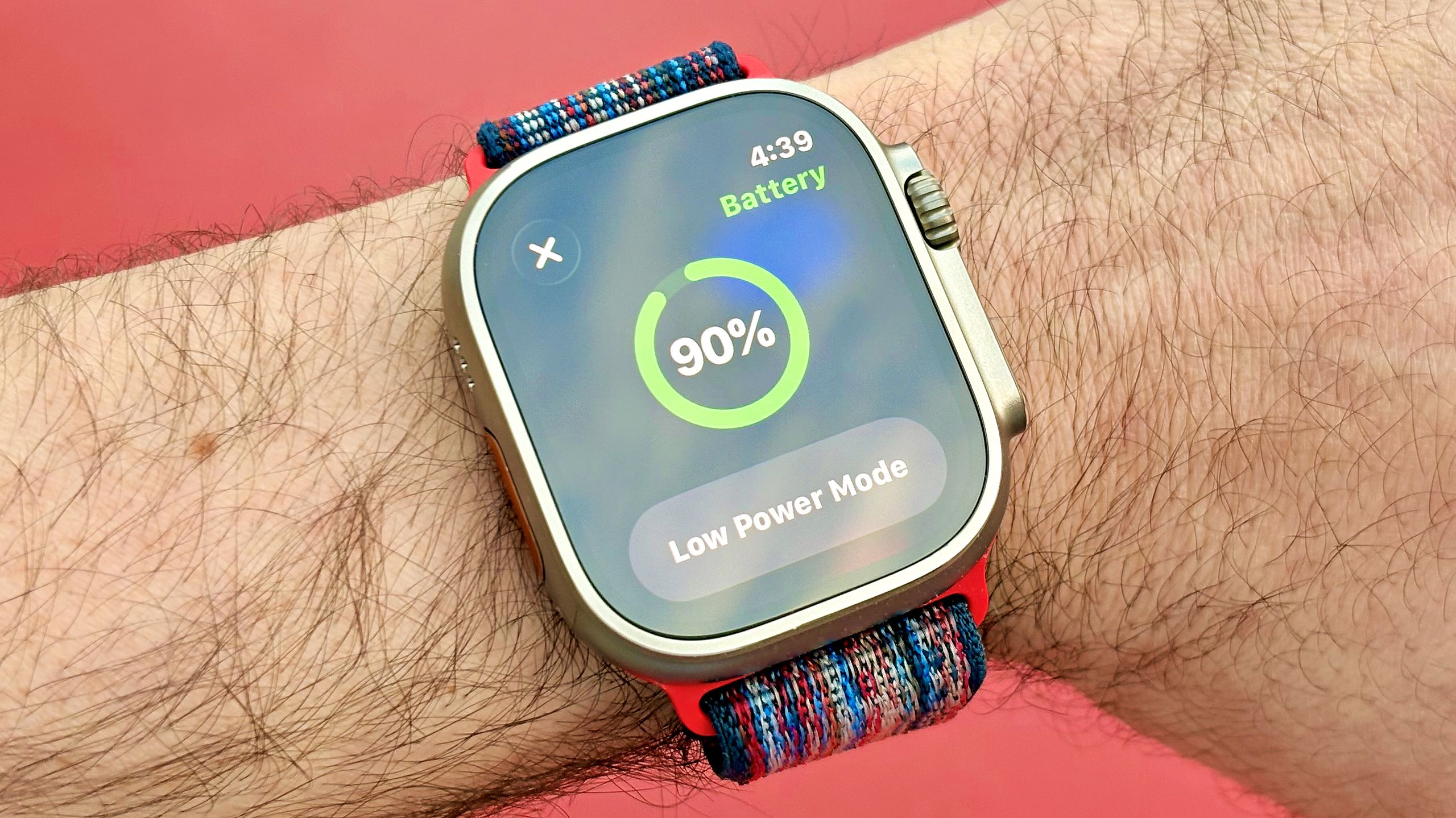
If your Apple Watch battery now dies by mid-afternoon, you are seeing the most common watchOS beta problems first-hand. Battery drain is common during the first 24 to 48 hours after installing a major beta update while watchOS performs background tasks such as syncing data, rebuilding indexes, and optimizing system processes. But if battery life does not improve after 48 hours, you should act instead of waiting: restart your Apple Watch and paired iPhone, check for the latest watchOS 27 Public Beta update, reduce the number of complications on your watch face, and use Low Power Mode when you need extra battery life. Slow performance usually rides along with poor battery life. If your watch still feels sluggish after that initial optimization window, restart it, close unused apps, install the latest beta update, and update apps on the watch or your iPhone. If storage is tight, removing unused apps, downloaded music, or podcasts can also improve responsiveness.

When Apps, Siri, and Connectivity Fail: Concrete Steps, Not Guesswork
The second wave of watchOS beta problems hits when the tools you count on—apps, Siri, Bluetooth, Wi‑Fi—start misbehaving. Some third‑party apps are not yet optimized and may crash or fail to launch; the fastest way to fix watchOS bugs here is to update the app from the App Store, restart your Apple Watch and iPhone, and reinstall the app if the problem continues. If the app still fails, the hard reality is you may need to wait for its developer to ship a compatibility update. Siri issues are equally disruptive. If Siri becomes unresponsive, open Settings on your Apple Watch, tap Apple Intelligence & Siri, turn Siri off, restart your watch, then enable Siri again. Confirm that your watch has Wi‑Fi, cellular, or iPhone connectivity. When Bluetooth, Wi‑Fi, or pairing fail, toggle Bluetooth off and on on your iPhone, restart both devices, make sure they are on the latest betas, and verify Bluetooth and Wi‑Fi are enabled on both. If your watch still will not reconnect, check its pairing status in the Watch app and, as a last resort, unpair and pair it again, restoring from a recent backup afterward.
Unpairing Without Losing Data—and Why Activation Lock Matters
When beta bugs escalate into constant crashes or failed syncing, the nuclear option is to unpair and erase the watch—but this is where many users make their worst mistake. Selling your Apple Watch, upgrading to a new iPhone, or troubleshooting connection issues often starts with unpairing the watch, and doing it correctly prevents Activation Lock problems or missing backups. The key difference is whether you still have the paired iPhone: unpairing from the iPhone removes Activation Lock, while erasing the watch alone does not. If you still have the iPhone, use the Watch app: go to My Watch > All Watches, tap the info button next to the watch, and choose Unpair Apple Watch so your iPhone can create a current backup before the watch is erased. If you no longer have the original iPhone, you can erase the watch from Settings > General > Reset > Erase All Content and Settings, but Activation Lock remains and you still need the Apple Account and password linked to the watch before anyone else can set it up.
Smart Beta Habits: Stay on the Cutting Edge Without Constant Headaches
Living with any watchOS beta means accepting some instability—but you do not have to invite every problem. Basic habits form a preventive watchOS troubleshooting guide: restart your Apple Watch and iPhone after major updates, install the latest watchOS 27 Public Beta through the Watch app’s Software Update section, keep your iPhone on the matching iOS 27 Public Beta, ensure your watch has at least 50% battery before updating, and give it 24 to 48 hours to finish background optimization and syncing. Because watchOS and iOS work closely together, beta software can sometimes cause syncing delays between your Apple Watch and iPhone, so keeping both devices aligned and updated is non‑negotiable. There is also a hard line you should respect: if you rely on your Apple Watch every day for work, health tracking, or workouts and the beta is causing frequent issues, it may be worth avoiding future beta releases until the final version of watchOS 27 becomes available. In other words, staying current should not come at the cost of reliability.