

What BIOS throttling is and why it quietly ruins games
BIOS throttling settings are conservative firmware defaults that limit CPU and GPU behavior through power, thermal, and sleep-state controls, often prioritizing stability and silence over peak performance and causing hidden frame rate drops and stutters in gaming and workstation workloads without obvious warnings from Windows tools or simple monitoring overlays.
If your games feel smooth until random stutters appear out of nowhere, the problem might live in firmware, not Windows. Your BIOS or UEFI defines CPU boost rules, power limits, memory speed, and system temperatures, and these limits can quietly cap performance long before the operating system loads. The defaults are designed to make a new PC stable on any desk, but that safety margin often becomes aggressive throttling once you start pushing high refresh gaming or heavy rendering. Instead of reinstalling drivers or blaming Windows, this is the point where it pays to check whether your system is being held back by its own safeguards. Once you know which settings to enable, you can extract more performance without threatening system stability.
Reading CPU sensor logs: seeing what Windows misses
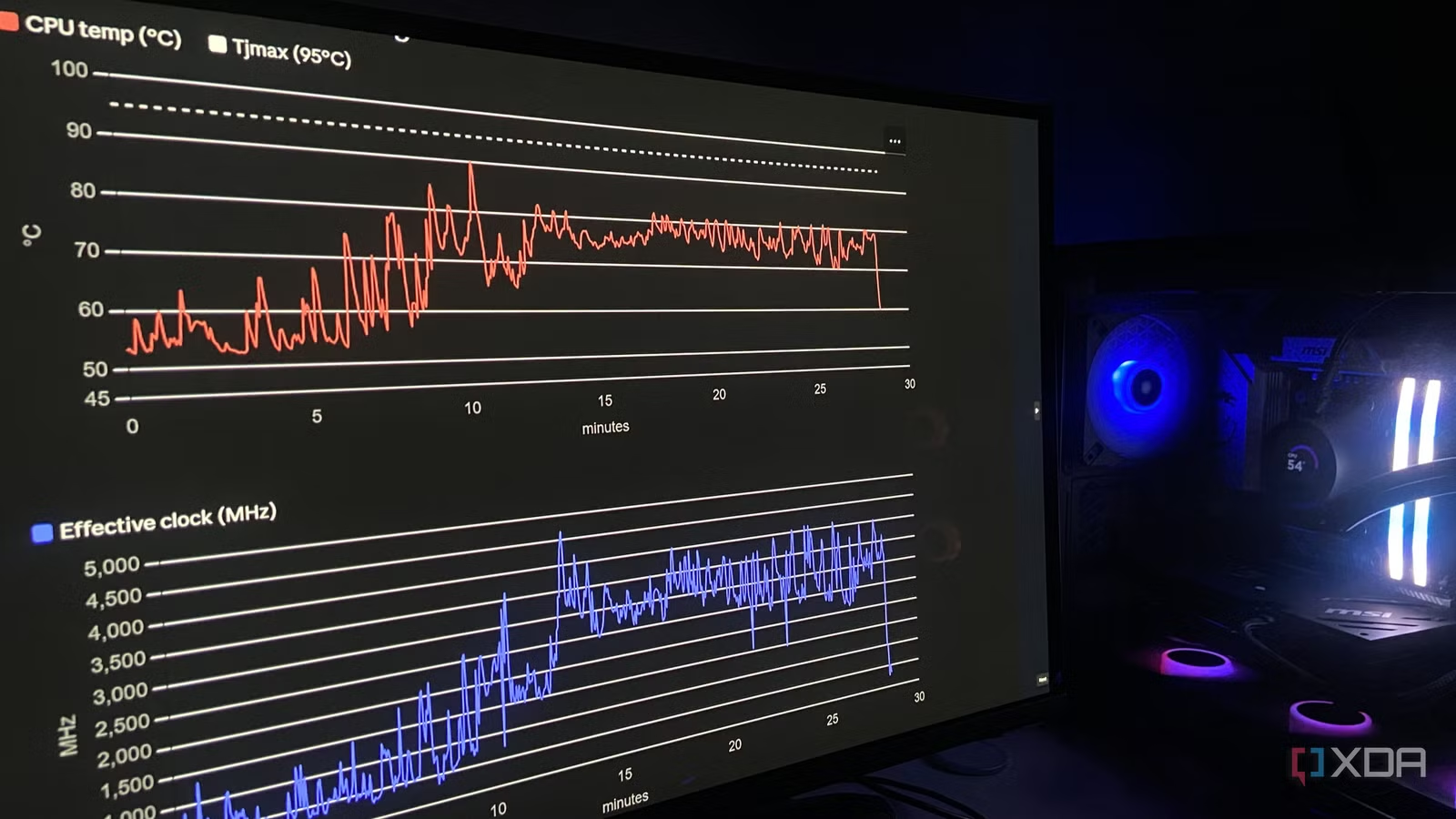
Most Windows performance overlays show basic metrics—CPU usage, temperature, frame rate—but they often miss the short, brutal dips that matter. Firmware-level throttling can yank a CPU from multi-gigahertz clocks down to near-idle speeds for a few seconds, then recover, all while Windows reports “no throttling” because the usual flags never trip. Logging your CPU at one-second intervals turns those hunches into data you can inspect line by line.
One real-world log showed a chip idling at 55°C, then sitting at a normal 76–80°C plateau, before spiking to 90.4°C in five seconds and crashing from 4,200MHz to 740MHz—yet every PROCHOT and HTC throttle flag still read “No.” That kind of hidden behavior is exactly why firmware performance tuning matters more than another round of Windows tweaks. A quotable example from that analysis: “In the subsequent runs that I ran, the stutters were completely absent,” once the underlying thermal issue had been fixed with firmware changes. If you want a reliable PC throttling fix, the logs have to come first.
Step-by-step: auditing and adjusting BIOS settings safely
Here’s a practical sequence you can follow like you would with a friend’s rig on the bench. Focus on genuine firmware performance tuning, not guesswork. The goal is CPU performance optimization without risking stability, so small changes, one at a time, matter most.
- Capture a 20–30 minute CPU sensor log while reproducing stutters, with one-second intervals and key sensors like effective clock, temperature, and power.
- Review the log for patterns: sustained high temperatures, sudden spikes above your chip’s comfort range, and matching clock crashes, even if throttle flags stay at “No.”
- Enter your BIOS/UEFI and confirm memory profiles (XMP/EXPO) are enabled so your RAM runs at its rated speed instead of slower JEDEC defaults.
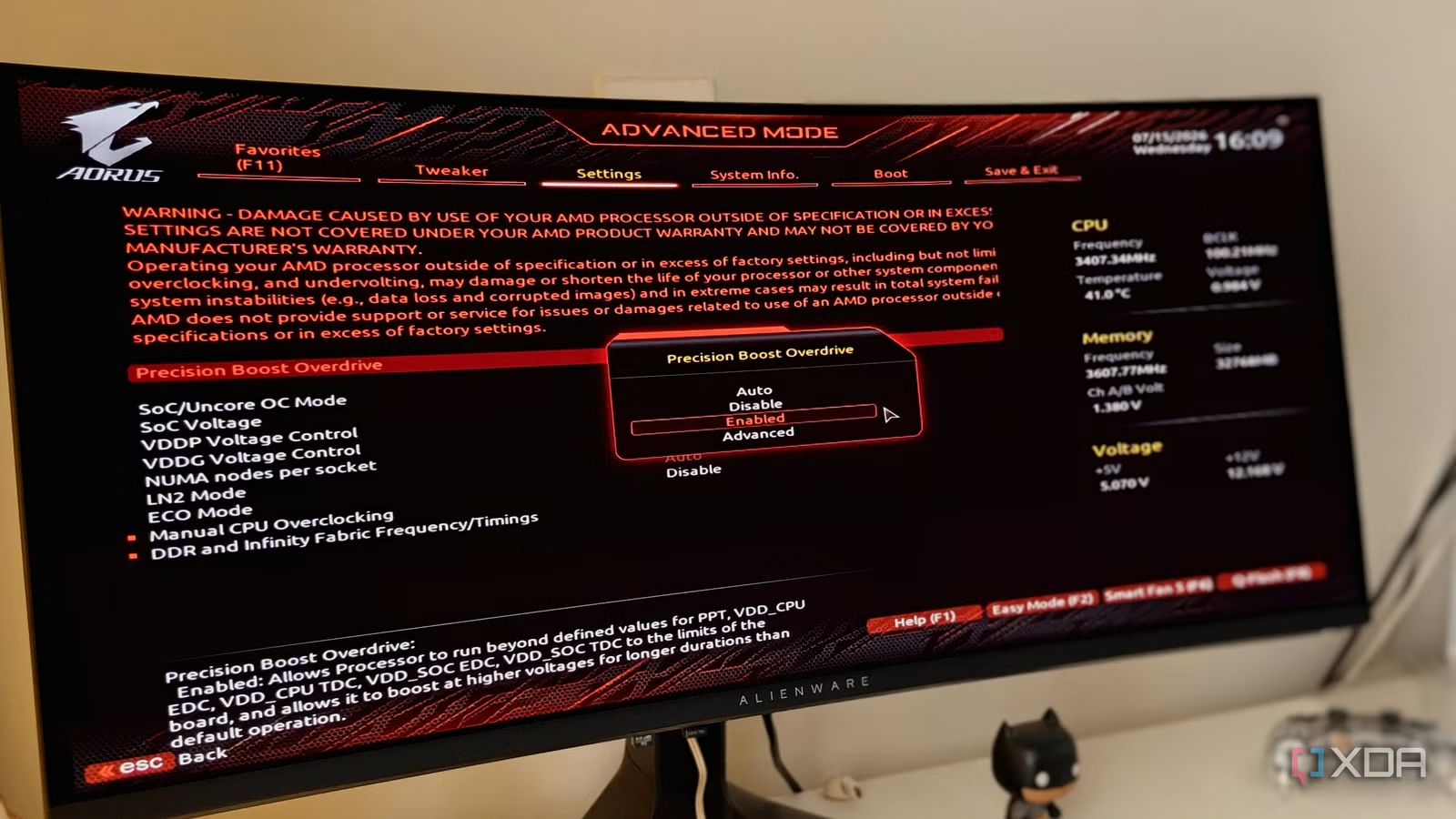
- Inspect CPU power limit and boost settings, including features like Precision Boost Overdrive on AMD, and note any overly restrictive power caps or conservative limits.
- Adjust cooling behavior by creating custom fan curves so case and CPU fans ramp earlier and more aggressively under load, instead of waiting for near-throttling temperatures.
- Fine-tune CPU voltage and boost behavior using tools like Curve Optimizer on supported chips, applying a mild negative offset only after confirming temperatures and stability.
- Reboot, rerun your test workload, capture a new log, and compare temperatures and effective clocks to confirm that performance improved and thermal spikes no longer cause clock collapses.
The big gotcha here is heat. Default fan curves are often tuned for quiet operation, which means your fans wake up too late during demanding workloads, letting the CPU creep toward its throttling limit. Performance starts dropping before the final thermal wall, so you feel lower frame rates and stutter long before the system “admits” anything is wrong. The reason firmware-based fixes work is simple: Curve Optimizer trades voltage, not clock speed, and voltage is what generates the heat. Less voltage at the same performance means less heat, which keeps the CPU away from TJmax and stops hidden throttling from kicking in.
Common BIOS culprits: power, thermals, and C-states
Once you’re comfortable moving through the menus, you start seeing patterns in what limits performance. Power limits decide how far your CPU can boost under load, thermal thresholds shape how quickly it backs off when temperatures rise, and power-saving C-state settings can introduce latency or uneven behavior if they’re too aggressive during gaming or professional workloads. These controls live deep in manufacturer-specific menus, which is why many builders never touch them after the first boot.
A good rule is to rule out unsafe scenarios first—make sure VRM temperatures and power delivery are fine—then look at whether limits are simply too conservative for your use case. One AI-assisted diagnosis, for example, ruled out power and VRM problems, then pointed straight at a thermal bottleneck that wasn’t marked as throttling in the logs. That kind of targeted advice is valuable because it directs you to tools like Precision Boost Overdrive and Curve Optimizer on compatible CPUs, which can boost performance while keeping temperatures under control. In many gaming setups, once you’ve tuned these, you get more consistent frame times instead of peaks and painful dips.
Using AI to speed up diagnosis—and knowing when you’re done
Reading thousands of sensor samples and 145 columns of data is tedious; handing those logs to an AI model turns it into a five-minute analysis that can highlight correlations you might miss. That’s where AI-assisted troubleshooting starts to shine at the firmware level. Give it raw sensor logs, hardware specs, and symptoms, and it can point at the settings you haven’t checked yet, like an odd thermal pattern or an aggressive power limit your eye would gloss over.
In one case, the AI’s most useful work wasn’t the final tweak it suggested, but the fact that it noticed every throttle flag read “No” while the CPU was still slamming into a thermal ceiling and cutting clocks to stay safe. That observation steered the user toward a voltage-focused fix and better cooling, which removed the stutters in later runs. The takeaway is clear: BIOS defaults ensure stability on a new PC, but they also limit performance. Once you’ve tuned memory profiles, fan curves, and safe boost behavior, monitor your system over a few long sessions. If the logs show steady clocks, acceptable temperatures, and “the stutters are completely absent,” you’ve reached the sweet spot where performance and reliability meet.





