
What SSD “Health” Really Means (and Why It Misleads You)
An SSD health check is the process and tools you use to estimate how reliable your solid-state drive is, usually by reading SMART data, checking a single health percentage, and watching for errors or slowdowns over time rather than assuming a perfect score means zero risk of failure. Many of us open a disk utility, see “100% health,” and breathe a sigh of relief. It feels like a clean bill of health: no drive failure detection warnings, no scary red numbers, so your data must be safe. Here’s the catch: an SSD can fail while every health tool still claims it is at 100%. Studies of thousands of dead drives found that many looked fine on paper at the moment they died, with key SMART attributes showing no obvious problems. Single-number health ratings hide how limited these checks are. SMART data monitoring is better than nothing, but it was never designed to be a crystal ball. If you treat that health score as a guarantee, you are the one taking the risk, not the drive. The right mindset is: the SSD is guilty until proven reliable, and the proof comes from trends and behavior over time.
Why Drives Fail With “Perfect” SMART Data
SMART data monitoring focuses on things the drive can see and log, not every way it can die. Pending sectors—the spots on a disk surface that are hard to read—are what most tools highlight, and rising counts are often treated as the main early warning sign. According to one recovery lab, 30.5% of over 5,000 dead hard drives had a pending sector count of exactly zero when they failed. That same pattern applies to SSDs too: they can fail at “100% health.” The reason is simple: many failure modes skip the warning phase. Firmware corruption can brick a drive instantly, a failed controller or power surge can take out the circuit board, and a mechanical issue in hybrid or external enclosures can stop the drive cold without ever touching the flash cells. None of these paths to death show up as platter or NAND wear. Large-scale storage reliability testing studies on hundreds of thousands of drives found that SMART attributes alone could not predict all failures; accurate models needed server performance and environmental data as well. In other words, watching SMART helps, but it does not cover a whole class of sudden failures.
A Practical Step-by-Step SSD Health Check You Can Trust
Think of SSD health like knowing a car’s condition: a dashboard light is useful, but you also listen for weird noises and feel how it drives. The goal is not a perfect health score; it is storing data in a way that continues to work when life happens. To do that, you need both SMART data and real-world behavior over time.
- Install a reputable SSD tool and record today’s SMART data, focusing on wear-related attributes and error counts, then save screenshots or notes as a baseline.
- Run a full-disk read test and a smaller write test, watching for sudden speed drops, timeouts, or errors that suggest problems beyond SMART’s current warnings.
- Repeat your SSD health check every few months, comparing SMART data trends and performance results, and treat rising error counts or new slowdowns as a cue to back up and plan a replacement.
- Add system-level monitoring (like OS logs or application error reports) to catch behavior SMART may miss, since large studies only predicted failures reliably when they combined drive and system data.
- For any new or used SSD, verify its claimed capacity with a full-capacity write/read test to rule out counterfeit drives disguised as larger models.
The gotcha here is overconfidence. SMART trends are useful early signals, but about a third of drives die with no warning at all. That means monitoring is not protection by itself; backups are. Performance tests and log checks are not magic either, but they uncover issues that SMART cannot see, such as controller glitches or system-level instability. Treat a new drive like an unknown seller on a marketplace: you verify first, then you trust. Combine SMART data with regular performance checks, keep an eye on any odd I/O errors, and assume the drive can fail at any time. You will not prevent every failure, but you will reduce the odds that one catches you with no recent backup.
Counterfeit SSDs: When “Healthy” Drives Are Fake
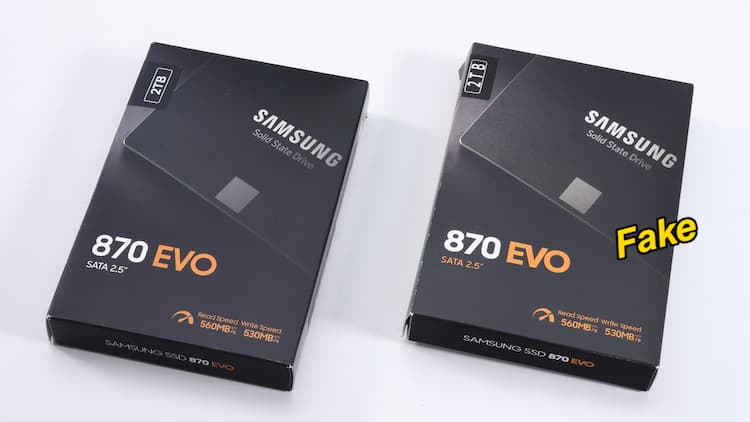
There is an extra twist that makes SSD health checks harder: counterfeit drives. Some fake SSDs look convincing, from packaging to labels, and even deliver decent performance in short benchmarks. On paper, they report the capacity you paid for, appear healthy in SMART, and pass a quick drive failure detection scan. Real trouble appears when you push them. In one tested counterfeit SSD sold as a 2 TB model, performance looked normal at first, but after writing about 120 GB of data the write speed dropped to zero, the data became inaccessible, and the SSD was no longer recognized properly. Most likely, it was a 120 GB SSD disguised as a 2 TB model. If you only rely on health percentages or light use, you will not see this. Authentic storage reliability testing for a new drive should include a full-capacity write/read check. Also watch for small visual cues: misaligned labels, odd compliance logos, or mounting holes that do not match known-good models can all hint that the drive is not what its sticker claims.
The Real Safety Net: Trends, Tests, and Backups
Here is the uncomfortable truth: if roughly a third of drives die with no warning, no amount of monitoring can be your safety net. That does not mean you should ignore SMART; it is better than nothing, and rising error counts, pending sectors, or changing wear levels are still useful clues. The problem is expecting a single score to forecast every failure. Use SMART data trends as your weather report, performance tests as your road feel, and backups as your seatbelt. Large studies of hundreds of thousands of drives show that combining SMART with system performance data gives much better failure prediction than SMART alone. For home use, that translates to watching OS logs, app errors, and any recurring slowdowns along with your SSD health check. Is it worth the effort? Yes—because the alternative is learning about drive reliability the hard way, after your data is gone. Watch trends, test behavior, assume any drive can fail at 100% health, and keep backups current. That is how you turn an unreliable health score into a reliable storage setup.