
Why Bother Repurposing Old Devices on Your Desk?
Repurposing old devices for your desk means turning forgotten phones and tablets into second monitor alternatives, smart display DIY dashboards, and utility tools that improve daily workflow while avoiding needless e‑waste and extra spending. Instead of buying new hardware for clocks, calendars, or smart home control, you can breathe life into gadgets you already own and keep important information and controls visible at a glance. This guide walks you through desk setup hacks using Fire Tablets, spare Android phones, and old iPhones so they become practical companions rather than clutter.
You don’t need cutting‑edge gear here. One author turned a ninth‑generation Amazon Fire 7 with a quad‑core 1.3 GHz processor and only 1 GB of RAM into a dedicated Home Assistant dashboard for their desk. Another kept an iPhone 12 alive as a time‑providing, calendar‑checking smart home remote. As long as the screen works and the device can connect to Wi‑Fi, you can repurpose old devices into handy desk companions that keep music, lights, and status info off your main monitor.
Turning a Dusty Fire Tablet into a Smart Desk Display
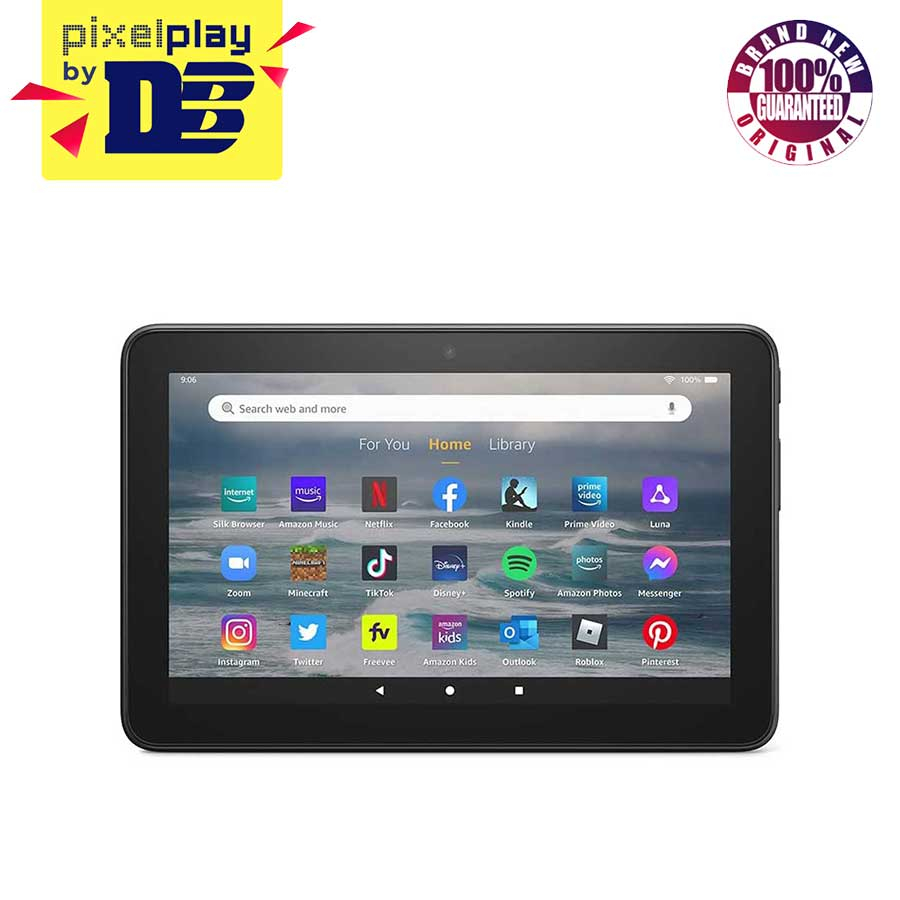
If you have an old Fire Tablet lying in a drawer, it can become a compact smart display DIY project for your desk. Even the underpowered Fire 7 mentioned earlier, which feels painfully slow for general use, works well as a small minimalist dashboard that stays in front of you. The tablet doesn’t need much RAM or a fast processor because its main job is to show information and accept a few taps. This is perfect if you already use Home Assistant or similar tools and want their status visible all day without dedicating a full monitor.
- Find any working Fire Tablet (for example, an older Fire 7 with 1 GB RAM) and charge it fully.
- Download the Home Assistant Companion app APK, and enable Apps from Unknown Sources in the Fire OS settings.
- Install the app, then log in using your Home Assistant credentials so the tablet can reach your server.
- On your main computer, set up a new Home Assistant dashboard designed for the tablet’s landscape orientation.
- In the Companion app settings on the tablet, lock the display into landscape mode for a clean, stable layout.
The key trick is designing the dashboard on your desktop instead of on the tablet, because the tablet’s limited performance makes configuration frustrating. Once configured, though, the small display works perfectly as a desk‑level control panel, even if it wouldn’t be ideal for a large wall‑mounted screen. This is one of the most straightforward ways to repurpose old devices: turn them into single‑purpose status boards where lag doesn’t matter much and you mostly tap large buttons or glance at sensor values.
Broken Phones as Clocks, Calendars, and Smart Home Remotes
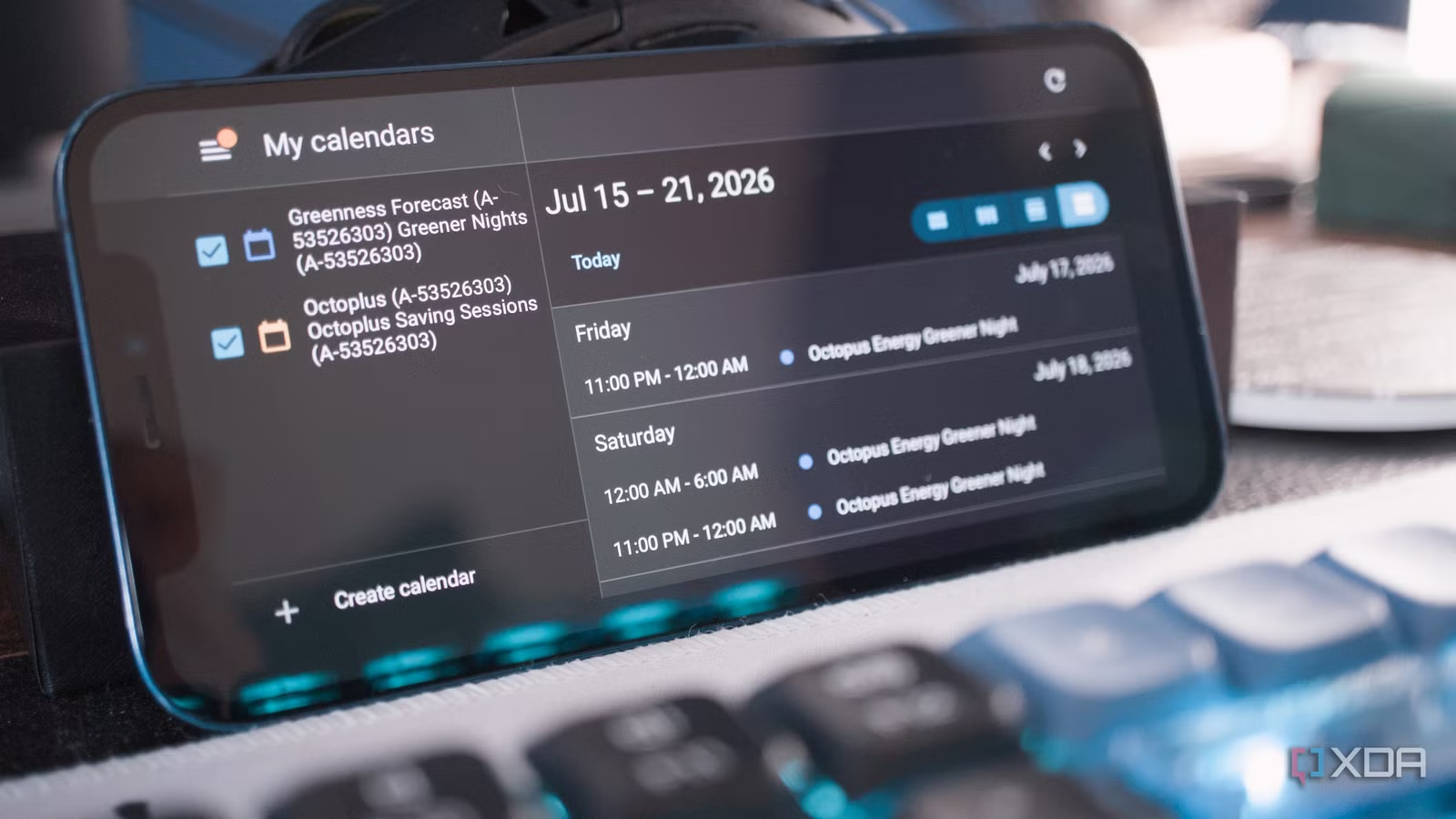
Even if an old phone has flaky Wi‑Fi or a cracked back, it can still serve as a permanent desk gadget. One user took a well‑worn iPhone 12 with unreliable wireless performance and turned it into a Home Assistant interface for the home office. They started with a basic dashboard to control lights and other devices, then refined it into a small desk dashboard with a clock, calendar card, and a handful of office controls. That makes the phone feel less like a retired handset and more like "a tiny control panel for the working day."
This approach can replace three separate gadgets: a desk clock, a calendar display, and a dedicated smart home remote. Instead of installing new sensors or buying purpose‑built screens for simple roles, they repurpose old devices that are already paid for. Because the Home Assistant app stays open with the dashboards front and center, controlling lights and other entities feels as easy as reaching for a physical switch. As long as the screen is readable and the phone can stay plugged in on a stand, it becomes part of your desk setup hacks, reducing both clutter and e‑waste.
Using Android Auto as a Desk Dashboard Without a Car
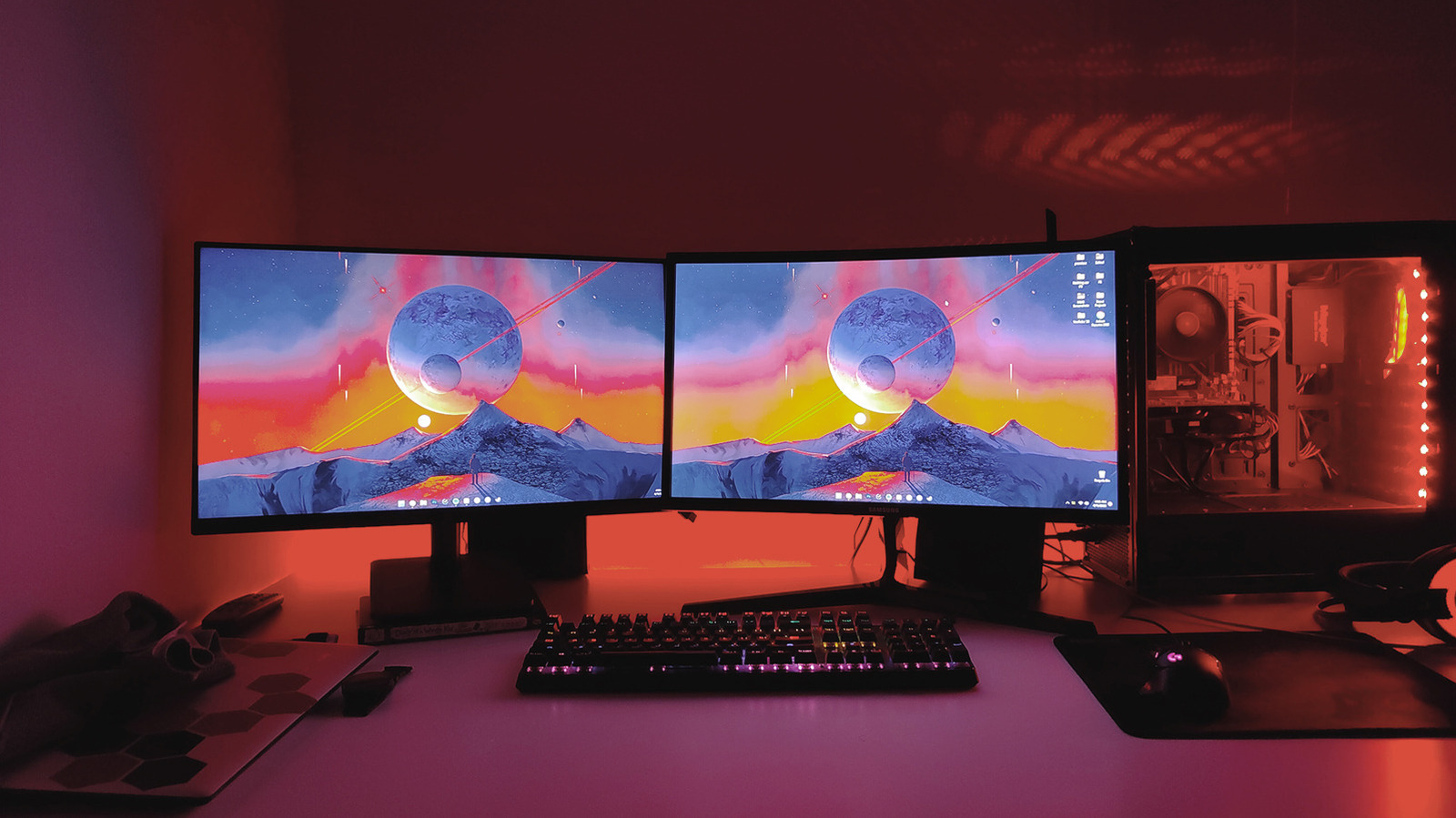
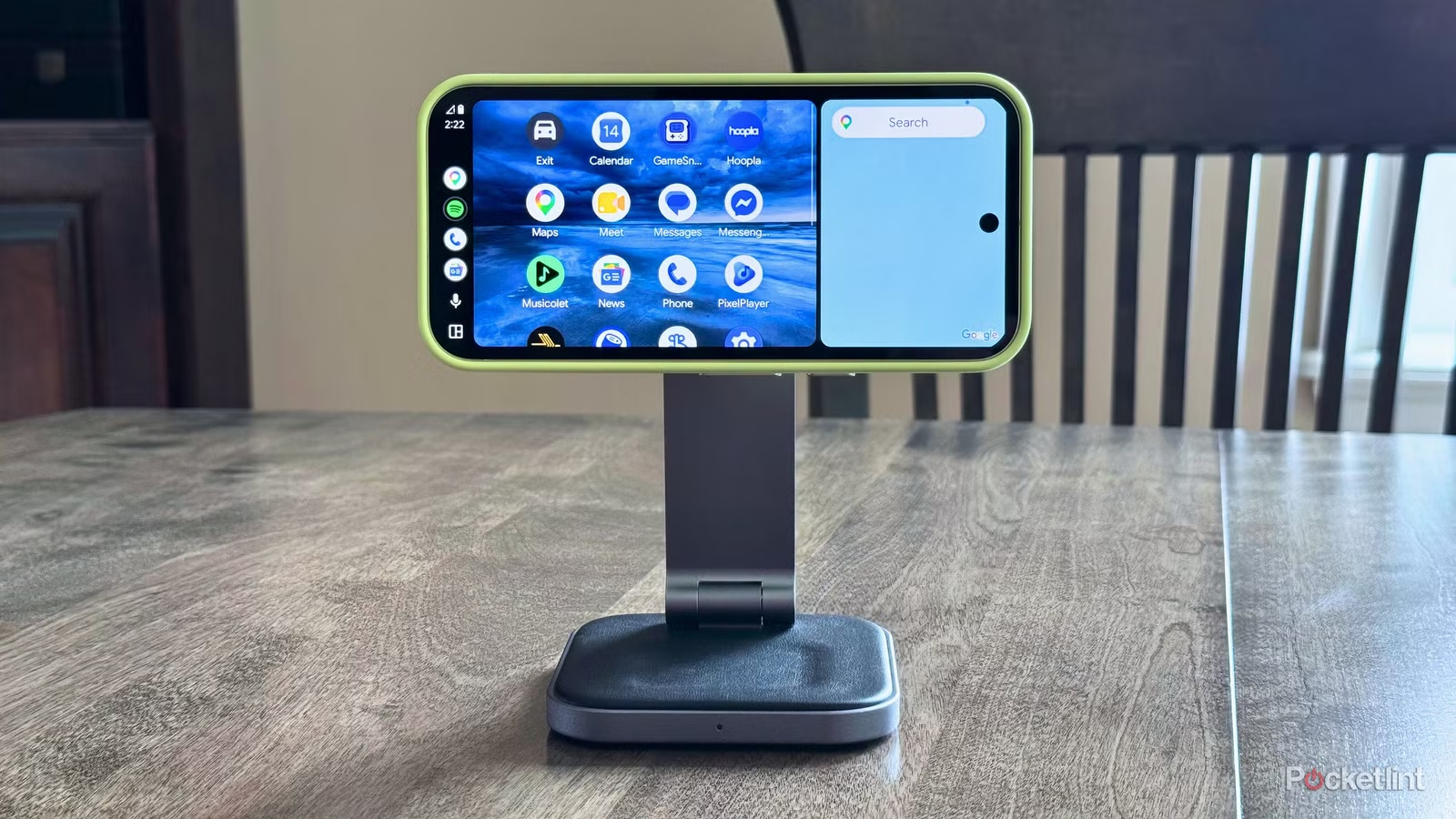
Android Auto is mostly known as an in‑vehicle infotainment hub that plugs into your car’s system, but it also works well as a quick‑access desk dashboard when emulated on a phone or tablet. Third‑party apps can brute‑force the Android Auto interface onto any modern Android smartphone without needing a car, turning that phone into a dedicated dashboard for media, calls, and simple tasks. When propped up on a stand next to a computer, this becomes one of the more flexible second monitor alternatives: your main screen handles work, while Android Auto takes care of music, navigation, and communication tasks.
- On the target Android device, download and install the Headunit Revived app from the Play Store.
- On a secondary Android device, download and install the WiFi Helper companion app.
- In Headunit Revived, go to Settings > Wireless Mode > Helper Connection Strategy, select WiFi Direct (P2P), then tap Save.
- In WiFi Helper, open Settings > Connection Mode and choose Wi‑Fi Direct.
- Still in WiFi Helper, go to Settings > Wi‑Fi Direct Device Name(s) and enter the same name shown near the top of Headunit Revived.
- Tap Start Android Auto inside WiFi Helper, then tap the WiFi button within Headunit Revived to begin the session.
Once configured, Android Auto’s interface appears on the target phone or tablet as a standalone app that you can leave and return to through normal multitasking. At a desk, it works as a companion dashboard that streamlines access to music, the phone dialer, and other essentials, reducing window juggling on your main computer. Desk setup hacks like adding a stand make the experience more comfortable and keep the repurpose old devices concept practical—you’re not reinventing your workspace, just offloading routine controls to a dedicated screen.
Is Turning Old Tech into Desk Tools Worth It?
If you already have spare devices in drawers, turning them into smart desk tools is low‑risk and high reward. An old and underpowered Fire Tablet can still act as a usable Home Assistant dashboard right in front of you, even if it’s too small or slow for other roles. Likewise, aging phones can become clocks, calendars, and smart home remotes that provide convenient access to everyday functions you rely on.
The real caveats are power and stability: keep these gadgets plugged in, use stands for better viewing angles, and accept that performance may be limited. According to one reviewer, Android Auto "brilliantly complements" a nearby desktop by taking over menial task duties and freeing up the main screen. Overall, repurposing devices is cost‑effective and reduces e‑waste while improving desk functionality—especially when you want second monitor alternatives without buying more hardware.