
NotebookLM Is a Knowledge Management Tool, Not Another Chatbot
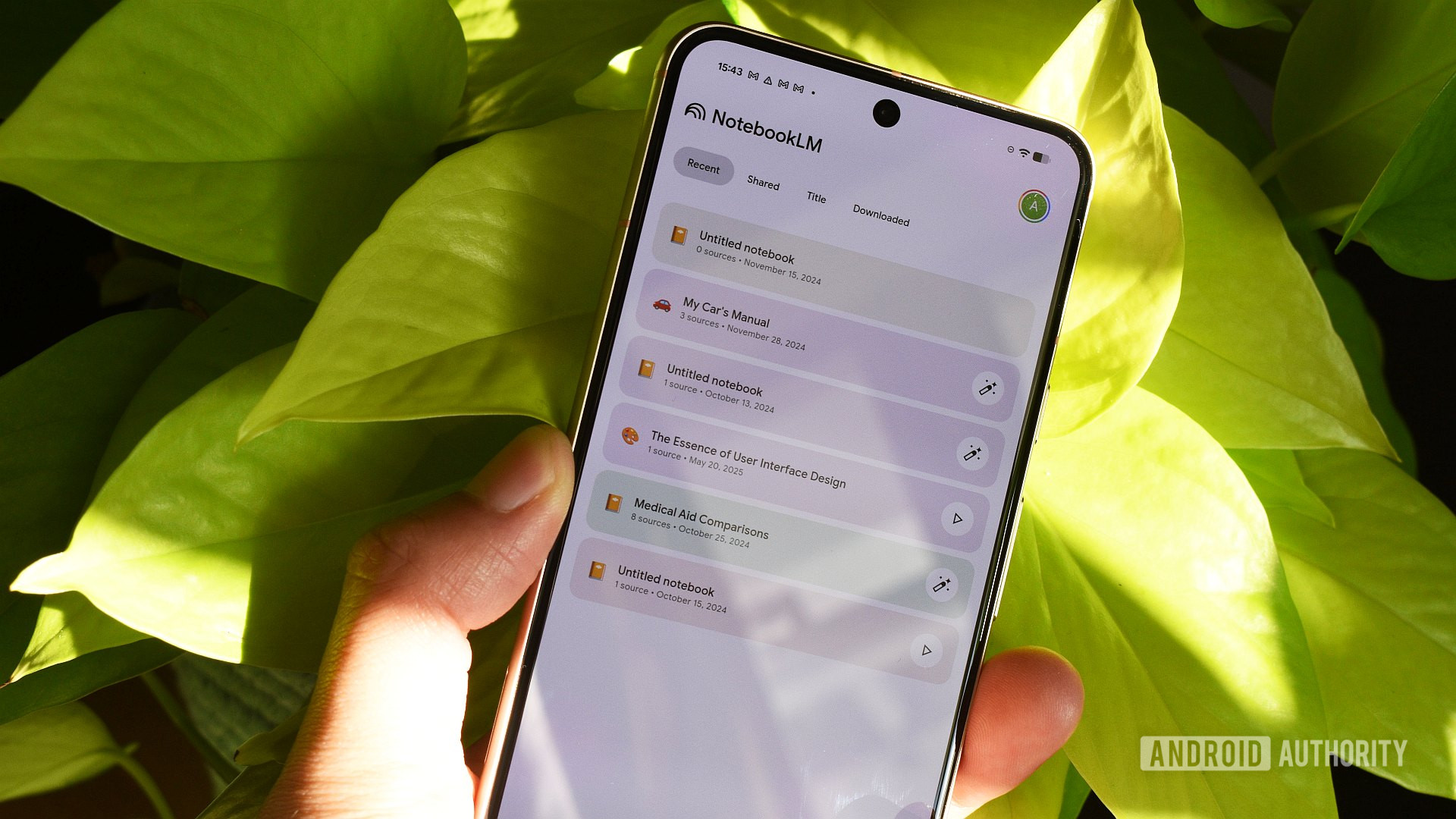
NotebookLM is a browser-based AI research automation and knowledge management tool that ingests your documents, links, and files, then turns them into organized, searchable notebooks with audio and video overviews, synced sources, and configurable chats designed to help you understand, reuse, and recall information instead of drowning in it. The key mindset shift: treat NotebookLM as the central nervous system of your content organization workflow, not a sidekick you occasionally ping for answers. Used daily, it stops being a novelty and becomes the place where your work, study materials, and newsletter archives live as connected knowledge instead of piles of PDFs. If you want real productivity gains, you must design workflows around NotebookLM’s strengths instead of expecting it to magically fix bad habits.
Tip 1: Turn Months of Unread Articles into Video You’ll Actually Watch
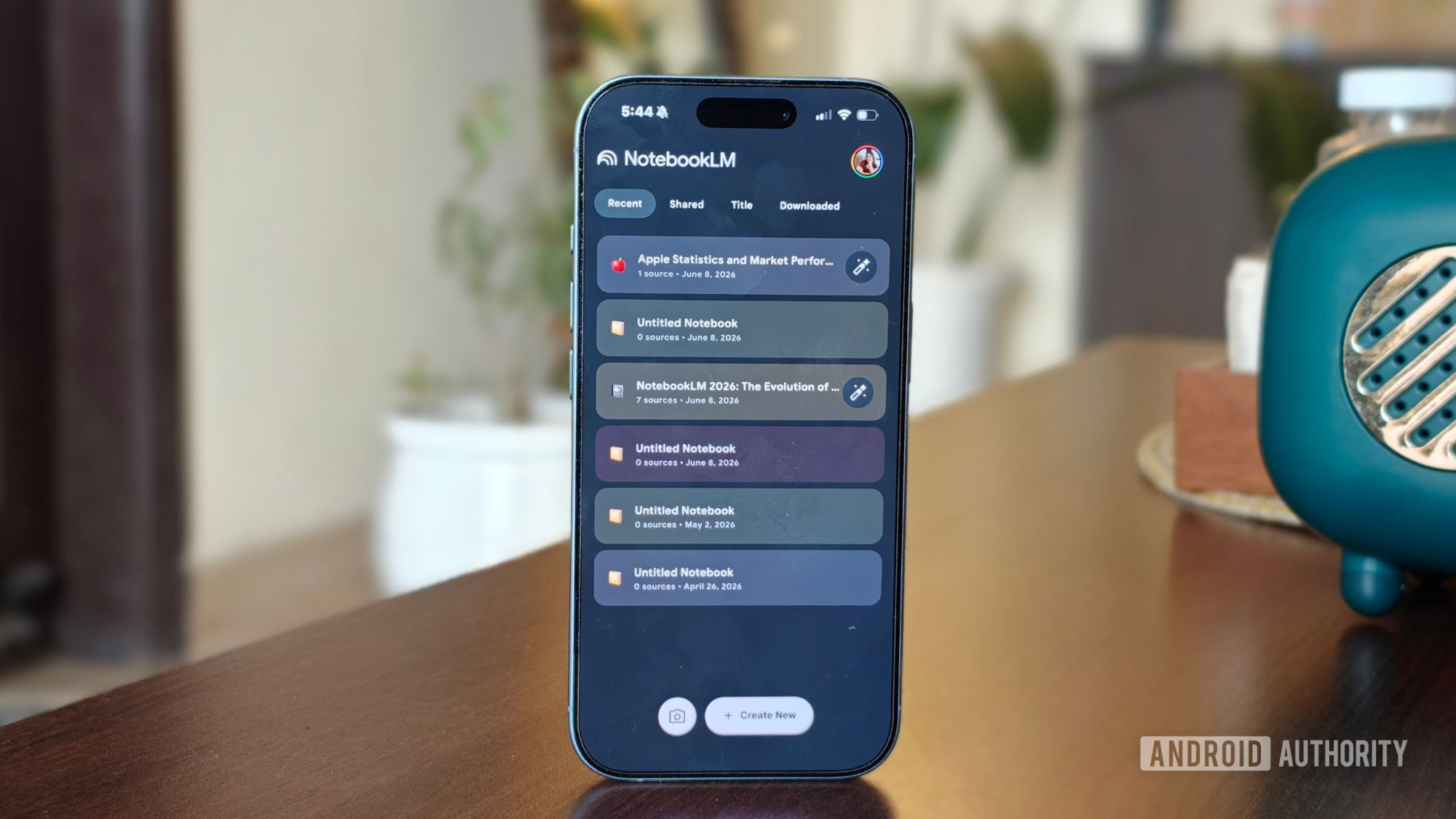
If your bookmarks folder has become a shame pile, NotebookLM’s Studio tab is the fastest way to dig yourself out. Once you’ve added related sources to a notebook, head to Studio, pick Video Overview, and within a minute NotebookLM turns them into a short narrated slideshow that breaks everything down into something easier to follow. This matters because format is often what stands between you and those files; change the format, and 20 minutes gets you through what took months to avoid. Video overviews shine when your sources rely on charts or visual data, because they can display diagrams where audio alone would fail. The catch: garbage in, garbage out still applies. Mix finance reports with recipe blogs and the narrative will be confused, so keep each notebook focused on a single topic.
Tip 2: Pipe Your Newsletters into a Searchable AI Knowledge Base
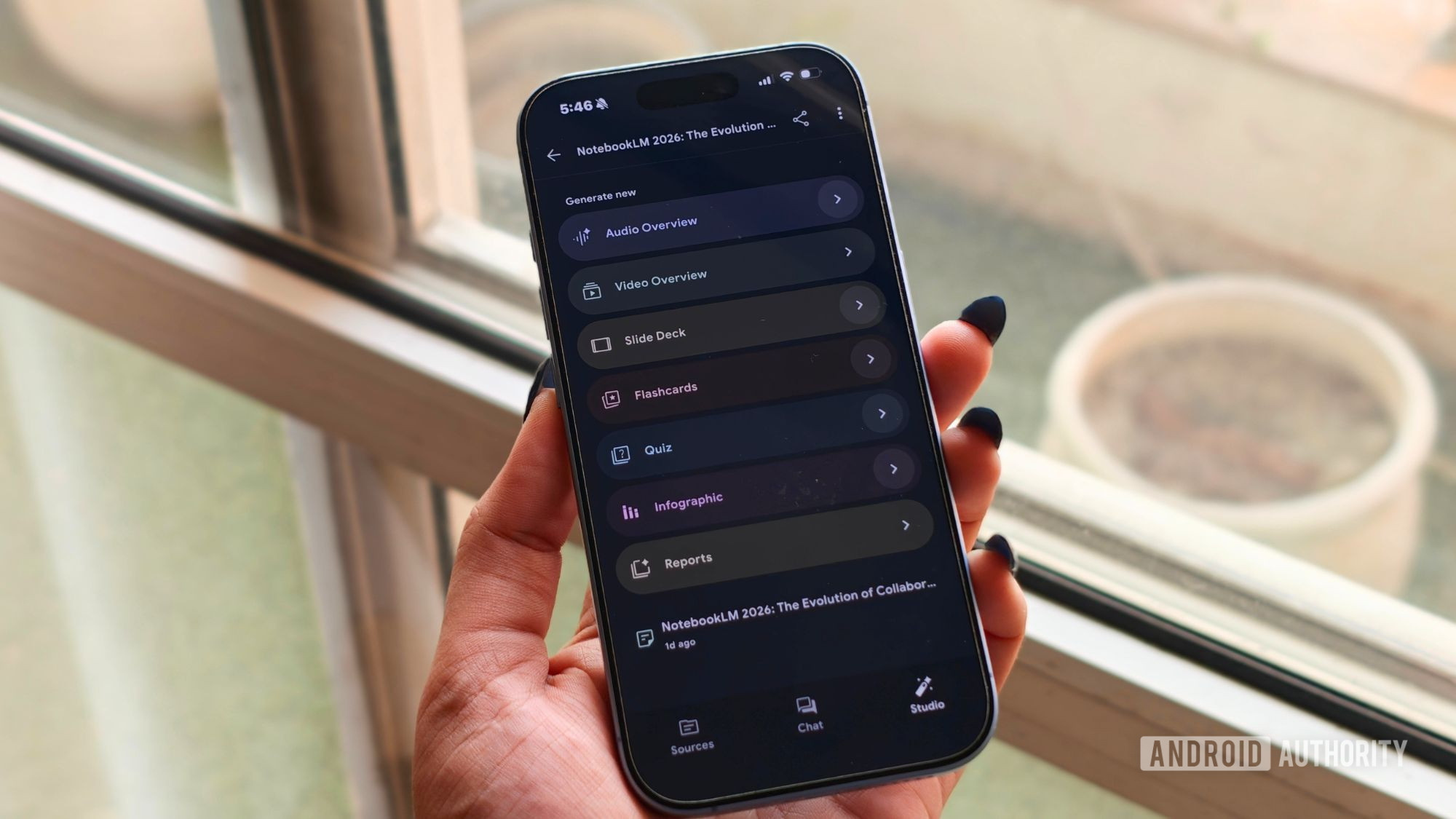
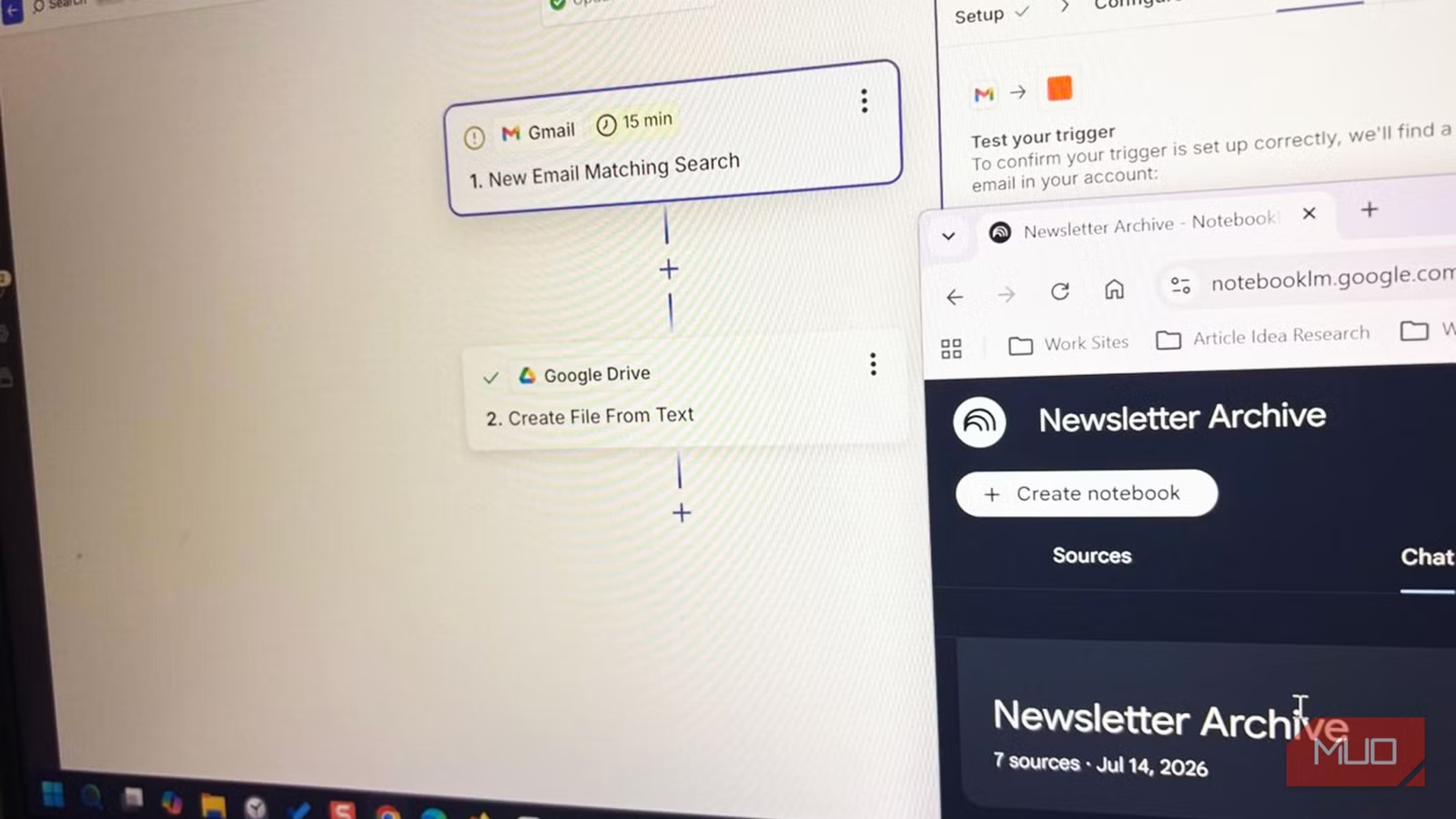
Email is a terrible place to store ideas you hope to reuse. If you care about newsletters, route them into NotebookLM and turn them into a searchable archive instead of scattered memories of “that one issue where they mentioned X.” The practical move is a two-step Zap: set Gmail as your trigger app with New Email Matching Search so only the newsletter sender fires, then use Google Drive’s Create File From Text to drop each issue into a folder you add as a NotebookLM source. Turn the Zap on, and every new issue lands in Drive on its own; Zapier’s free tier is enough for one weekly newsletter. Manual options like copy-paste or monthly PDF exports work for occasional reads, but a weekly subscription needs automation that doesn’t depend on you remembering. After a few months, NotebookLM can find patterns across issues instead of summarizing them in isolation.
Tip 3: Design Notebooks and Integrations Around Roles, Not Files
Most people treat notebooks like dumping grounds, then complain when AI research automation feels messy. A better approach is to give each notebook a clear role. One notebook can be dedicated to work, another to university assignments, and others to specific themes; that alone keeps research organized. Take it further with integrations: Google Docs, Sheets, and Slides now sync automatically, so any edit you make after adding a source is carried through to the notebook, including changes you’ve since forgotten about. This kills manual documentation and lets you focus on thinking instead of file management. When you add an automated newsletter folder as a source, you stack integrations that build a living knowledge base without extra effort. The limitation is clear: automation works best when inputs are structured. If your Drive is chaos, NotebookLM will mirror that chaos; organize folders before you connect them.
Tip 4: Customize Chats and Overviews Instead of Accepting Blurry Middle Ground
One of the biggest misconceptions about NotebookLM is that you can throw conflicting sources at it and expect a crisp, opinionated synthesis. In practice, it often fattens disagreements into a comfortable middle ground when arguments clash. The fix is to stop asking vague questions and start customizing how the notebook thinks. Before you ask your first question, click the configuration button at the top of the Chat panel, select Customize notebook, and describe exactly what you need; a few seconds of setup change the entire conversation. The Studio tab also has customization toggles that can meaningfully change the output, from language to visual style. Your best NotebookLM prompts can be the scalpel rather than a shovel, carving out precise views across sources instead of generic summaries. This approach works brilliantly when your materials are related and you want clarity; it fails if you feed it random, unrelated documents and expect insight.