
What BIOS throttling is and why it quietly ruins performance
BIOS throttling diagnosis is the process of using CPU sensor logs and firmware settings to identify when your motherboard’s default configuration is silently cutting CPU clocks, power, or memory speed, causing random stutters and lower framerates long before anything looks wrong inside Windows or in synthetic benchmarks. This matters if your games feel fine one minute and hitch the next, or workloads slow down under load even on modern hardware. The real prerequisite is simple: before blaming Windows or buying a new CPU or GPU, be willing to gather sensor data and spend a few careful minutes in your UEFI instead of diving straight into forum fixes or reinstalling drivers. Diagnosing PC performance on the internet often means jumping through fifteen different hoops, from “your CPU is bottlenecking your GPU” to “reinstall your chipset drivers”, with no guarantee any of them match your specific problem. Not everything is Windows’ fault — your BIOS might be misconfigured and its defaults tuned for stability and silence rather than frame-time consistency. The upside is that checking BIOS settings is faster and cheaper than hardware upgrades, and in one case, a proper diagnosis likely saved about USD 229 (approx. ₱13,000) in unnecessary CPU replacement costs.
Prerequisites: tools, logs, and the mindset that saves you money
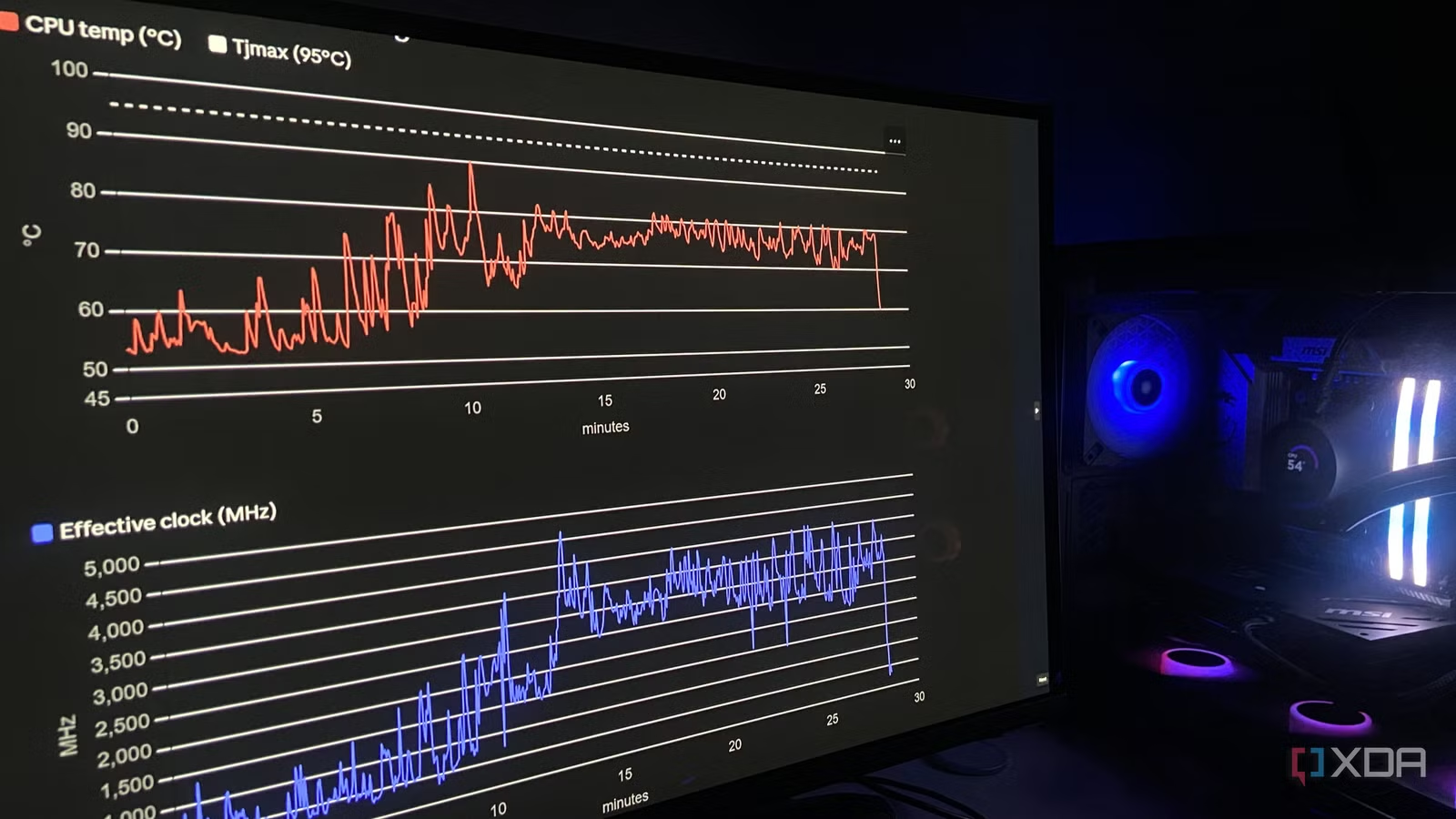
To make BIOS throttling diagnosis useful, you need three things: a logging tool, a repeatable workload, and a way to make sense of the data. A free utility like HWiNFO64 can log everything the CPU is doing at one‑second intervals while you play or run your usual demanding task. Pick a workload that reliably shows the issue — a particular game level, a long render, or anything that regularly triggers stutter. Then be ready to look beyond obvious indicators: throttle flags can say “No” the entire time even while your chip is being reined in by firmware behavior. Instead of throwing hours down the forum rabbit hole, one user logged a thirty‑minute HWiNFO64 session at one‑second intervals, exported the CSV, and handed the raw file plus hardware specs and symptoms to an advanced AI model for analysis. This kind of AI‑assisted log analysis can spot non‑obvious configuration issues that manual inspection and community threads would walk right past, especially when conventional throttle flags never flip even though effective clocks and temperatures show a clear pattern of hidden protection kicking in.
Step-by-step: using sensor logs and BIOS to catch hidden throttling
- Record a long CPU sensor log under a workload that reliably stutters, using HWiNFO64 at one‑second intervals for about thirty minutes.
- Export the log as a CSV file, noting when the stutter or slowdown occurred during the run.
- Feed the CSV, your hardware specs, and a short description of the symptoms into an advanced AI model and let it parse the thousands of samples and sensor columns.
- Review the AI’s findings, paying special attention to temperature spikes, effective clock drops, power limits, and any references to BIOS‑controlled features like Precision Boost or fan curves.
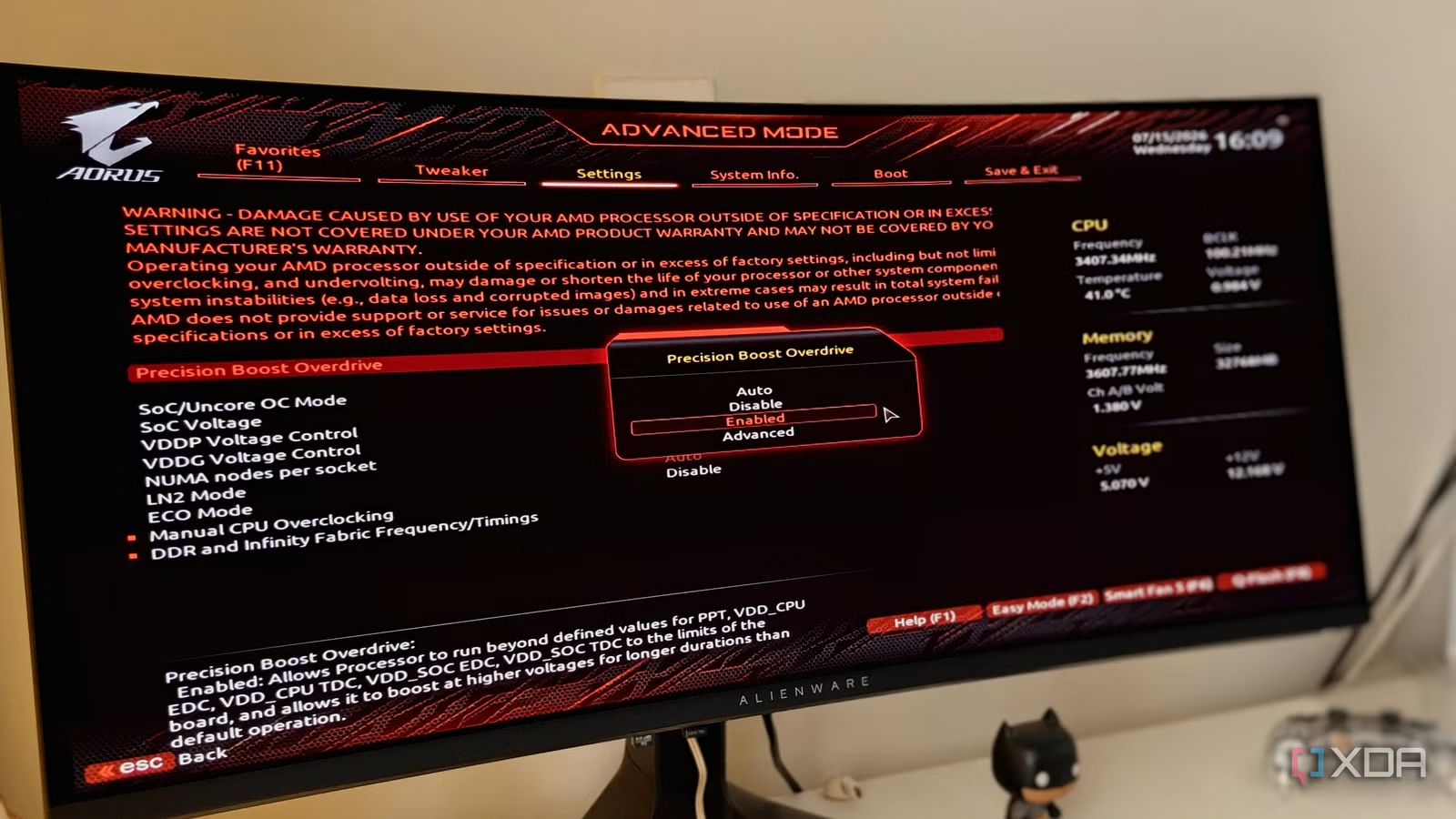
- Following the directions, reboot into BIOS/UEFI to adjust the suggested settings (such as enabling XMP/EXPO, tightening fan curves, or applying a modest Curve Optimizer undervolt), then save and exit.
- Run a fresh logging session under the same workload and compare temperatures, package power, and effective clocks to confirm that throttling behavior and stutters have disappeared or reduced.
The key in this sequence is using logs first, not guesswork. CPU sensor logs can reveal throttling patterns — sudden jumps from safe temperatures to around 90°C followed by an effective clock crash from roughly 4,200MHz to around 740MHz — even though throttle flags like PROCHOT and HTC read “No” for every sample. In that case, an AI model explained that firmware logic such as AMD’s Precision Boost was yanking clocks to protect the chip, invisible to traditional throttle indicators. That’s the hidden gotcha: you can stare at HWiNFO’s throttle columns and conclude “no throttling”, while the CPU is being capped by behavior buried in firmware. Following the AI’s directions, one user went into the BIOS again to set a -15 Curve Optimizer offset, rebooted, and logged a new session. The peak temperature fell from 90.4°C to 74.9°C, package power dropped from 122W to 94.5W, and the thermal limit sank from 93.7% to 80%. In subsequent runs, the stutters were completely absent.
Common firmware culprits and why BIOS beats Windows tweaks
Most hidden performance killers start in firmware, not the operating system. Your BIOS/UEFI defines CPU boost behavior and power limits, memory speed, system temperatures, and even aspects of GPU performance. The defaults are designed for stability on a new PC but often limit performance, especially under gaming loads. Common culprits include power‑saving modes that cap boost, conservative thermal thresholds, and voltage regulation defaults that let the chip slam into thermal walls instead of running efficiently. A classic mistake is leaving XMP or EXPO disabled, which means your 6,000 MT/s RAM kit runs at 4,800 or 5,200 MT/s JEDEC defaults, cutting framerates even though the system looks “fine”. Another is trusting default fan curves tuned for silence; they allow the CPU to creep dangerously close to throttling temperatures and tank performance before fans ramp up. Once you know which firmware settings to enable and tune, you can extract more performance without threatening stability, and you should check your UEFI once before using Windows optimization tools or aggressively disabling background processes.
Takeaway: worth the effort, and what to watch for next time
The main lesson is straightforward: before you blame Windows 11, reinstall drivers, or price out a new CPU, treat BIOS throttling diagnosis as a first‑line PC performance troubleshooting step. Recording CPU sensor logs and letting an AI examine them gives you a personalized view of how your firmware is behaving under your exact workloads, not someone else’s benchmark run. It can highlight temperature plateaus, hidden boost limits, and inefficient voltage behavior that would be easy to miss by eye, especially when every throttle flag stays stuck on “No”. The two big mistakes to avoid next time are chasing generic fixes from forums and trusting that stock firmware settings are automatically optimal for performance. Not everything is Windows’ fault — your BIOS might be misconfigured or simply too conservative. Once you’ve walked through the logs, tuned memory profiles and fan curves, and, if needed, applied a modest undervolt, you’re able to recover performance without new hardware and enjoy smoother gaming or workload runs. Watch your temperatures, effective clocks, and power behavior, and revisit firmware settings whenever you change components or notice new stutters.