
What a Windows battery health check actually tells you
A Windows battery health check is the process of using built-in diagnostic tools, not third-party apps, to measure how much capacity your laptop battery has lost, how many charge cycles it has gone through, and whether battery drain is caused by hardware wear or software settings. Windows includes a built-in battery diagnostics utility that generates a detailed report with specifications, design capacity, current full‑charge capacity, cycle count, usage history, and estimated battery life without installing third‑party software. This makes it useful whether you live on the charger or work unplugged all day. The real prerequisite is simple: you need a Windows laptop with PowerShell or Command Prompt and permission to run a command as administrator. Everything else is already on your machine. If you can type one line of text, you can run laptop battery diagnostics and a PowerShell battery report.
Before we walk through the steps, it helps to know what you will get out of this. The report exposes key numbers like Design Capacity and Full Charge Capacity so you can see capacity loss over time. It also logs cycle count and capacity history, which helps you decide if you need a Windows battery replacement or a battery drain fix in software instead. One quotable rule of thumb is: "Batteries retaining more than 80% of their original capacity remain in good condition, while those near 60% typically require replacement".
Step-by-step: Generate and read the PowerShell battery report
The heart of a Windows battery health check is a single command that tells Windows to dump everything it knows about your battery into an HTML file. The command uses powercfg, a long-standing tool that tracks your battery health in the background and can generate a full report on your battery. Using the integrated powercfg command-line tool, users can create an HTML report containing battery specifications, design capacity, current full‑charge capacity, charge cycle information, battery usage history and estimated battery life.
- Open the Start menu, type “PowerShell”, right‑click Windows PowerShell, and choose “Run as administrator”.
- In the PowerShell window, run this command exactly: powercfg /batteryreport /output "$env:USERPROFILE\Desktop\battery-report.html".
- Close PowerShell and open the new battery-report.html file on your Desktop in your browser.
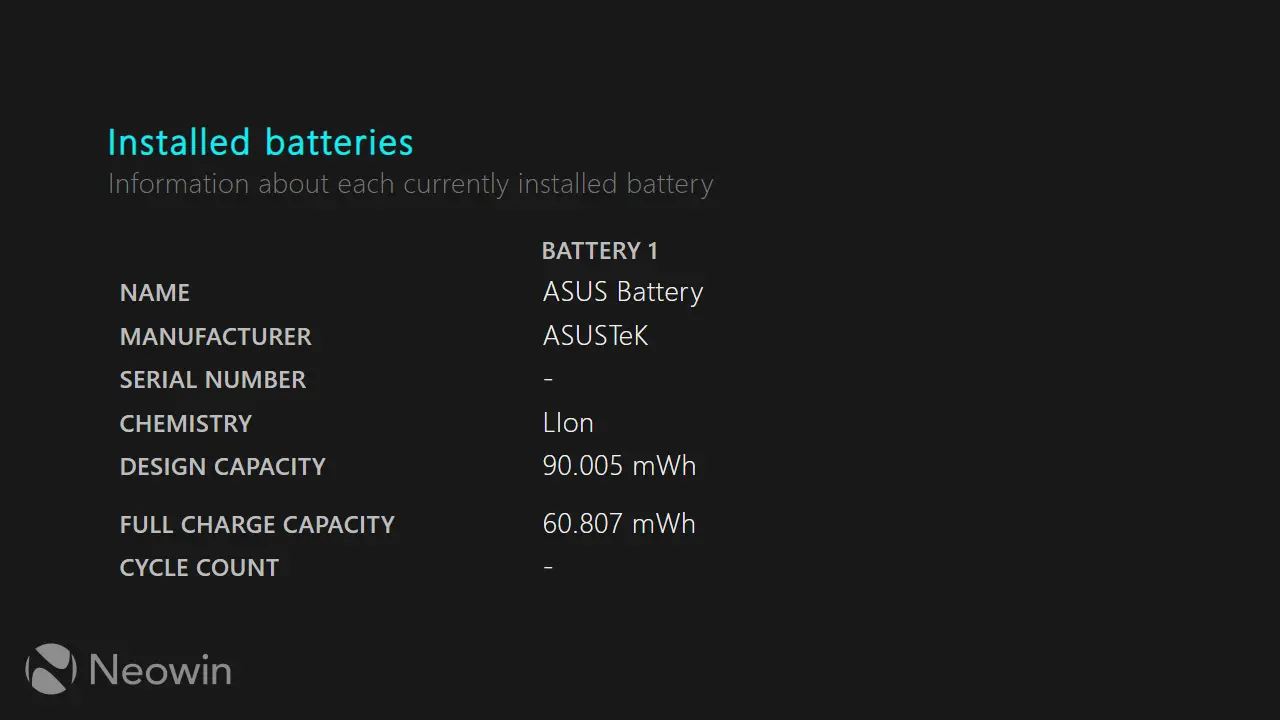
- In the report, find the section listing Design Capacity and Full Charge Capacity, then calculate the percentage gap to see your degradation.
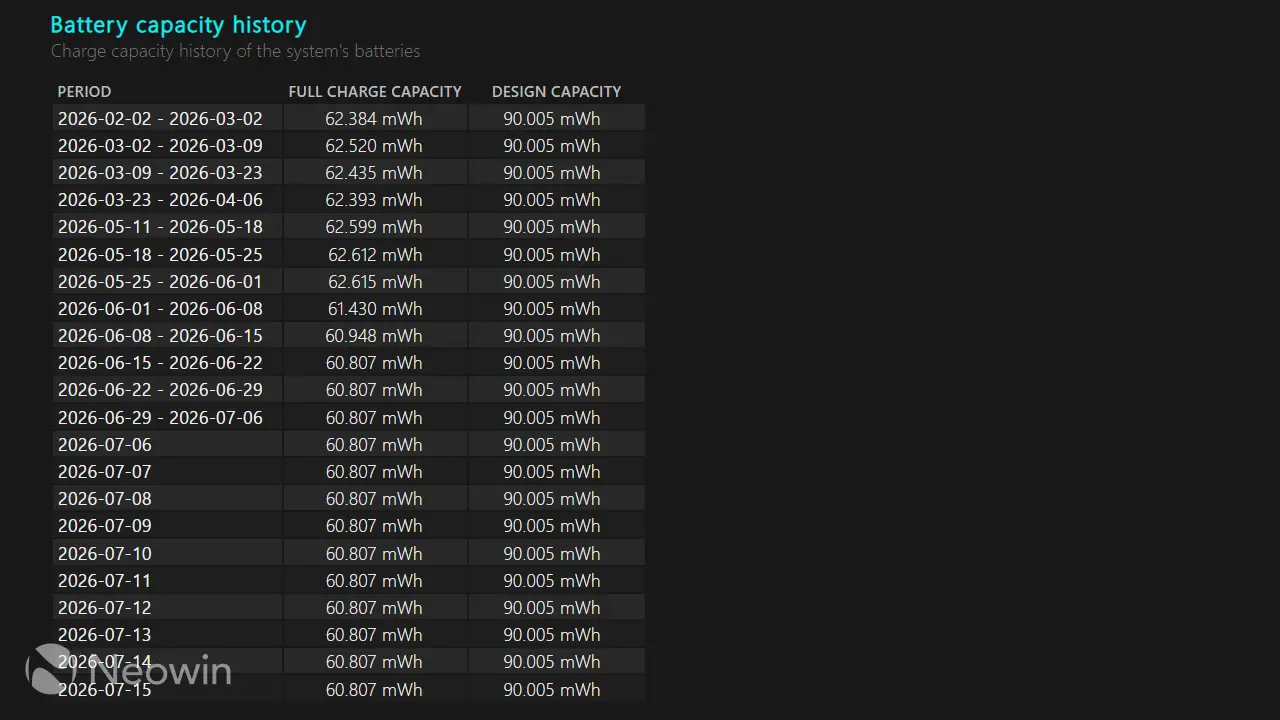
- Check Cycle Count and Battery Capacity History to see how hard the battery has been used and how capacity has trended over time.
There are a couple of small gotchas here. First, you must run PowerShell or Command Prompt as administrator; if you do not, the report file may not generate at all. Second, if you use a charge‑limiting feature that caps charging at 60% or 80% to slow long‑term wear, that can interfere with the report by making Full Charge Capacity look lower than the true maximum. The expected result when done correctly is an HTML report you can open in any web browser that gives you a clear picture of the state of your battery, and looking at the stats from that report can give you a pretty good idea about the state of your laptop’s battery.
Decide: Worn-out battery or software problem?
Once you have the PowerShell battery report, the next step is to decide whether your issue is hardware wear or something you can fix with settings. Two stats you will check first are Design Capacity and Full Charge Capacity: Design Capacity is what the battery could hold on day one, while Full Charge Capacity is what it can hold right now. The gap between those numbers is your real degradation. Under 20% capacity loss after a year or two of regular use is normal, because lithium‑ion batteries are expected to degrade.
As a general guideline, batteries retaining more than 80% of their original capacity remain in good condition for most users. Once capacity drops below approximately 70%, noticeably shorter battery life is common, while batteries approaching 60% capacity typically require replacement to restore acceptable runtime. One quotable line from the diagnostics guidance is: "Past 30‑40% loss, the battery is genuinely on its way out". Battery Capacity History also shows whether the battery is declining steadily or suddenly, and Cycle Count shows how many 0‑to‑100% charge cycles you have consumed. All of this means Windows battery diagnostics help determine if a Windows battery replacement is needed or if drain issues stem from software instead.
Fix overnight battery drain with sleep and Wi‑Fi tweaks
If your PowerShell battery report shows healthy capacity but you still lose 5–8% of charge overnight, your problem is more likely settings than hardware. The biggest battery drain fix on many laptops is to change what happens when you close the lid: by default, most machines enter a light sleep state where RAM stays partially active and network connections can keep running, which lets background tasks and wake timers pull the machine into higher‑power states and drain the battery. Hibernate, on the other hand, saves your session to disk, powers down RAM, and behaves more like a shut down while still letting you resume where you left off.
To switch from sleep to hibernate on lid close, open the Start menu, type "Lid", click "Change what closing the lid does", and under "On battery" change "When I close the lid" to "Hibernate". Users report that this one change can halve nighttime idle battery drain, cutting it from 5–8% to 3–4% overnight. Another big source of idle drain is Wi‑Fi, which can wake your computer when it receives a "magic packet" for things like remote desktop or media servers. Turning off the option that allows the wireless adapter to wake the computer reduces these wakeups, but the downside to disabling this is that most of these remote tools, like remote desktop or automated IT patches, will fail to work because they cannot remotely wake your PC.
Is it worth it? What to watch for next time
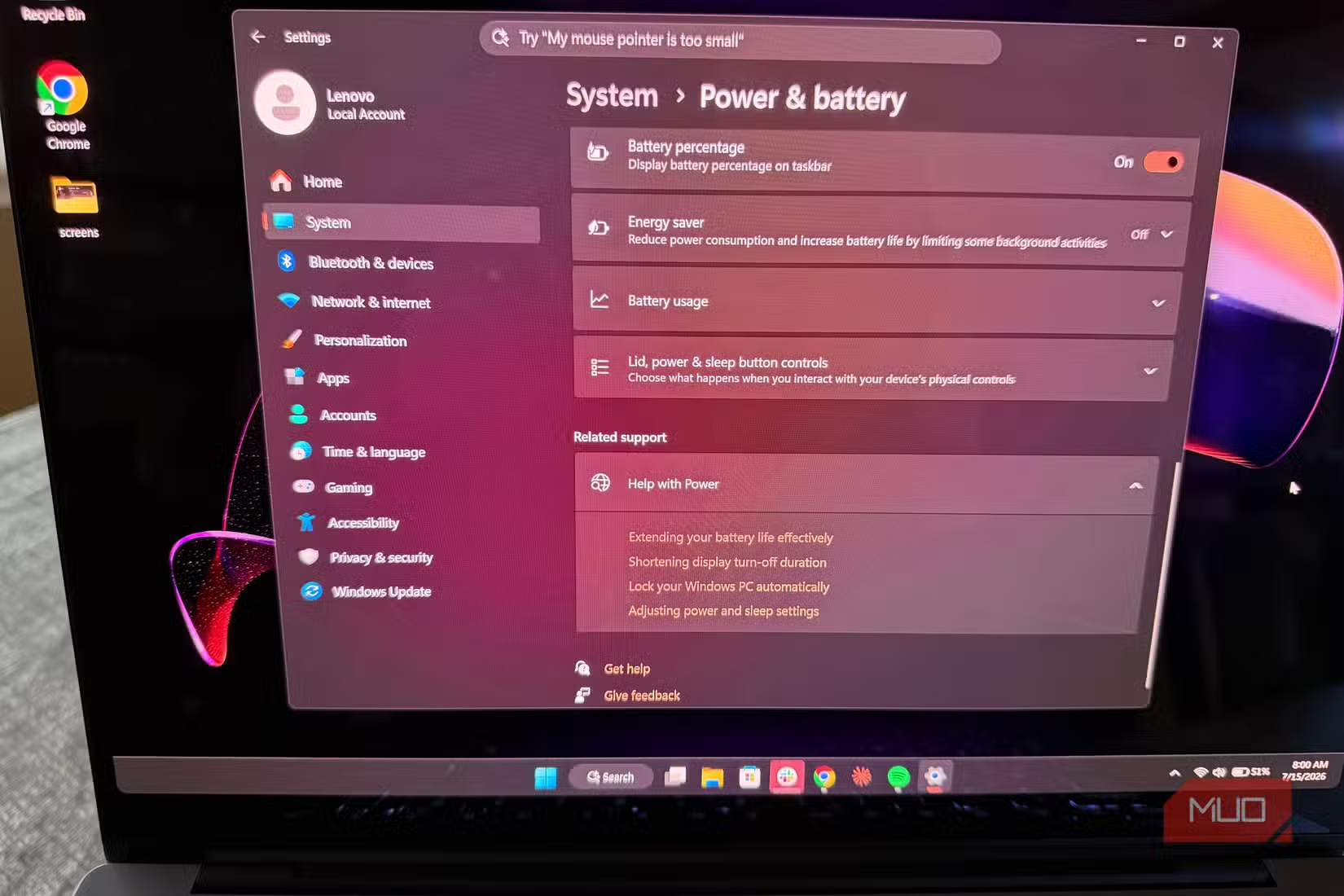
Running a Windows battery health check takes a couple of minutes and uses tools built into Windows 11 and earlier versions, with no third‑party utilities required. In return, you get a clear view of capacity loss, cycle count, and design specifications through a PowerShell battery report. That makes it much easier to decide whether to schedule a Windows battery replacement or focus on a battery drain fix through settings like hibernate and Wi‑Fi wake options.
The main things to watch for are simple. Always run the report as administrator, and remember that charge‑limit features can skew the numbers if you keep the battery capped at 60–80%. When you change sleep behavior to hibernate, accept that resume may be a second or two slower, even if the difference on modern SSD‑based laptops is small. The payoff is that Windows can cut idle drain by up to half without any hardware changes. Keep the report somewhere safe, repeat the process every few months, and you will catch degradation early instead of wondering why your runtime vanished.