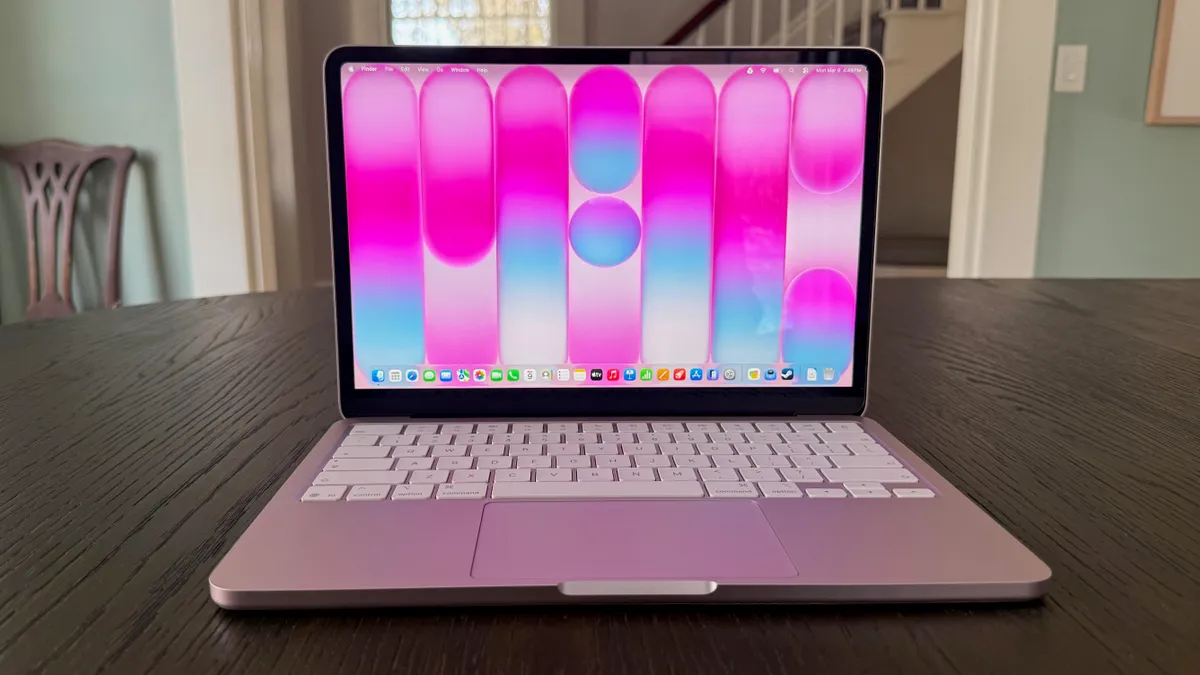
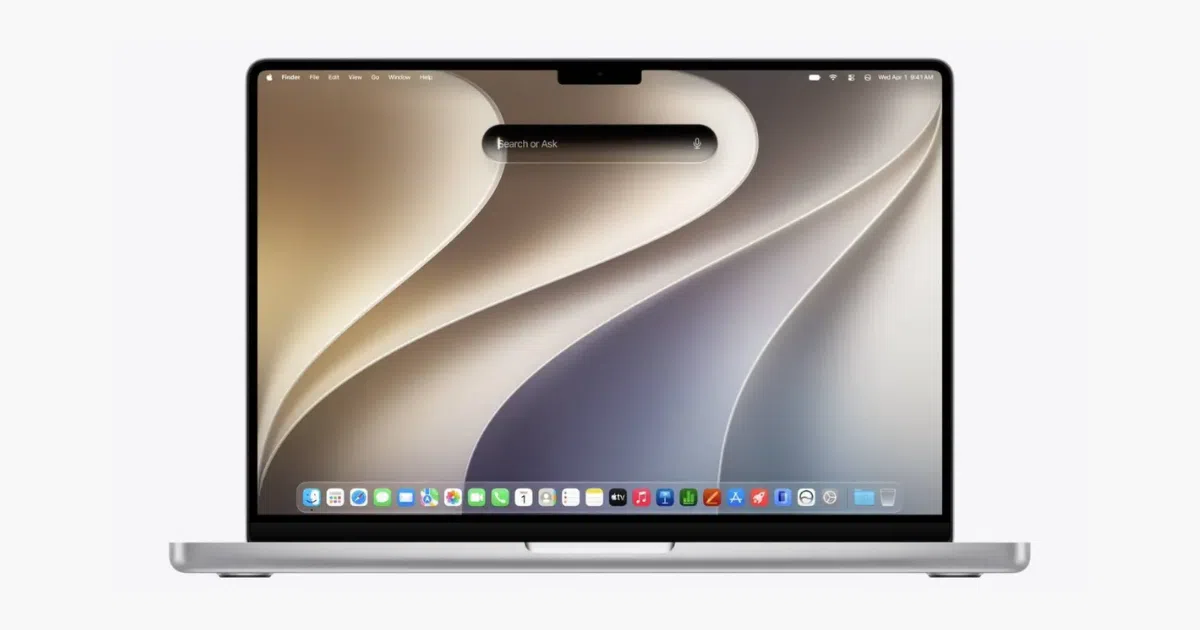

What Goes Wrong After a Fresh OS Install (and Why It Happens)
Installing a new operating system on your laptop means replacing or upgrading the core software that controls hardware, apps, and system services, and it often exposes hidden driver conflicts, power management bugs, and app incompatibilities that only appear once the new system is fully running.
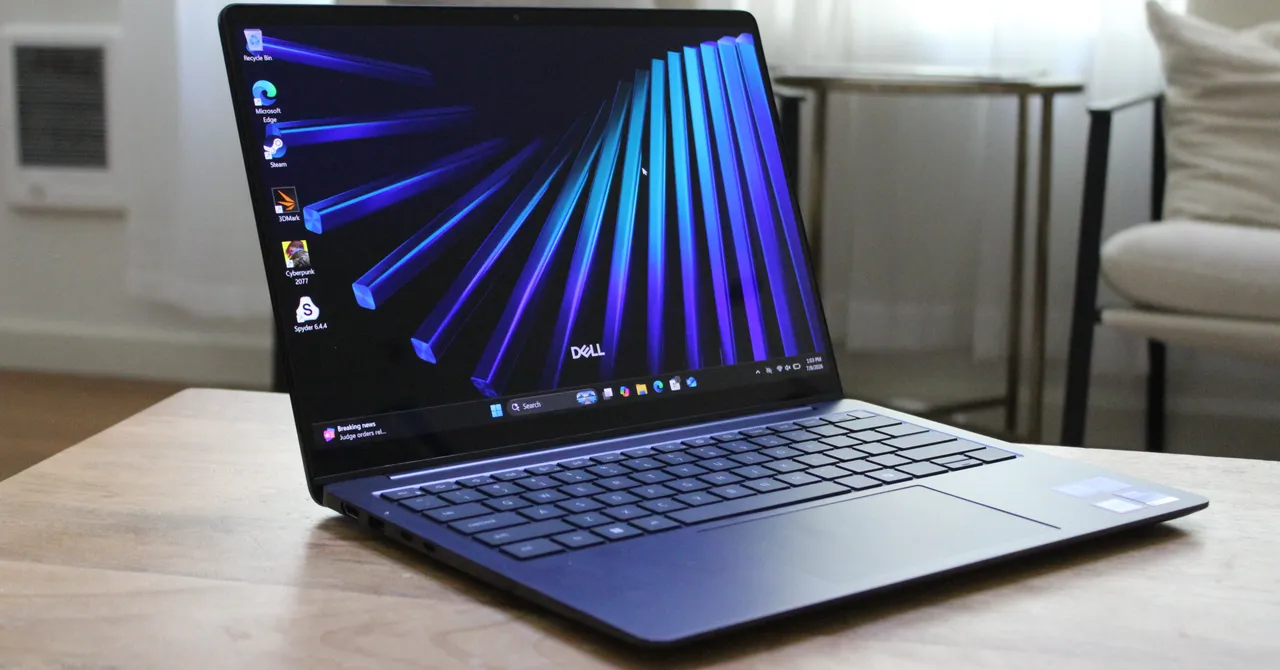
You do this for speed, new features, or security—but the trade‑off is a fresh set of OS installation problems that can show up as battery drain, overheating, slow performance, app crashes, display glitches, and even black screens during startup. On some Dell laptops, a Windows 11 preview update triggered an incompatibility between an Intel driver and a new USB‑C Connection Manager interface, which led to poor performance, heat, and rapid battery drain. On the macOS side, public beta builds are expected to ship with bugs, so higher temperatures, sluggish Finder, and unstable apps are normal for a while after installation.
The real prerequisite before touching your operating system is mindset: assume things will break, have a way back, and be willing to troubleshoot instead of rushing to wipe everything again.
Battery Drain, Heat, and Performance Drops: What’s Normal and What’s Not
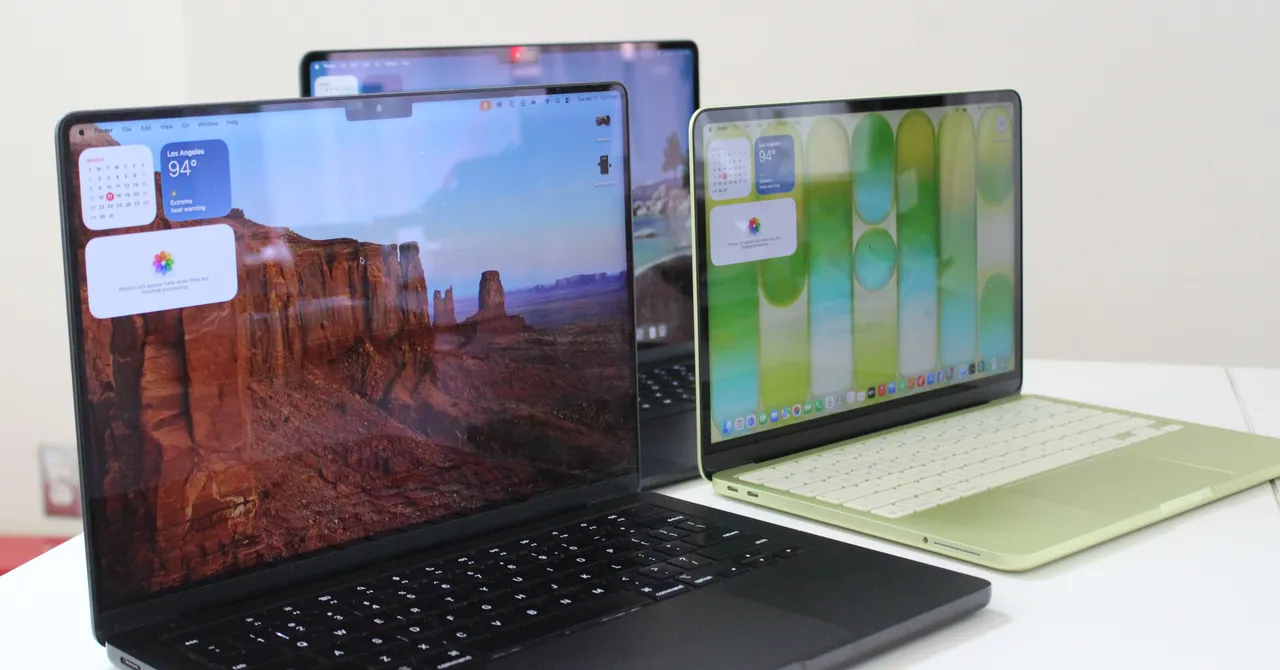
The most common complaint after a big OS change is, “My laptop is hot and the battery is dying fast.” Battery drain and increased fan activity are common after installing a major macOS beta, especially on MacBook models. That initial spike is often background indexing, syncing, and photo or AI analysis working in the background. On Windows, though, similar symptoms can signal a deeper power‑management problem—for example, affected Dell devices suffered unexpected shutdowns, poor performance, increased heat, and accelerated battery drain due to a driver conflict with a new USB‑C power framework.
In practical terms, give a fresh install 24–48 hours of light use before you panic, especially with betas that need time to finish Spotlight indexing, iCloud syncing, and Photos analysis. If things don’t calm down, you move from “this is normal” into proper operating system troubleshooting: looking for misbehaving drivers on Windows, or rogue apps in Activity Monitor on macOS. One quotable way to think about it: "Short‑term heat is housekeeping; long‑term heat is a bug."
Step‑by‑Step: A Safe Troubleshooting Routine After Installing a New OS
Rather than poking at random settings, follow a calm, repeatable routine any time a new OS leaves your laptop unstable. This protects your data while you isolate whether the problem is the OS, a driver, or a specific app.
- Stabilize and observe for 24–48 hours. Use the laptop normally but avoid heavy workloads. On macOS, this gives time for Spotlight indexing, iCloud syncing, and Photos analysis to finish so you can see what problems remain once background tasks settle.
- Update the OS and your apps. On macOS, install the latest public beta from System Settings > General > Software Update, and update all apps through their stores or developers. On Windows, install non‑blocked updates but be aware Microsoft can pause specific updates on affected hardware while working on a fix, as happened when it withheld a Patch Tuesday rollout from some Dell devices.
- Check for obvious power or driver issues. On a Mac, use Activity Monitor to find apps consuming excessive CPU or energy and update or remove the worst offenders. On affected Windows Dell laptops, open Device Manager and look for a warning next to the Intel Innovation Platform Framework Processor Participant driver, which signals the known power‑management conflict.
- Triage app‑level problems. If one or two apps are crashing after the install, update them, restart the system, and reinstall if needed. Many macOS beta issues come from apps that aren’t optimized yet, so one unstable program doesn’t mean the whole OS is doomed. The gotcha here is security tools, VPNs, and creative suites—these often lag behind new OS releases and can drag the whole system down.
- Test hardware‑related issues like displays and connectivity. On macOS, if an external monitor flickers, shows the wrong resolution, or fails to wake, unplug and reconnect cables, restart both the Mac and the display, avoid docks or hubs temporarily, and then verify the resolution and refresh rate in System Settings > Displays. Unexpected shutdowns or severe heat on specific Windows laptops, especially Dells, should push you back to driver checks and to watching for vendor guidance on blocked updates.
- Decide whether to stay, reinstall, or roll back. If your Mac still won’t start normally, you can boot into macOS Recovery, use Disk Utility to check the startup disk, or reinstall macOS without erasing files. If problems persist after reinstalling, you may need to restore from a backup or downgrade to a stable version until another beta arrives.
Following this order keeps you from jumping straight to a full wipe when the real fix is a driver update, a blocked Windows preview build, or a single misbehaving app.

Backups and OS‑Specific Gotchas You Should Never Ignore
All of this troubleshooting assumes you protected your files first. If an issue persists after reinstalling macOS, you may need to restore from a backup or downgrade to the latest stable version. That only works if you made that backup before installing the new OS; otherwise you may have to set up the machine as new after restoring. In other words: your backup is your exit strategy.
Each platform has its own quirks. On Windows, Microsoft can place a compatibility hold and block security updates from reaching specific at‑risk hardware while it develops a fix, which is why some Dell machines did not receive a later Patch Tuesday update after the problematic preview build. Dell users were also told to check Device Manager for errors on a specific Intel power‑management driver, because that is the clearest early sign of the conflict. On macOS, public betas are explicitly released with the warning that bugs, performance issues, and app compatibility problems are expected, and fixes arrive in iterative beta updates.
Linux adds one more twist: you often need to sort out graphics, Wi‑Fi, and power drivers by hand, so keep installer media handy and know how to revert to an older kernel when a new one upsets your laptop’s battery life or sleep behaviour.
When to Keep the New OS—and When to Walk Away
Once you have worked through updates, app fixes, and obvious driver problems, you can judge whether the new OS is worth keeping. If the laptop runs cool, the battery lasts roughly as long as before, apps are stable, and there are no more startup black screens, you are in good shape even if a small glitch lingers here or there.
If, on the other hand, you are still seeing frequent unexpected shutdowns, heavy battery drain, and thermal issues like those reported on certain Dell systems after a Windows preview build, that is a sign the OS itself or a low‑level driver is not ready for your hardware. According to one vendor bulletin, it is better to temporarily block or skip problematic updates on known‑vulnerable device configurations than to push unstable builds to everyone. For macOS betas, if core tasks like booting or Wi‑Fi remain unreliable even after reinstalling, the healthy choice is to restore from a backup and wait for a later build.
The takeaway: new operating systems are worth it when they improve your day‑to‑day work without turning your laptop into a portable space heater. Protect your data, troubleshoot in a sensible order, and do not hesitate to roll back if stability and battery life still lag after you have given the new OS a fair chance.