
Why BIOS Performance Tuning Matters More Than You Think
BIOS performance tuning is the process of updating and configuring your motherboard’s firmware settings so that your CPU, memory, and cooling system run at their intended speeds and power limits instead of the conservative, stability-first defaults that often leave performance unused.
If your games stutter, your CPU throttles, or your expensive RAM feels slow, your firmware optimization might be the missing piece. The BIOS (or UEFI) decides boost behavior, power limits, memory speed, system temperatures, and even some aspects of GPU performance. Many builders never touch these defaults after a first boot, unknowingly throttling their system’s performance. Before you blame Windows or drivers, it is worth taking one careful tour through your BIOS settings.
A key gotcha is fear: updating or changing BIOS settings has a reputation for being dangerous. One source notes that updating the BIOS is scary and should be done when new versions bring tangible fixes or performance improvements. That is fair—but with a bit of caution, it is one of the easiest zero-cost upgrades that delivers more performance from your hardware.
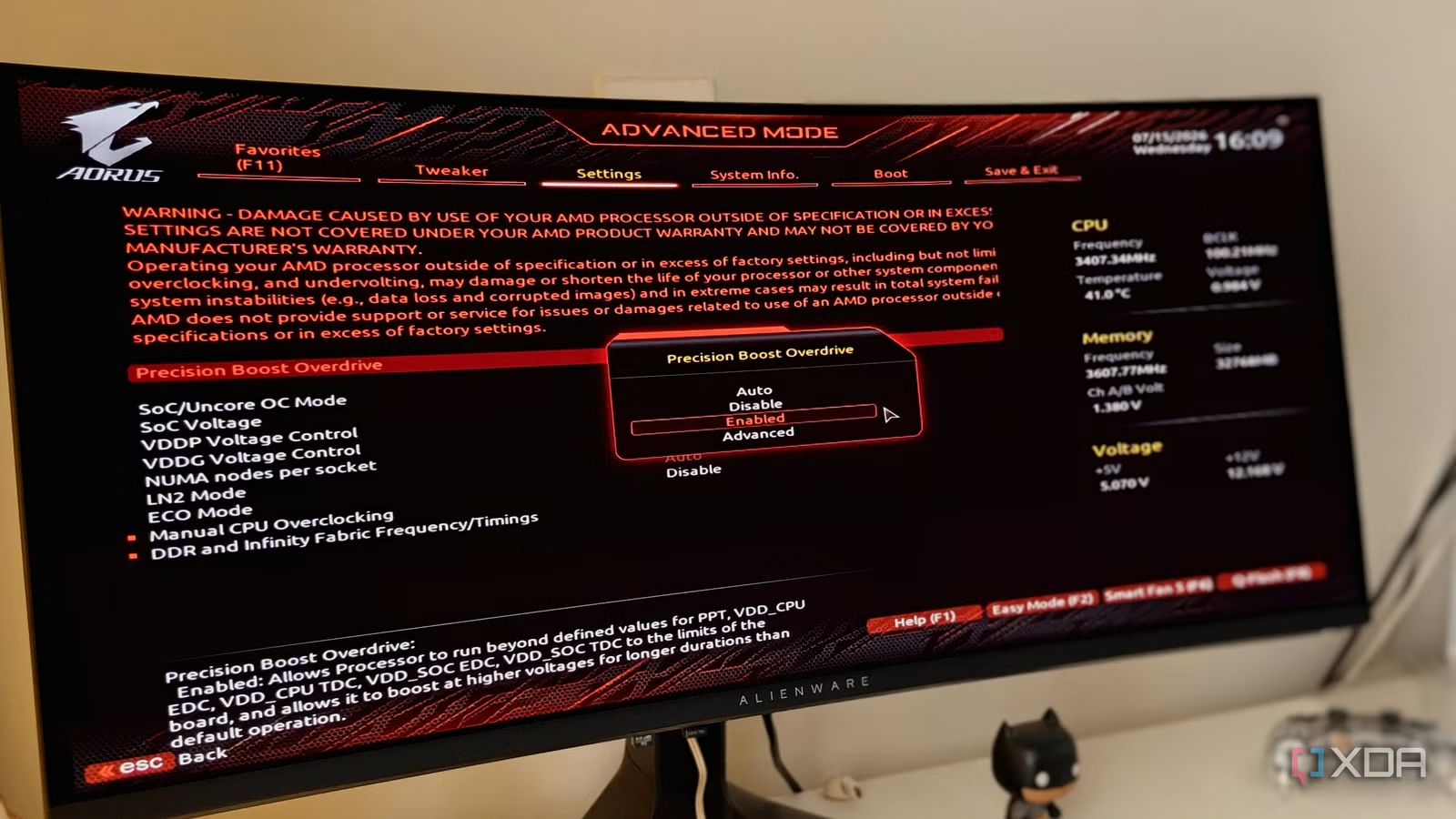
The One-Time Firmware Update That Feels Like New Hardware
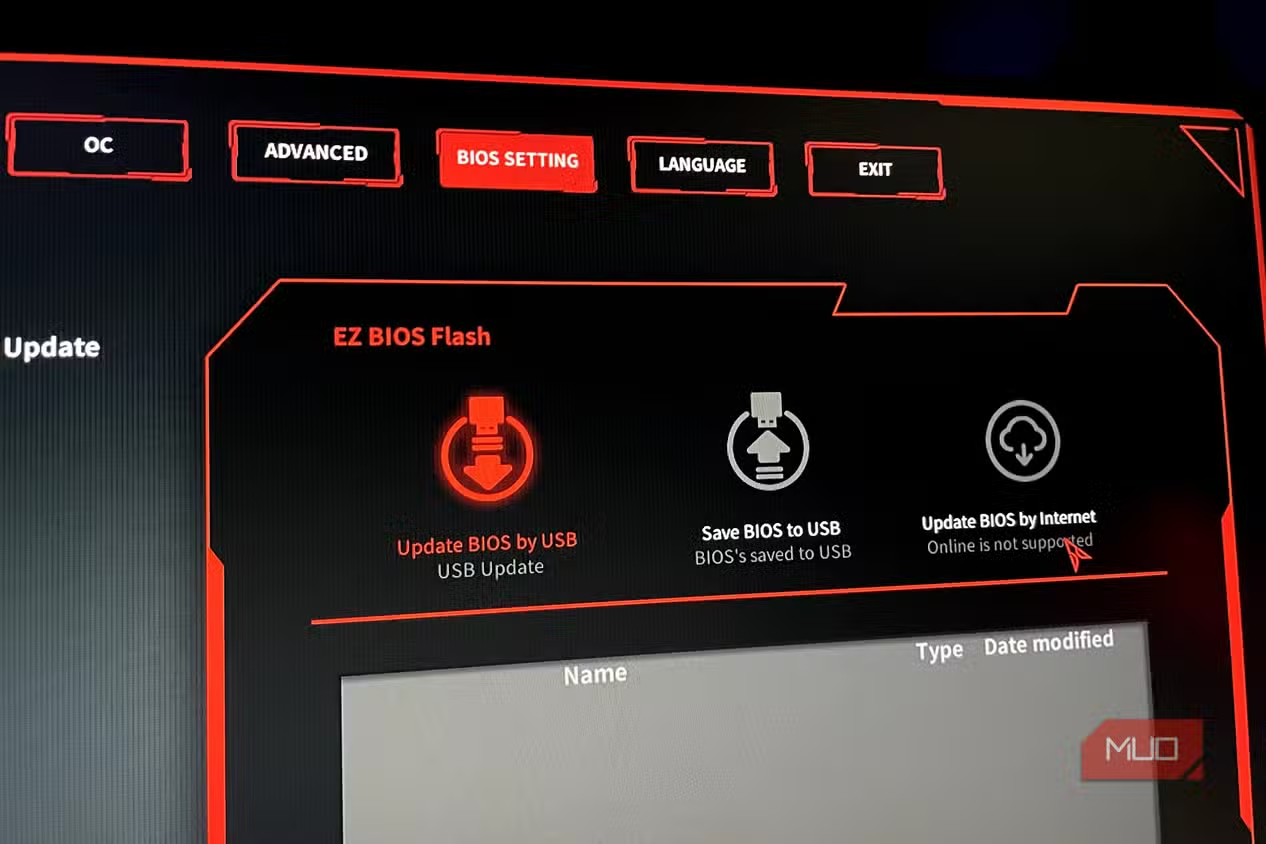
Before you tweak individual settings, it is worth making sure your firmware itself is up to date. Motherboard vendors quietly release updates that refine how your CPU and RAM behave over time. Manufacturers continue to refine firmware to suit newer components, and those refinements can translate into higher boost clocks, better memory stability, and fewer random crashes.
According to one report, a firmware package for Ryzen added a 105W TDP mode that improved performance by up to 10% and fixed core-to-core latency issues in heavily threaded games. Another case saw a new microcode release unlock boost performance on a modern Intel CPU line, delivering single-digit gains. These performance enhancements and newer features can help you pump out a few more FPS, making it one of the most effective free upgrades available.
There is more than speed on the line, though. Firmware optimization also brings security fixes and microcode updates that close serious exploits. The real caveat: do not treat BIOS updates as a hobby. Update when the release notes promise fixes, features, or measurable performance improvements, then move on to tuning. That balance keeps you safe without leaving easy gains on the table.
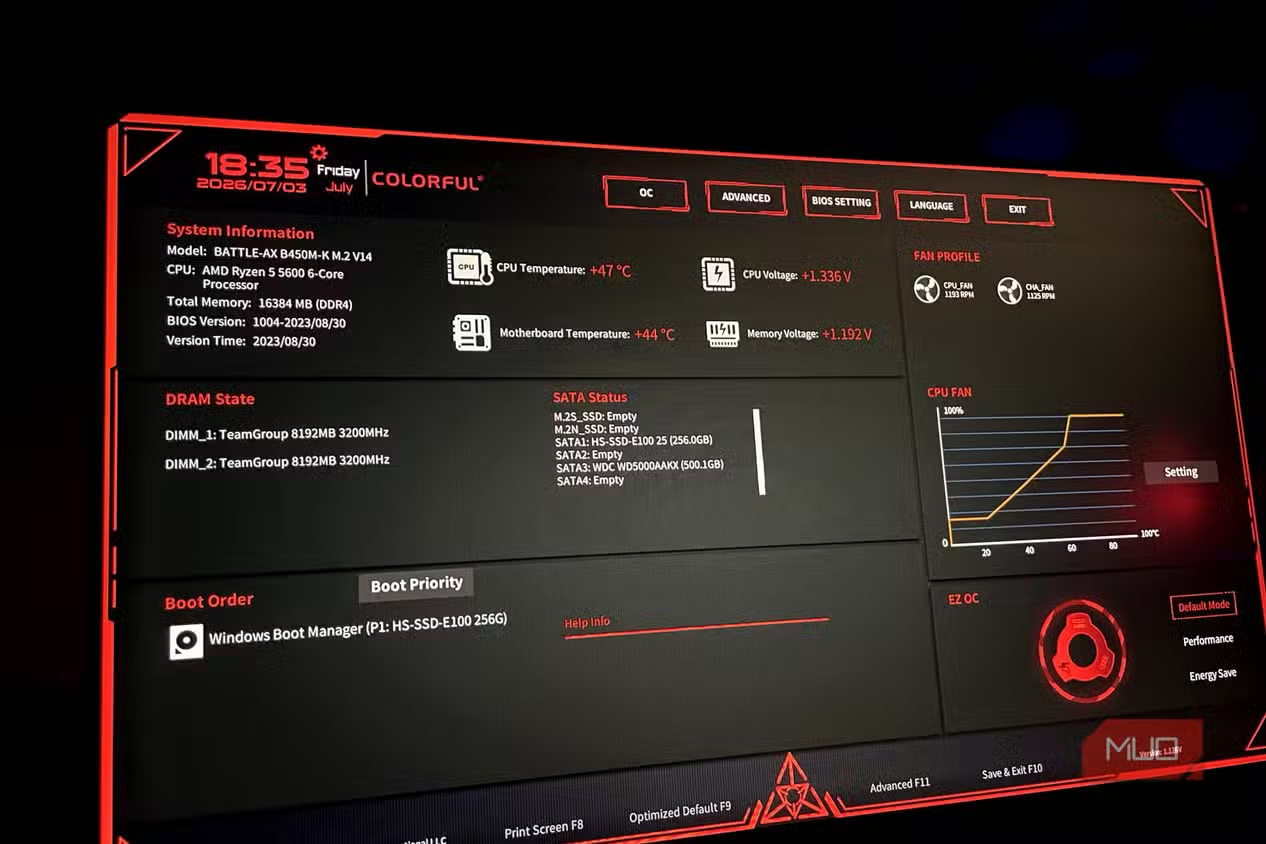
Step-by-Step: A BIOS Settings Guide to Free Performance
Once your firmware is current, you can walk through a single, logical pass of performance-focused settings. The idea is not to overclock until it breaks, but to tell the BIOS to use the hardware you already bought. Done right, you can extract more performance without threatening system stability.
- Enter your BIOS/UEFI and load the latest firmware if a version with clear fixes or performance improvements is available.
- Enable your RAM’s XMP or EXPO profile so memory runs at its rated speed instead of slower JEDEC defaults.
- Check CPU power limits and boost behavior, ensuring automatic boosting features are enabled and not restricted by overly low power settings.
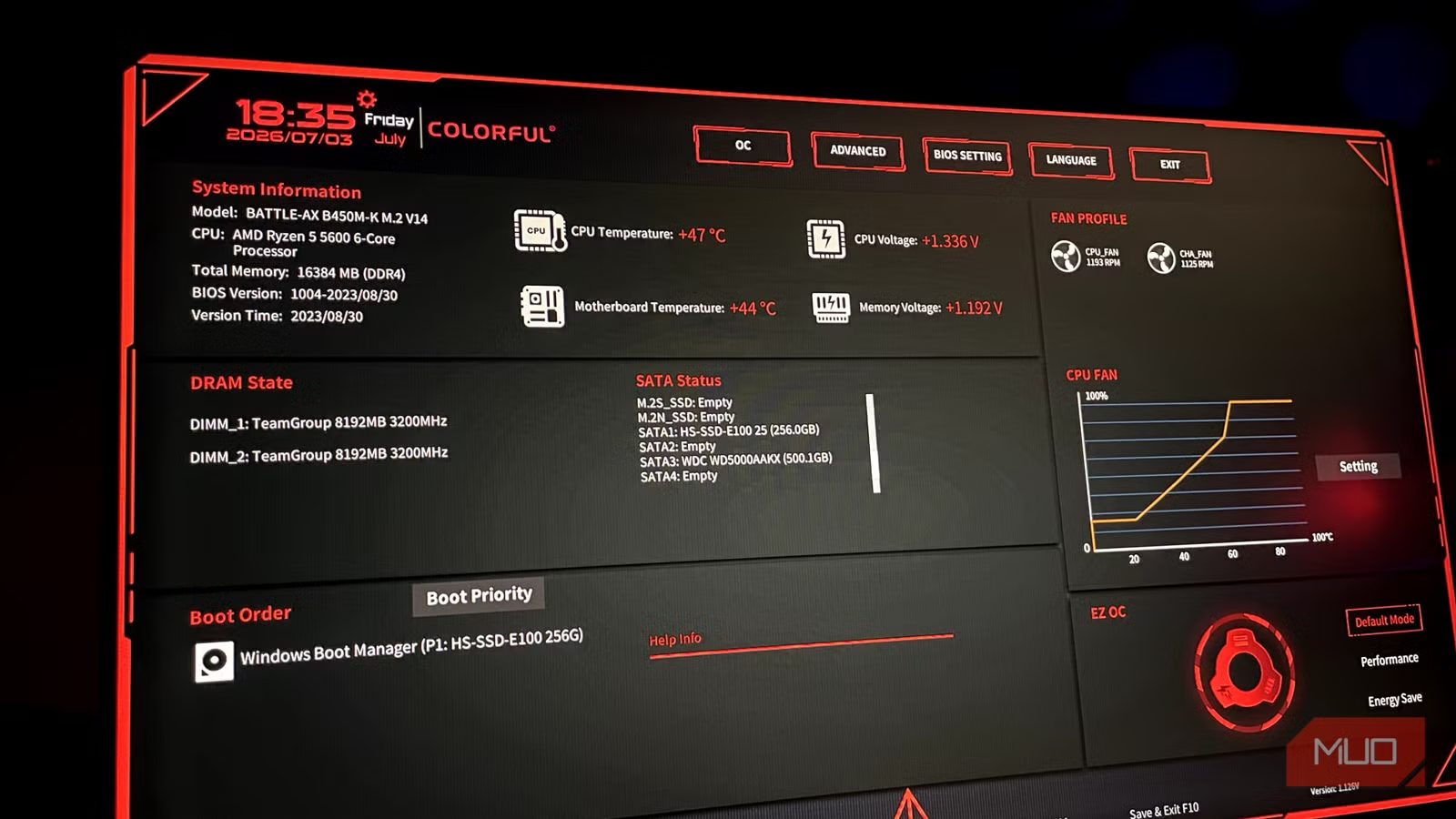
- Create custom fan curves in BIOS instead of relying on default or preconfigured profiles that prioritize silence over cooling.
- Verify features like Resizable BAR are enabled again after any hardware change, as UEFI can revert to defaults and disable them.
The two most common mistakes are leaving all BIOS defaults untouched and treating every firmware update as mandatory. Defaults ensure stability, but they limit performance, while blind updating can introduce problems if a release does not apply to your hardware. The middle path is to update selectively, then enable the features your components were designed for. Once you know which settings to enable, you can extract more performance without harming stability.
Fixing CPU Throttling and FPS Drops at the Firmware Level
A lot of random FPS drops and unexplained CPU throttling turn out to be firmware problems. Default fan curves can lead to thermal throttling; they are usually tuned for quiet operation, so fans ramp up late, letting temperatures climb. Your PC cannot perform at its potential if thermals stop it from reaching it. Performance starts sliding long before you hit the official throttling point.
To turn this into a CPU throttling fix, start with cooling logic. In your UEFI, preconfigured profiles are worth skipping in favor of custom fan curves. You want a smooth ramp that responds early to rising temperatures, supplying fresh air while the system gets loaded, not after. Pair that with adequate cooling hardware and automatic boosting algorithms can give you free performance.
Power limits are another hidden culprit. The BIOS defines CPU boost behavior and power limits, and conservative defaults can pinch performance even when temperatures are safe. On top of that, features like Resizable BAR demand UEFI mode and can be disabled if the system falls back to legacy or you swap CPUs. Before you install another Windows tweak tool, check that your firmware is not quietly holding your hardware back.
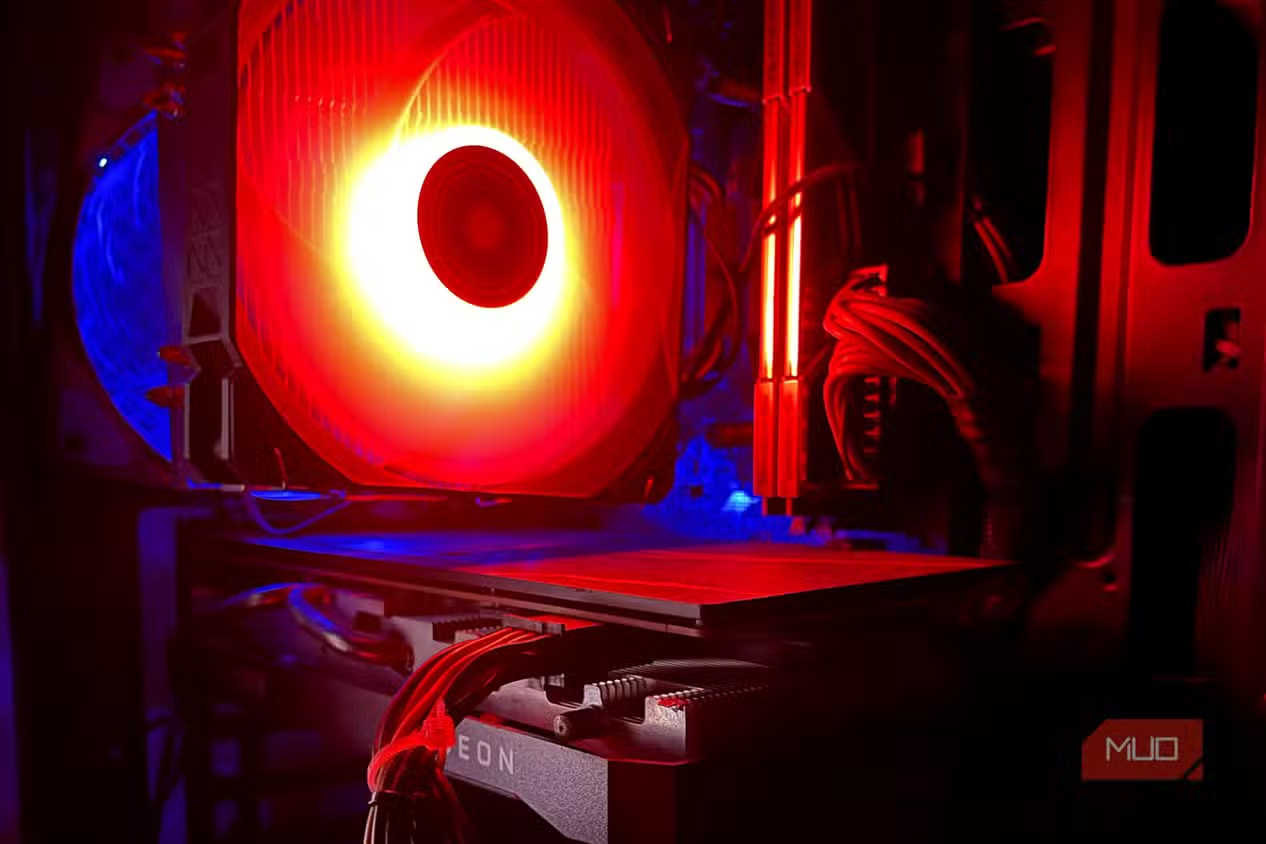
Making BIOS Tuning Work With Your Hardware, Not Against It
Well-chosen hardware deserves firmware that lets it stretch its legs. High-end CPUs, fast RAM, and big coolers only reach their potential when the BIOS agrees to feed them enough power, let them boost, and keep them cool. The BIOS settings define your CPU’s boost behavior and power limits, your memory speed, your system temperatures, and even your GPU performance.
Think of your BIOS tuning as the final calibration: set the right RAM profile, confirm boost settings, dial in fan curves, and ensure features like Resizable BAR stay enabled. You need to ensure adequate cooling if you want the most out of these automated boosting algorithms, but they essentially give you free performance. BIOS updates and feature refinements add AI overclocking profiles, enhanced boost settings, and improved overclocking tools, turning your existing build into something closer to the machine you thought you were buying.
The takeaway: BIOS performance tuning is worth the hour it takes. The BIOS is one of the biggest determinants of performance and stability, and a careful pass through firmware settings can feel like a minor hardware upgrade without spending anything. Watch for conservative defaults, resist needless firmware updates, and treat the BIOS as a partner to your hardware, not an afterthought.