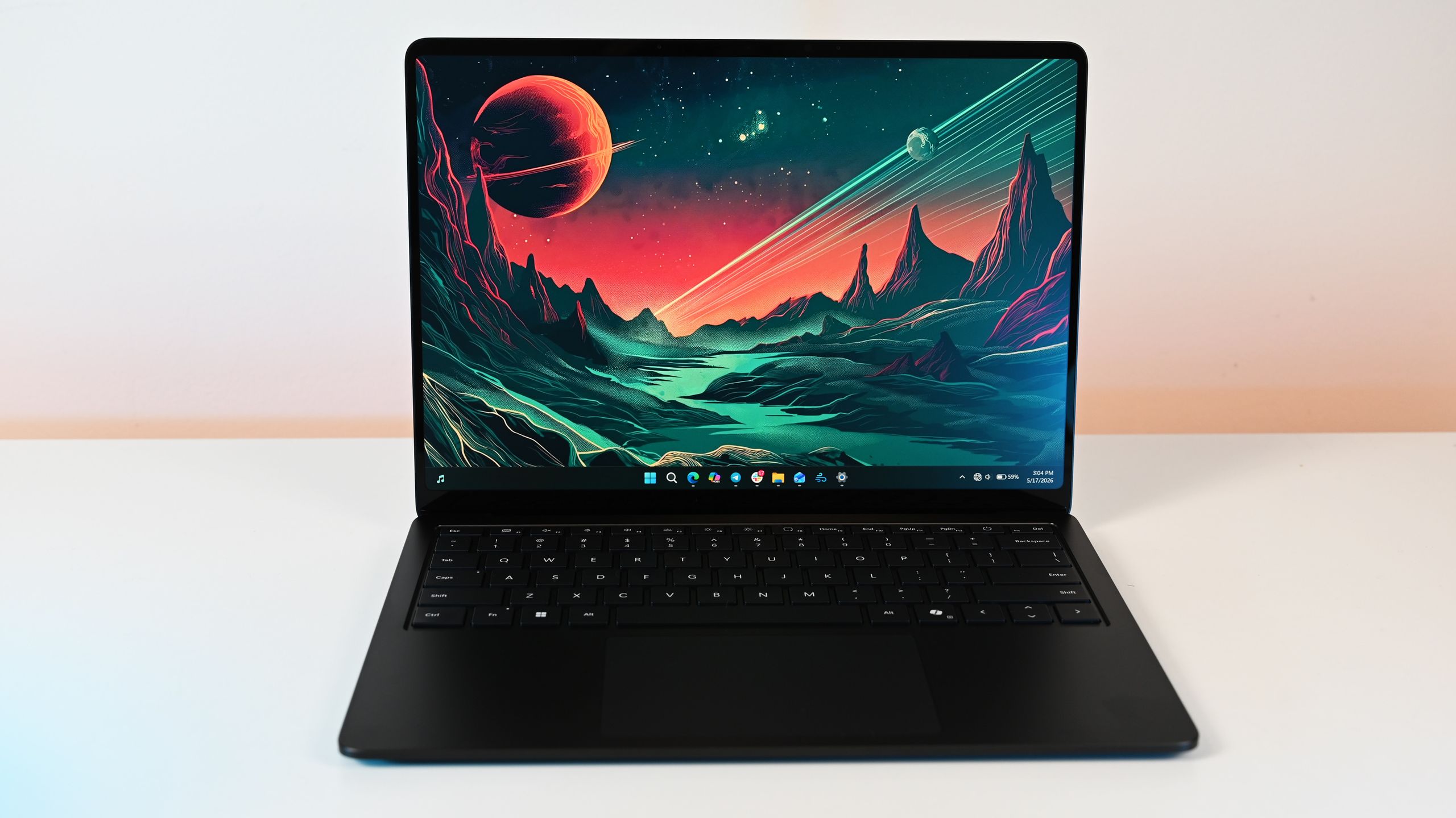
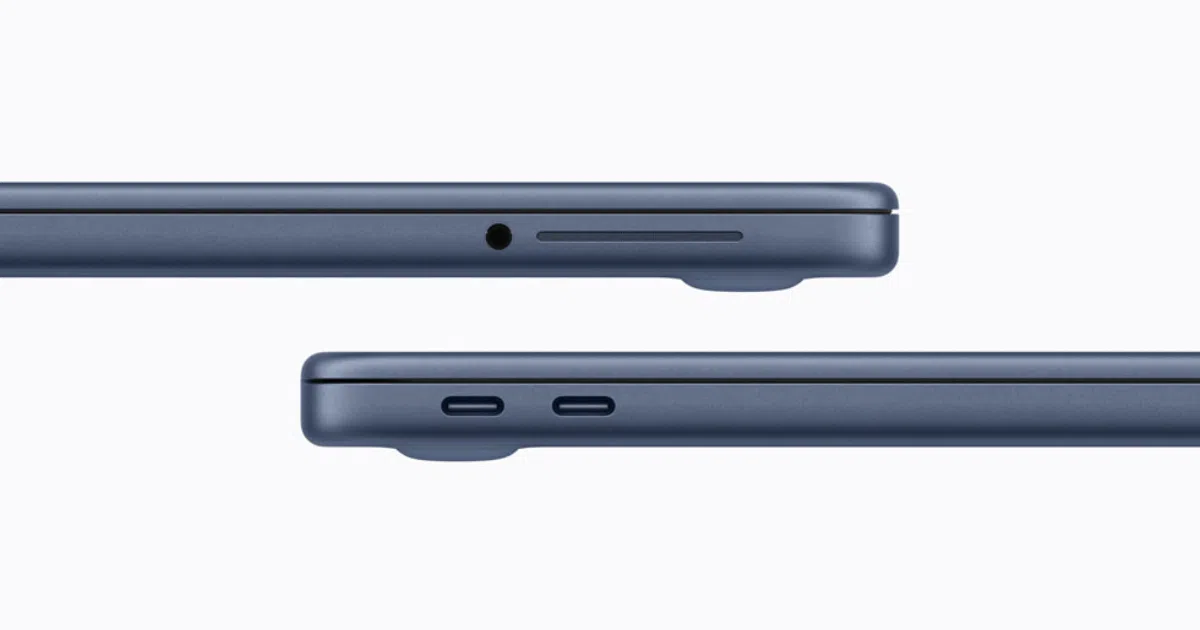

What’s Going Wrong When Your MacBook Stops Responding
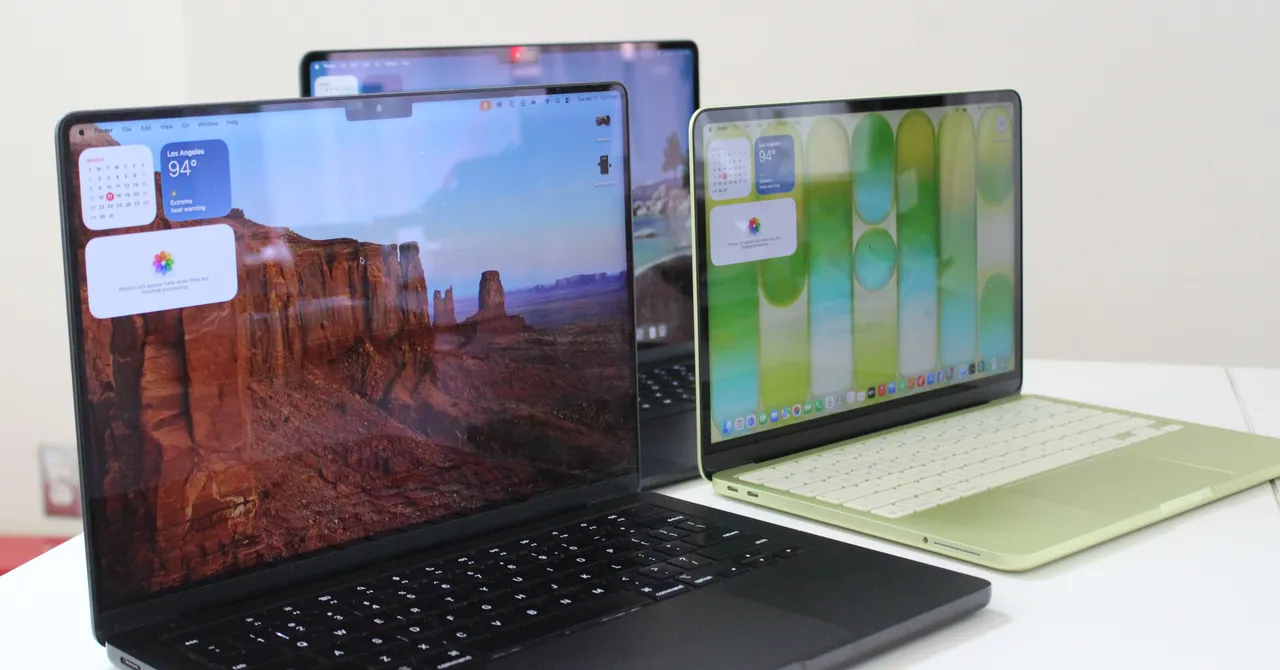
MacBook keyboard and trackpad problems are macOS input device issues where your built-in keys or trackpad, or external Magic Keyboard and Magic Trackpad, stop responding or behave unpredictably because of software glitches, power problems, Bluetooth disconnects, accessibility settings, or underlying hardware faults. When this happens, your productivity collapses: you cannot type, click, or even log in. The good news is that most causes of a MacBook keyboard not working or frozen trackpad can be checked and fixed with official Apple-backed troubleshooting steps at home before you ever need hardware repair. Many users also see keyboards, Bluetooth accessories, and USB peripherals disconnect or stop responding more often after installing macOS betas, which makes a clear process even more important.
Think of this guide as a calm walk-through from quick checks to deeper tests. You will start with basic restarts and power checks, then move into Apple keyboard troubleshooting settings, software isolation, and hardware diagnostics. The main prerequisite is simple: you need a few minutes, access to your Mac’s power adapter, and ideally a spare USB or Bluetooth keyboard or mouse so you can still control the Mac while the built-in parts misbehave. Start with the quick checks, then move into settings, software isolation, and hardware testing — that order keeps you from wasting time on advanced fixes when the problem is minor.
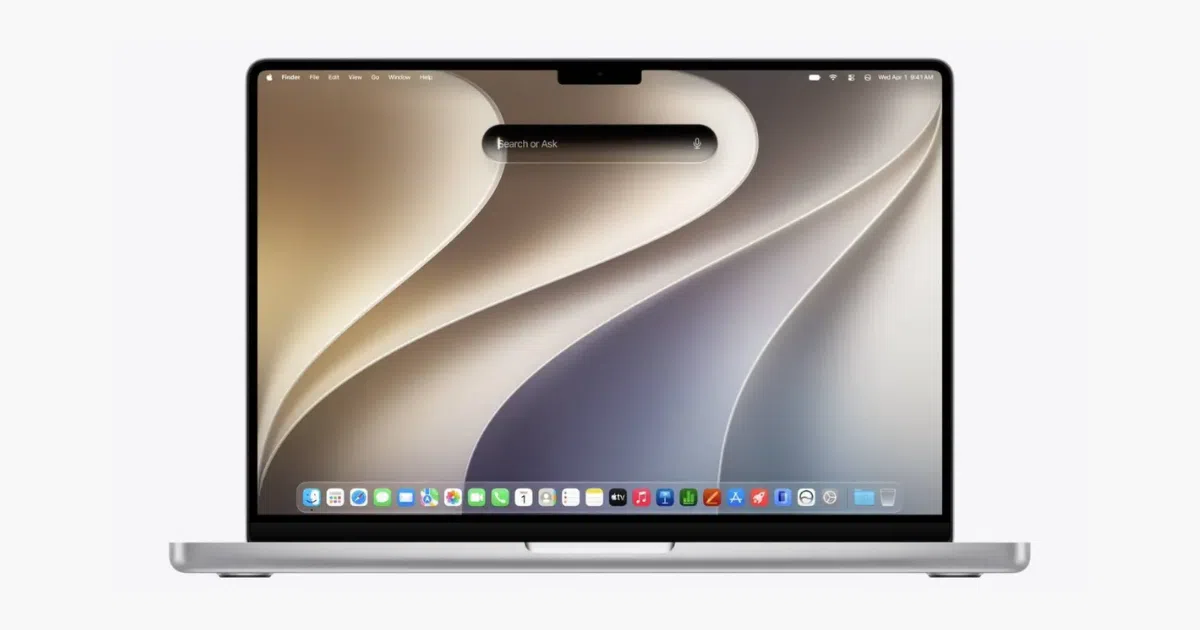
Step-by-Step Fixes: From Quick Checks to Hardware Tests
When both keyboard and trackpad freeze, you want one clean, ordered process instead of random guesses. Official guidance is to move from simple software resets through connection checks to diagnostics, because that sequence helps you separate software faults from hardware damage and saves you service trips. Before starting, plug in your MacBook so you are not chasing problems caused by low power, and keep a cable handy for any Magic Keyboard or Magic Trackpad.
- Restart the Mac: Open the Apple menu, choose Restart, and let macOS reload the input system. If the Mac is unresponsive, press and hold the power button (or Touch ID on Mac laptops) until it shuts down, then press the power button again to turn it back on.
- Check power and basic trackpad input: Connect your MacBook to an electrical outlet and use one finger on the trackpad to move the pointer. If you can, attach an external keyboard and check for any low-battery alert.
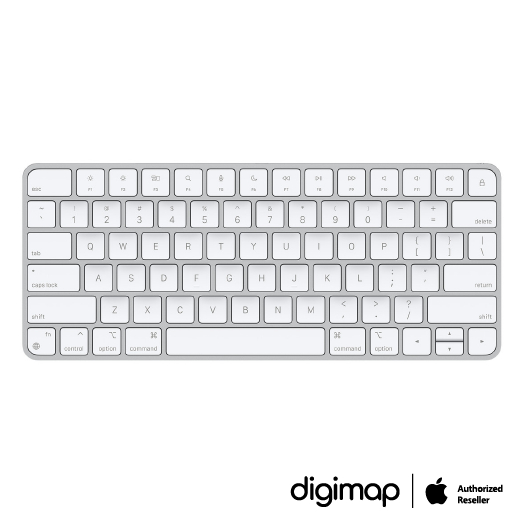
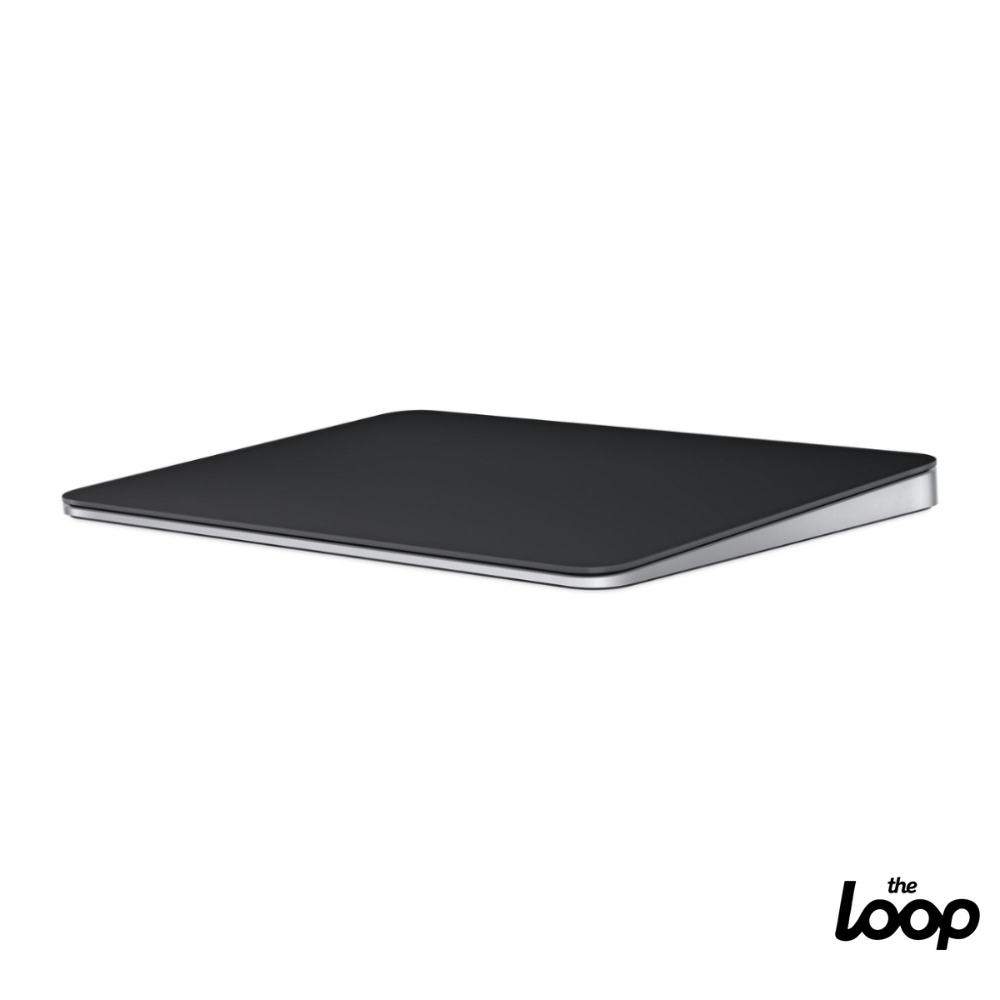
- Wake a Magic Keyboard or Magic Trackpad: Slide the switch on the back edge so no green is visible, then slide it back on so green is visible. Connect the accessory to the Mac with a Lightning to USB, USB‑C to Lightning, or USB‑C to USB‑C cable, wait one minute, then disconnect it and check the charge level from Control Center > Bluetooth.
- Reconnect Bluetooth devices: Turn Bluetooth on from System Settings or Control Center, or via keyboard-only input using Command–Space, then Bluetooth File Exchange. Make sure the device is on and discoverable, click Connect, and if a saved device keeps failing, Control‑click its name, choose Forget, and pair it again.
- Turn off accessibility blockers: In System Settings, disable Slow Keys under Accessibility > Keyboard and Mouse Keys under Accessibility > Pointer Control so keystrokes and pointer input register normally.
- Update macOS and apps, then test in safe mode: Install the latest macOS update so you have the newest input fixes compatible with your Mac model and update your apps. If input works in safe mode, remove startup software that interferes with the keyboard or trackpad.
- Run Apple Diagnostics: When the problem continues after all checks above, run Apple Diagnostics to test for hardware issues with the built-in keyboard or trackpad.
- Arrange service if needed: If the keyboard or trackpad still fails after diagnostics, arrange Apple service or an Apple Authorized Service Provider repair. Before you go, back up your Mac, turn off Find My Mac when you have access to that setting, and bring the power cable and any affected accessories.
The gotcha here is Bluetooth resets: older advice mentioned a hidden Bluetooth Debug menu, but current guidance says you should not reset the Bluetooth module this way on modern macOS, because that option is no longer part of macOS Monterey and later. Stick to the documented Mac trackpad fixes above, especially power cycling and reconnecting accessories.

How to Tell Software Glitches from Hardware Trouble
Once you have gone through the main steps, you need to decide whether you are dealing with a one‑off software freeze or a failing keyboard and trackpad. Your Mac keyboard and touchpad can stop responding because of a frozen Mac, low power, wireless accessories that lost their connection, accessibility settings, or hardware faults, and handling each category correctly saves time and money. According to official guidance, you should "start with a restart, power check, Bluetooth reconnect, accessibility settings, connected devices, macOS updates, and Apple Diagnostics" for input failures that happen together.
Here is the rule of thumb: if your MacBook keyboard not working or trackpad failure disappears after a restart, updates, and safe mode testing, the problem was almost certainly software. If input works fine in safe mode but fails again normally, some third‑party startup or extension is interfering and needs to be removed. On the other hand, if the built‑in trackpad refuses to move the pointer even with power connected, Bluetooth accessories never stay paired despite reconnect efforts, and Apple Diagnostics shows errors, you are in hardware territory. That is when arranging service is the right move, because continuing to reinstall macOS or change settings will not fix a failing component.
For newer MacBooks with butterfly‑style keys, official guidance also mentions compressed air as the correct way to clean stuck keys when certain keys feel different or do not respond, especially on MacBook 2015 and later or MacBook Pro 2016 and later. That kind of targeted keyboard cleaning is another clue: if a single key is faulty, hardware wear is more likely than full-system macOS input device issues.
When macOS Betas and External Devices Make Things Worse
If you are running a macOS public beta, it is normal to see more input quirks than on a stable release. Beta builds can introduce bugs where Bluetooth accessories and USB peripherals occasionally disconnect or stop responding after installation, so your Mac keyboard and trackpad might behave while the system is fresh and then freeze under load later. That makes a structured, Apple keyboard troubleshooting routine even more important: restart, reconnect, check accessibility settings, update the beta, and only then move on to diagnostics.
External Magic Trackpads and Magic Keyboards follow the same pattern but add one extra failure mode: power. Earlier Apple Wireless Keyboard and Magic Trackpad models use replaceable batteries that need swapping when input goes dead, while newer rechargeable accessories depend on proper charging and power cycling. A common Mac trackpad fix for these devices is to slide the power switch off and on, cable-connect them for about a minute, then disconnect and confirm their charge level in Bluetooth settings. If they behave in beta but fail only on one Mac, you are probably looking at local software or Bluetooth issues; if they fail across Macs or in diagnostics, suspect hardware instead.
Is All This Effort Worth It?
Working through these steps is worth it because most Mac trackpad fixes and keyboard recoveries can be done without visiting an Apple Store, using built‑in tools and documented settings. You avoid unnecessary repairs and get a clearer picture of whether you are facing a quick macOS input device issue or a deeper hardware fault. The key is to move in order: quick checks, settings, software isolation, and hardware testing, then service only if everything still fails.
Watch for recurring patterns. If the MacBook keyboard not working problem or frozen trackpad keeps coming back after every restart, even on a stable macOS and away from beta builds, do not keep fighting the same symptoms. At that point, safe mode behavior and Apple Diagnostics results are your best guide for whether you can keep troubleshooting at home or should arrange repair. With a methodical approach, you will either restore smooth typing and scrolling yourself or walk into service knowing you have already covered all Apple-documented fixes.